

HOA Meetings
Domee.app ensures that all important information about upcoming meetings is always at your fingertips. No more checking notice boards in the hallway — everything you need is on your phone.
1. How You're Notified About a New Meeting
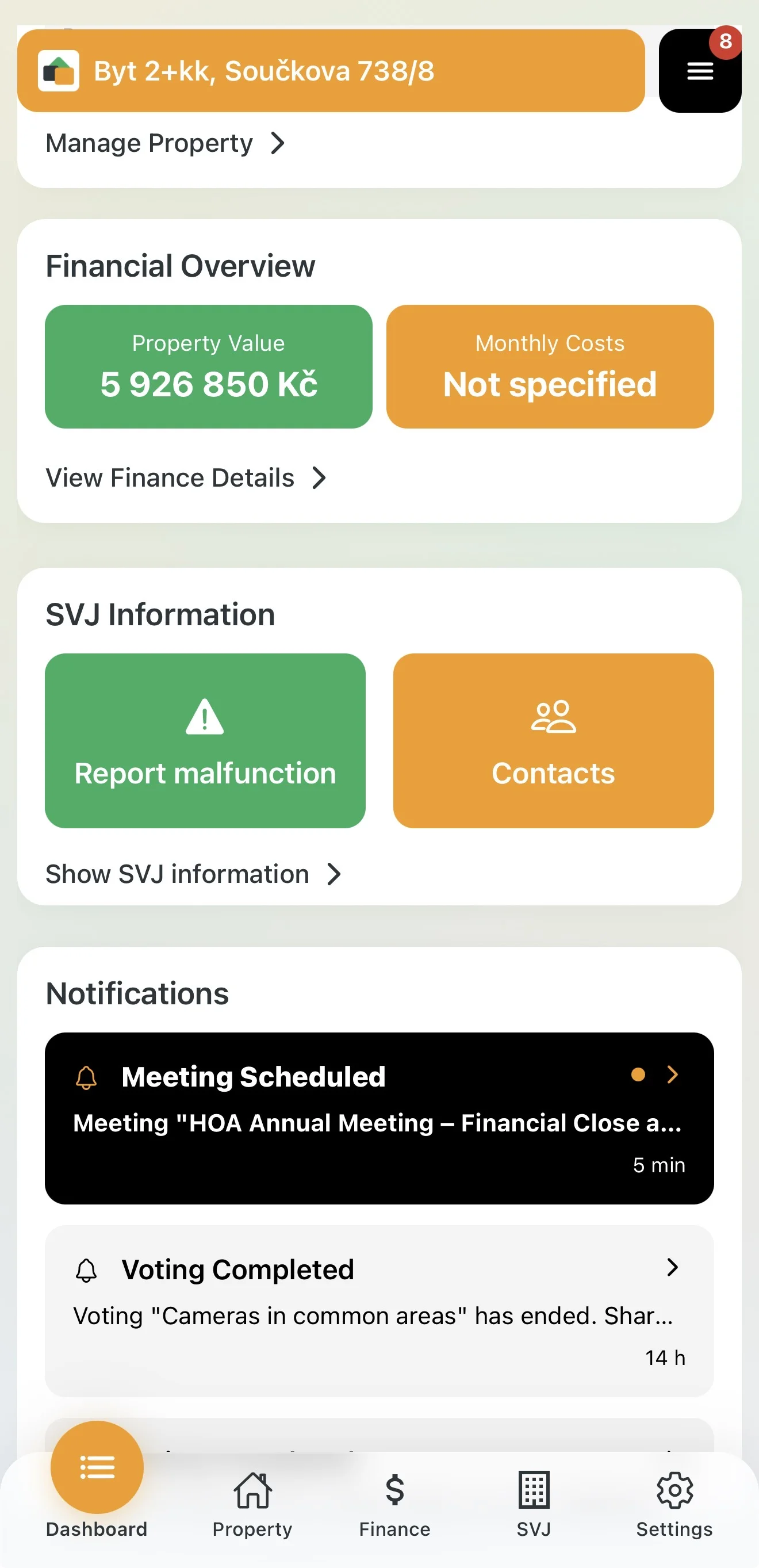
As soon as the HOA board schedules and publishes a new meeting, the app notifies you immediately:
- Notification: A push notification about the planned meeting arrives on your phone.
- Dashboard: In the Notifications section on the home screen you'll see a "Meeting scheduled" entry. Tap it to go directly to the meeting detail.
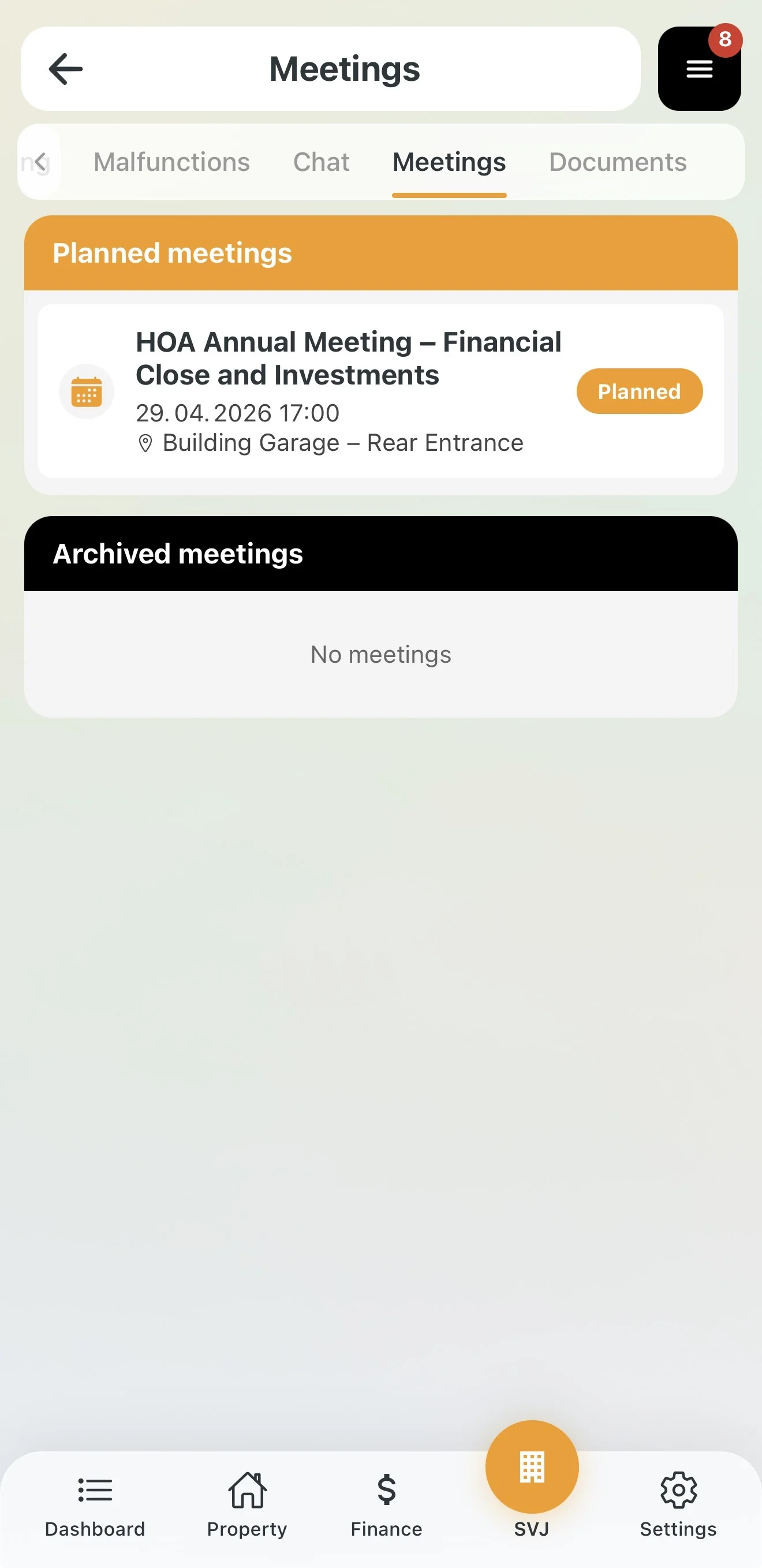
- HOA Module: You can also access the information via the HOA bottom menu under the Meetings tab.
2. Preparing for the Meeting
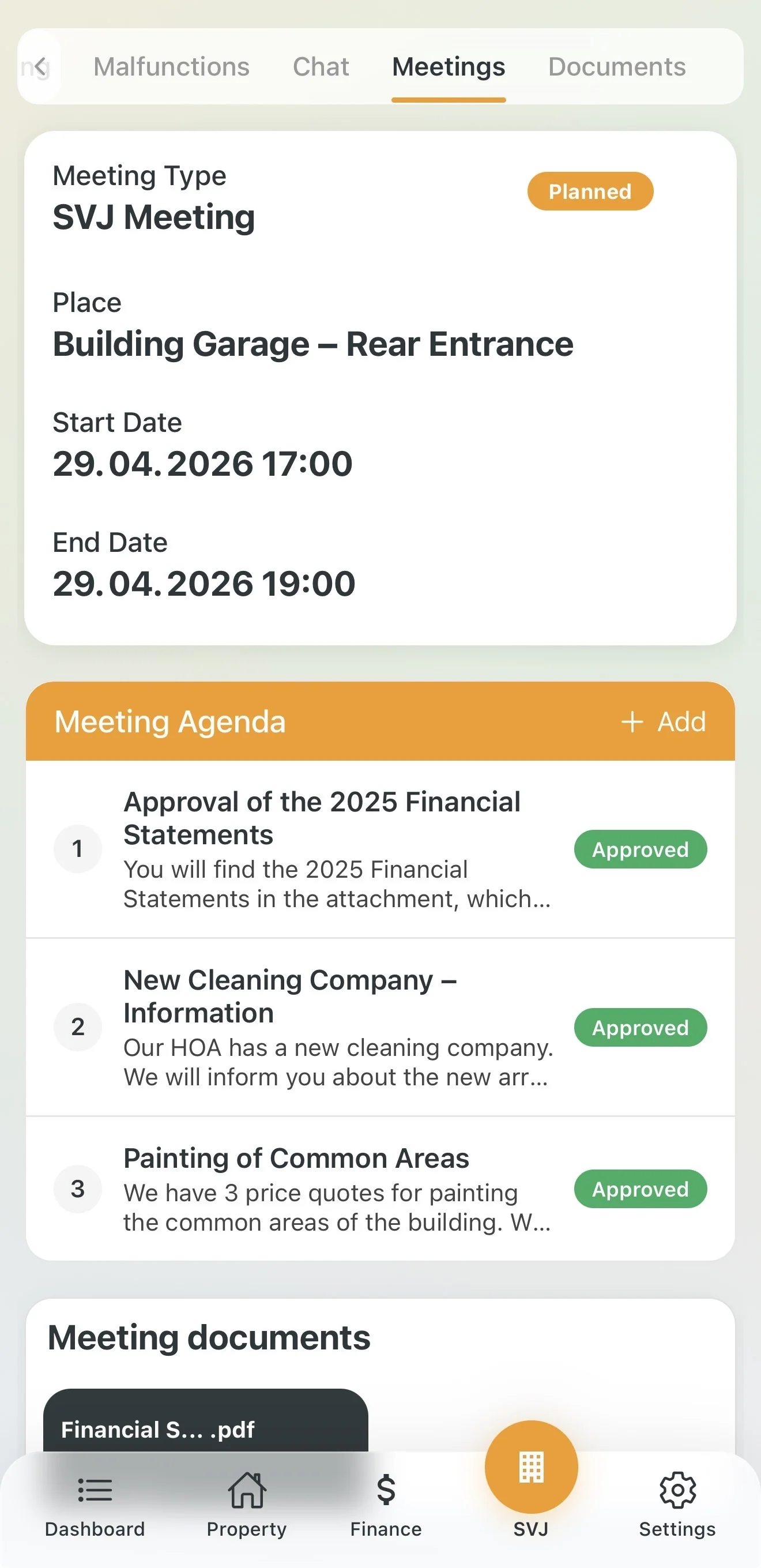
In the meeting detail you can see everything you need:
- Date and location: When and where the meeting takes place.
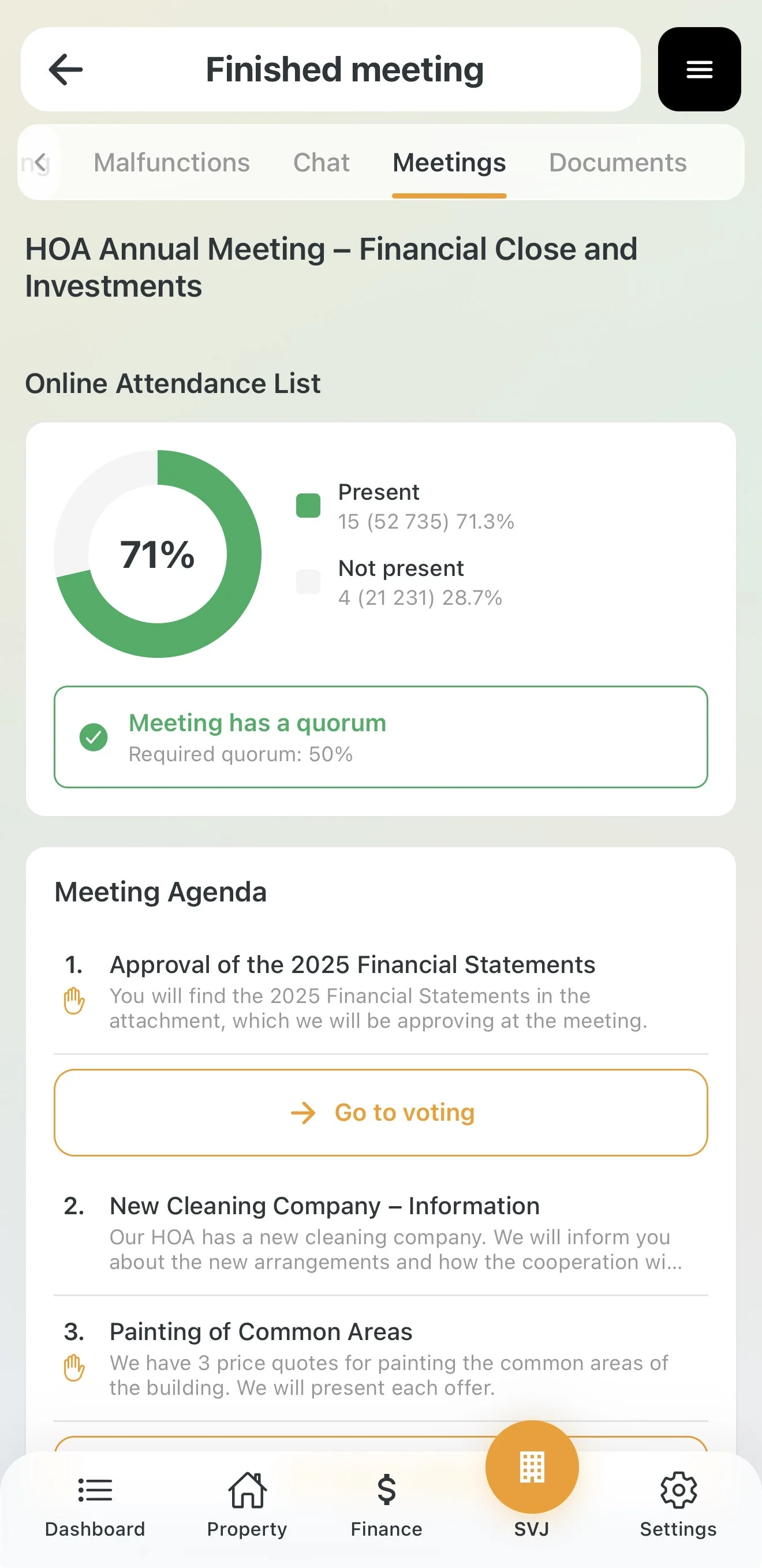
- Agenda: A list of topics to be discussed. For approved items you can read details and view attachments.
- Documents: In the "Meeting Documents" section you'll find general materials such as invitations, financial statements or price quotes.
How to Propose an Agenda Item
If the HOA board has enabled this option, you can propose a topic yourself:
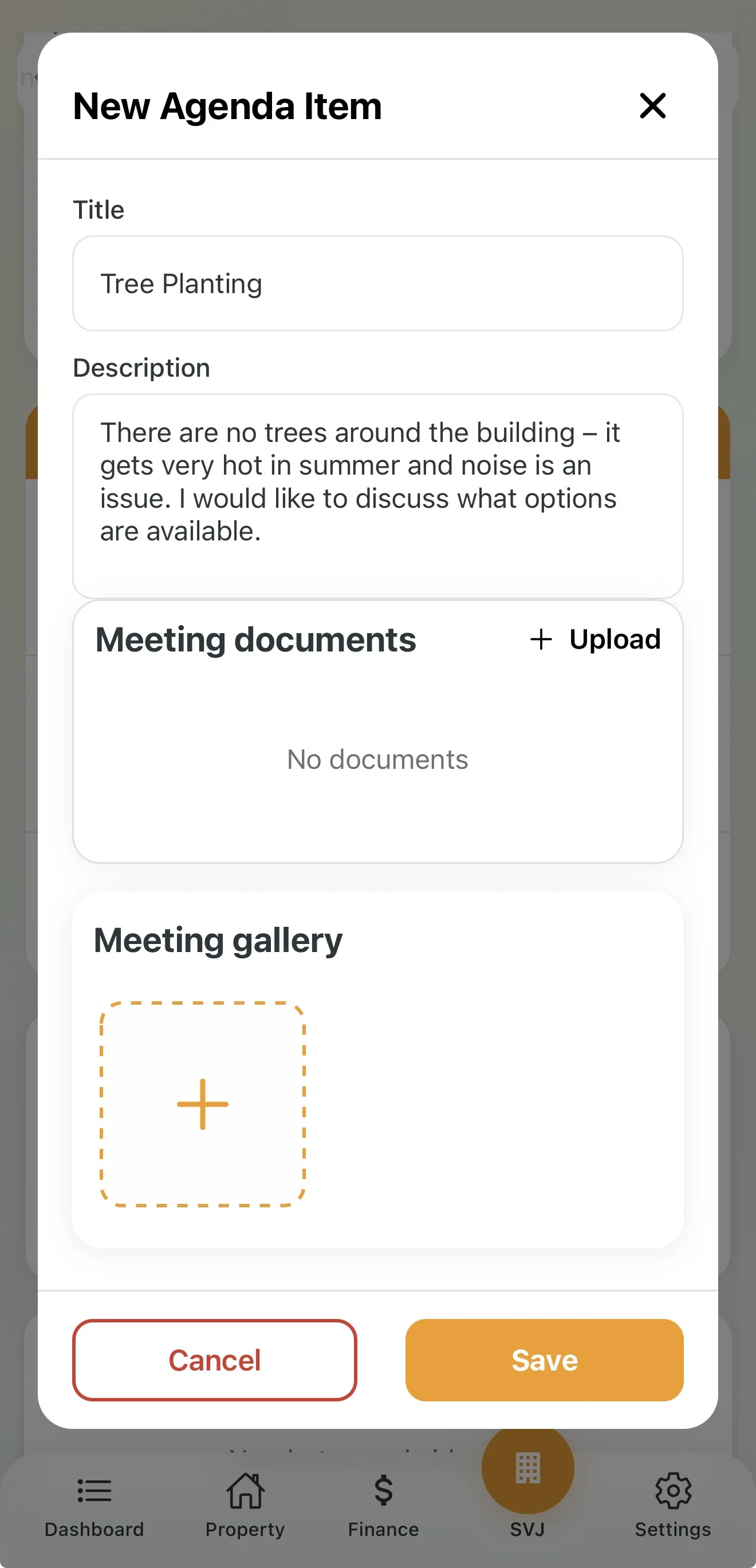
- In the Agenda section, tap the + Add button.
- Fill in the Title, Description and optional Attachments.
- Tap Save.
Your item will appear with the status Proposed. The HOA board will review it and may approve or reject it.
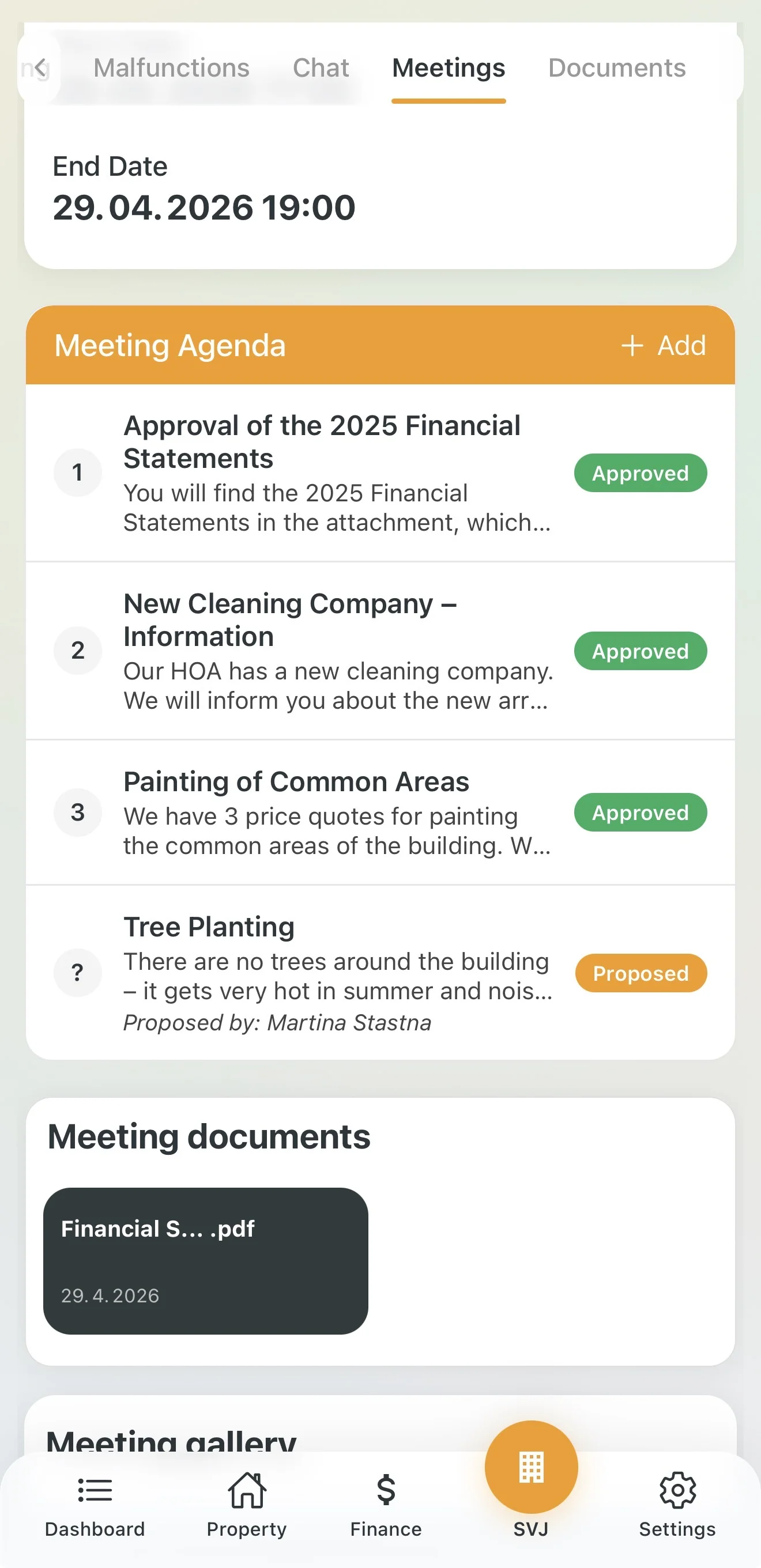
Tip: Propose items well in advance so the board has time to approve them and other residents can review your materials before the meeting.
3. Digital Check-In at the Meeting
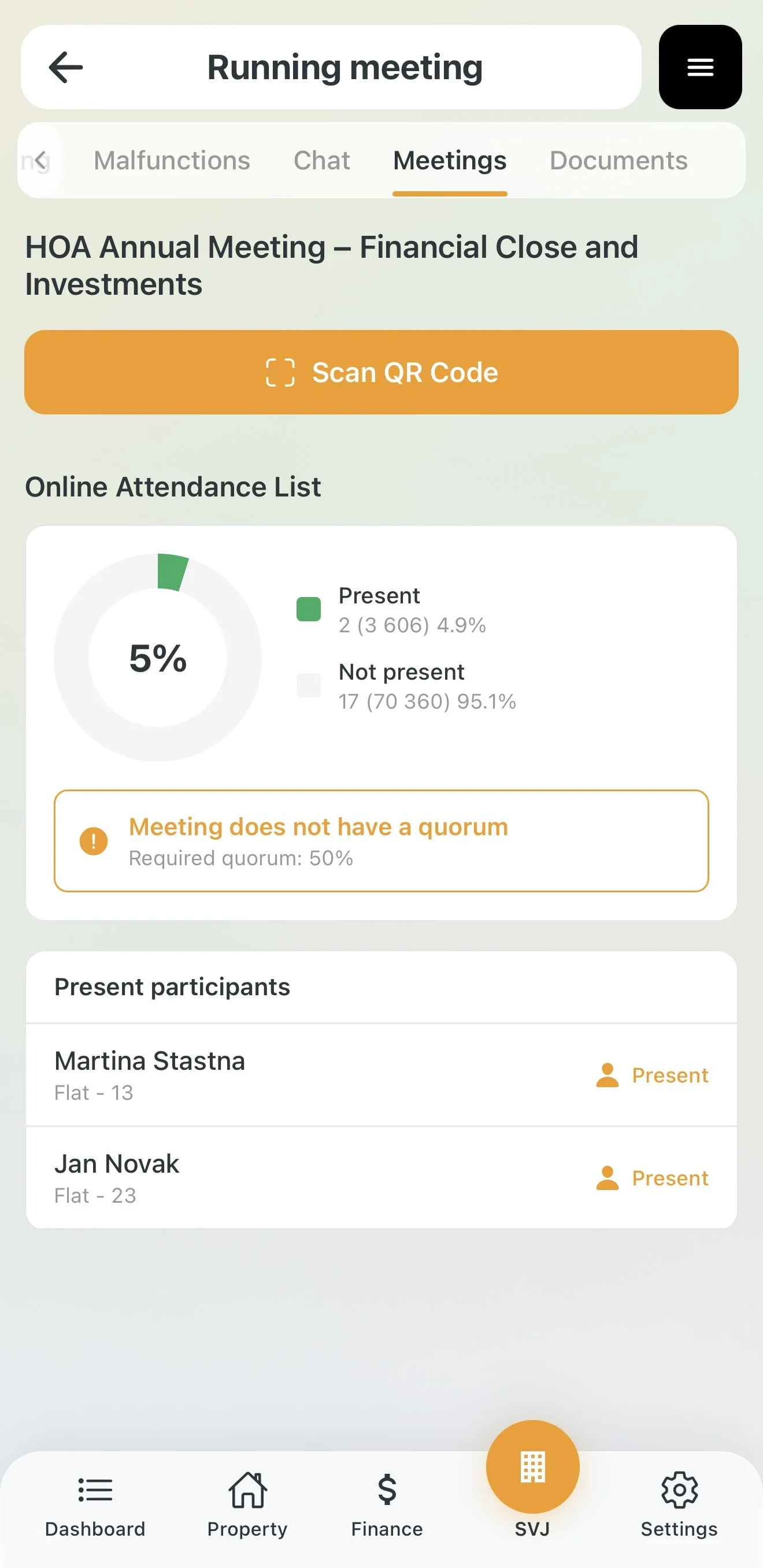
With Domee.app you no longer need to fill out paper attendance sheets. The entire process takes a few seconds directly from your phone.
- At the entrance you will find a printed QR code for check-in.
- In the meeting detail, tap Scan QR Code.
- After scanning, the Confirm attendance window opens — check your units.
- If you are representing a neighbour under a power of attorney, tap + Add represented unit and photograph or upload the power of attorney.
- Tap the Confirm attendance button.
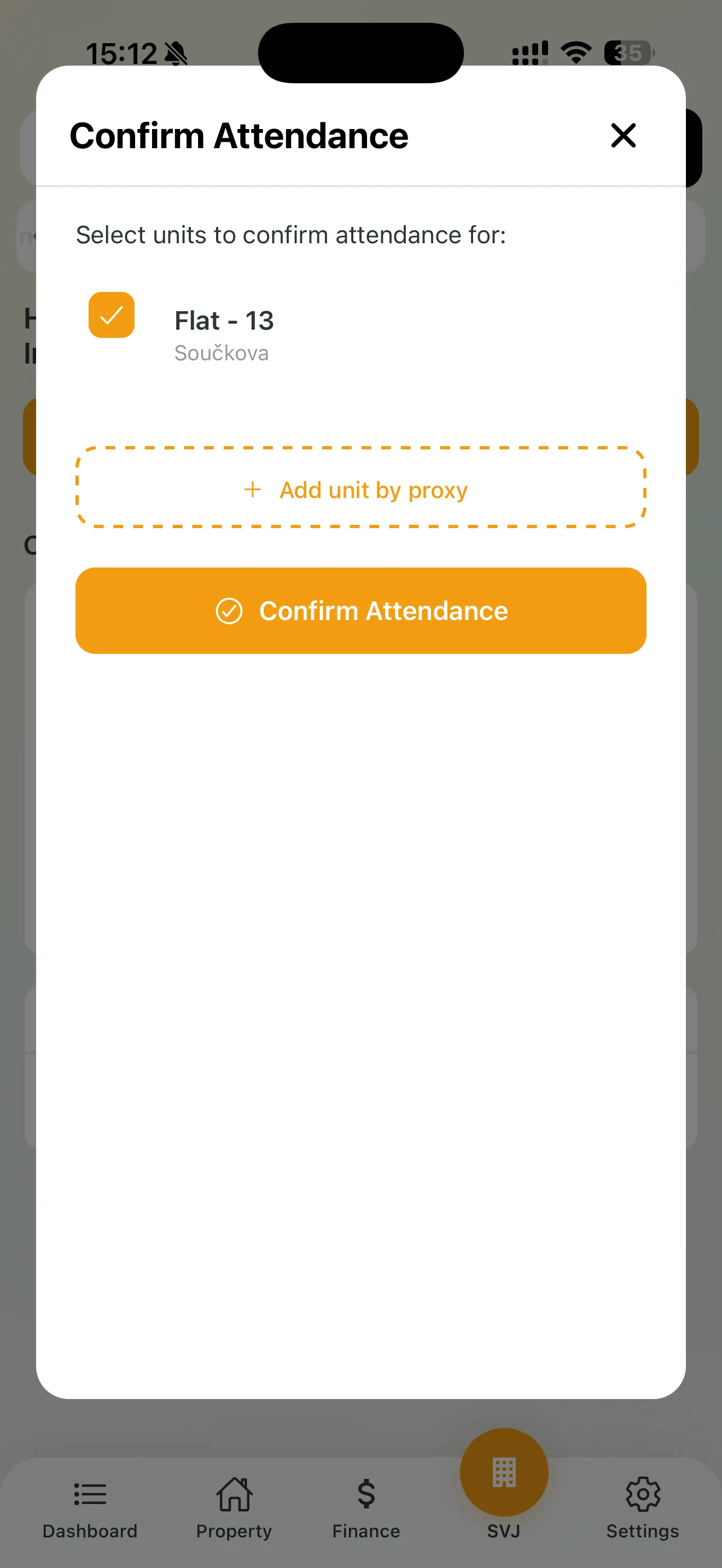
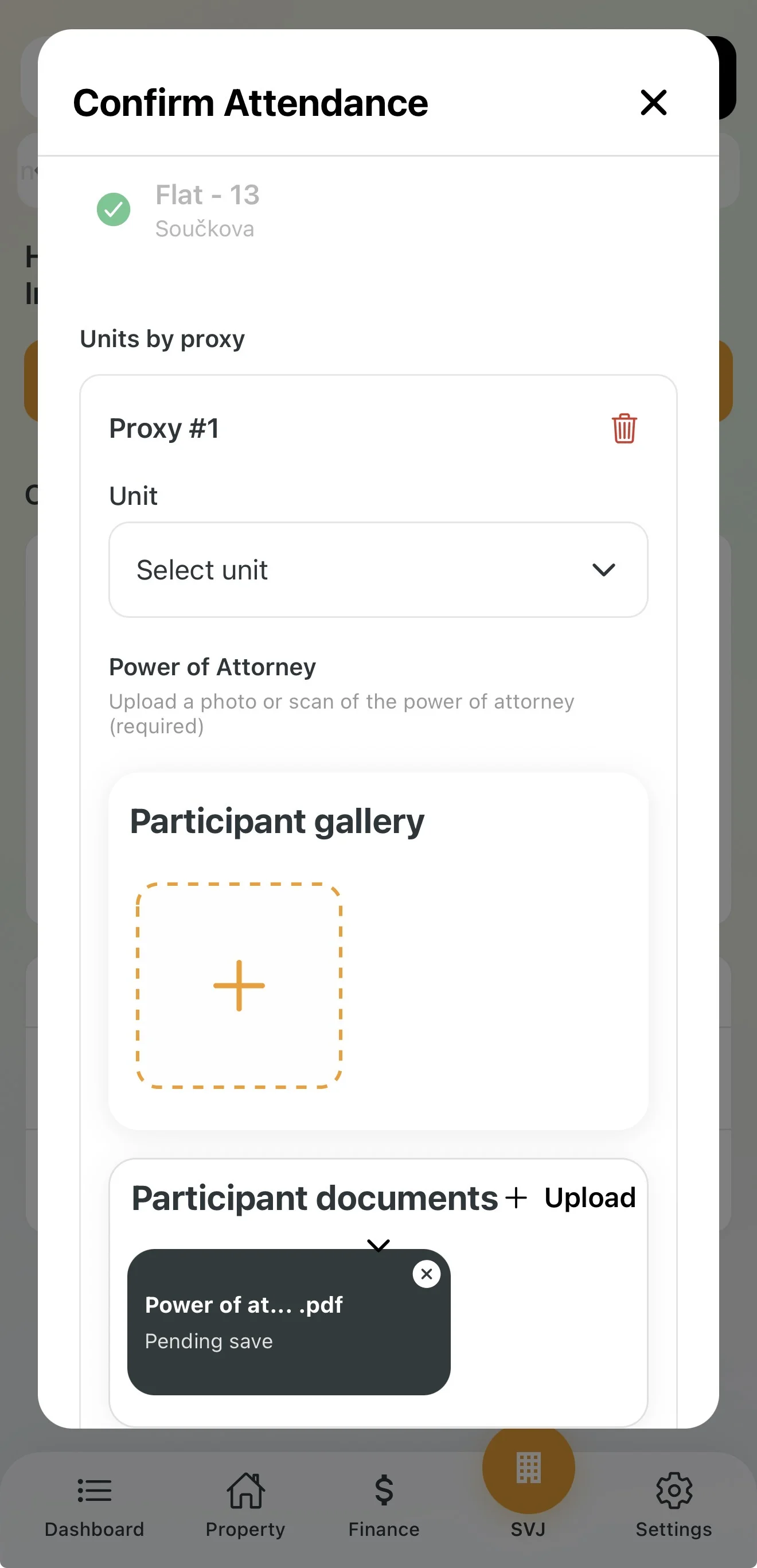
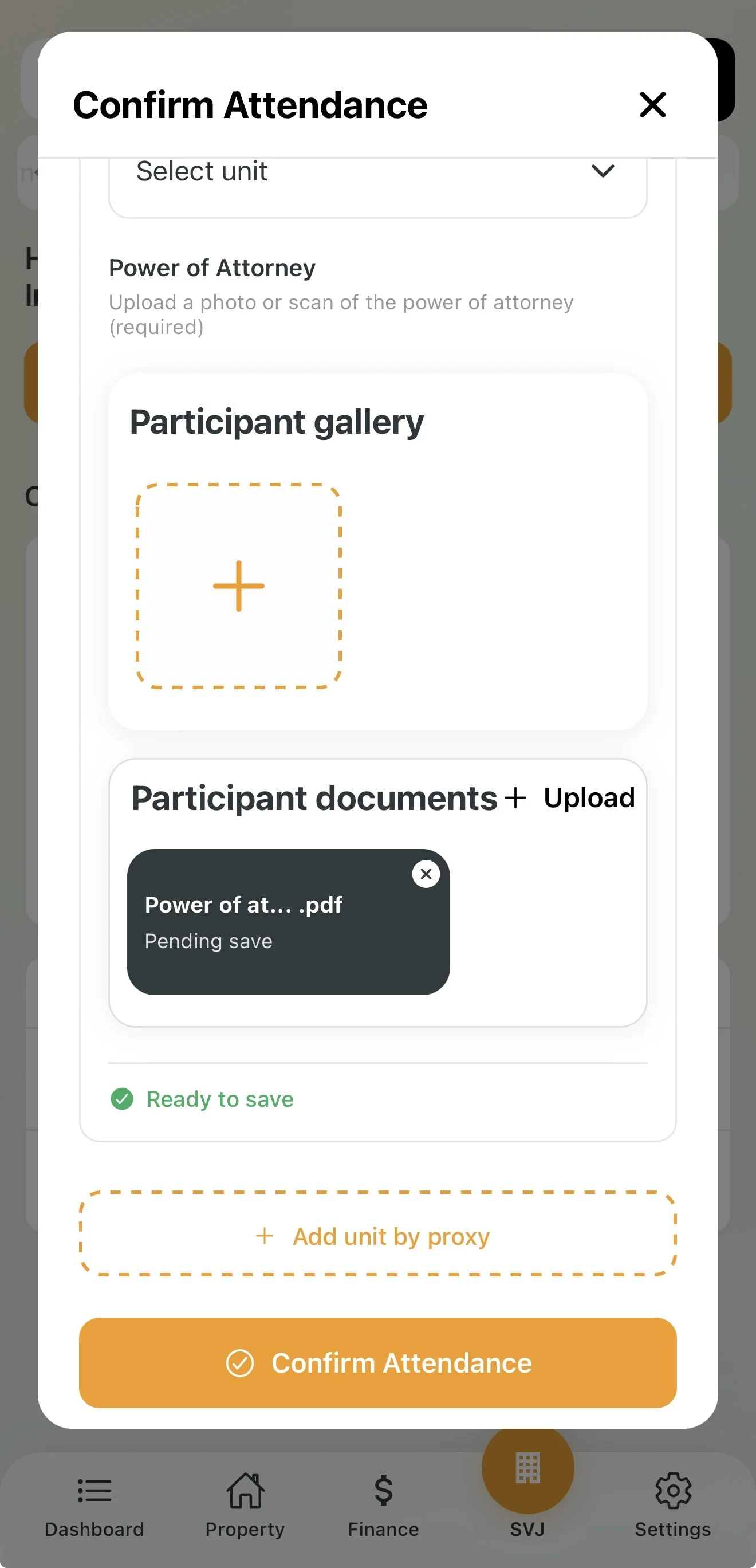
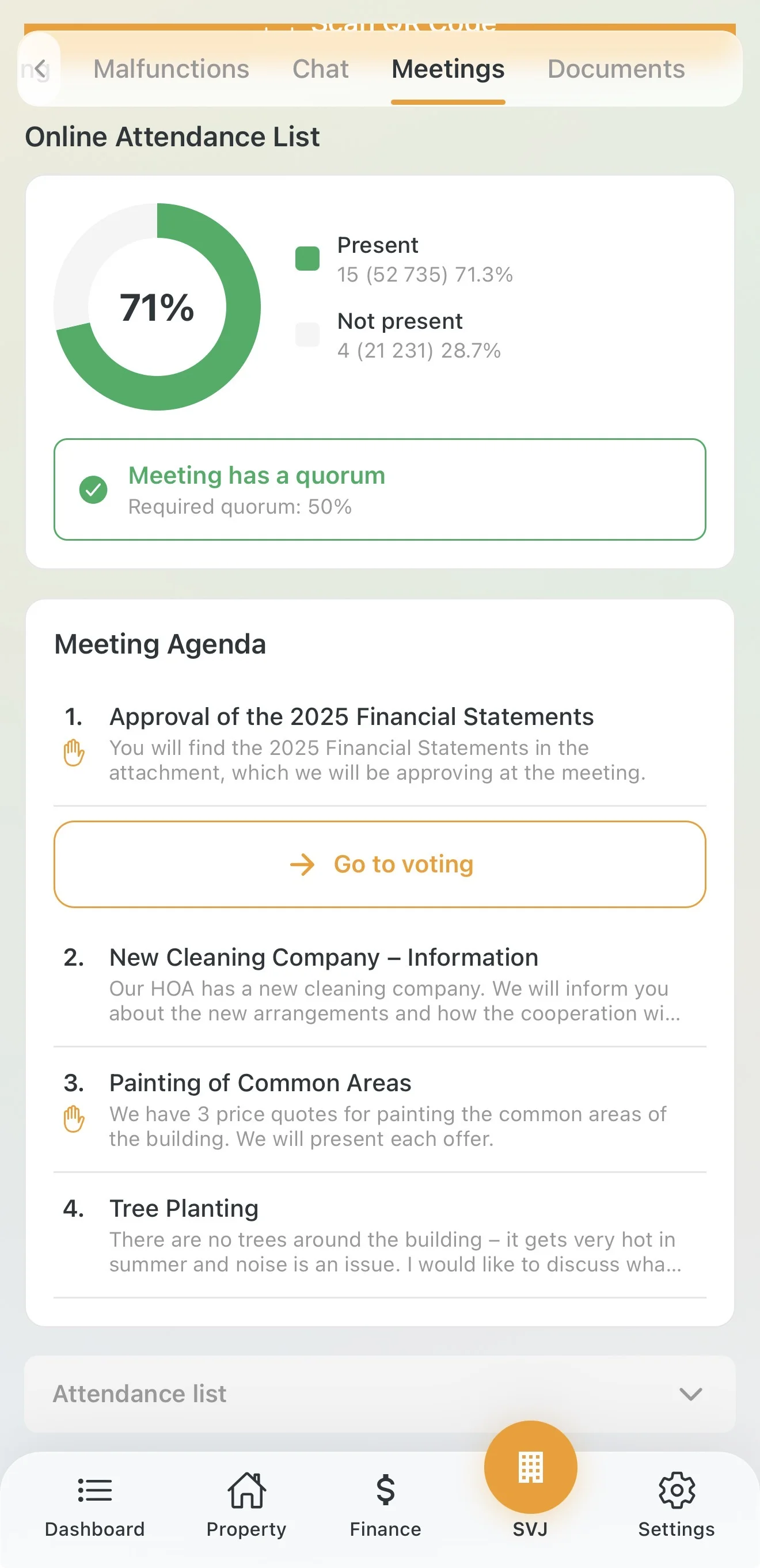
After confirming you can see a pie chart in the meeting detail showing the percentage of present votes. Once the meeting reaches the required quorum, the status changes to Quorum reached.
4. Voting on Agenda Items
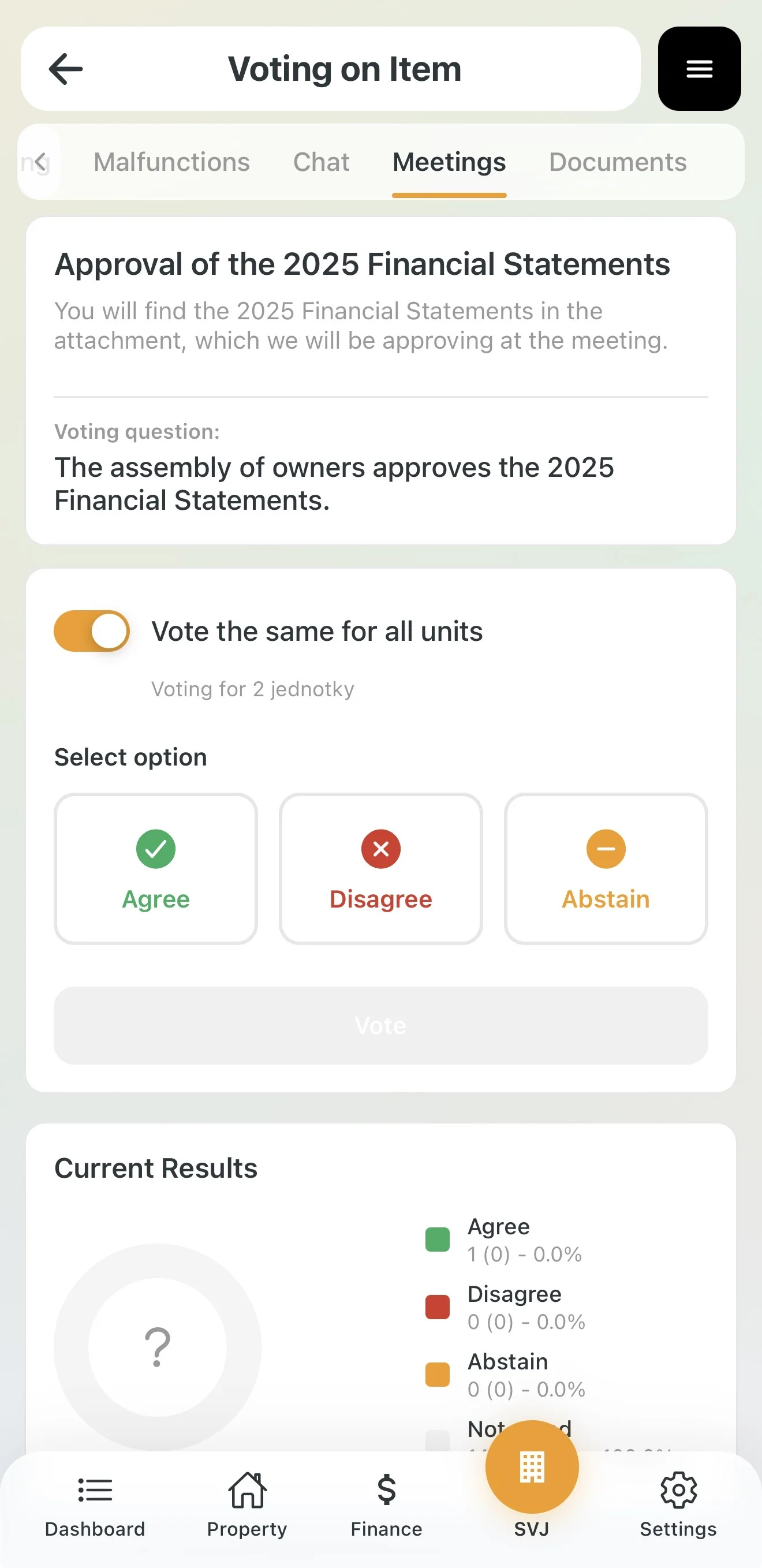
Domee.app lets you vote on agenda items directly during the meeting from your phone.
- Once the chairperson starts a vote, an orange Go to voting button appears in the app.
- If you own multiple units, choose whether to vote the same way for all or individually per unit.
- Tap one of the three options: Agree, Disagree or Abstain.
- Confirm by tapping Vote.
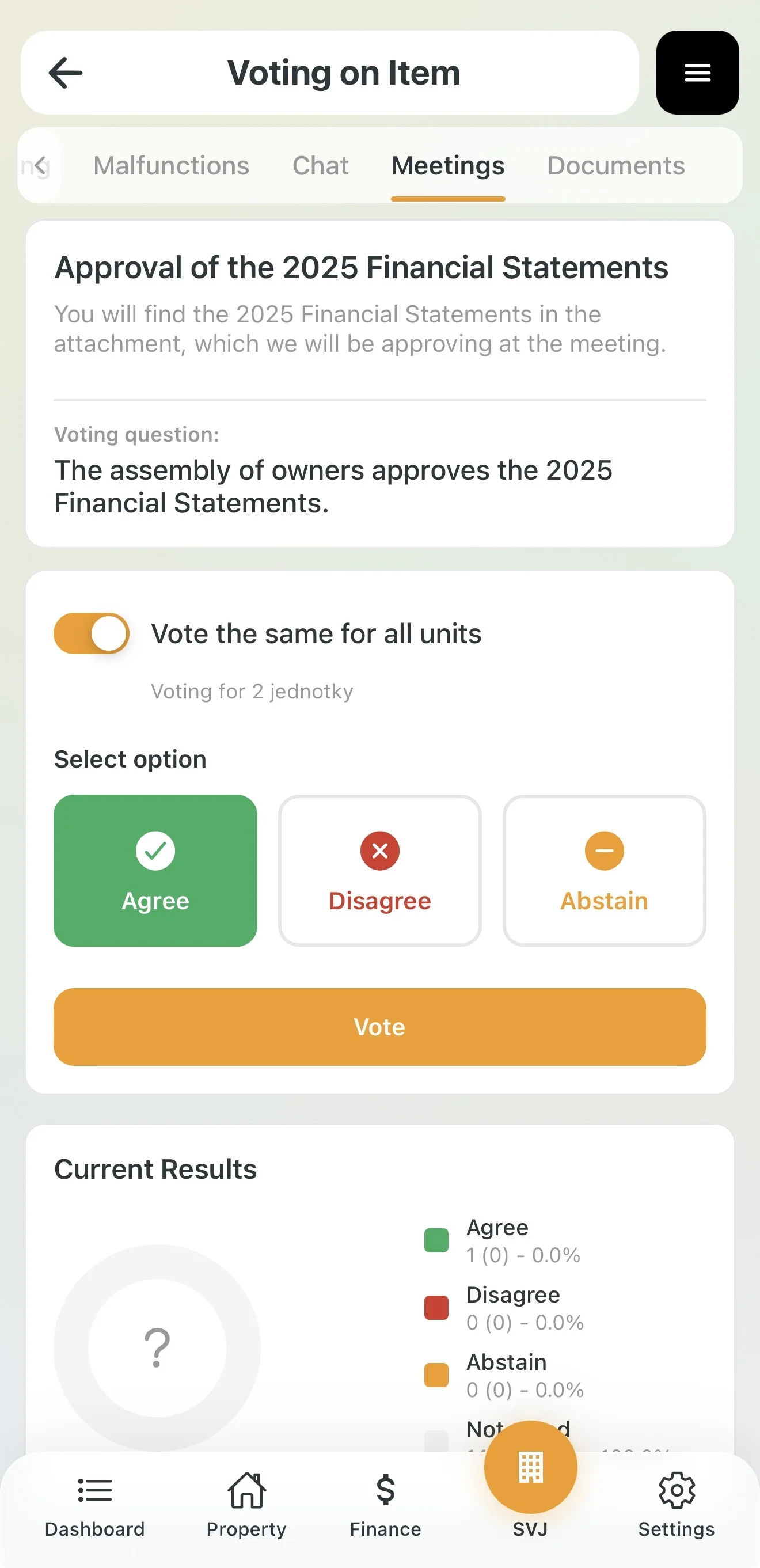
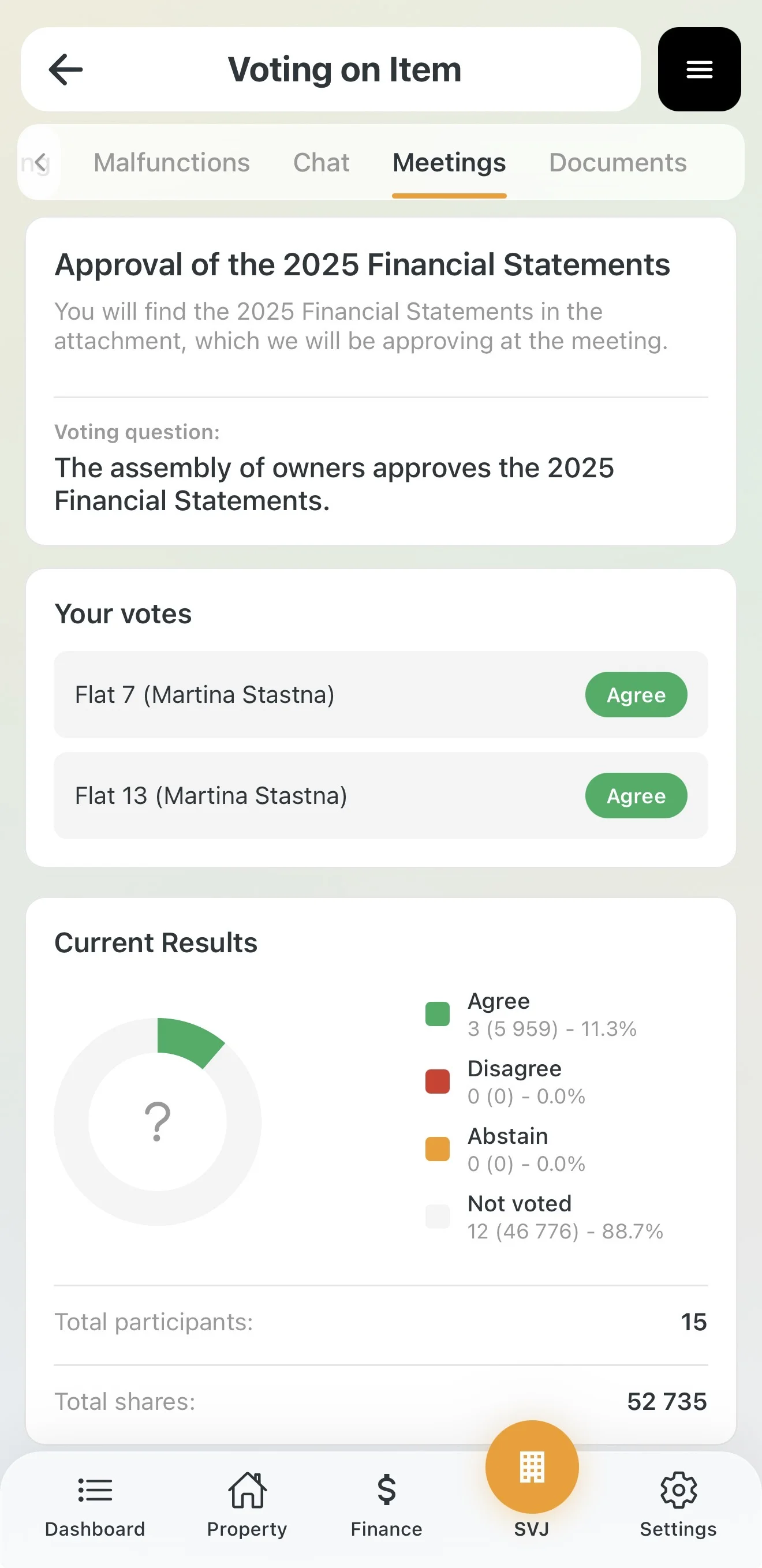
Important: Once you submit your vote and the board closes the item, your choice cannot be changed. If you forget to vote, the system automatically counts you as "Abstained".
5. Meeting Archive and Voting Results
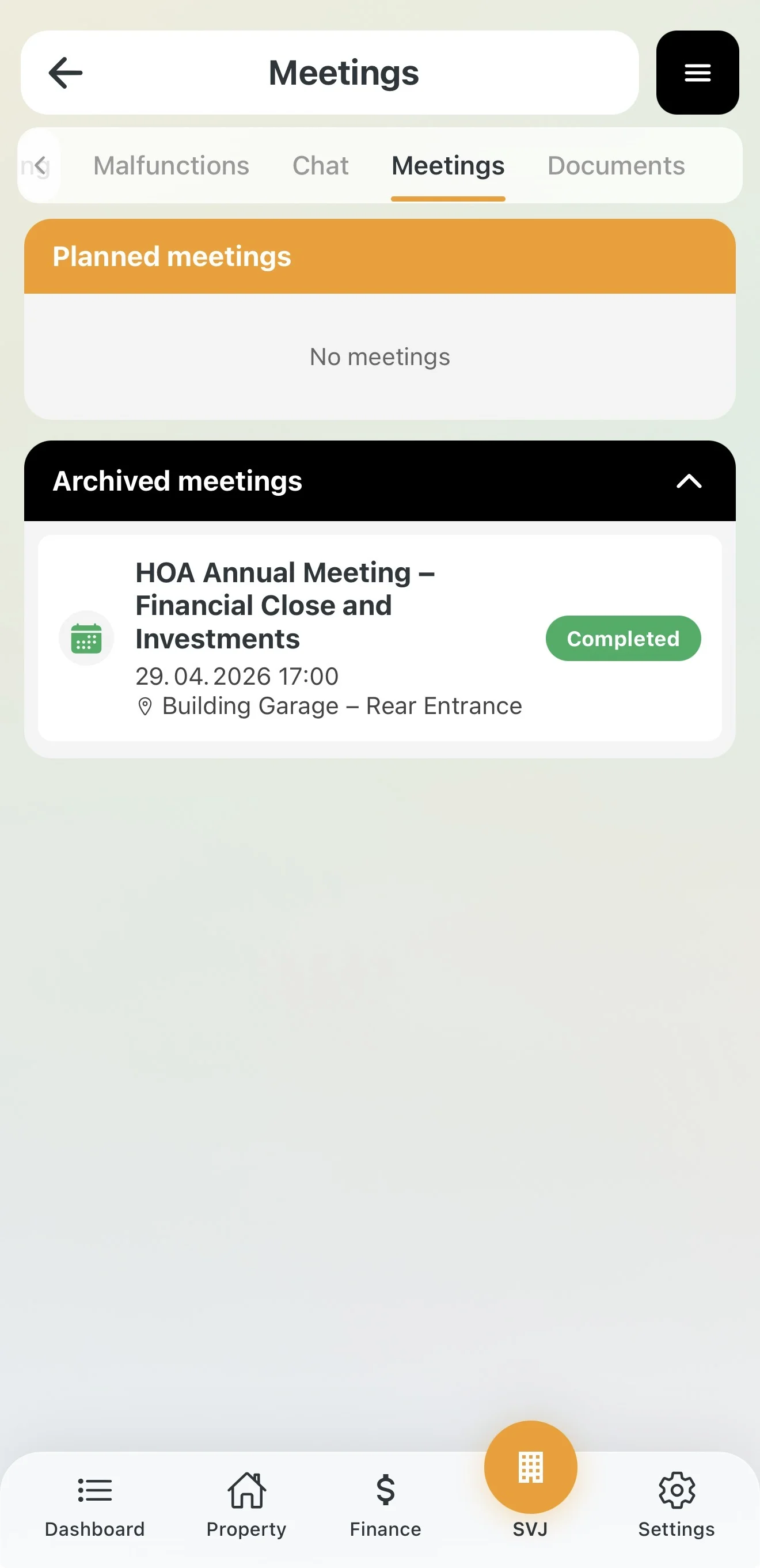
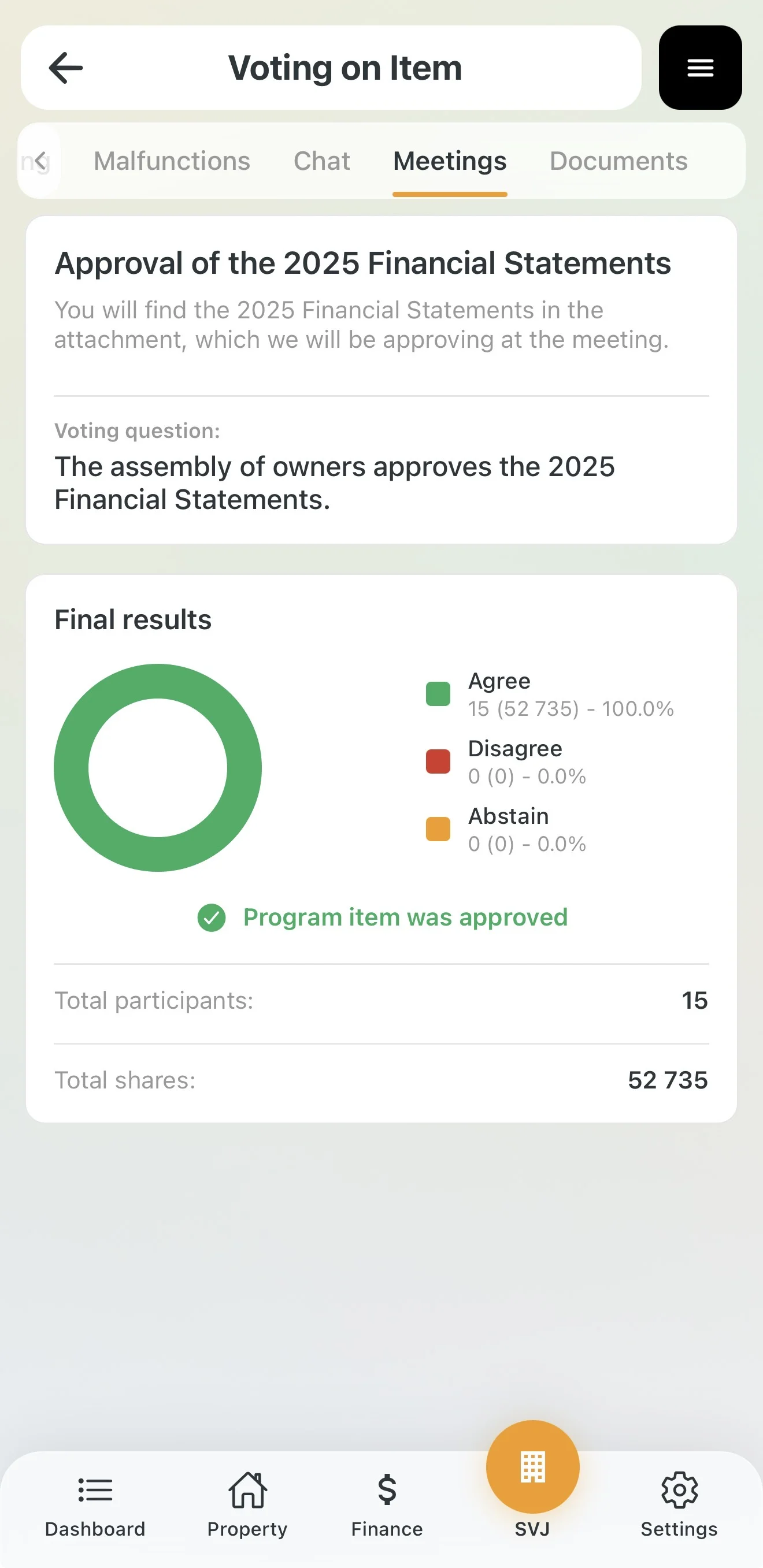
Once the chairperson closes the meeting, all data is saved to the archive. As an owner you can access it at any time.
- Go to the HOA module → Meetings tab.
- Scroll down to Archived Meetings.
- Tap a meeting (marked with a green Completed badge) to open its detail.
Privacy Protection
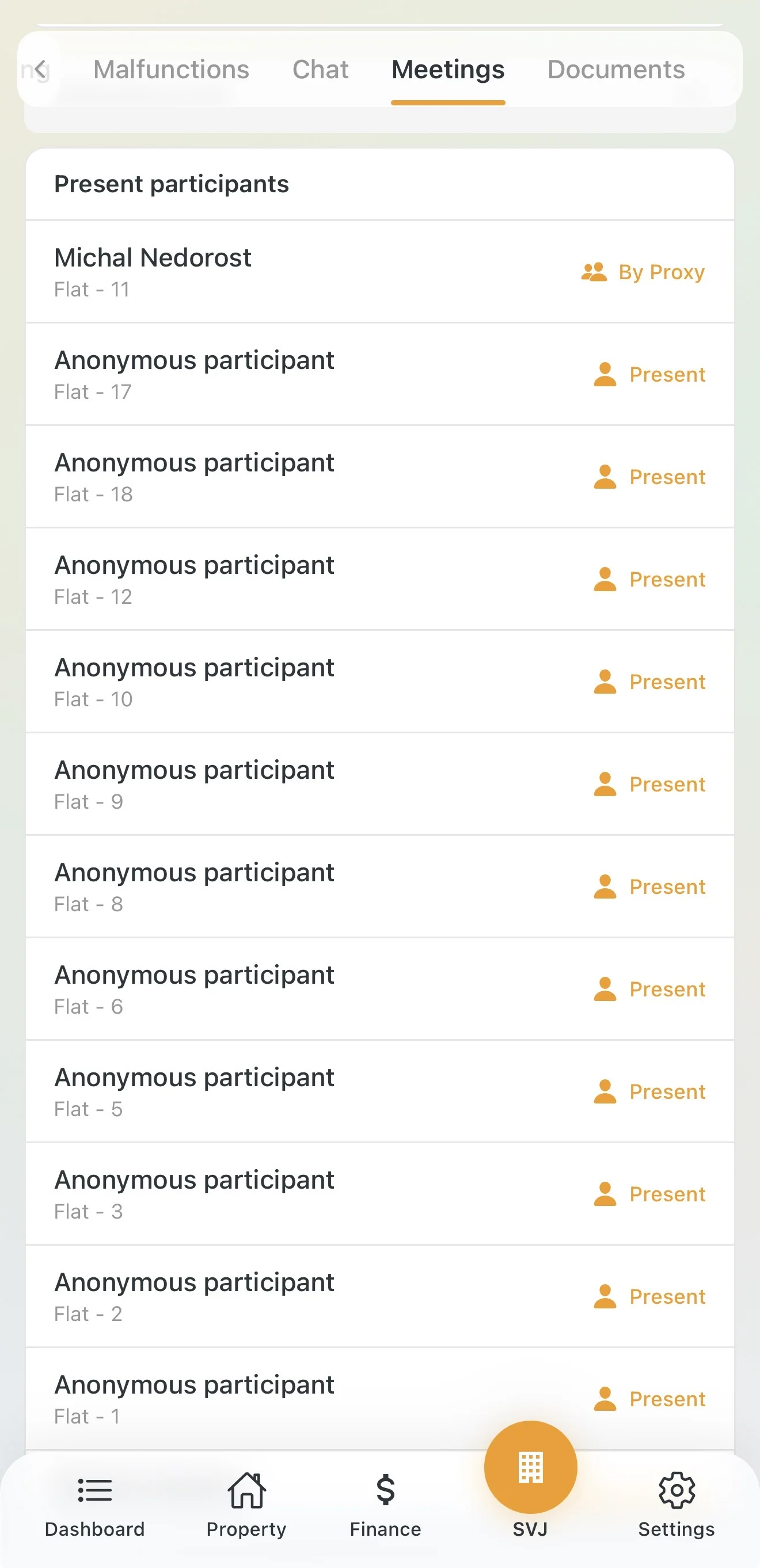
Domee.app protects the privacy of all owners in accordance with GDPR. In the attendance overview you will see "Anonymous participant" for other units — your own name is shown only for your own units.
Tip: If you cannot attend the meeting, check the archive the next day — you'll immediately see what investments or changes were approved.