

My Property – Apartment & Household Management
Once your property is set up, Domee.app becomes your digital filing cabinet. No more searching for paper warranty cards or inspection dates — everything is in one place.
Continues from: Onboarding – Profile Setup — if you haven't set up your profile and property yet, start there.
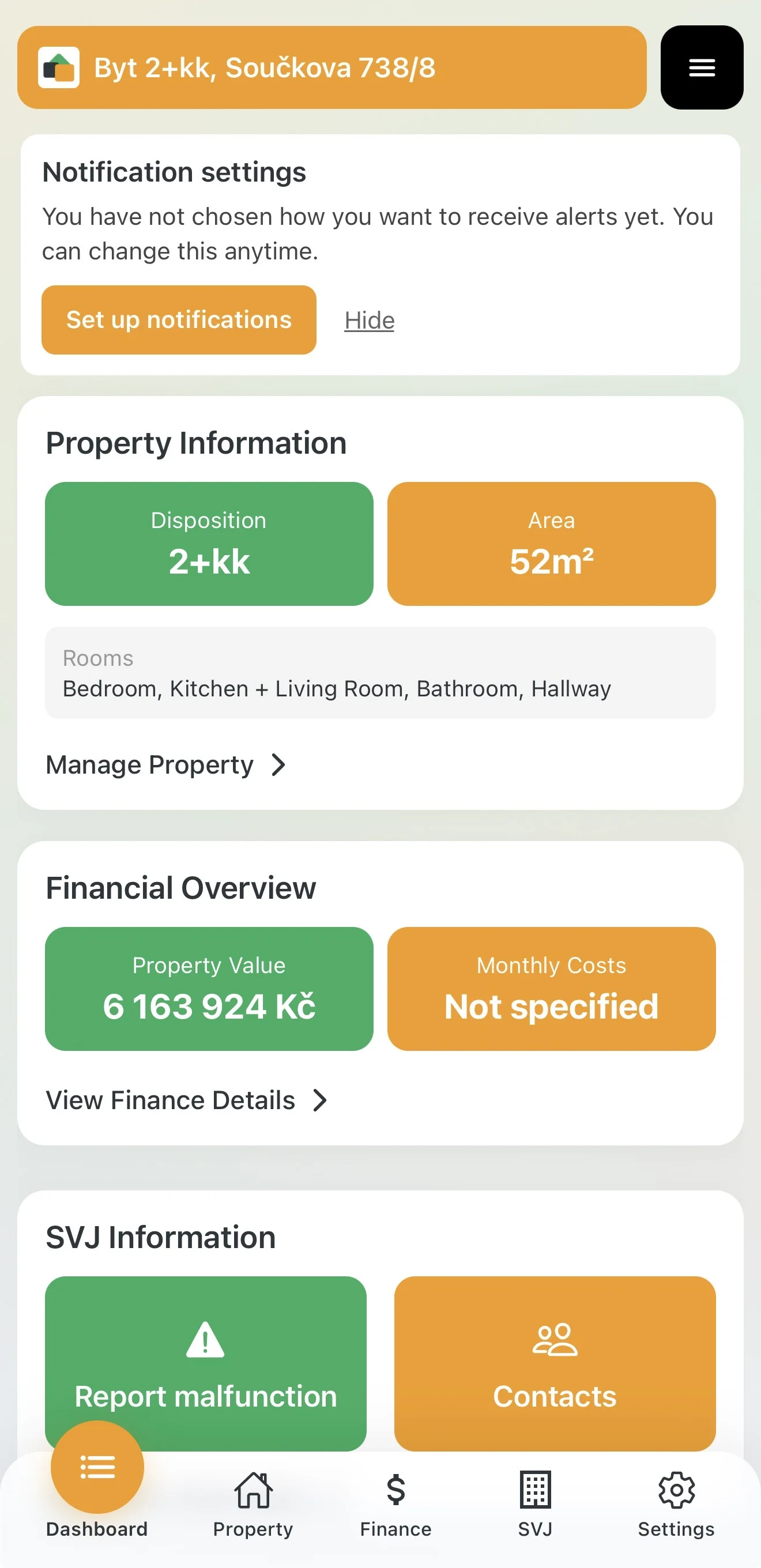
1. Setting Up Notifications
After confirming your email, the app will prompt you to set up notifications. We recommend activating them so you don't miss important messages from your board or upcoming inspection deadlines.
- Push notifications: Alerts directly on your phone's screen.
- Email notifications: Summaries and important messages to your inbox.
2. Managing Your Property
From the main dashboard, go to the Property Information card and tap Manage Property. Here you'll find an overview of all rooms and quick actions for management.
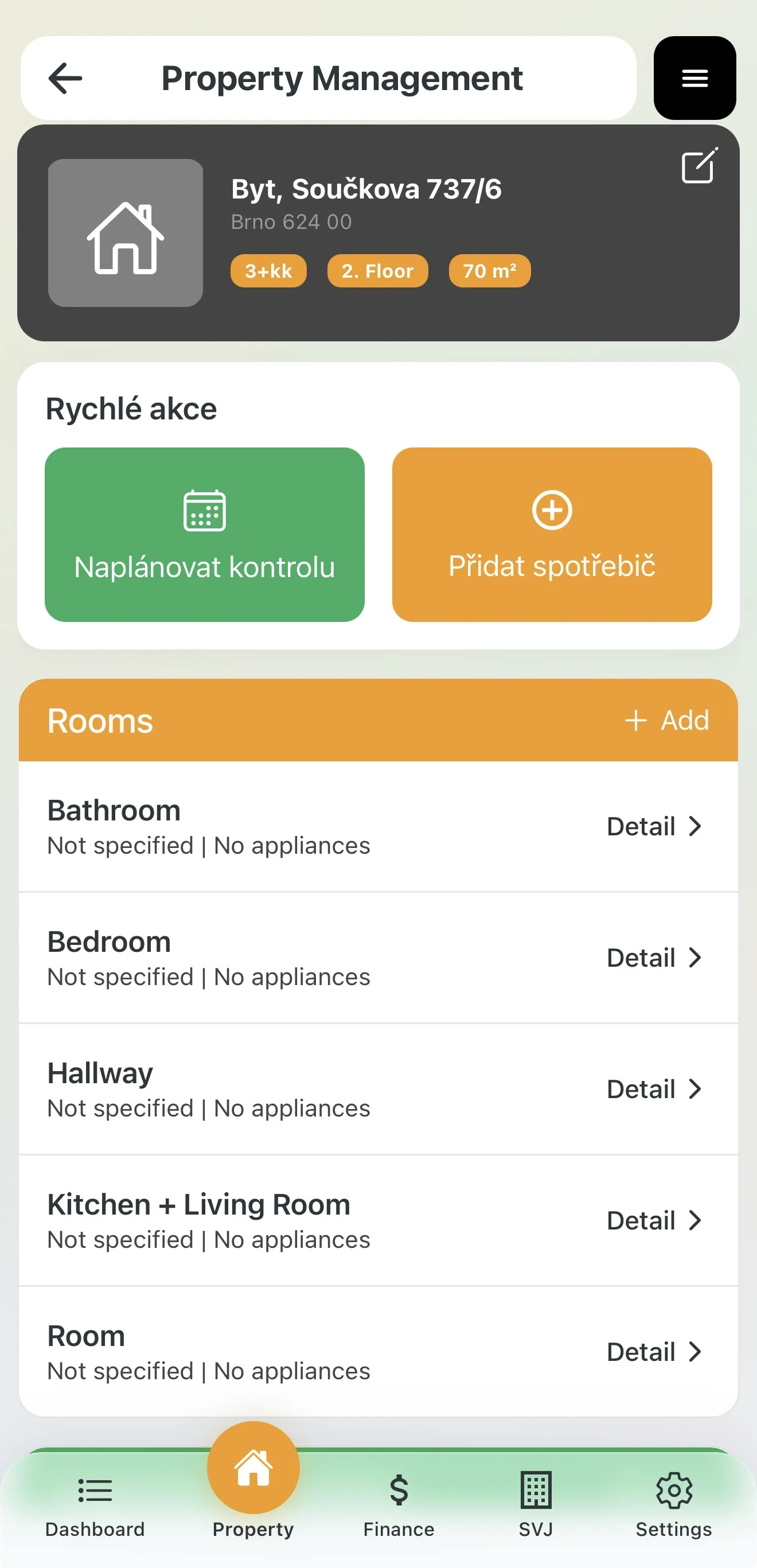
Planning Inspections and Checks
Want to make sure you never forget a boiler service or fire extinguisher check?
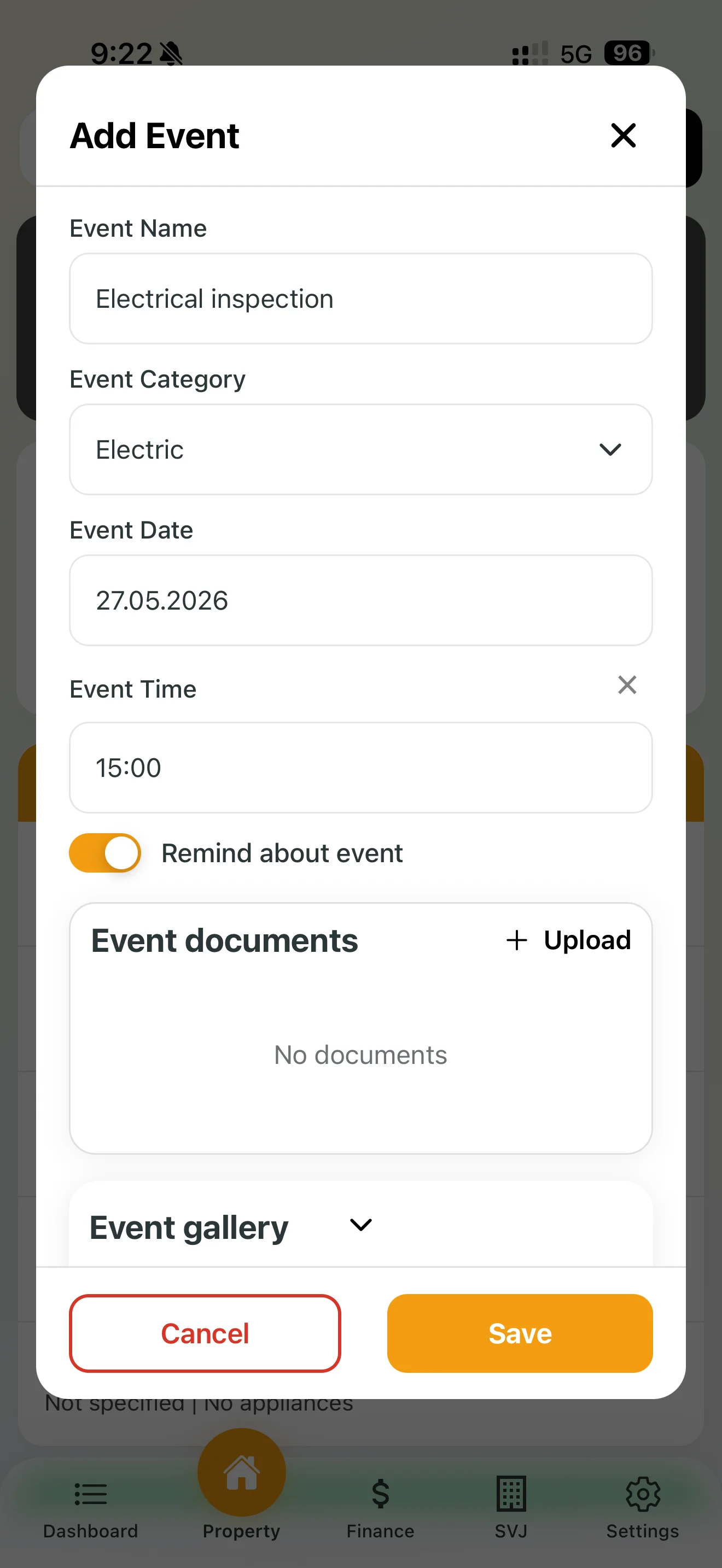
- Tap the green Schedule Inspection button.
- Select an Event Category (e.g. Electrical, Gas, Chimney).
- Set the Date and Time.
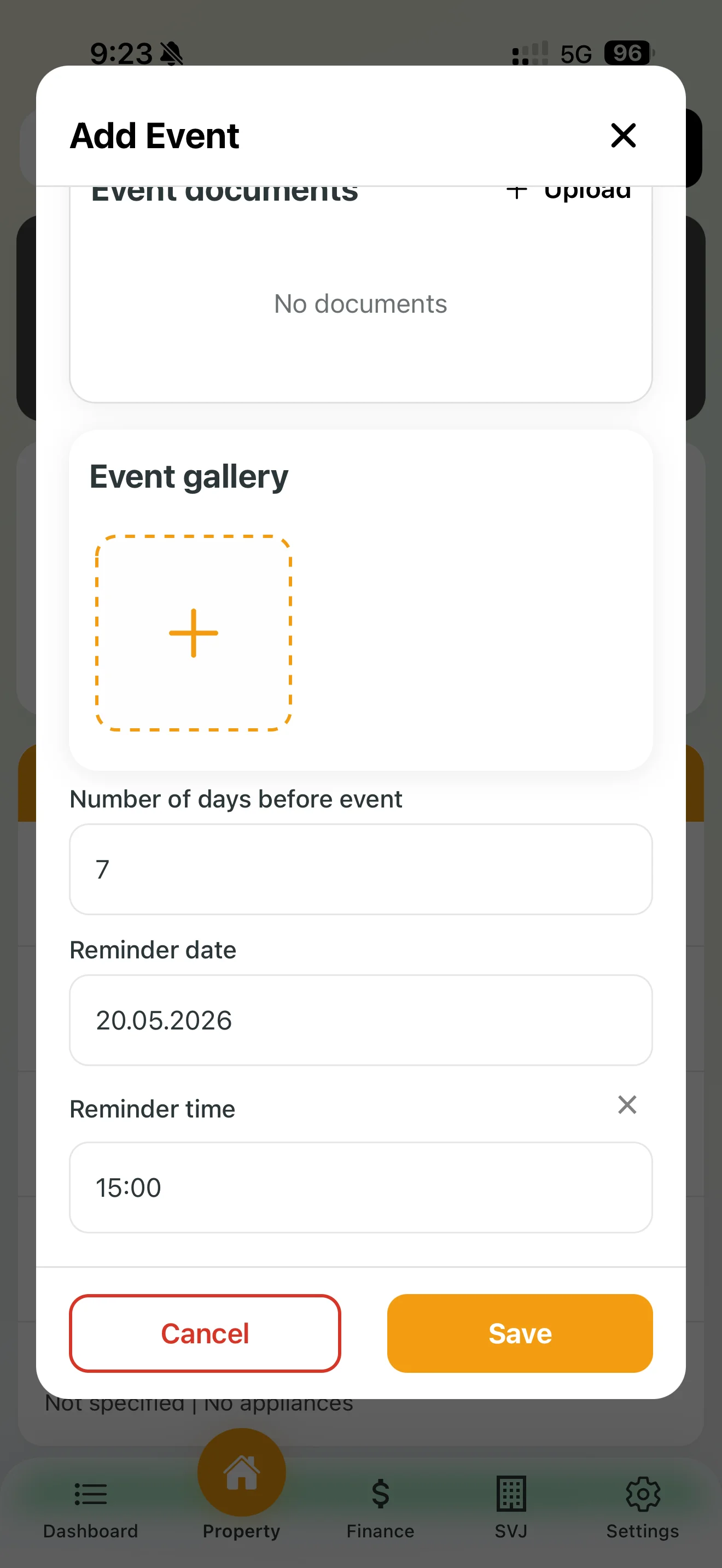
- Enable the Remind me option — choose how many days in advance (e.g. 7 days) you want the app to notify you.
- You can immediately upload documents (e.g. a previous inspection report) or take a photo in the Event Gallery.
Tracking Appliances and Equipment
Keep track of warranties and manuals for your electronics.
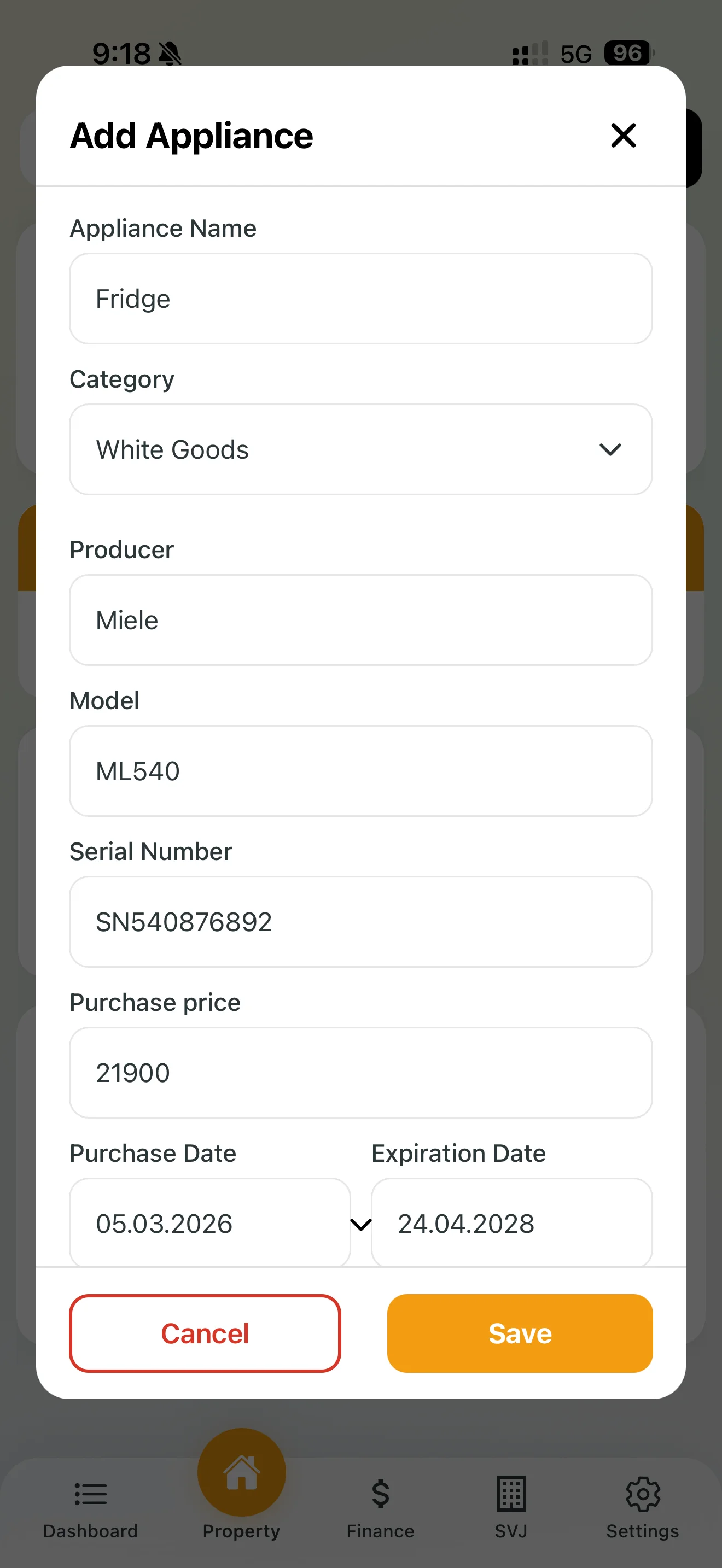
- Tap the orange Add Appliance button.
- Fill in the details: Name (e.g. Refrigerator), category, manufacturer, model and serial number.
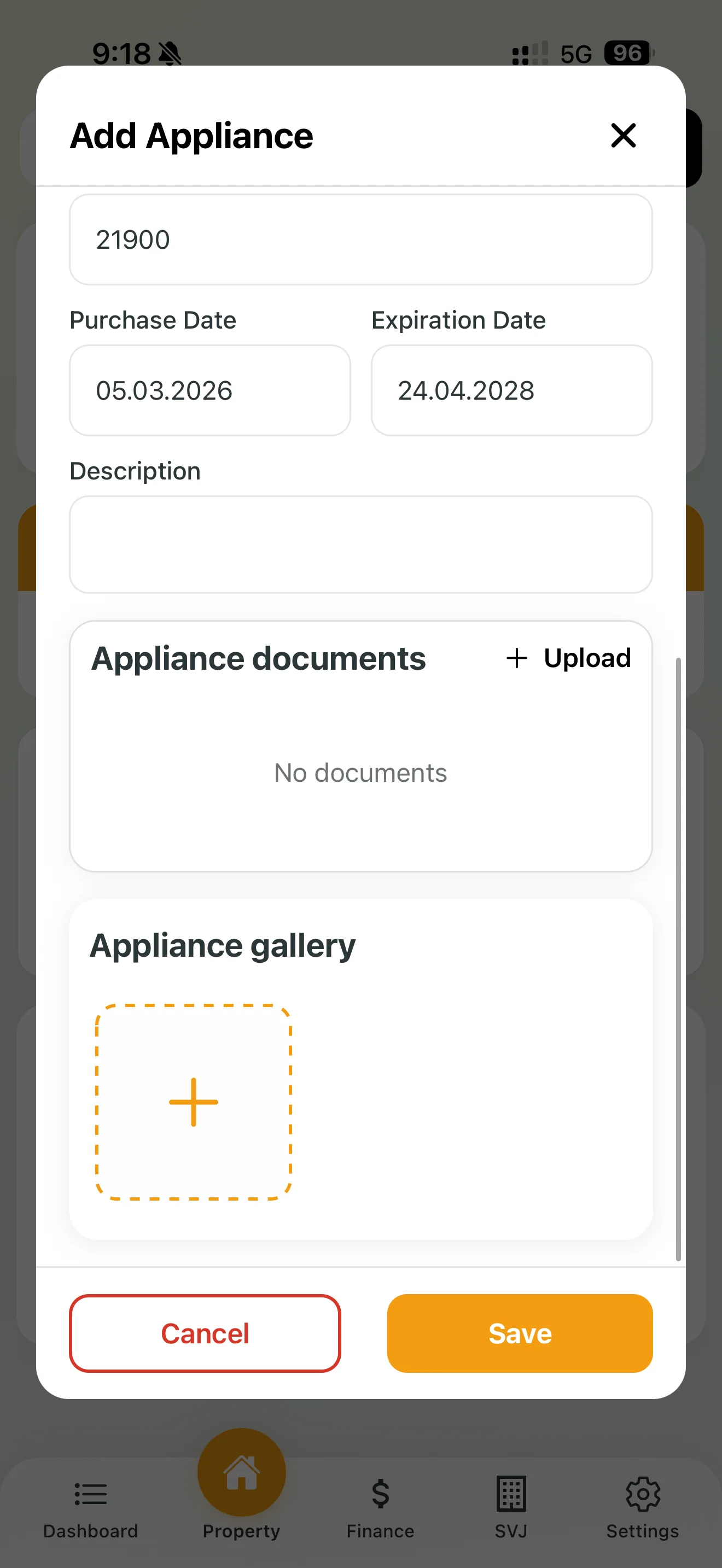
- Enter the Purchase Date and Warranty Expiry. The app will alert you before the warranty runs out.
- In the Appliance Documents section, upload the invoice or warranty card. In the Gallery you can photograph the appliance (e.g. the label with specifications).
3. Working with Rooms
In the Rooms section you'll see a default list (Kitchen, Bathroom, etc.), but you can add your own by tapping the (+) Add button.
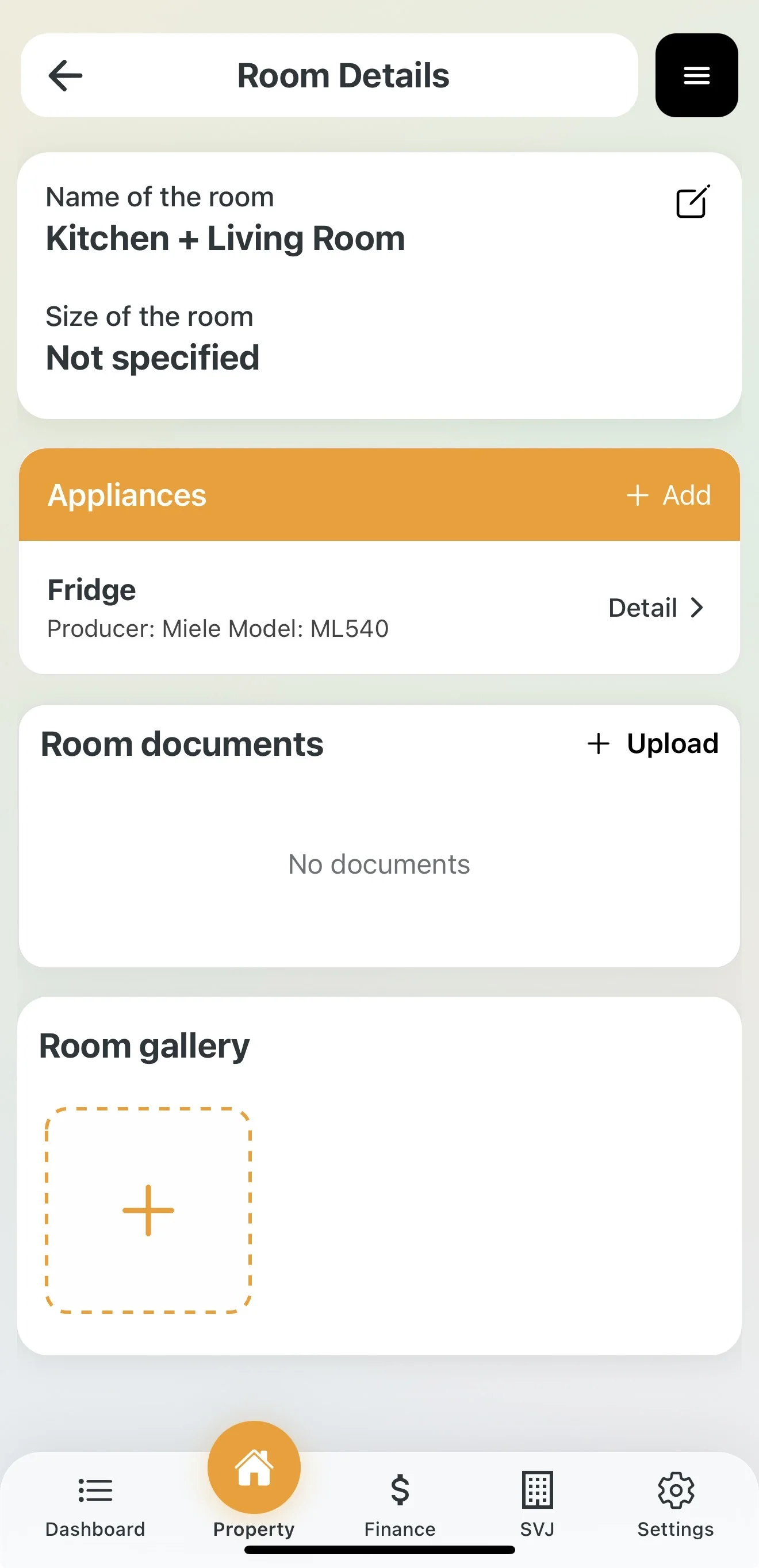
When you open a specific room (e.g. Kitchen + Living Room):
- Room detail: Edit its name or floor area.
- Appliances in the room: See a list of equipment belonging to this room. You can add new appliances here just as easily as via the quick-add button above.
- Room documents: The ideal place for floor plans, wiring diagrams or photos taken before a renovation.
Storage limits: As a FREE plan user, you have 50 MB of total space. For uploading PDF manuals or many high-resolution photos, we recommend monitoring your storage usage in the profile settings.