

Approving HOA Connection Requests
As a board member you have full control over who gains access to your HOA's information (documents, voting, chat). Every new user who joins your HOA must be approved first.
1. Where to Find New Requests
The app notifies you about new connection requests in several ways:
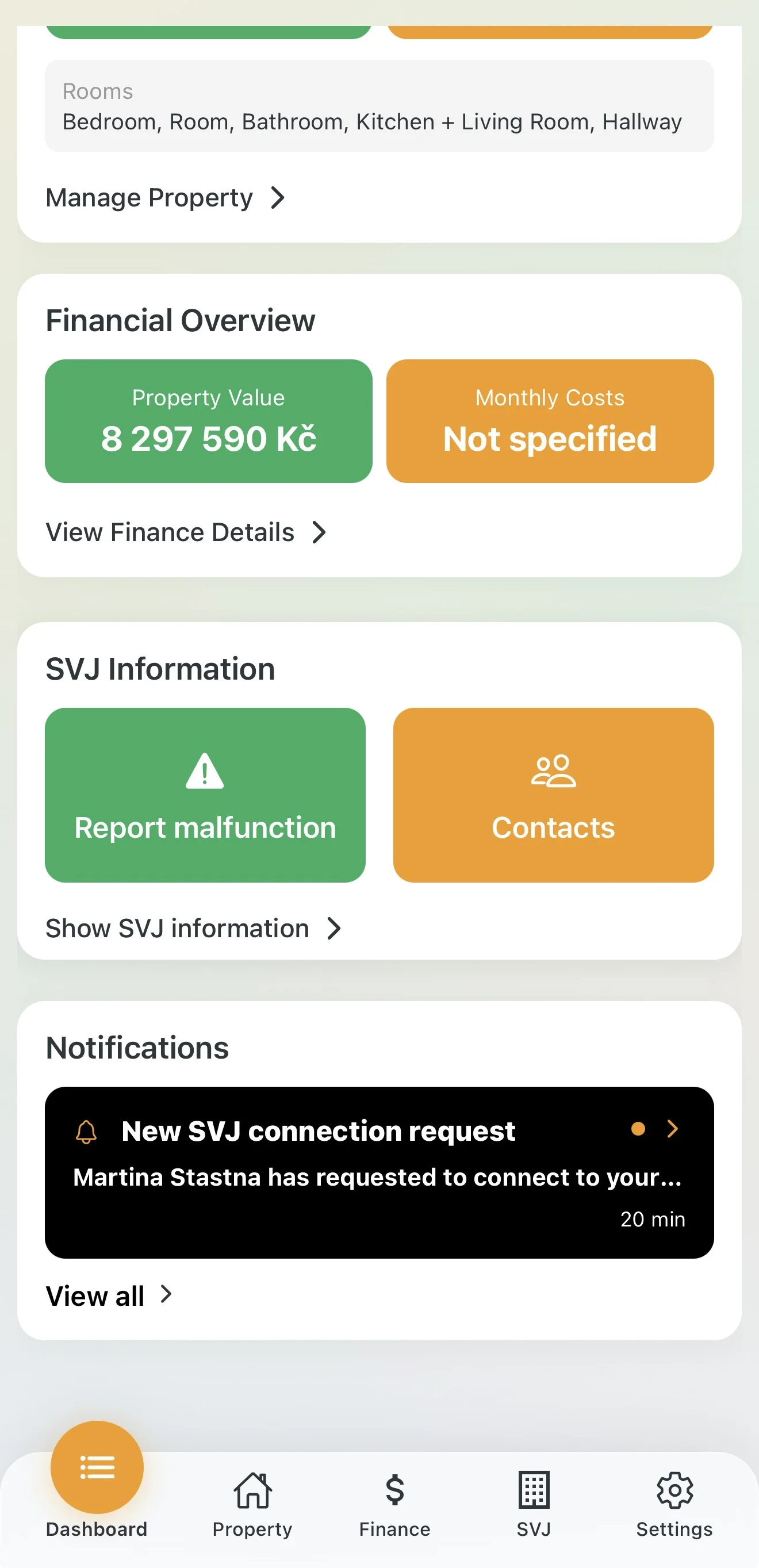
- Dashboard notification: In the Notifications section you see a summary of recent requests (e.g. "Michaela Šťastná has requested to join...").
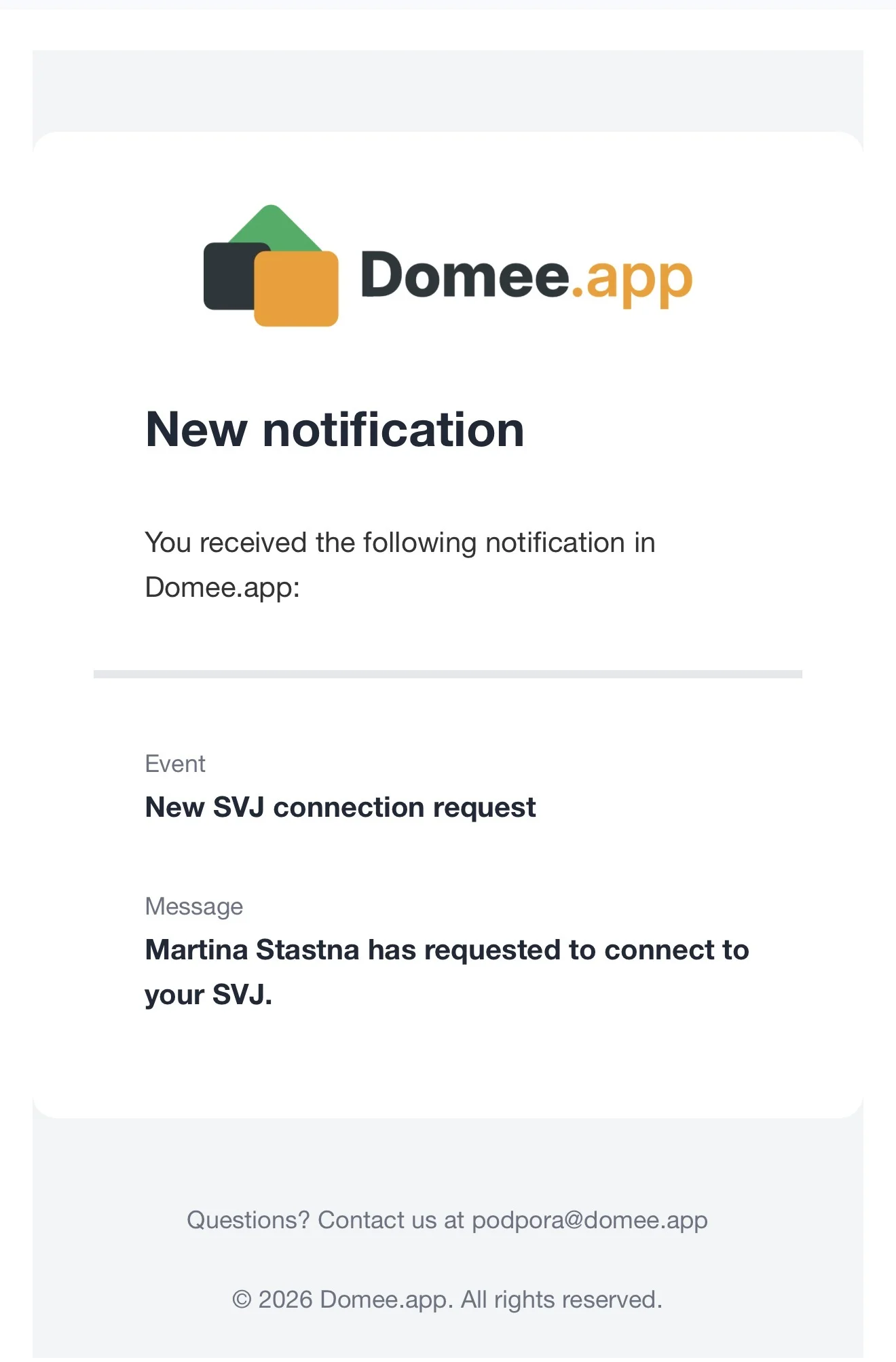
- Email alert: You also receive an email notification about each new request.
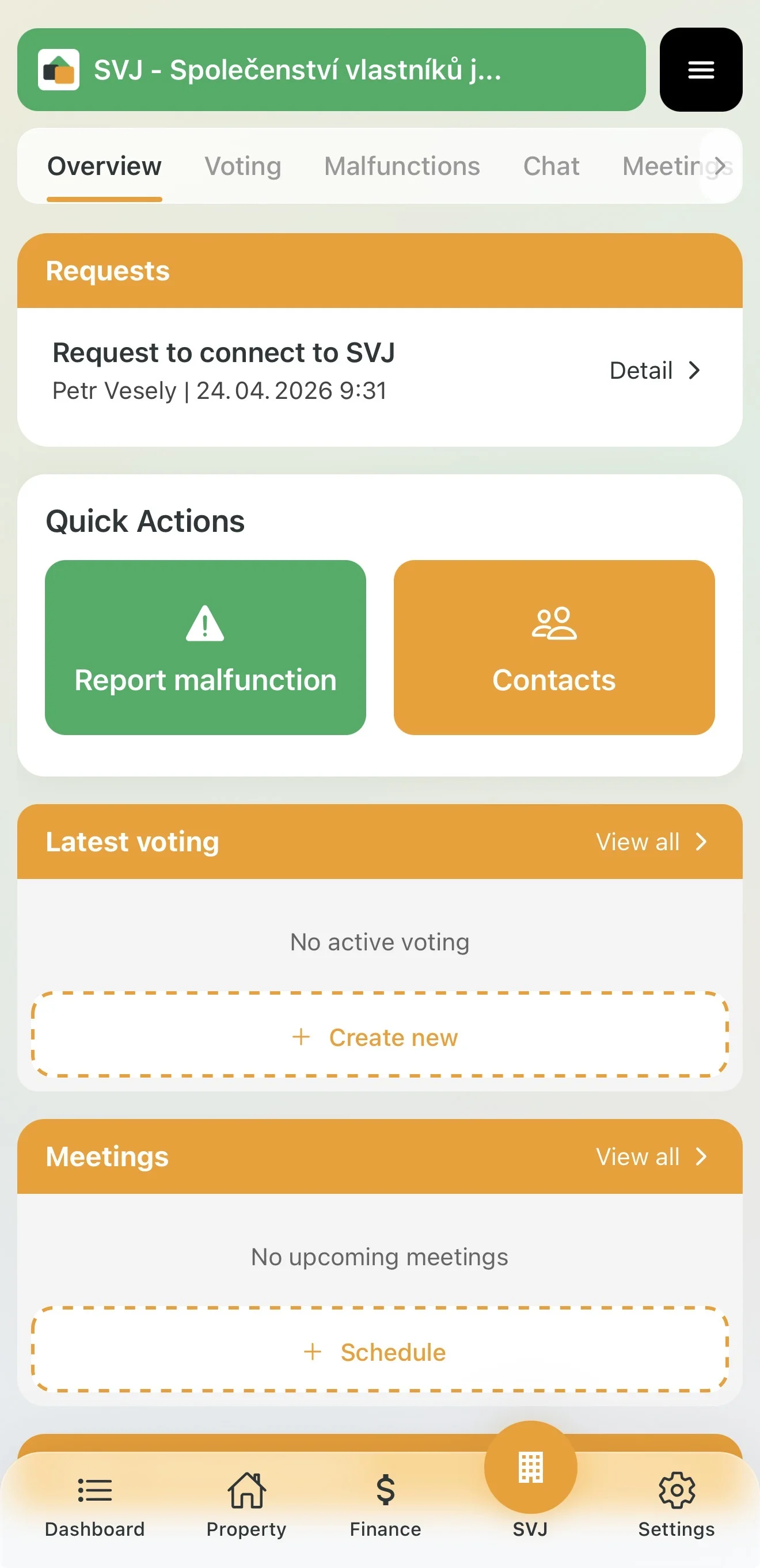
- HOA module: Directly in the HOA section under the Overview tab you will see an orange Requests card listing all pending users.
2. Request Detail & Verification
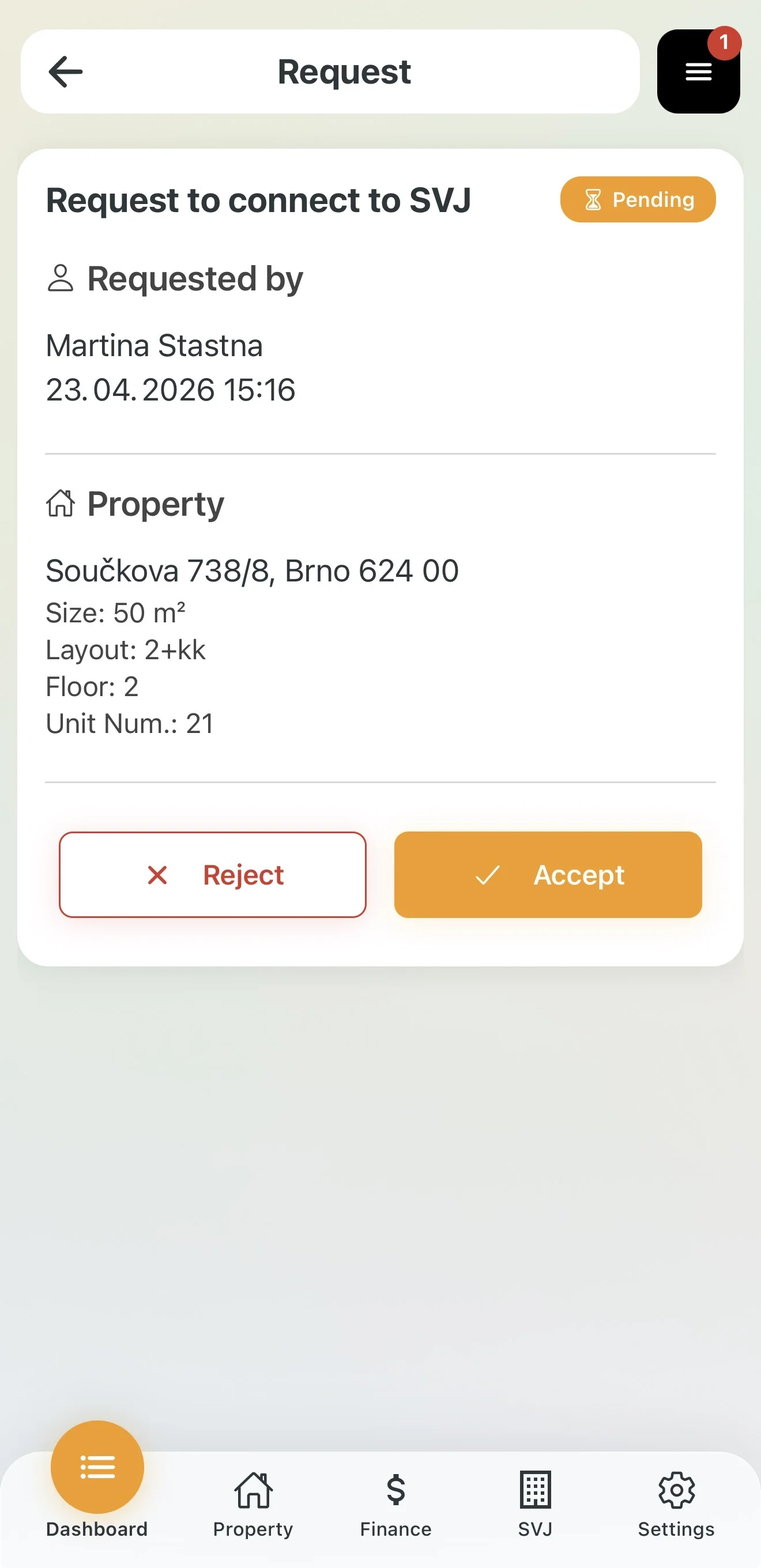
Tap Detail on a specific request to see the information the applicant entered:
- Applicant's name and date of submission.
- Unit details (address, apartment number, floor, area).
Use this information to decide whether to admit the applicant to the system.
3. Approval Process
When approving, you can correct any mistakes the applicant made:
- Tap the Approve button.
- Unit selection: If the applicant entered an incorrect apartment number or cannot find their unit in the system, the app will alert you.
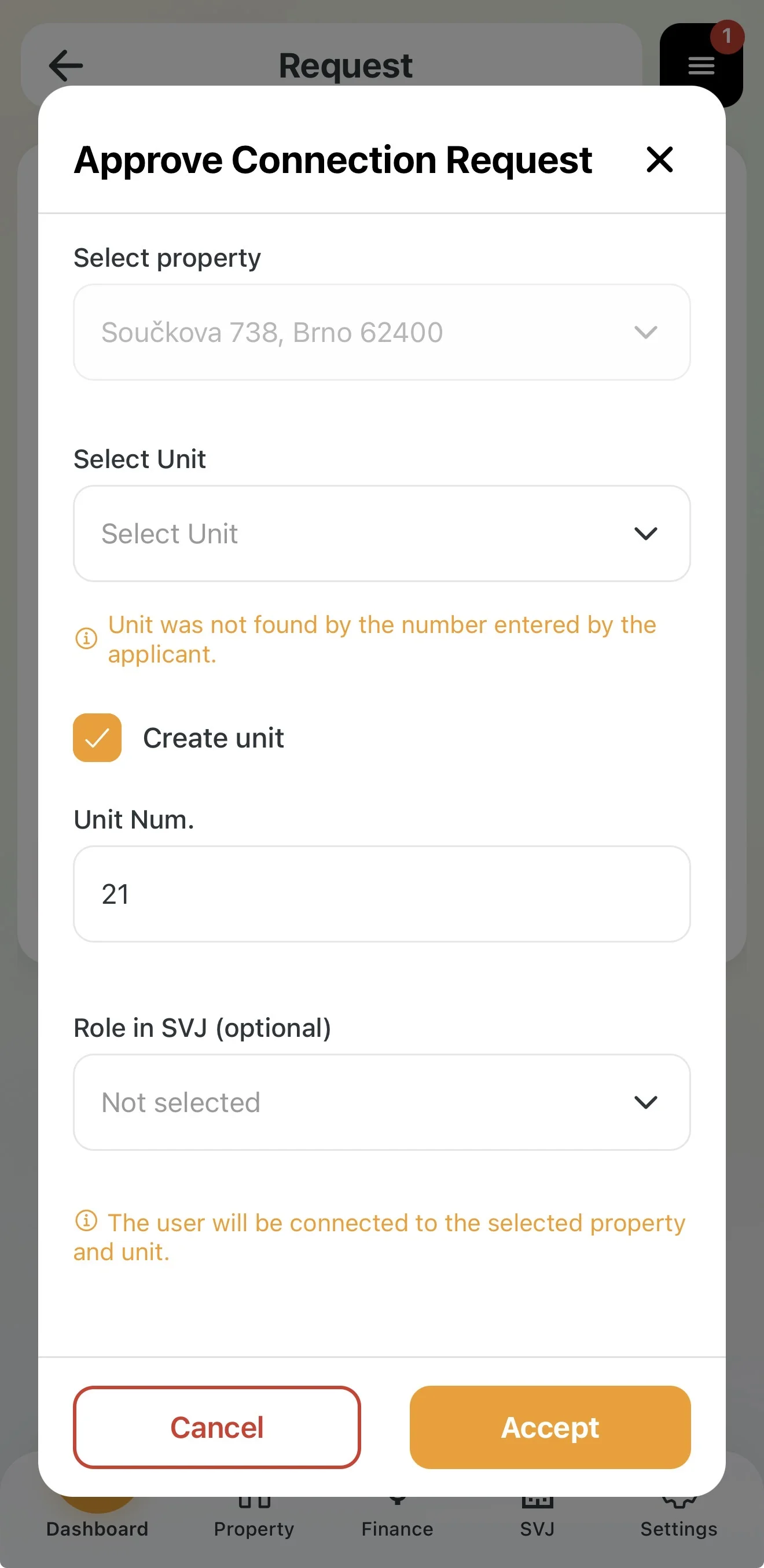
- From the unit list (previously imported from the real estate registry) select the correct unit the applicant belongs to.
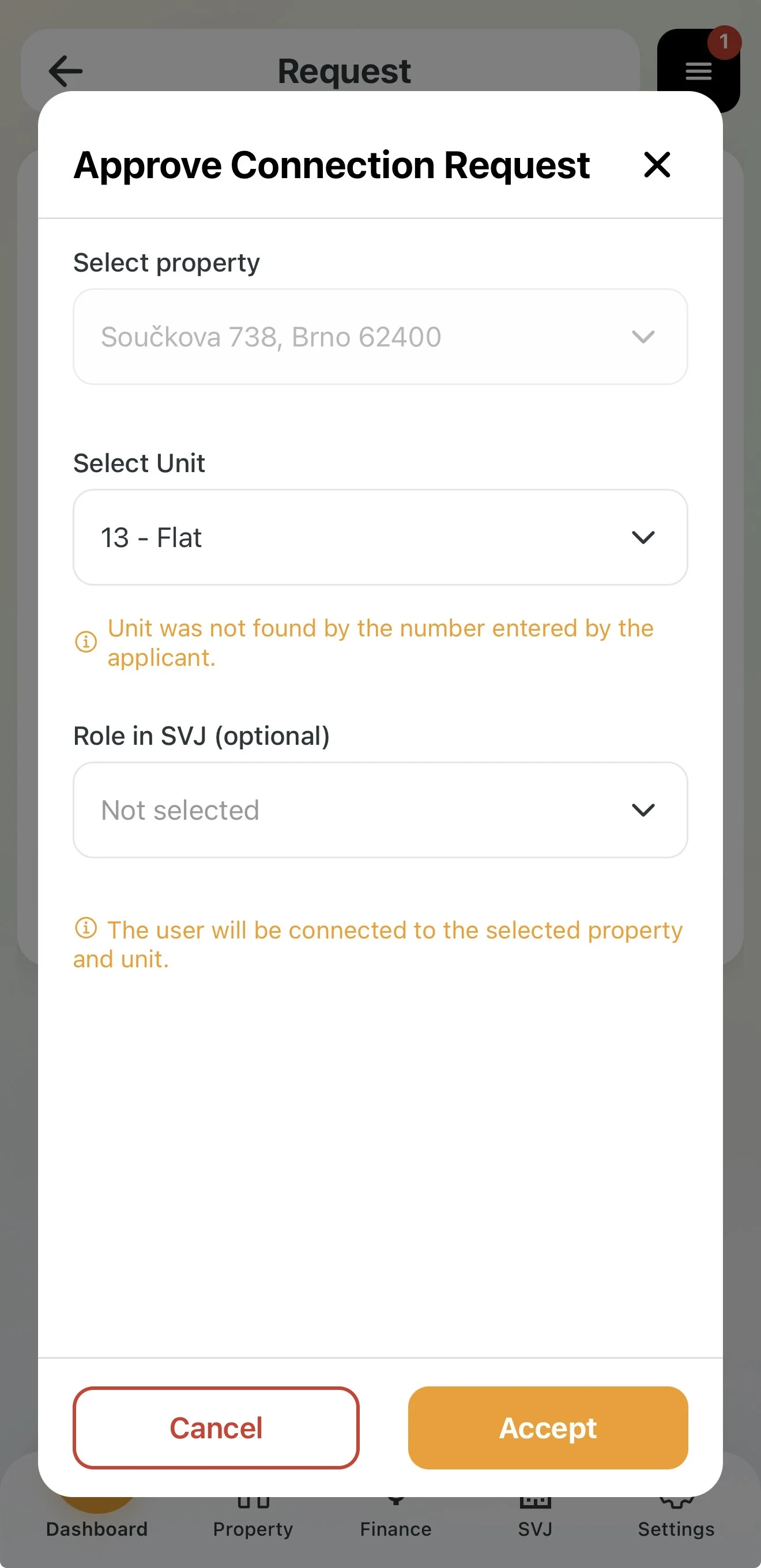
- Role in HOA (optional): You can assign a role immediately if the user is also a board member.
- Confirm with Approve. The user is notified immediately and gains access to the HOA data.
4. Rejecting a Request
If someone who does not belong to your HOA submits a request (e.g. a former owner or an error):
- Tap the Reject button.
- Reason for rejection: You must fill in a short explanation (e.g. "You are not listed as an owner" or "Incorrect address submitted").
- Confirm with Reject.
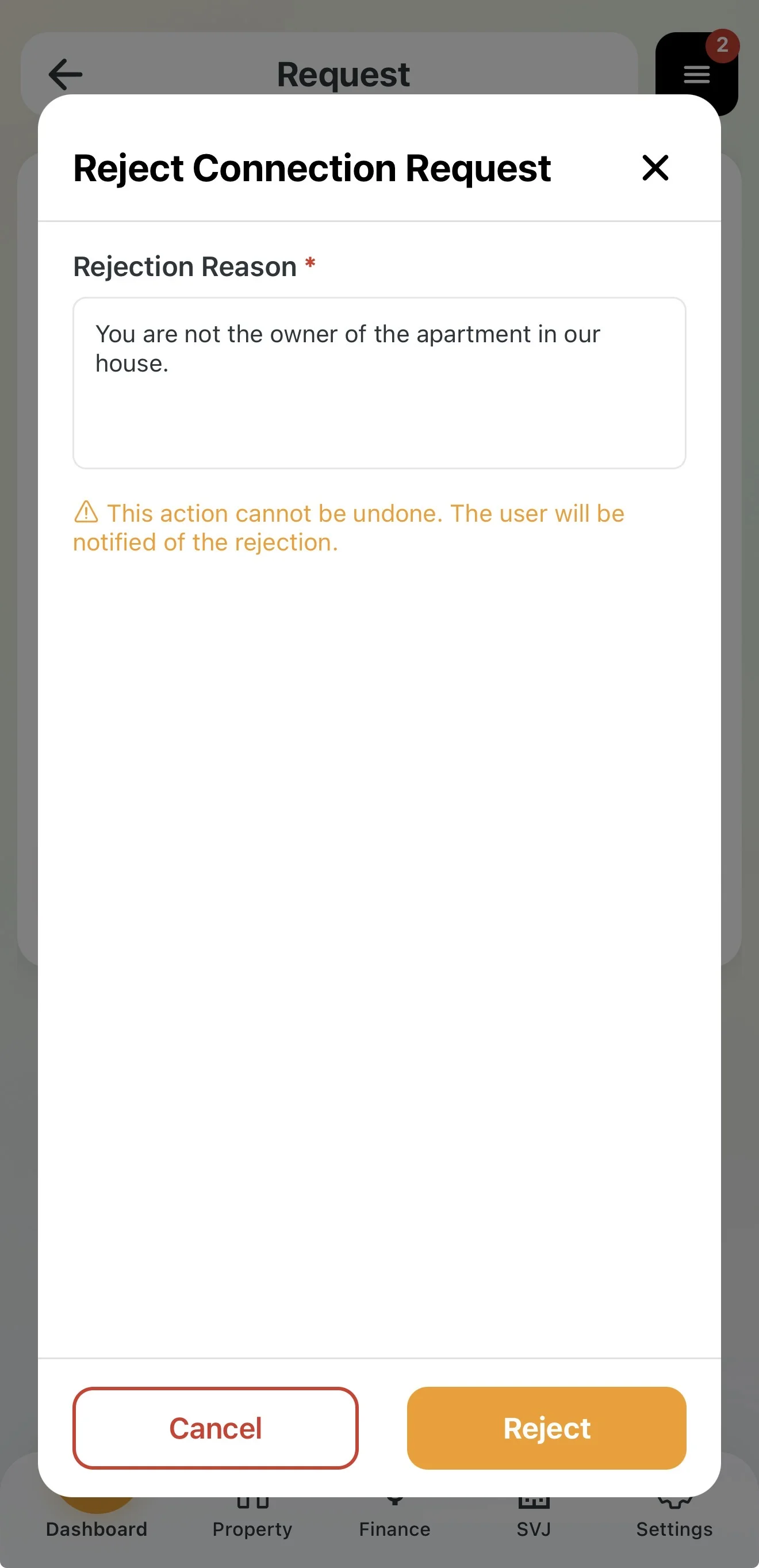
Important: This action cannot be undone. The user receives a notification that their request was rejected, including your stated reason.
Tip for Board Members
Regularly reviewing pending requests keeps your HOA member list up to date. If you see units without assigned users in the list, it means those owners have not yet registered in Domee.app.