

HOA General Meeting
The Meetings module is a comprehensive tool for the HOA board that guides the association through the entire process from the first draft agenda to the final minutes.
1. Preparing and Planning the Meeting
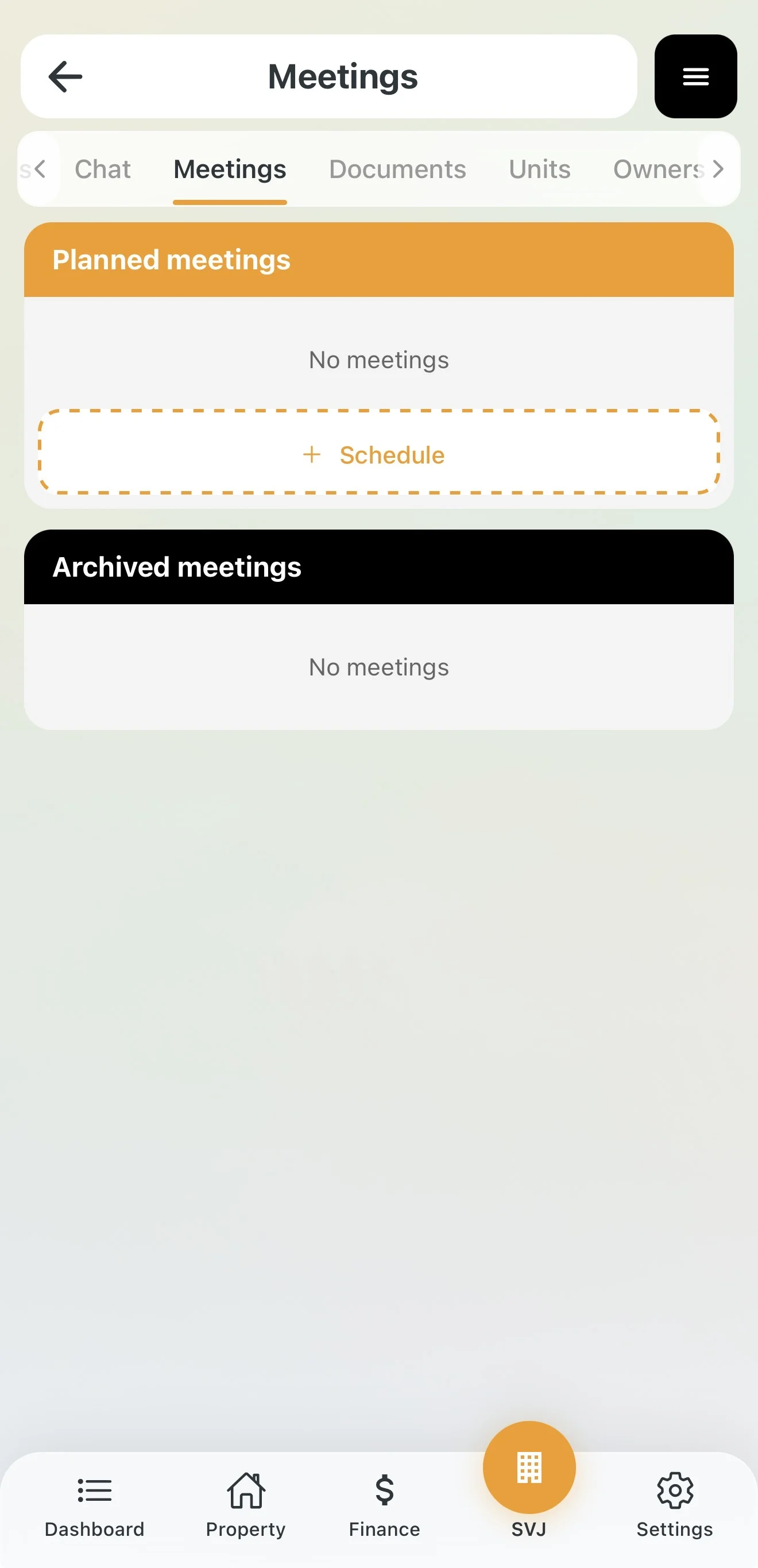
Creating a Draft
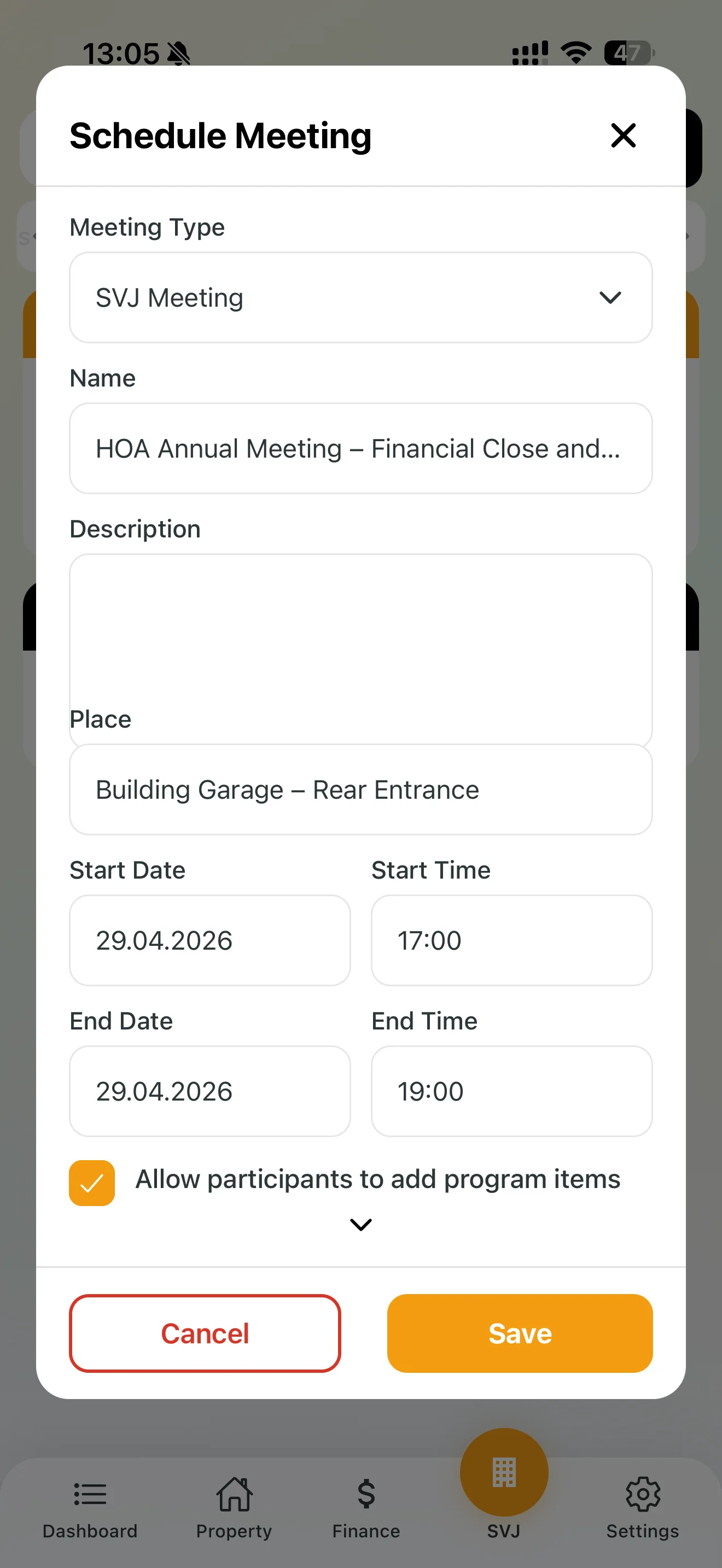
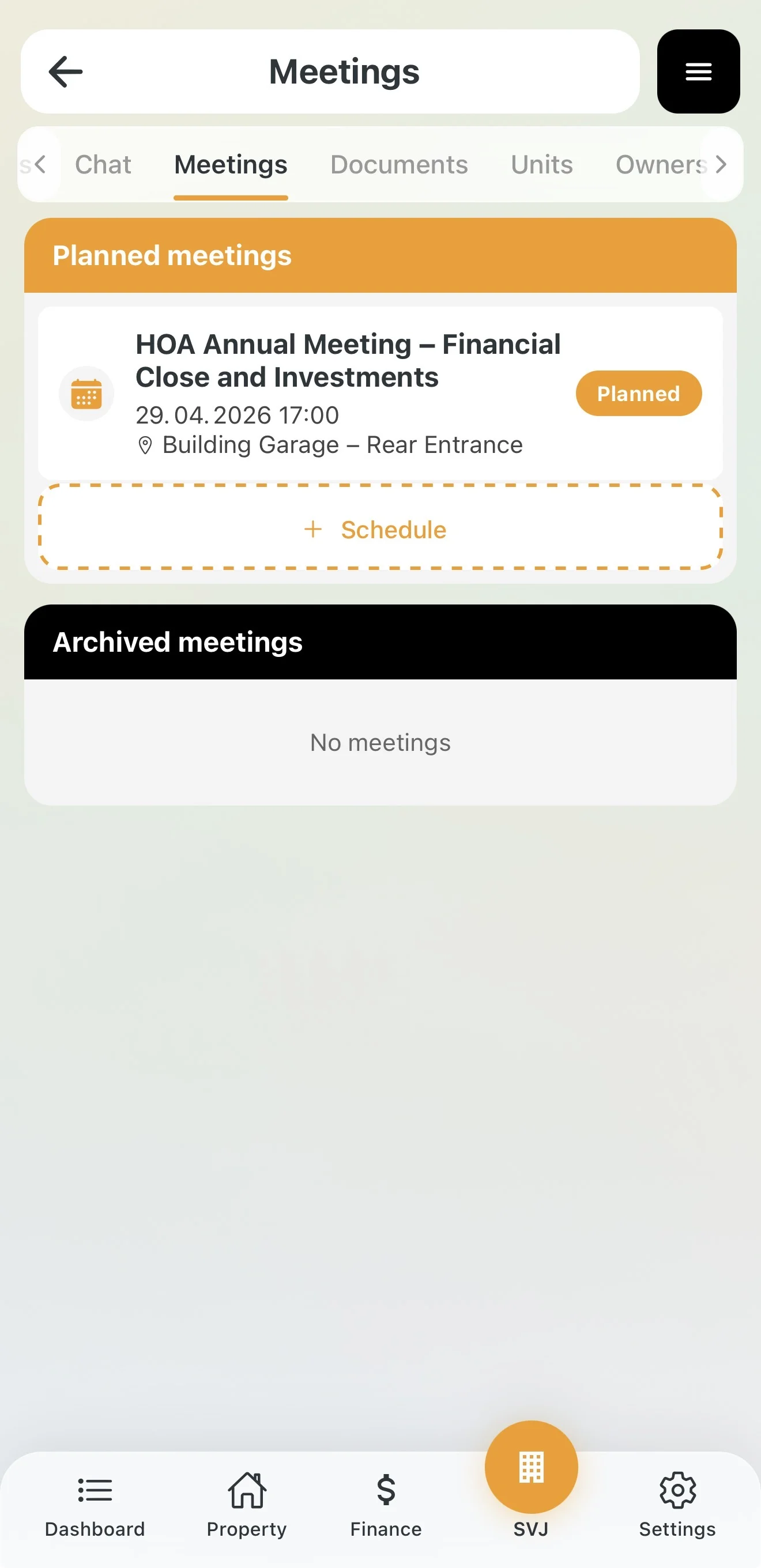
- In the HOA module go to the Meetings tab and tap + Schedule.
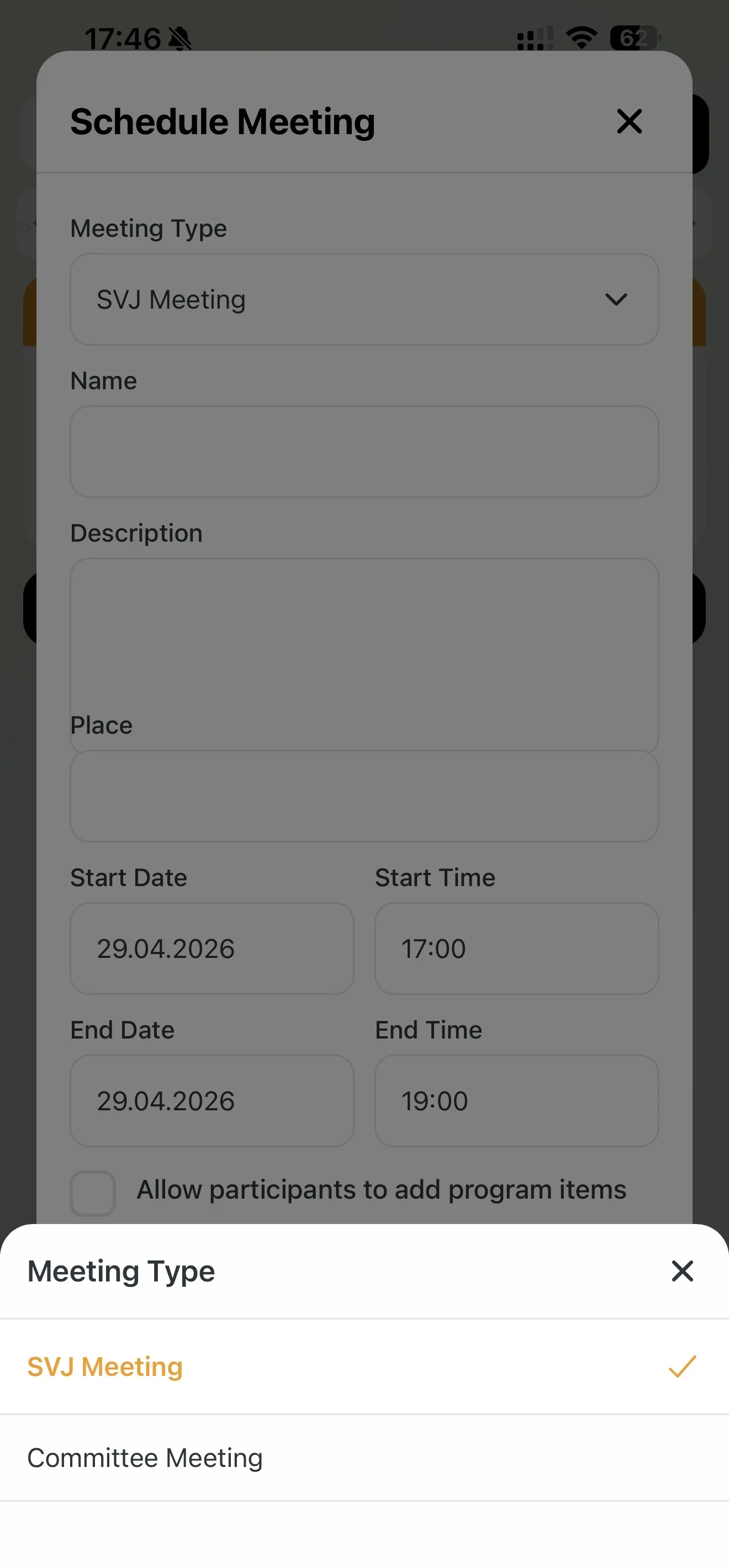
- Choose the Meeting type: HOA General Meeting or Board Meeting.
- Fill in the Name, Location and Date/Time.
Advanced Settings
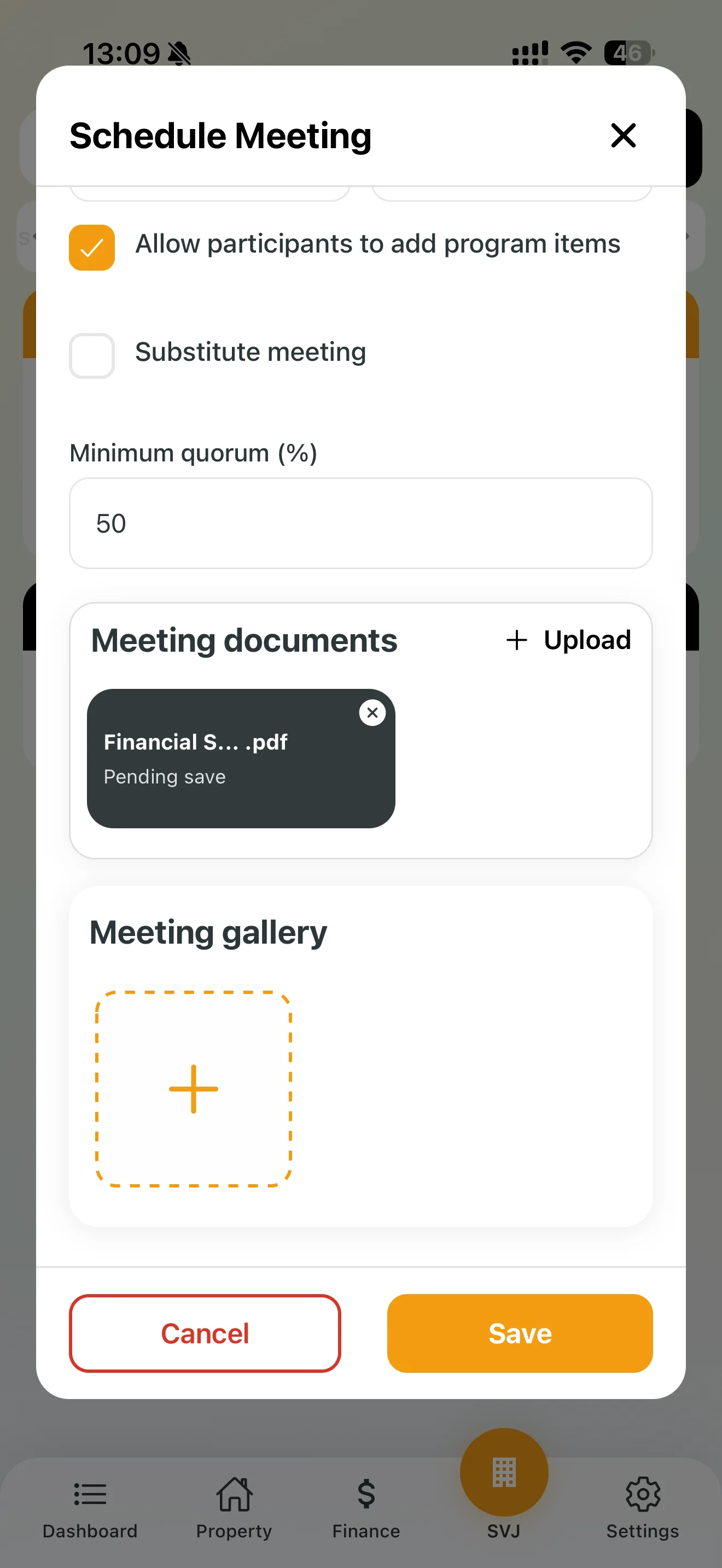
- Agenda items from participants: If checked, owners can also propose topics.
- Substitute meeting: Enable for a substitute meeting and set the minimum quorum.
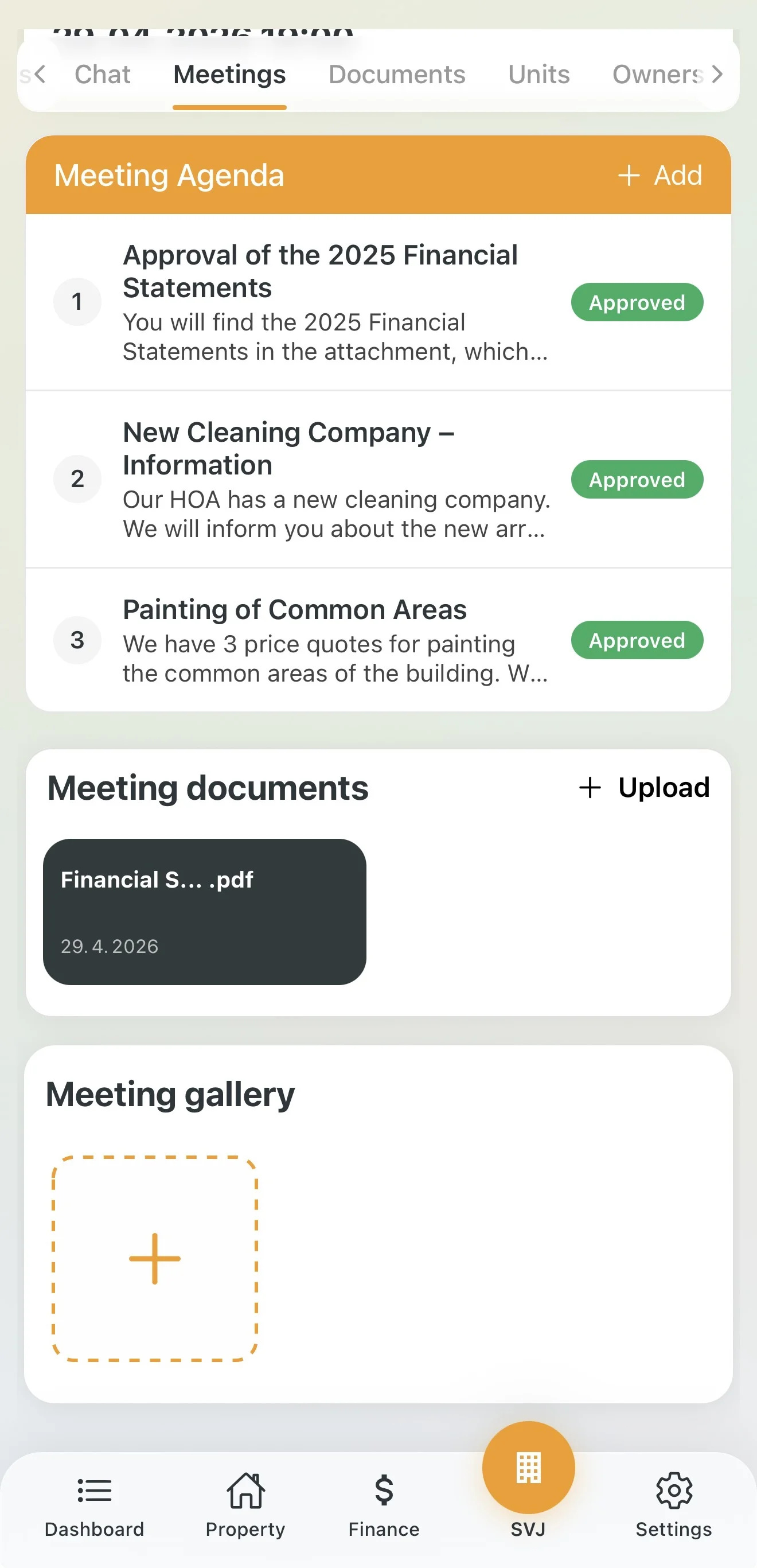
- Documents and Gallery: Upload general documents (invitation, venue photos) already at this stage.
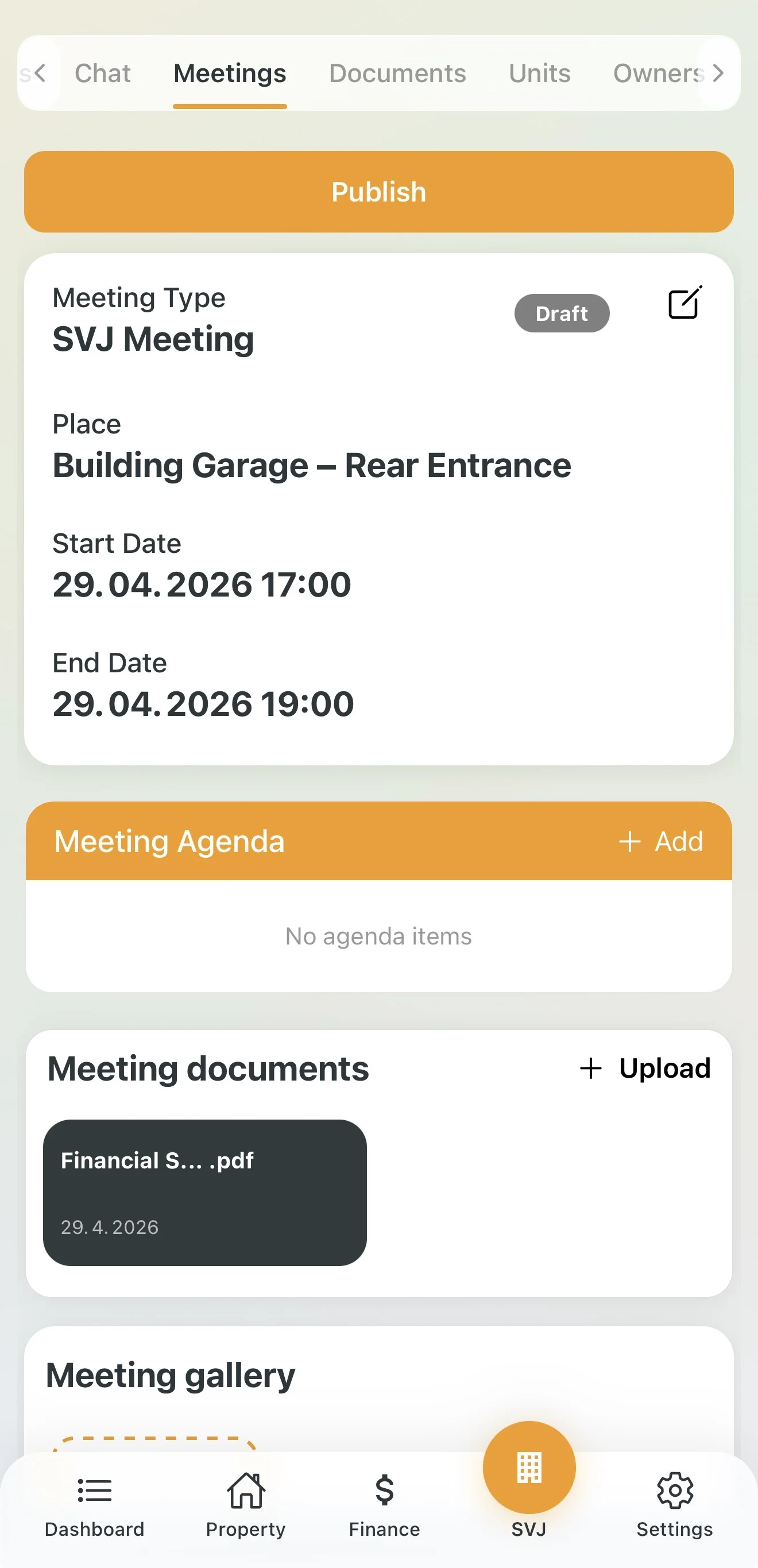
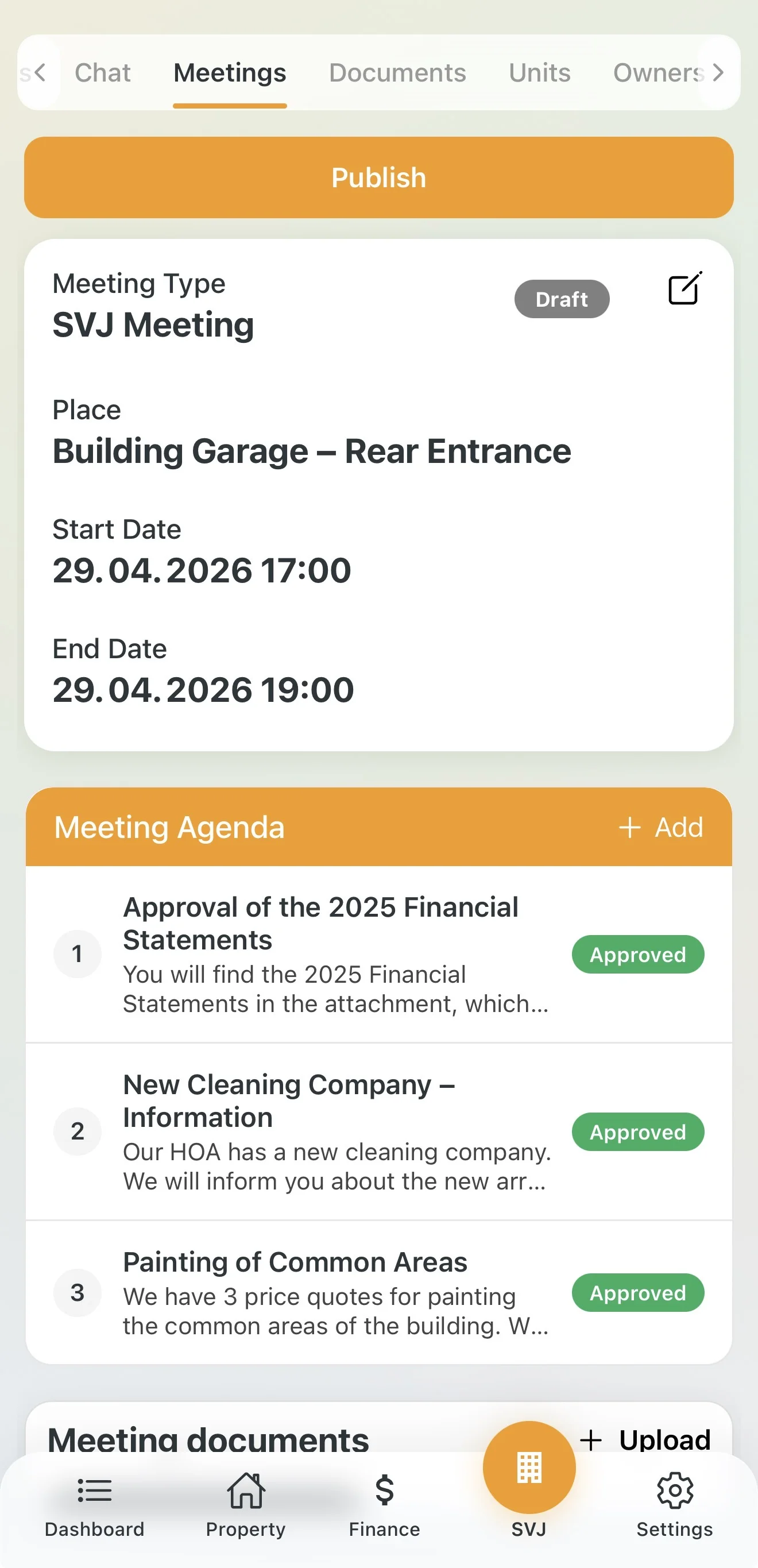
DRAFT status: After saving, only the board can see the meeting. You can calmly add agenda items.
Building the Agenda
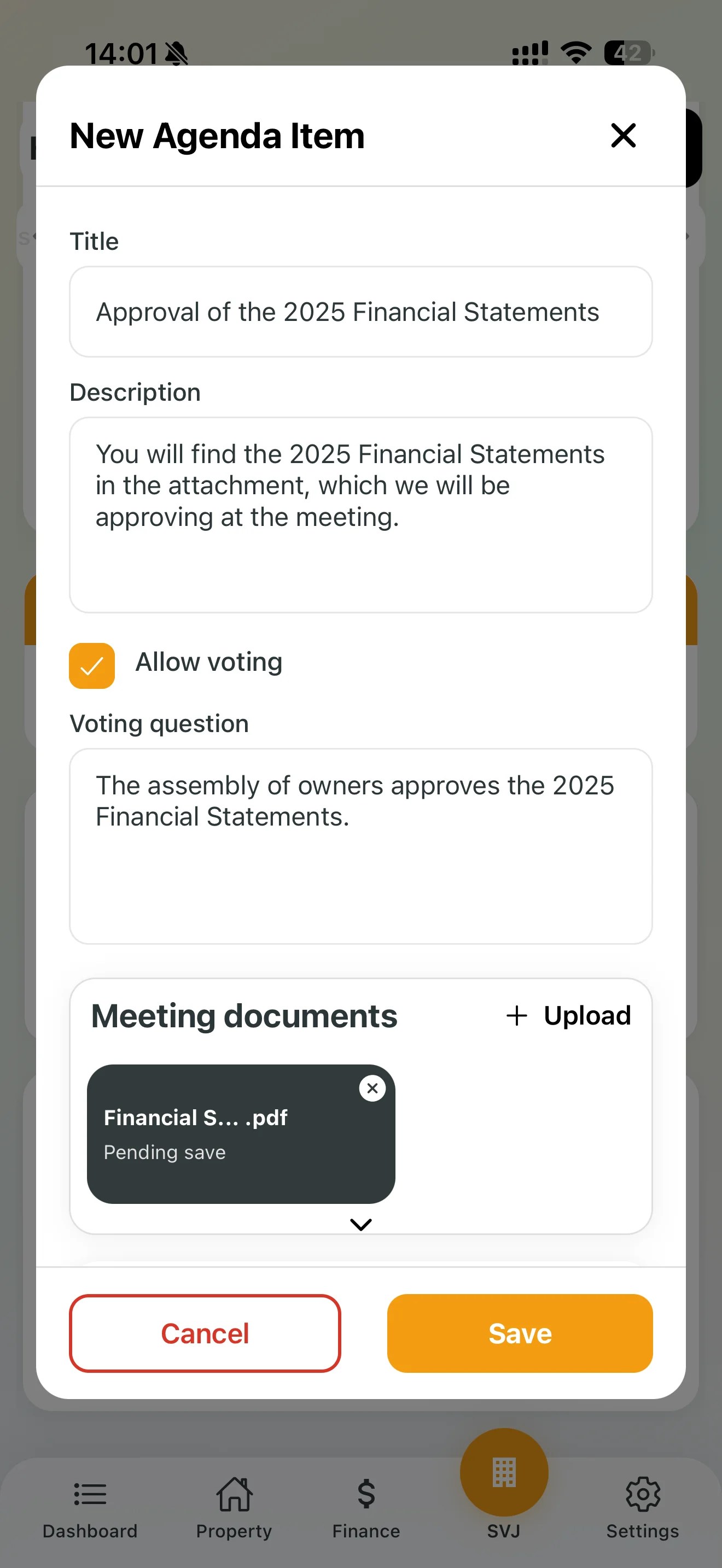
- In the draft detail scroll to Meeting Agenda and tap + Add.
- Fill in the Title and Description.
- Allow voting: If a decision will be made on this item, enable this and write the exact voting question.
- Attach specific documents to each agenda item (PDF, price quotes etc.).
Publishing the Meeting
Once the agenda is complete:
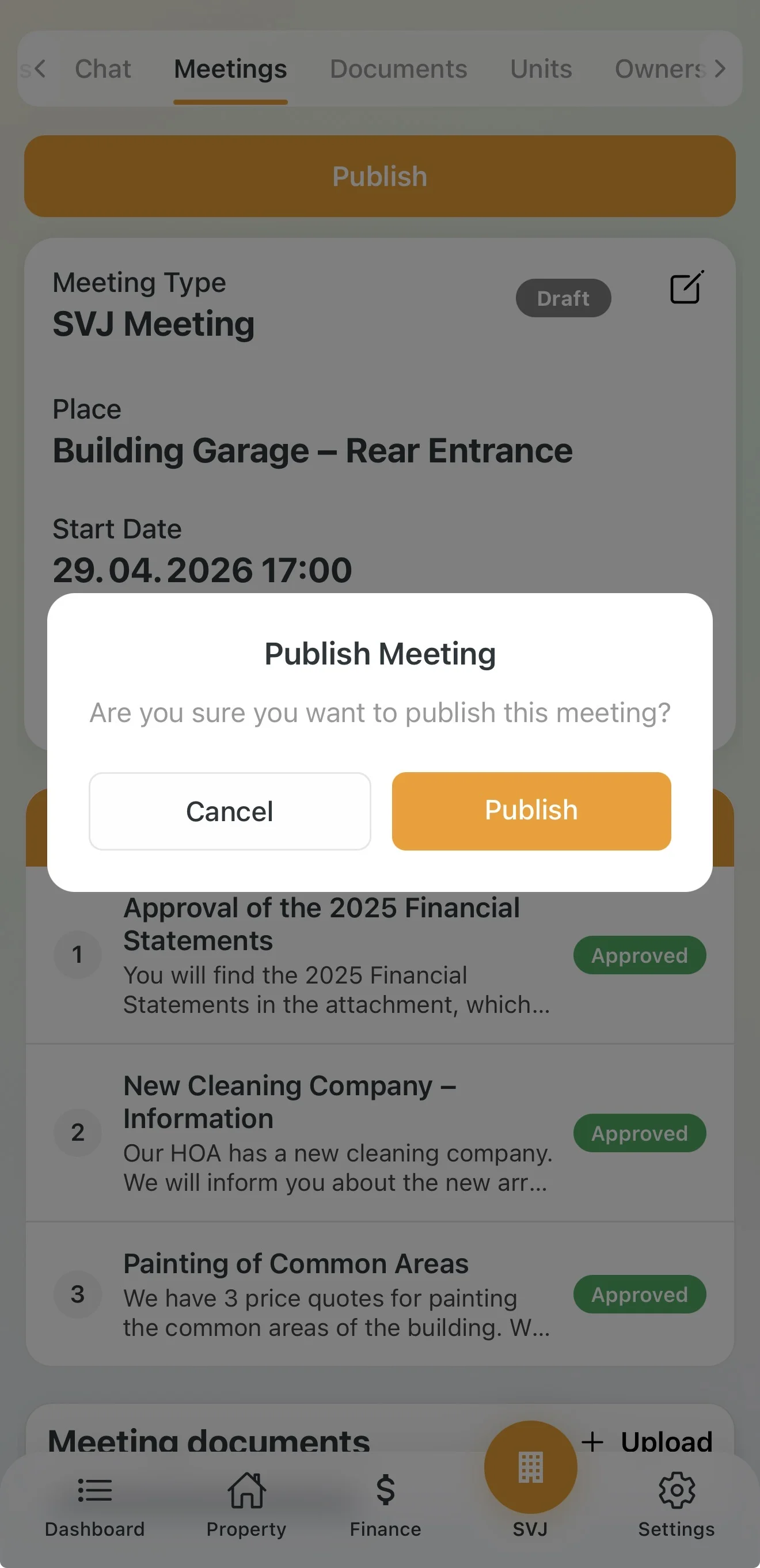
- Tap the orange Publish button and confirm.
- The status changes to Scheduled and all owners receive an immediate notification.
2. Managing Proposed Agenda Items
If you allowed owners to add items, they can propose topics directly in the app. You have full control over these proposals.
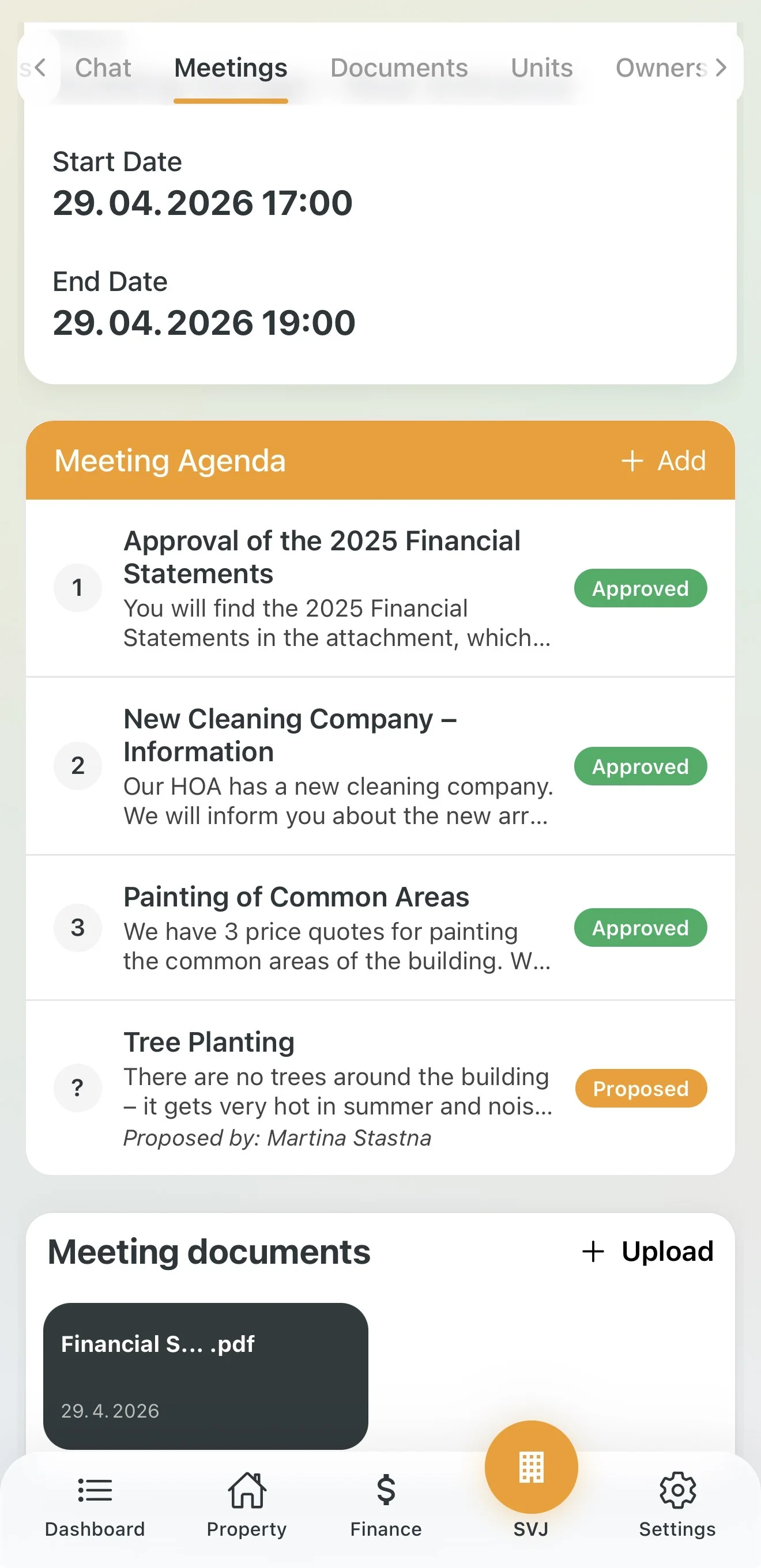
Proposed items are marked with an orange Proposed badge and the proposer's name below the description.
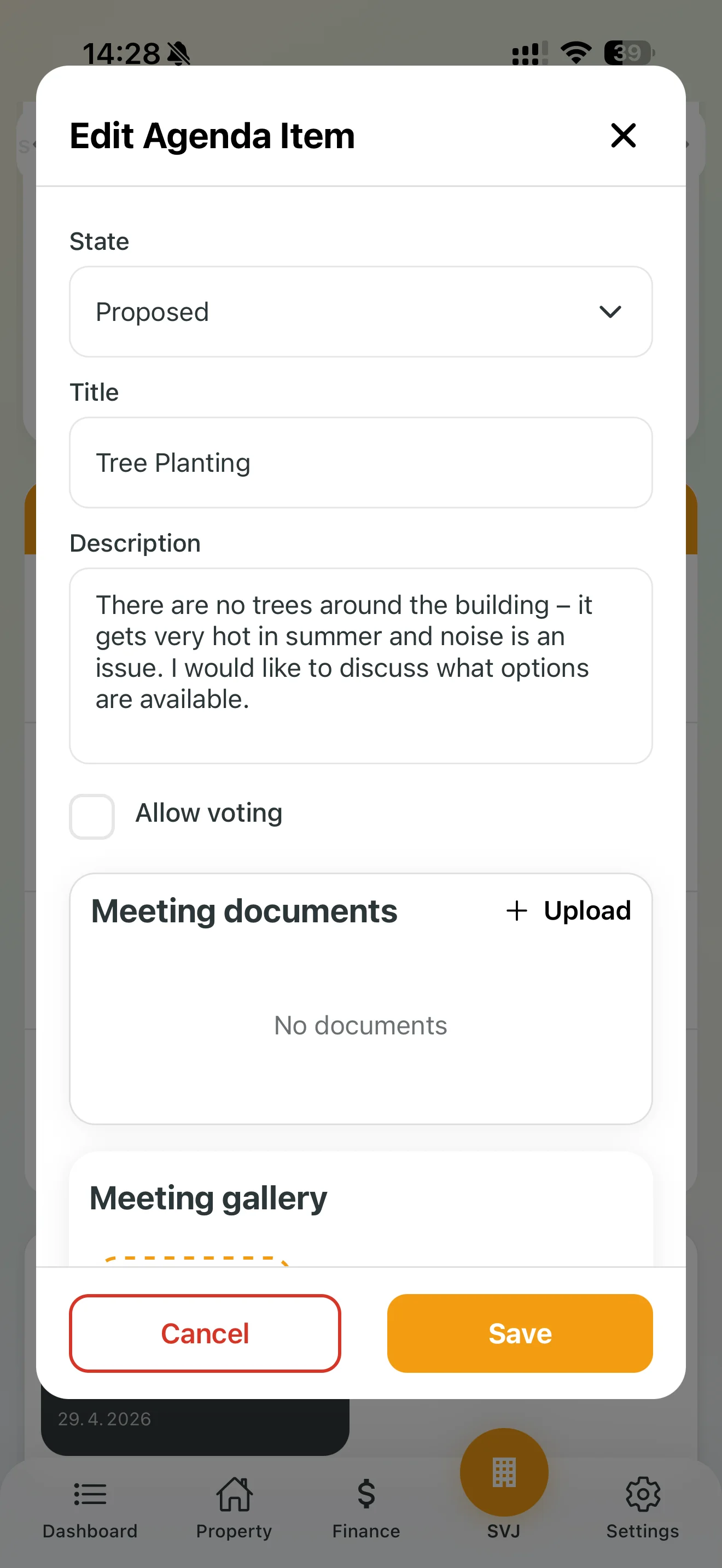
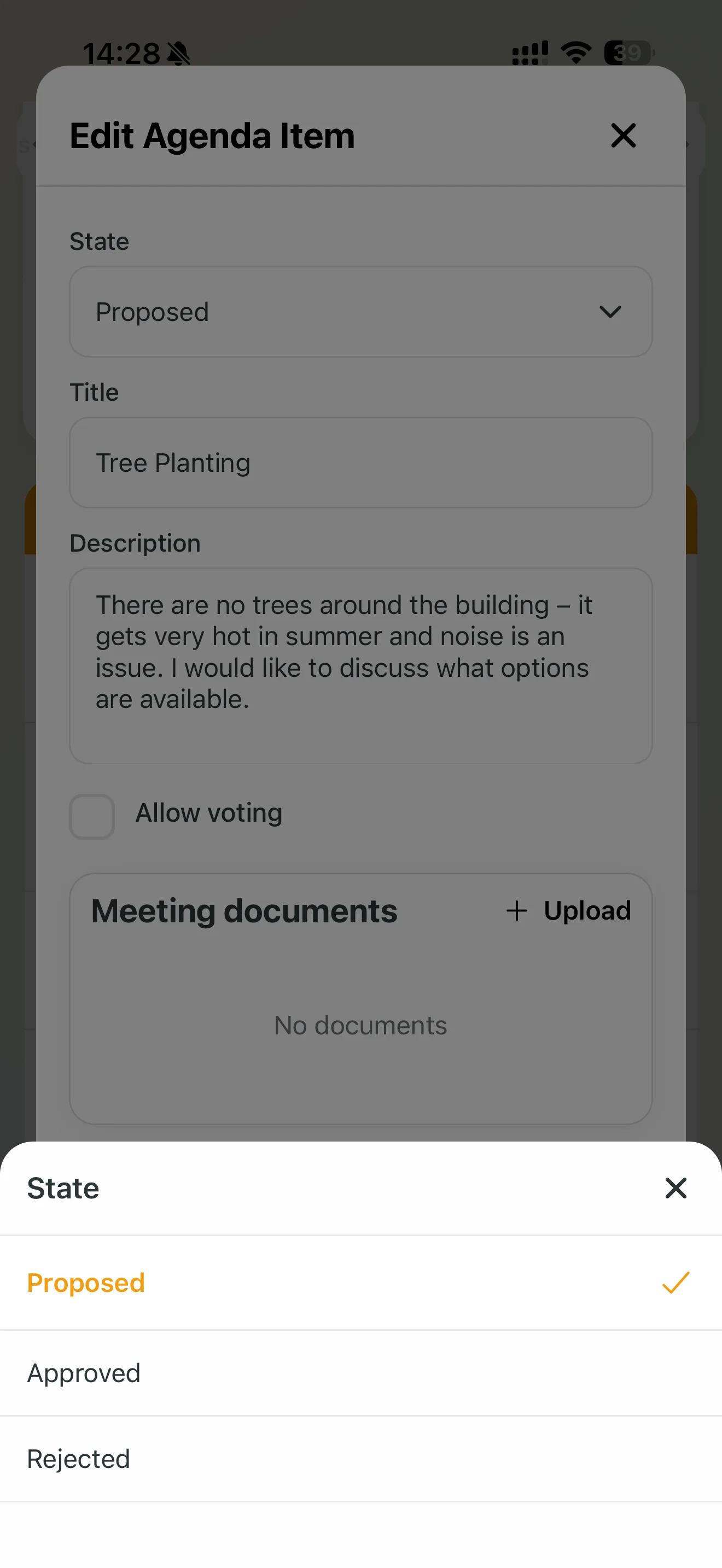
Tap Detail on the item and change the Status:
- Approved → the item gets a number and green badge, becoming part of the official agenda.
- Rejected → the item is no longer shown as an active topic.
3. Preparing Materials and Registering Attendees
Printing Materials
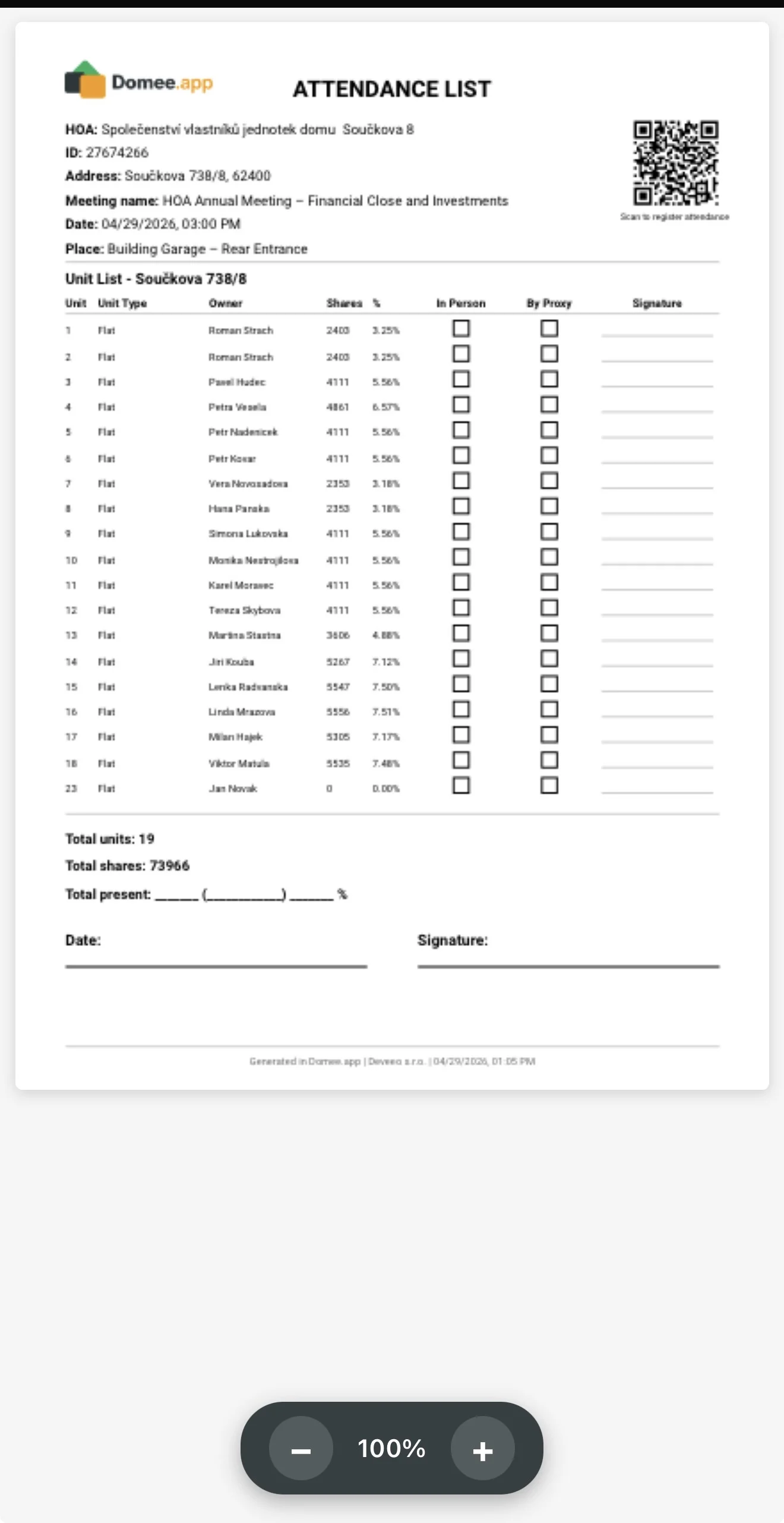
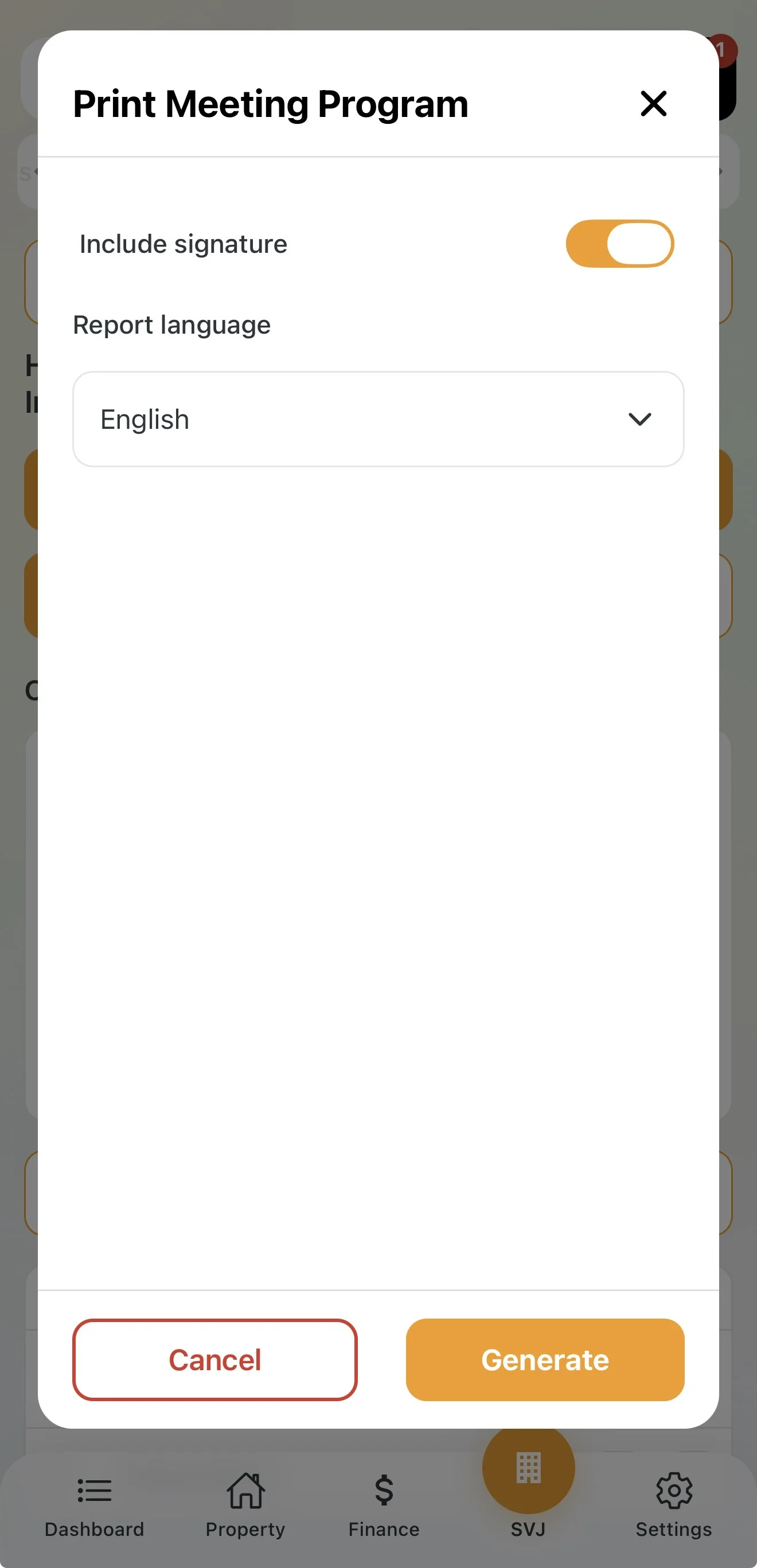
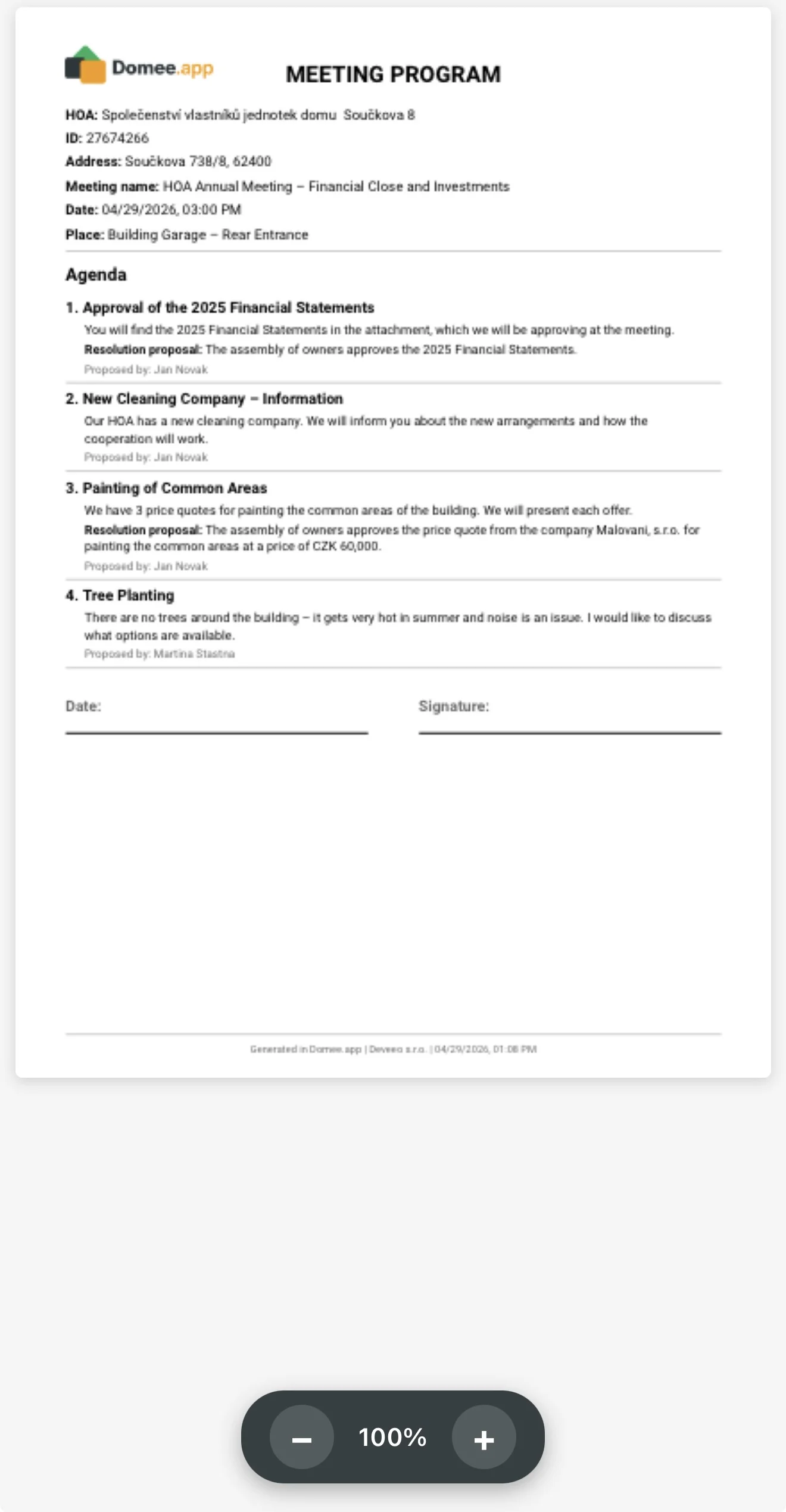
For traditional paper signatures the app prepares all forms:
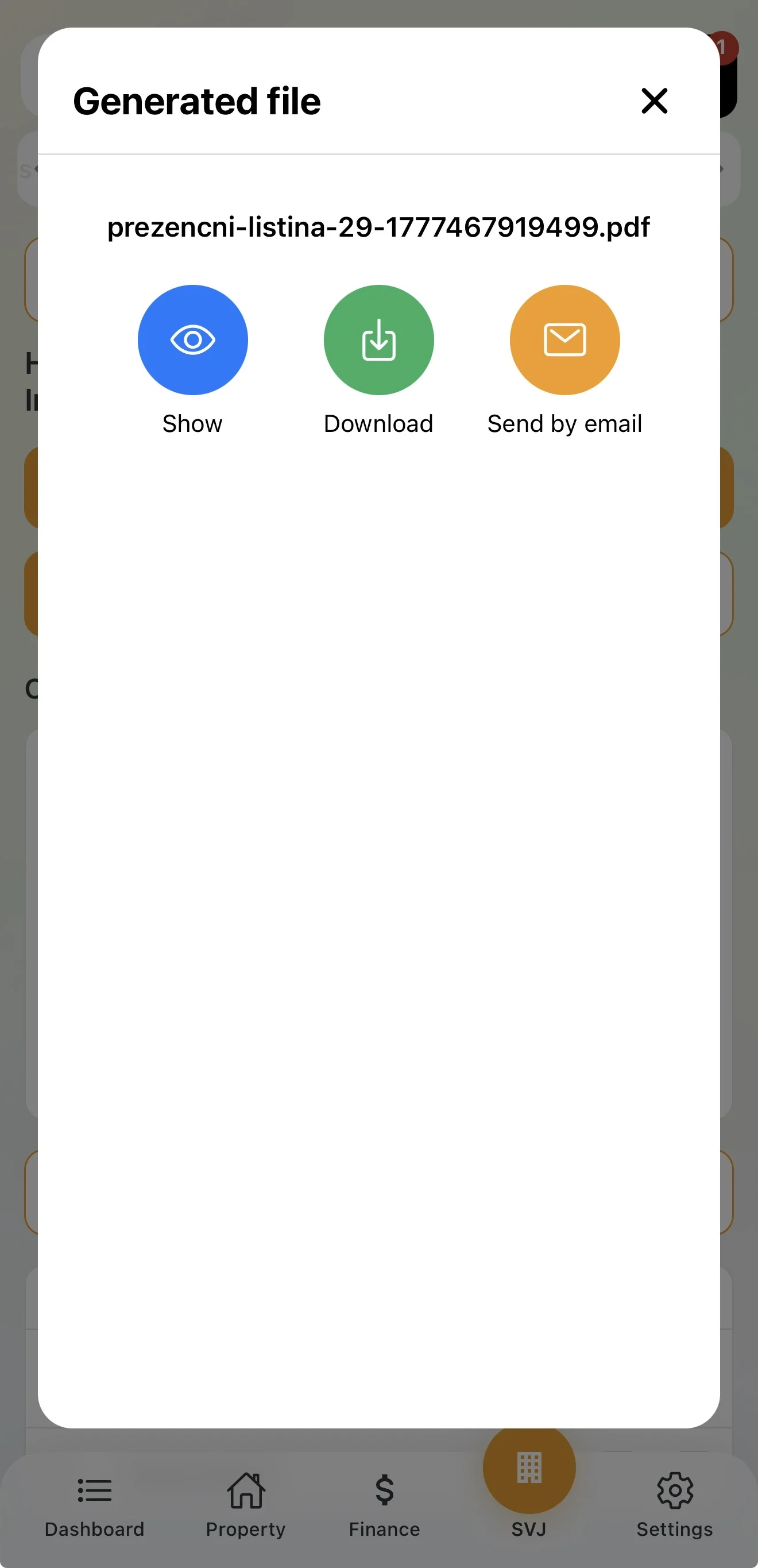
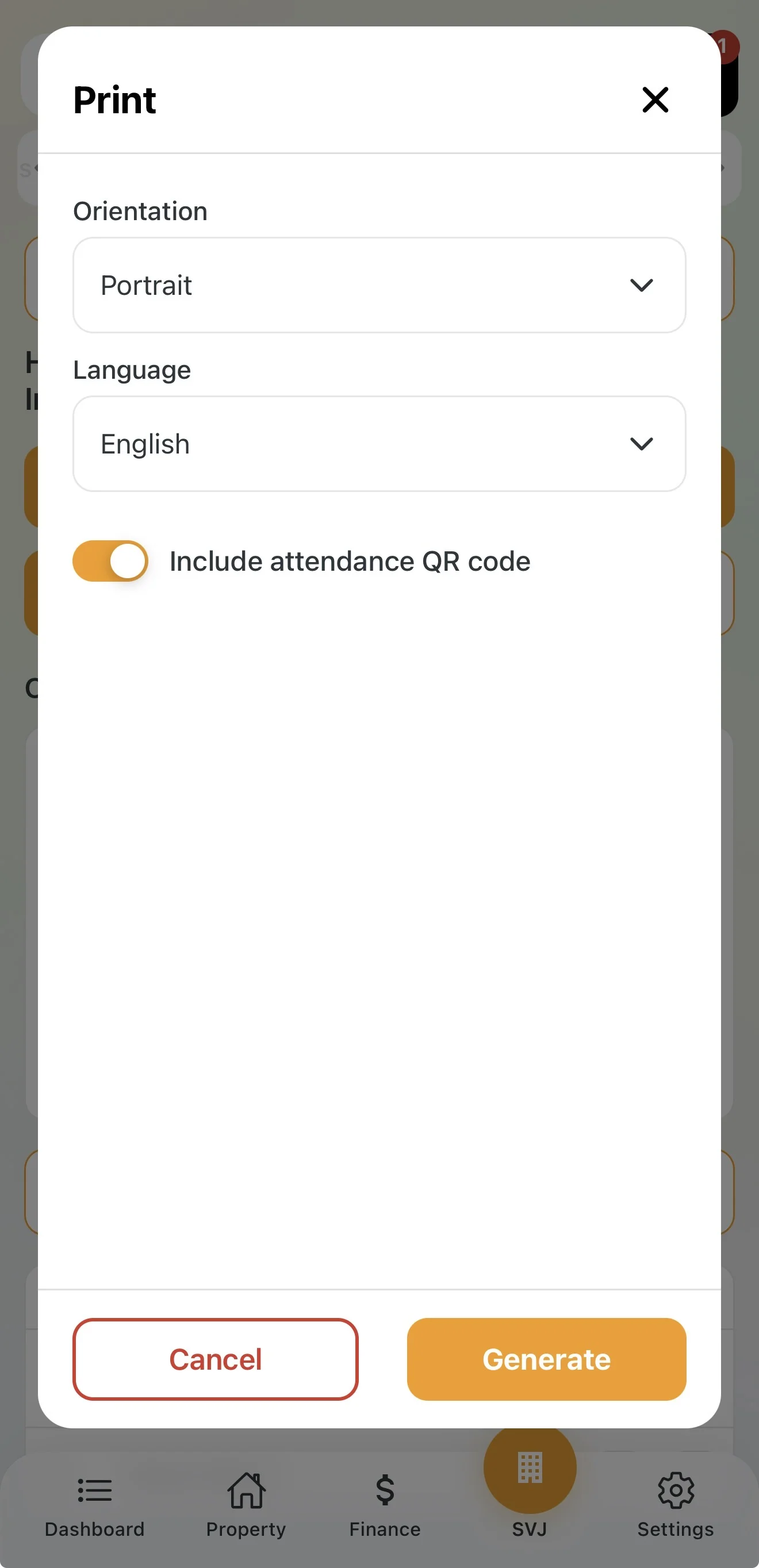
- In the scheduled meeting detail tap the Print button.
- Choose what to generate: Attendance Sheet, Meeting Agenda or Ballot Papers.
QR Code for Modern Check-In
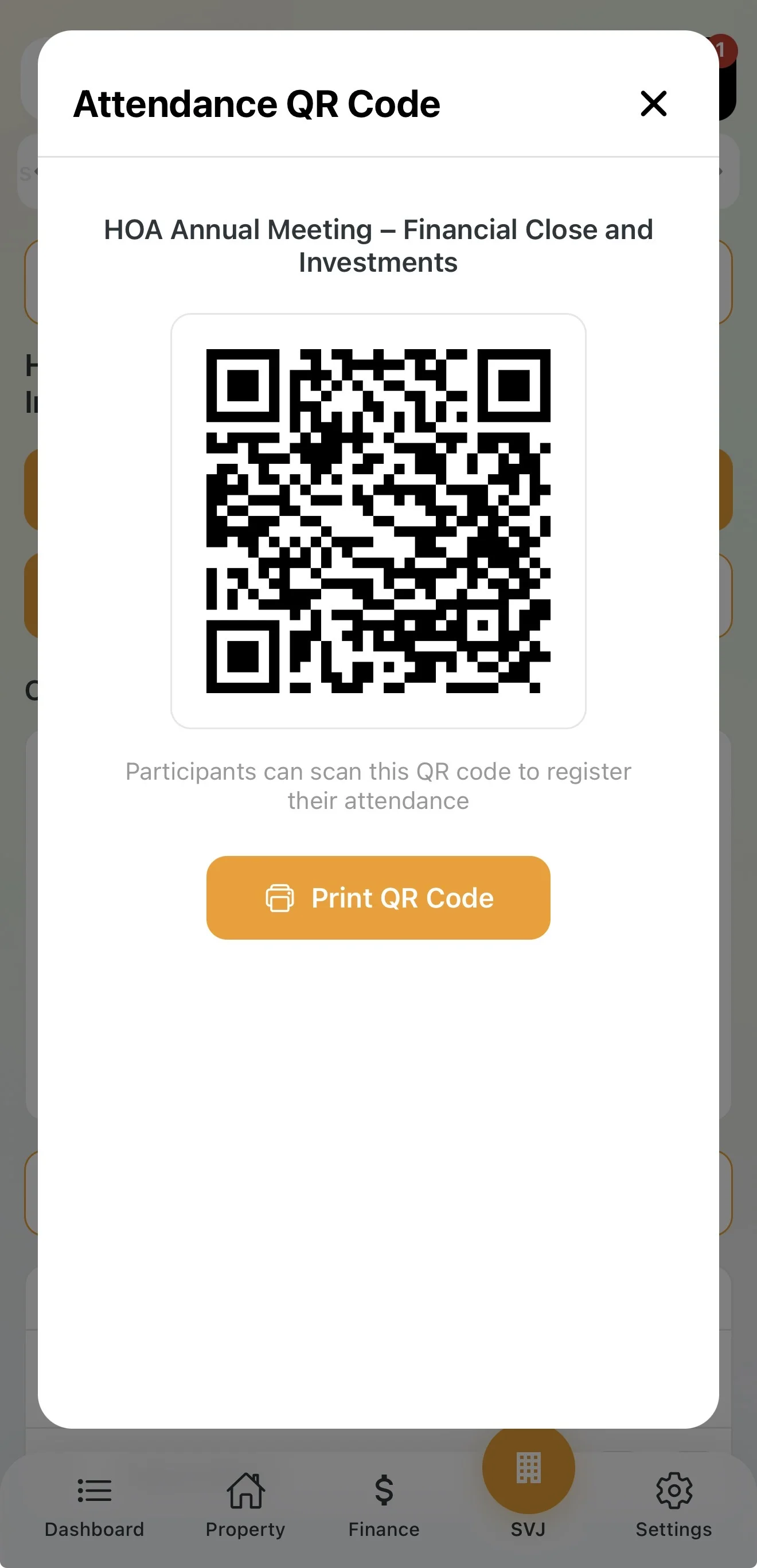
The fastest way to verify attendance and calculate quorum:
- In the meeting detail tap QR code for attendance sheet and print it.
- Place it at the entrance to the meeting room.
- Owners scan the QR code in the app and confirm their attendance.
Tracking Quorum
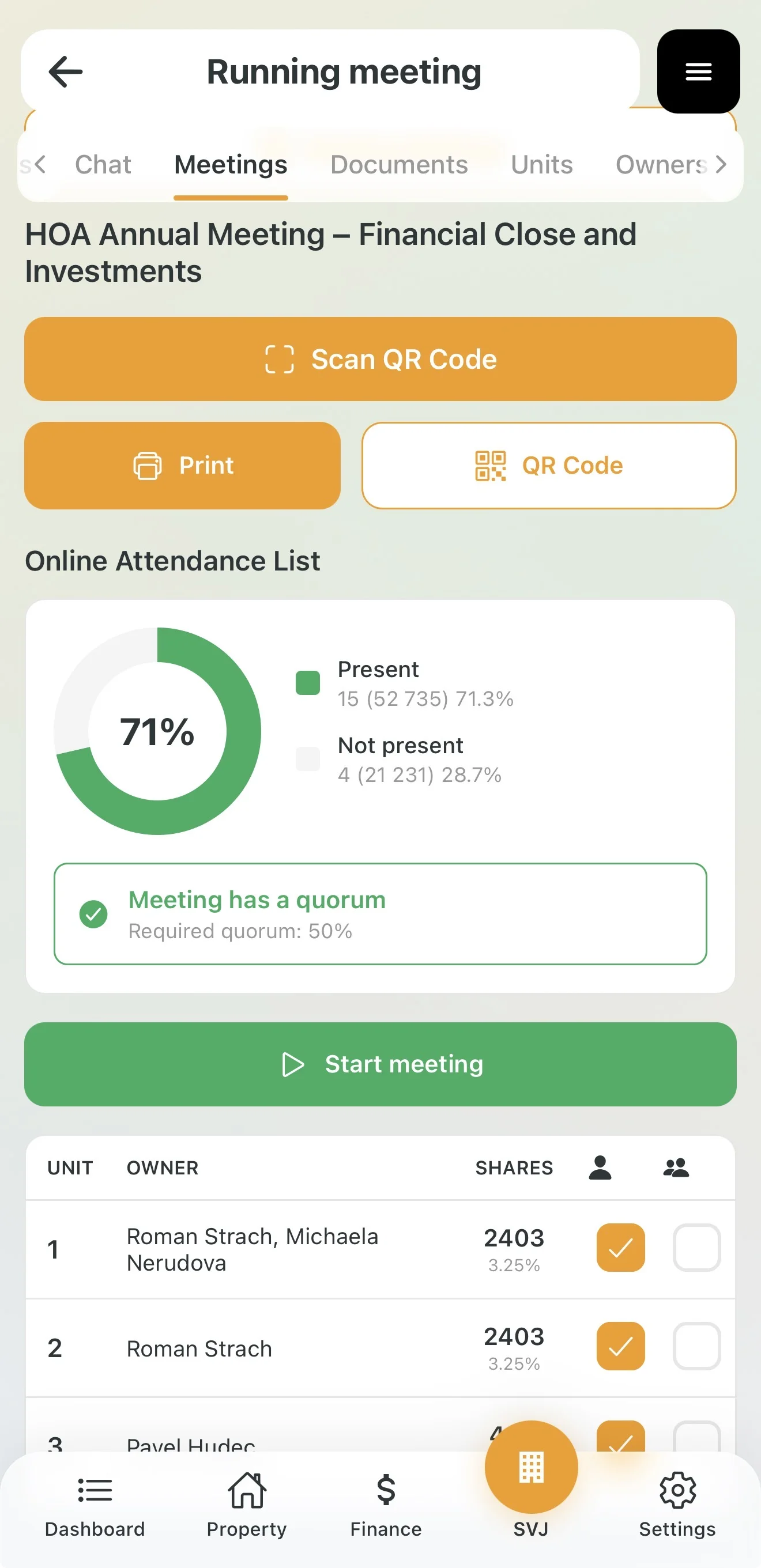
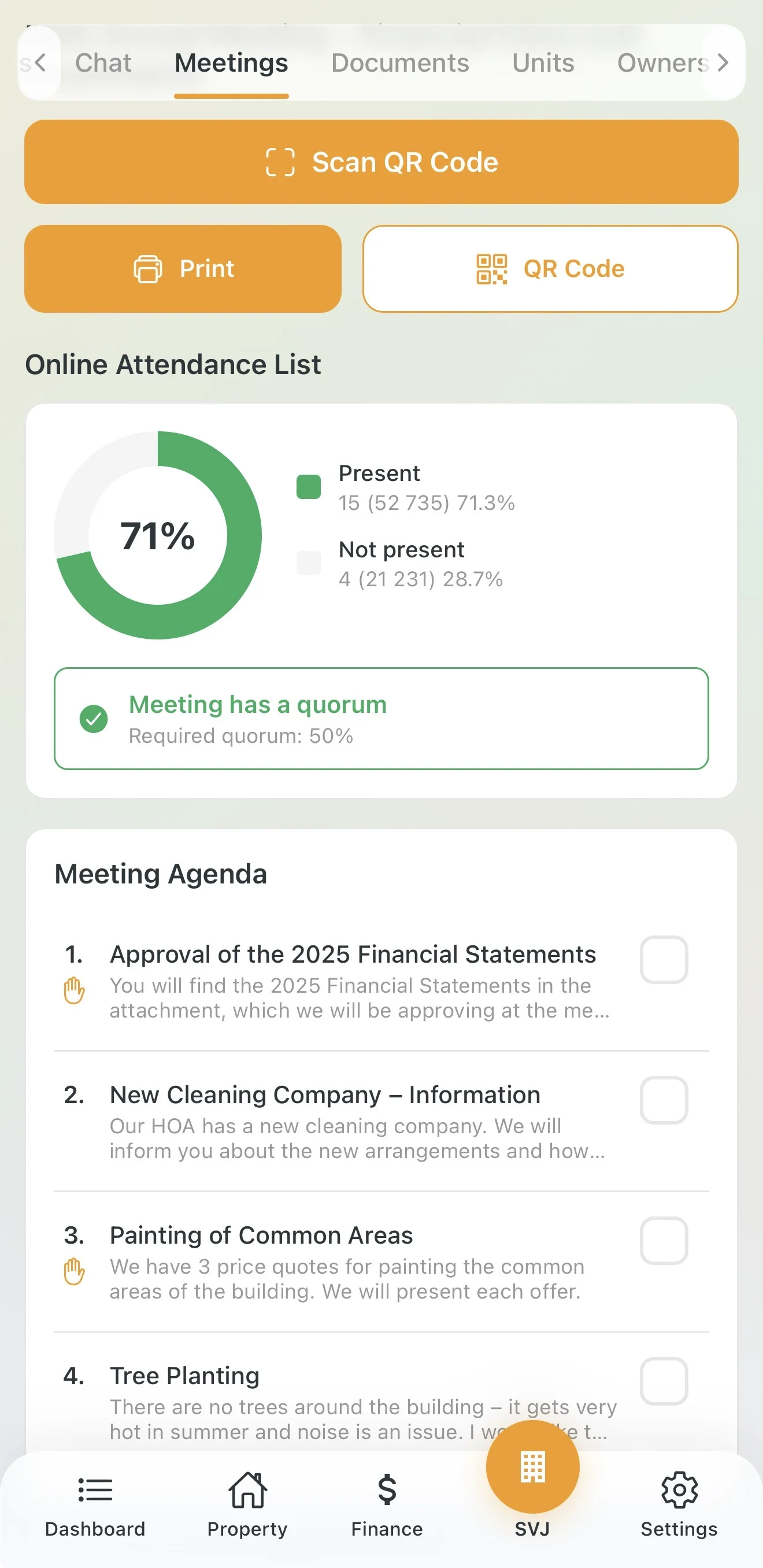
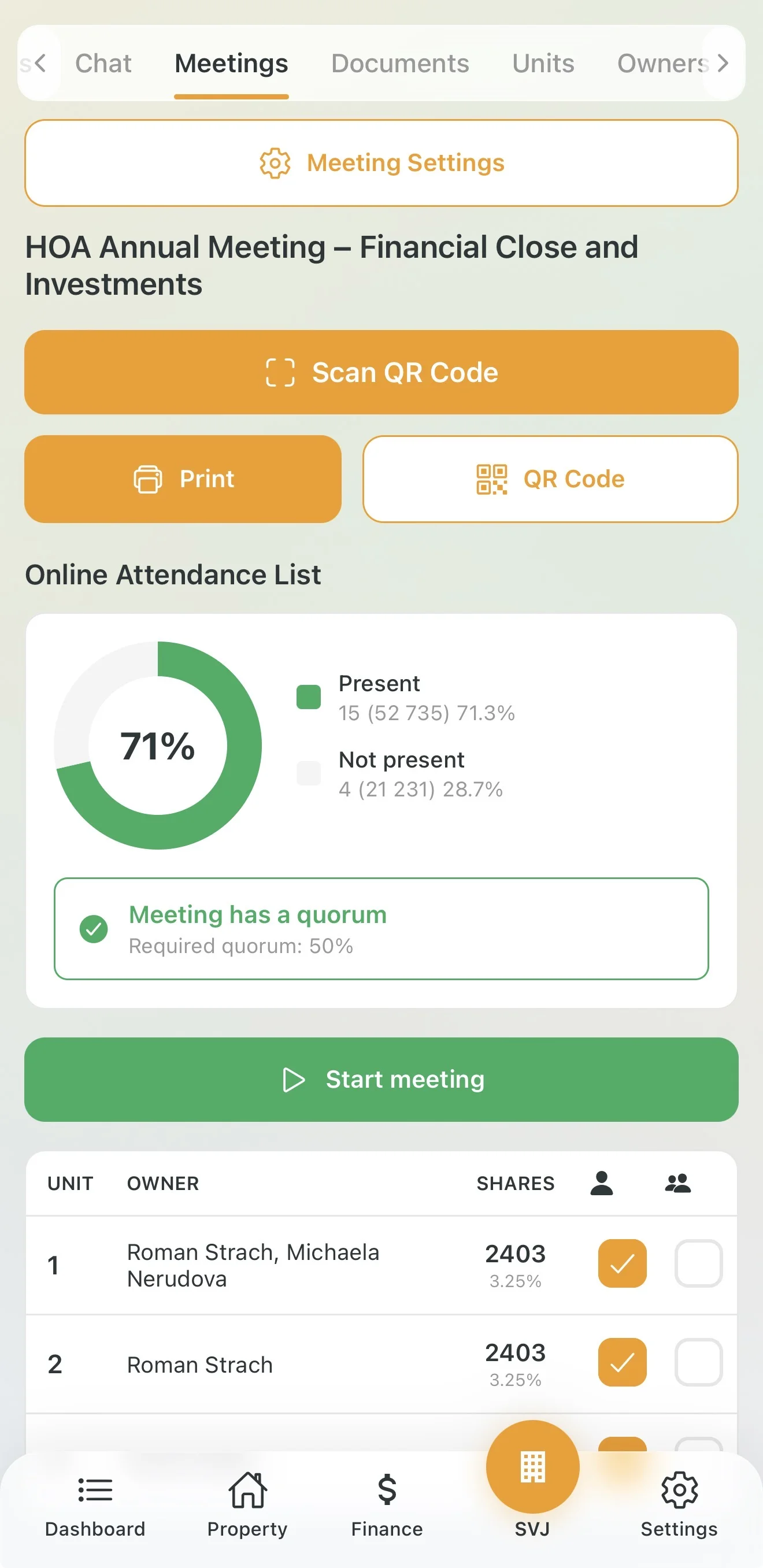
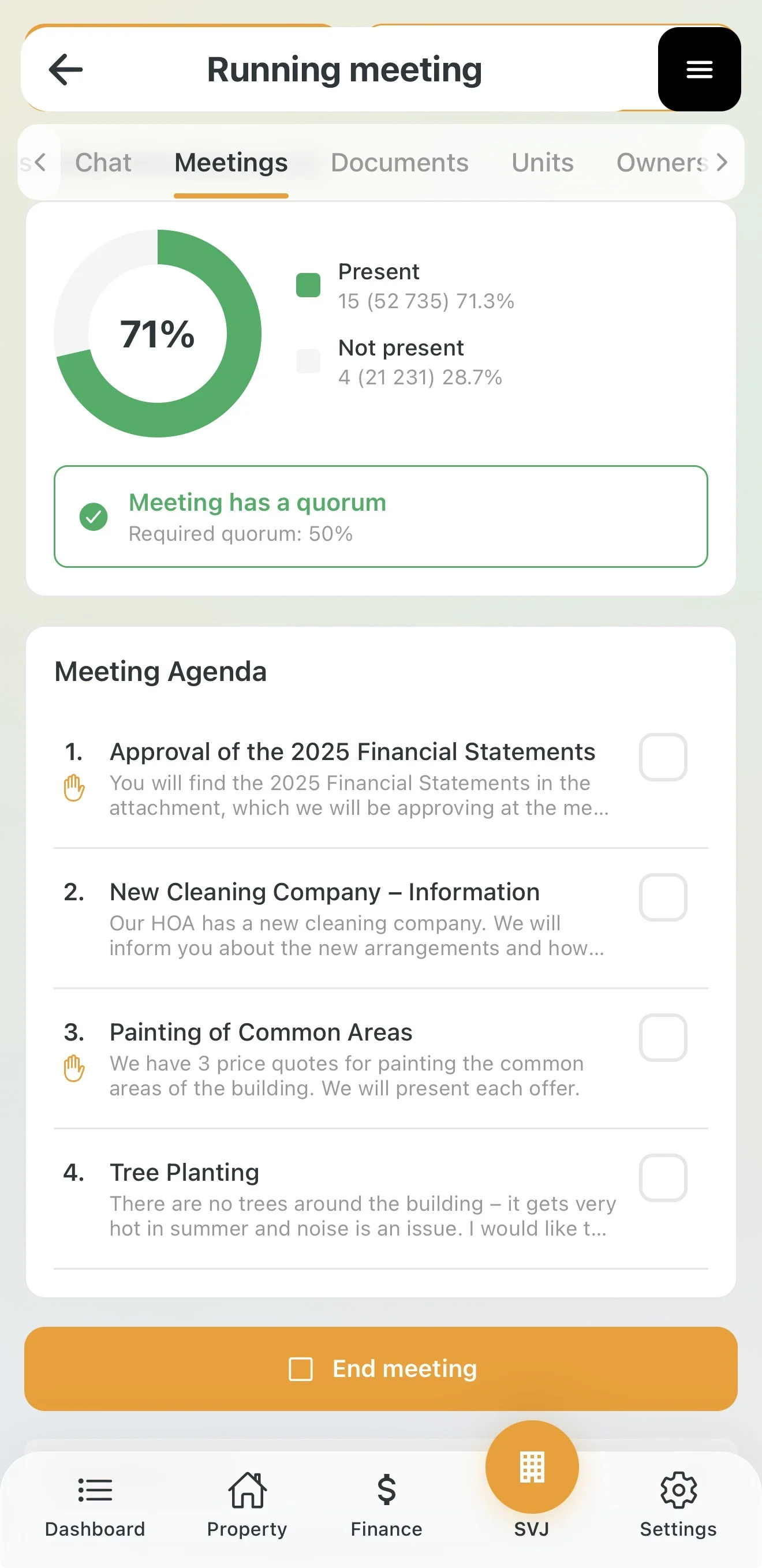
In the active meeting detail you have real-time quorum information:
- While the share of present votes hasn't reached the threshold, an orange warning "Meeting not quorate" is displayed.
- Once enough owners have registered, the warning turns green.
4. Running the Meeting and Voting
Recording Attendance
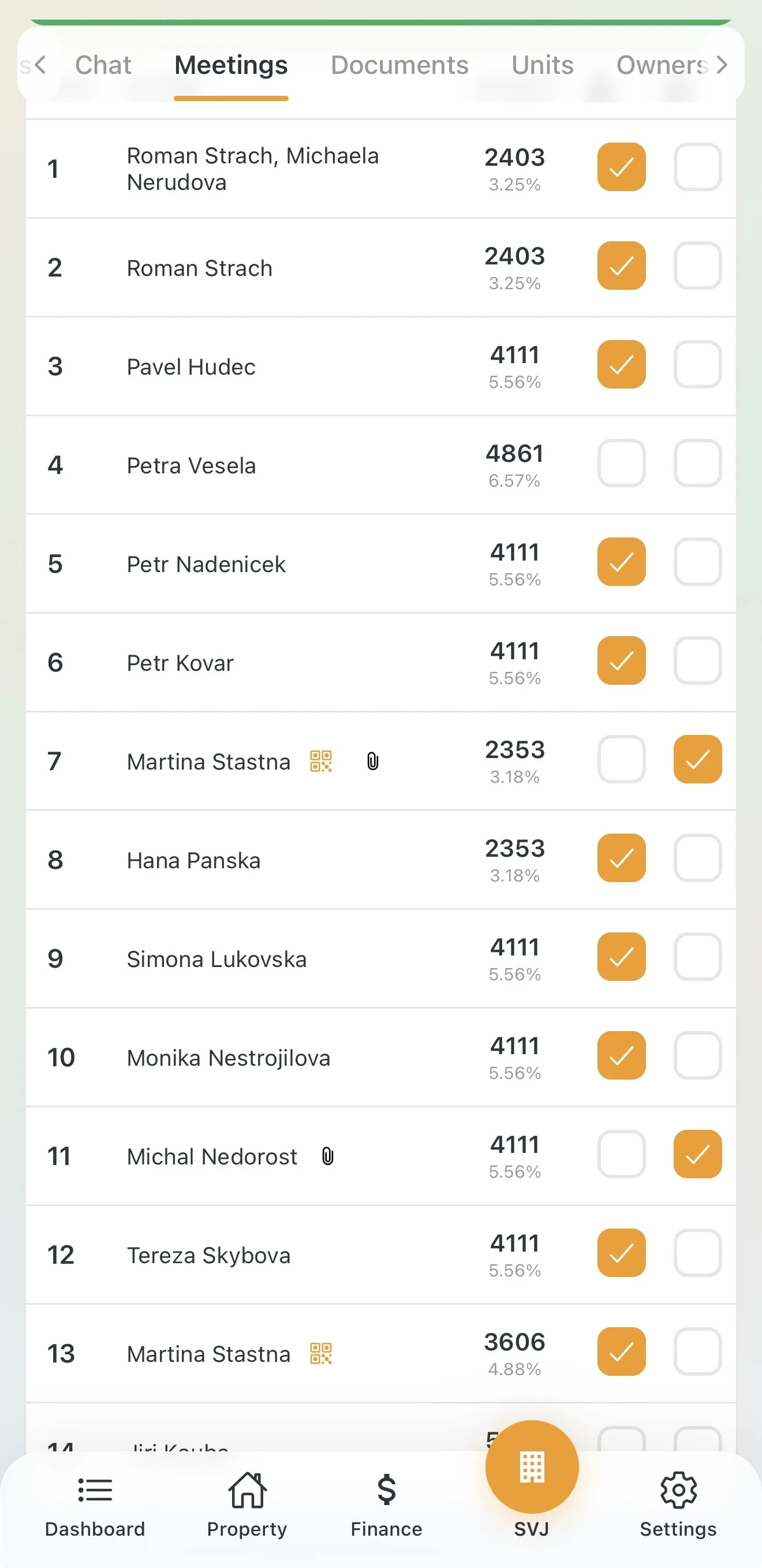
If owners sign a paper attendance sheet, enter the data manually:
- Personal attendance: Check the box next to a present owner (person icon).
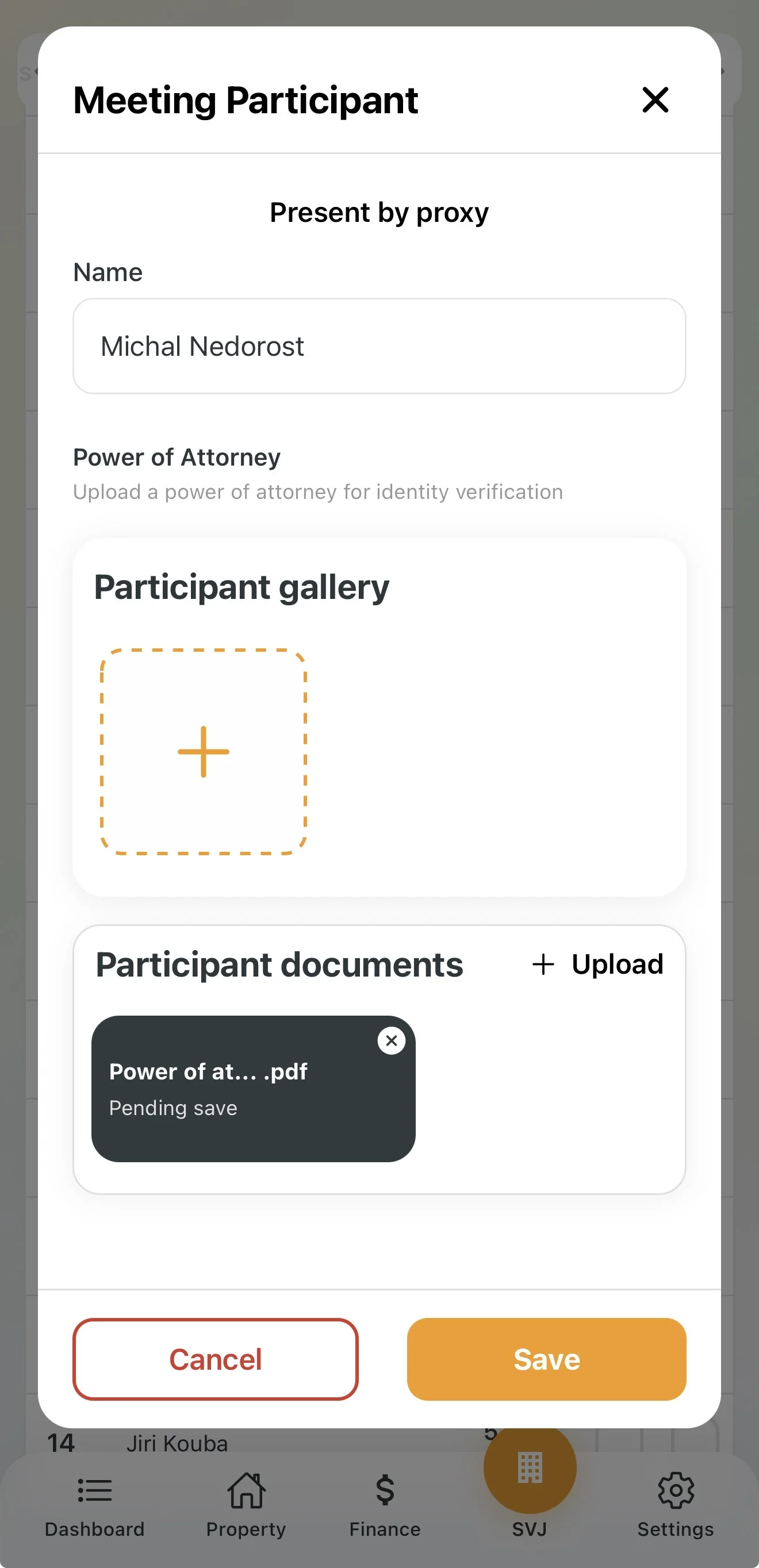
- Representation (Power of attorney): Tap the second column, fill in the representative's name and upload the power of attorney.
Opening the Meeting
Once the meeting is quorate:
Voting on Agenda Items
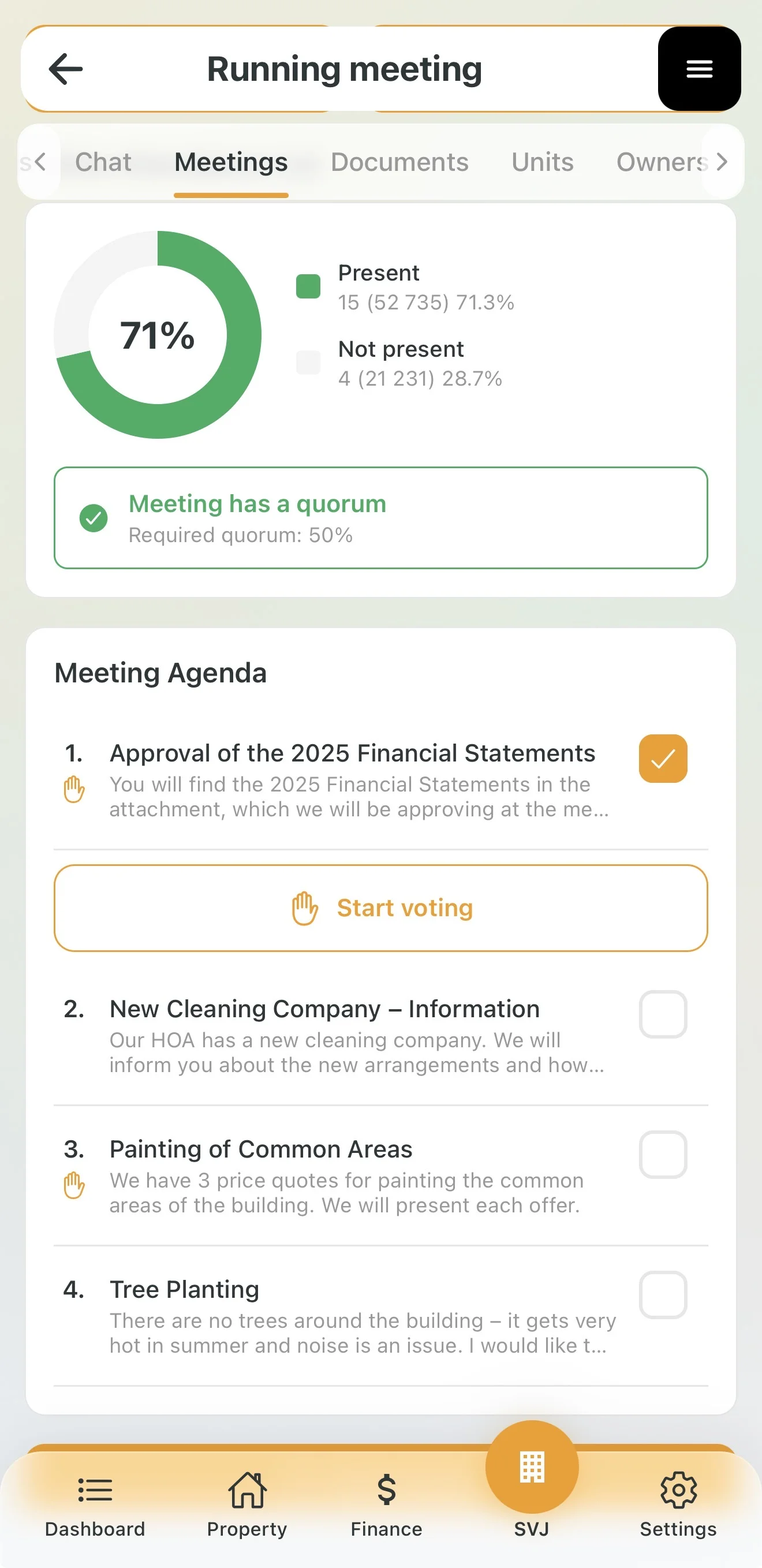
- Tap the agenda item and select Start voting.
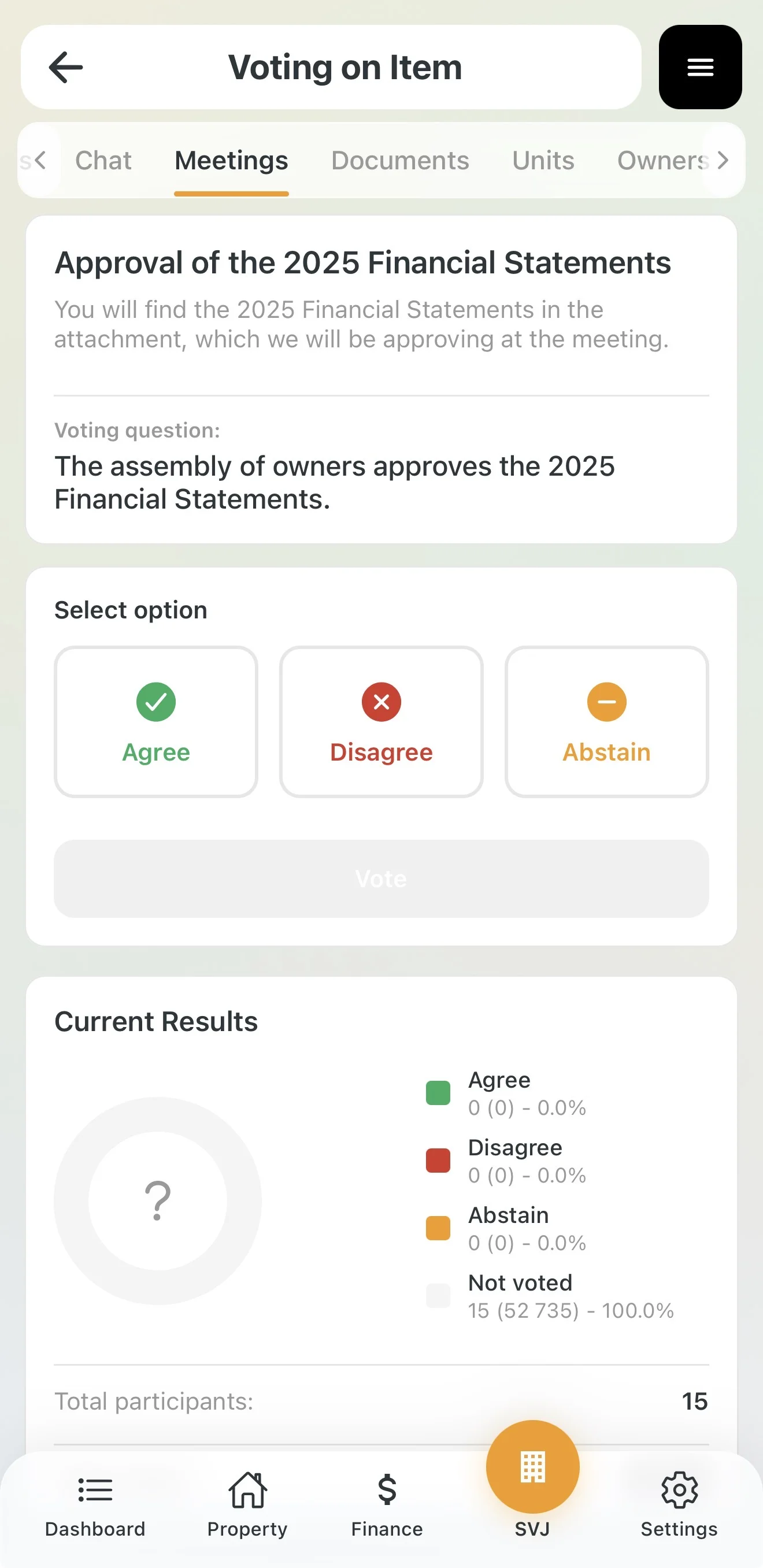
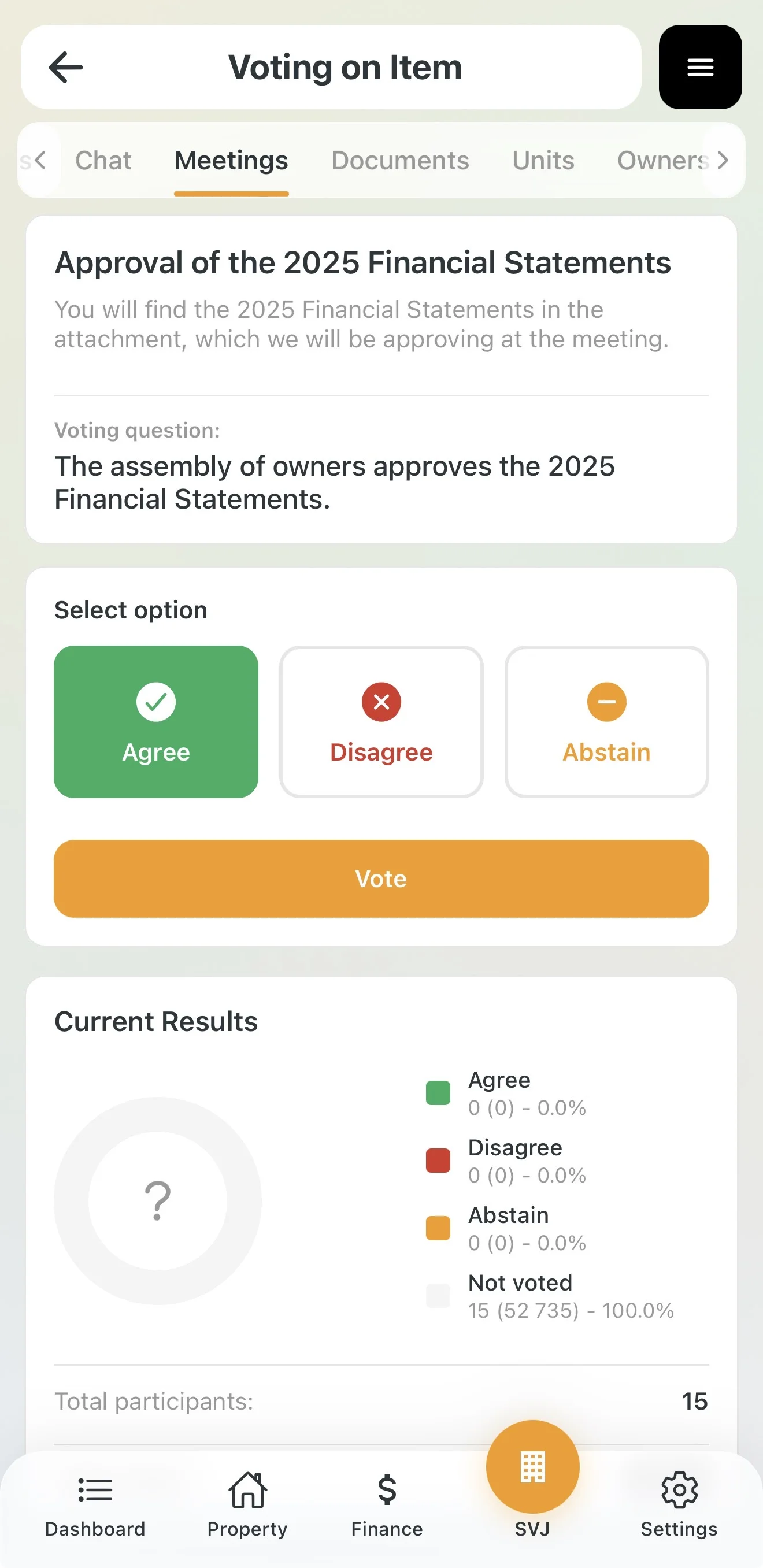
- Owners receive a prompt to vote in the app.
- Monitor interim results in the pie chart.
- Once all present owners have voted, tap Close voting.
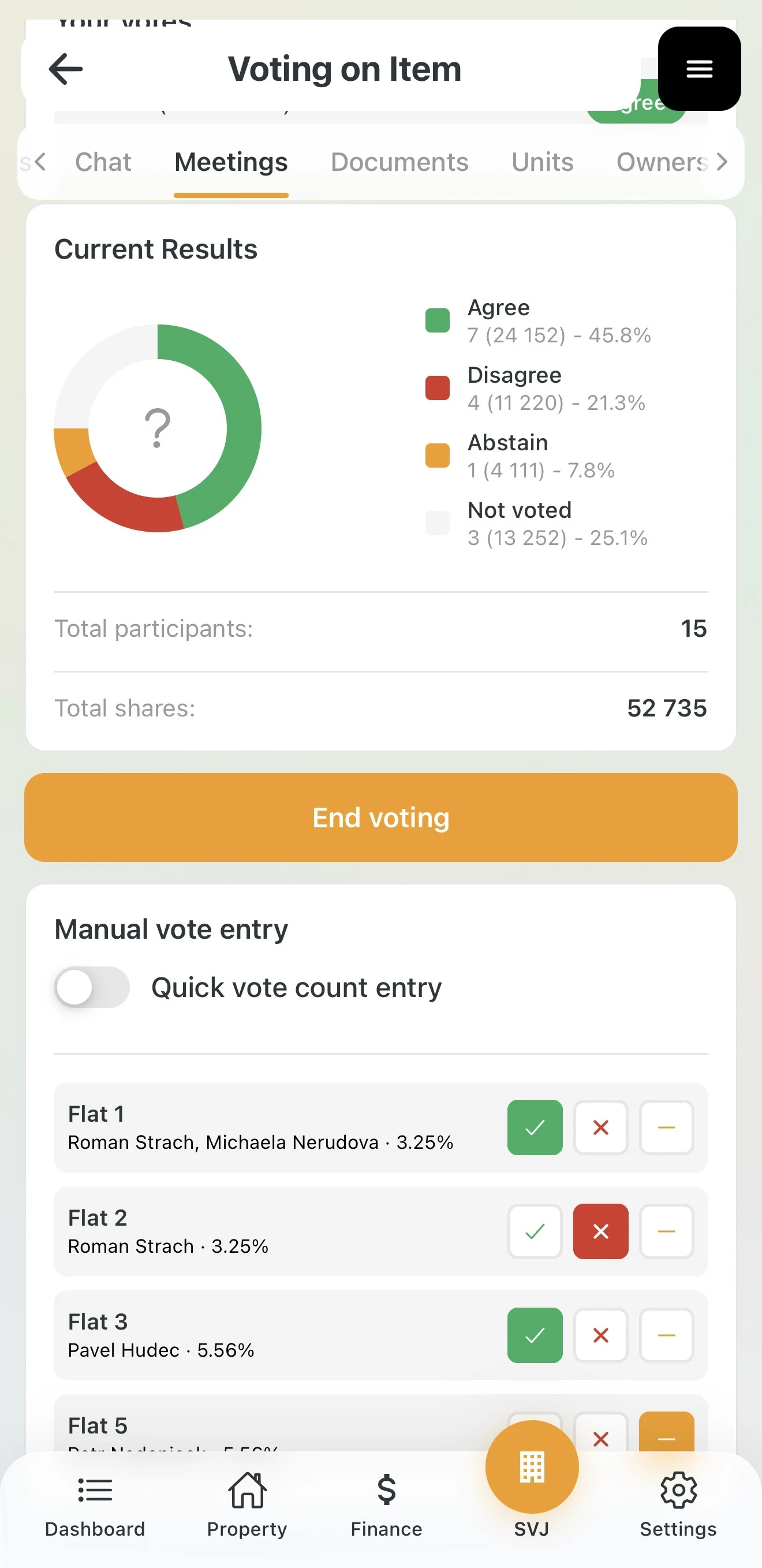
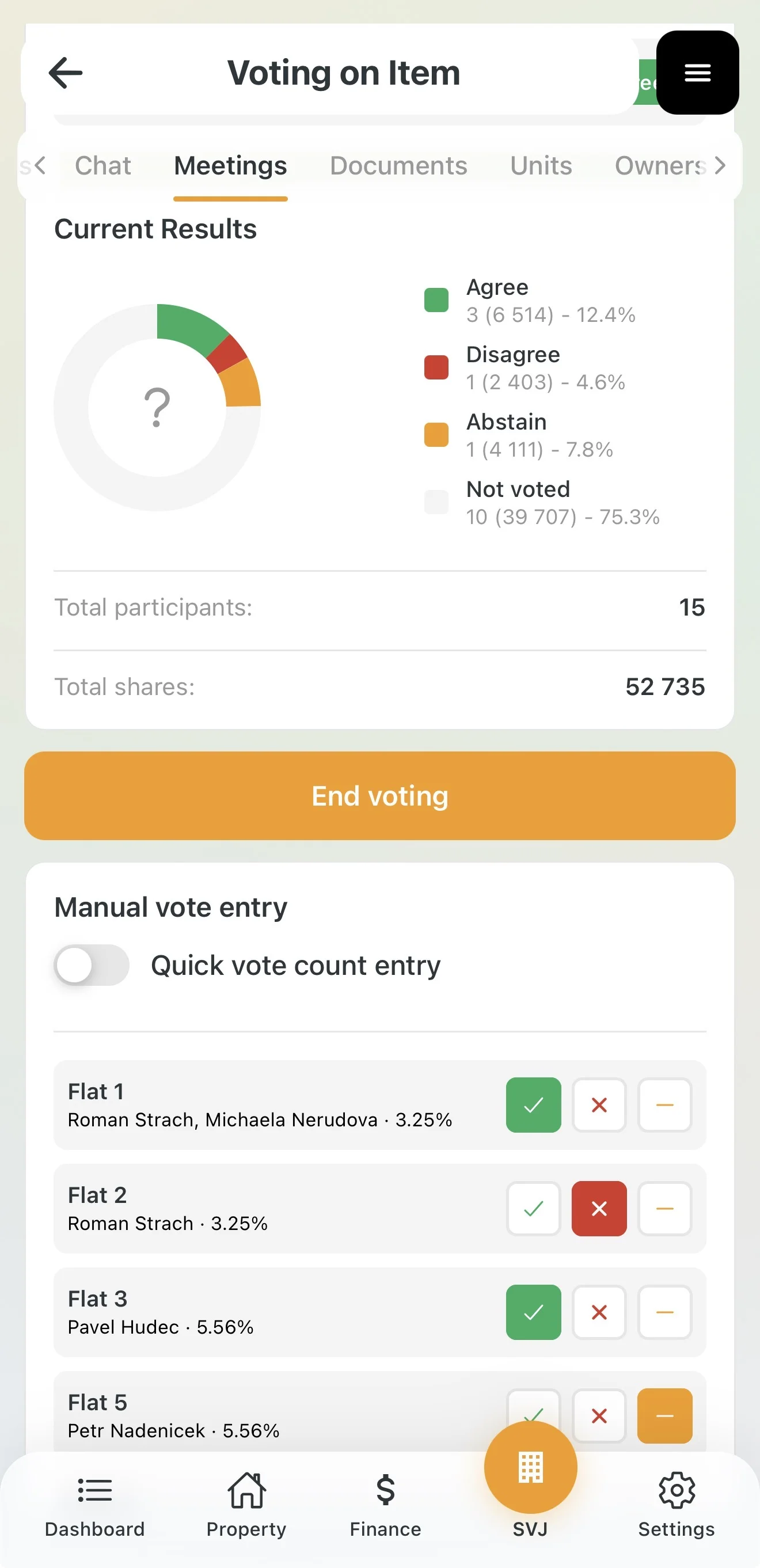
Important: Present owners who haven't cast a vote when the item is closed are automatically assigned "Abstained".
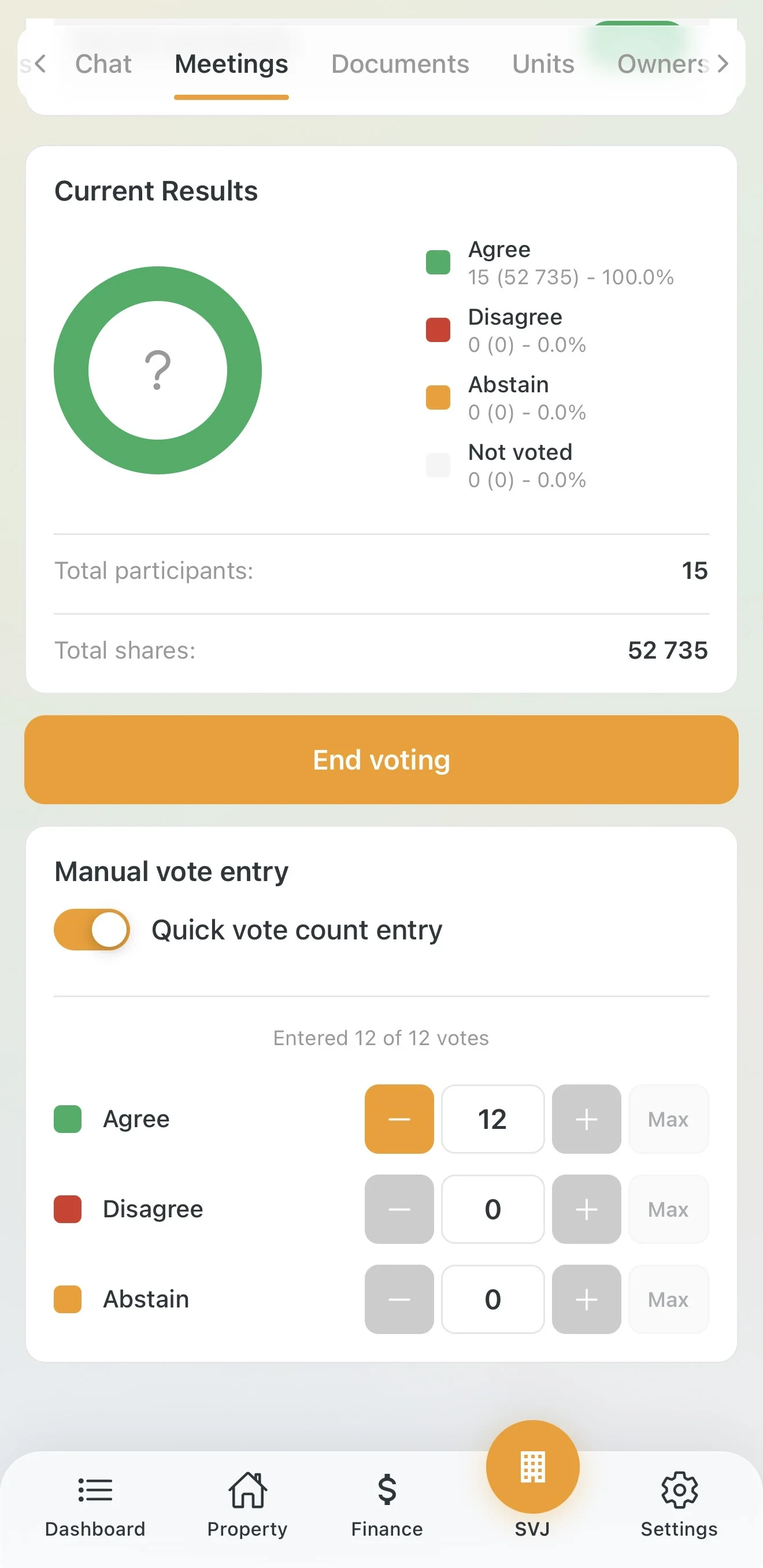
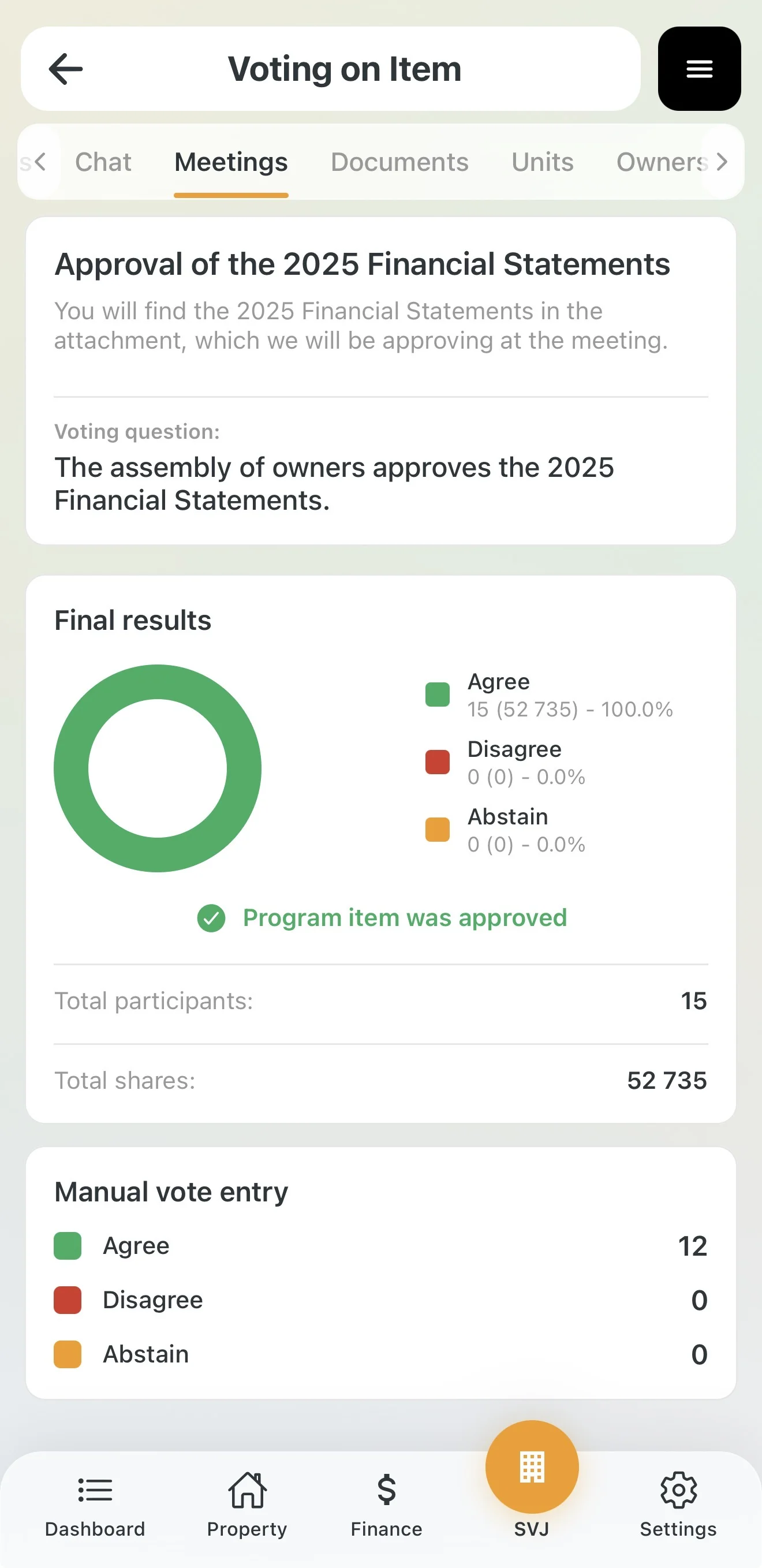
Manual Vote Entry
If someone doesn't vote via phone, use the Manual vote entry section to click:
- Green tick → Agree
- Red cross → Disagree
- Dash → Abstain
5. Closing the Meeting and Generating Minutes
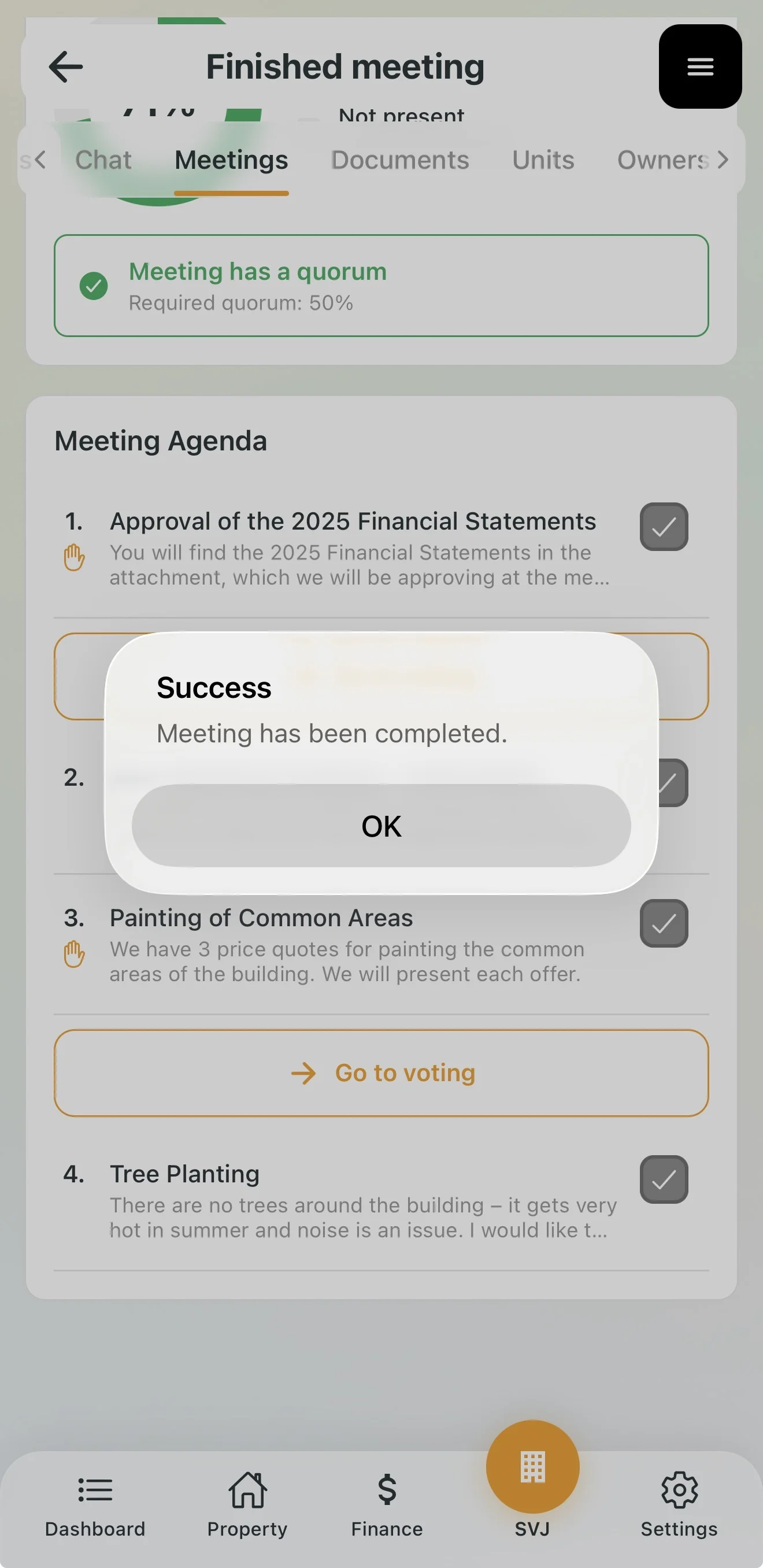
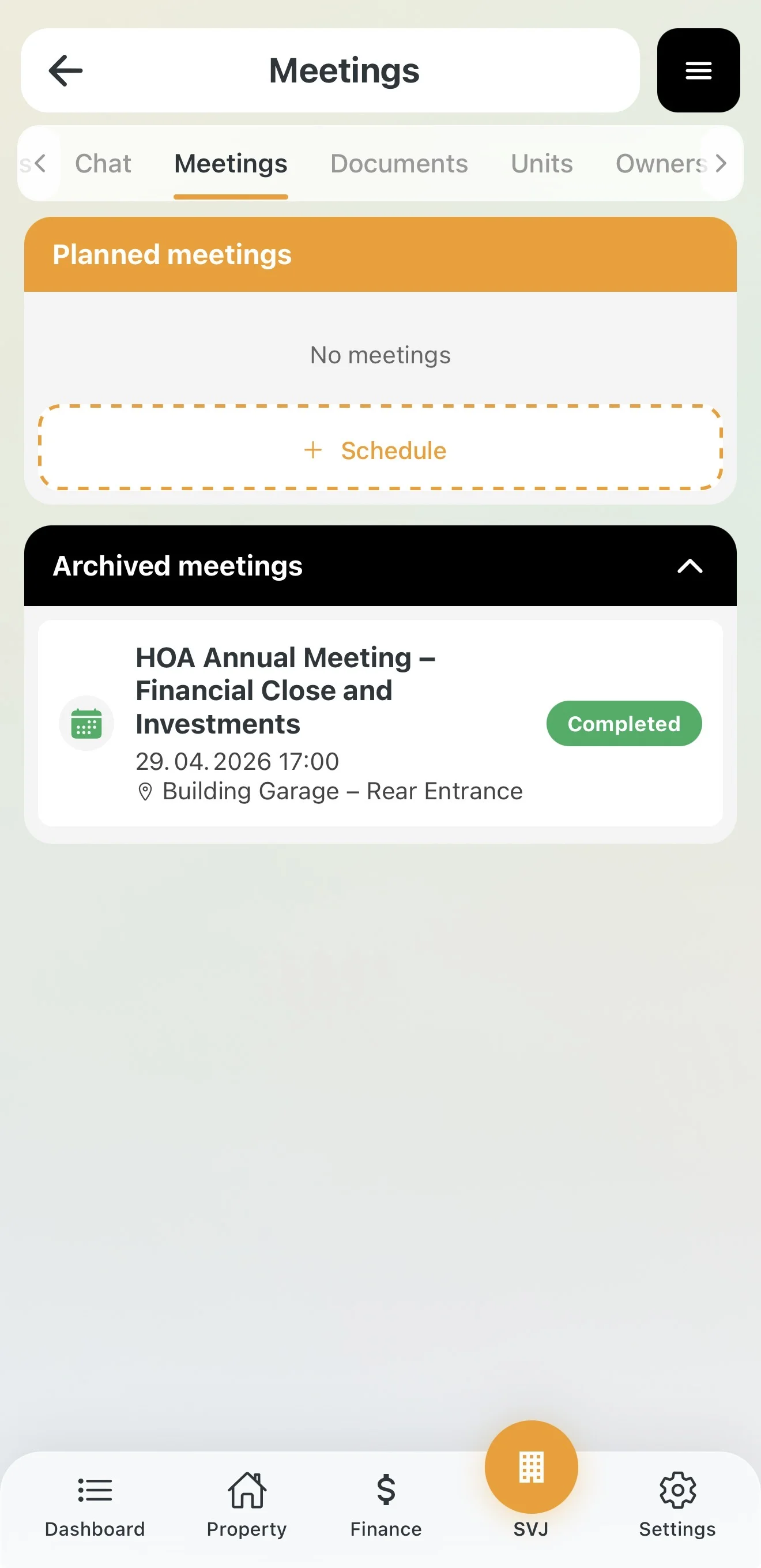
Closing and Archiving
Once all agenda items have been covered:
Generating the Minutes
The app assembles the minutes for you with one tap:
- In the closed meeting detail tap the orange Print button.
- Select Meeting Minutes.
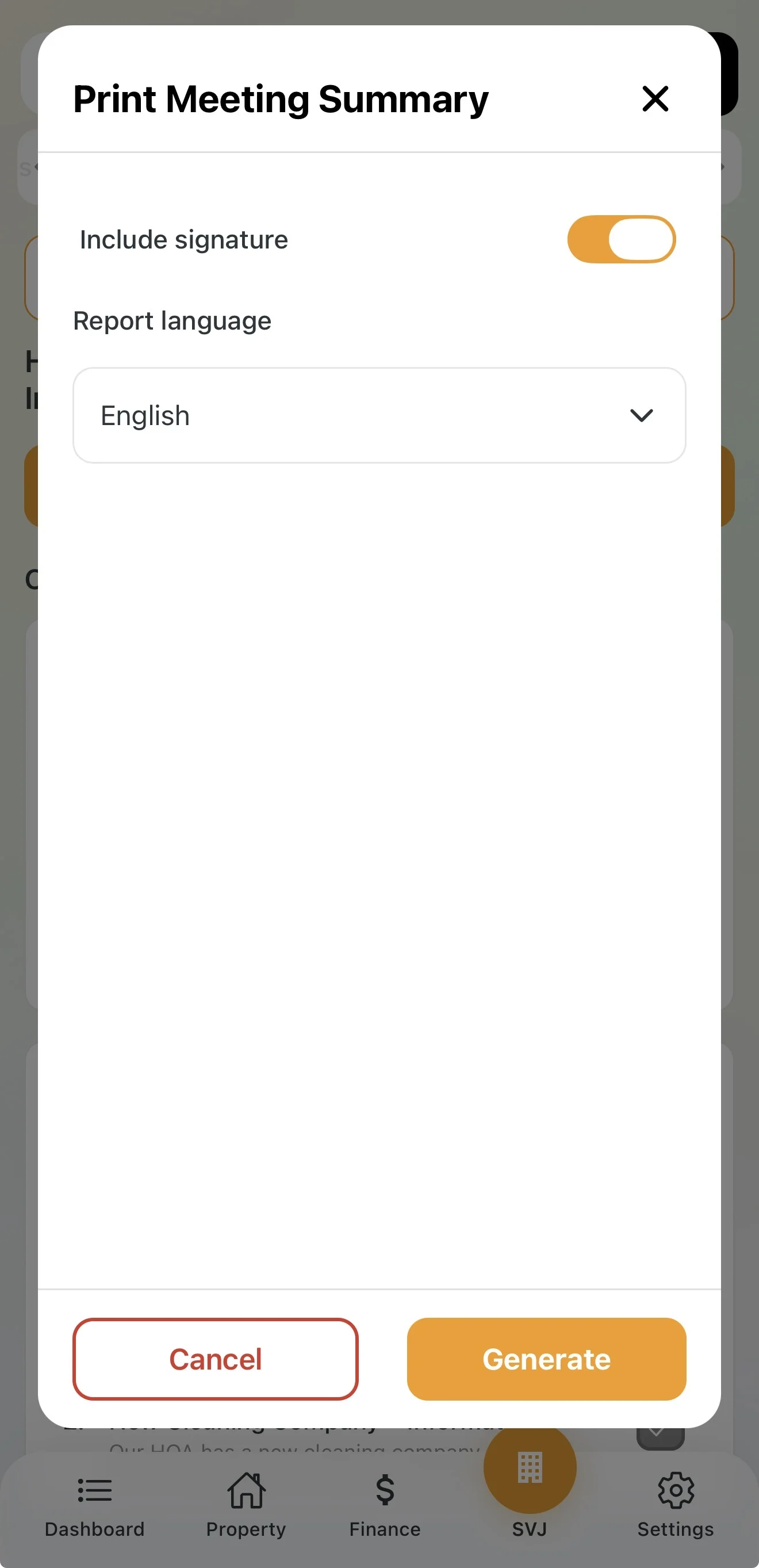
- Optionally enable Show signature (for the verifier) and choose a language.
- Tap Generate.
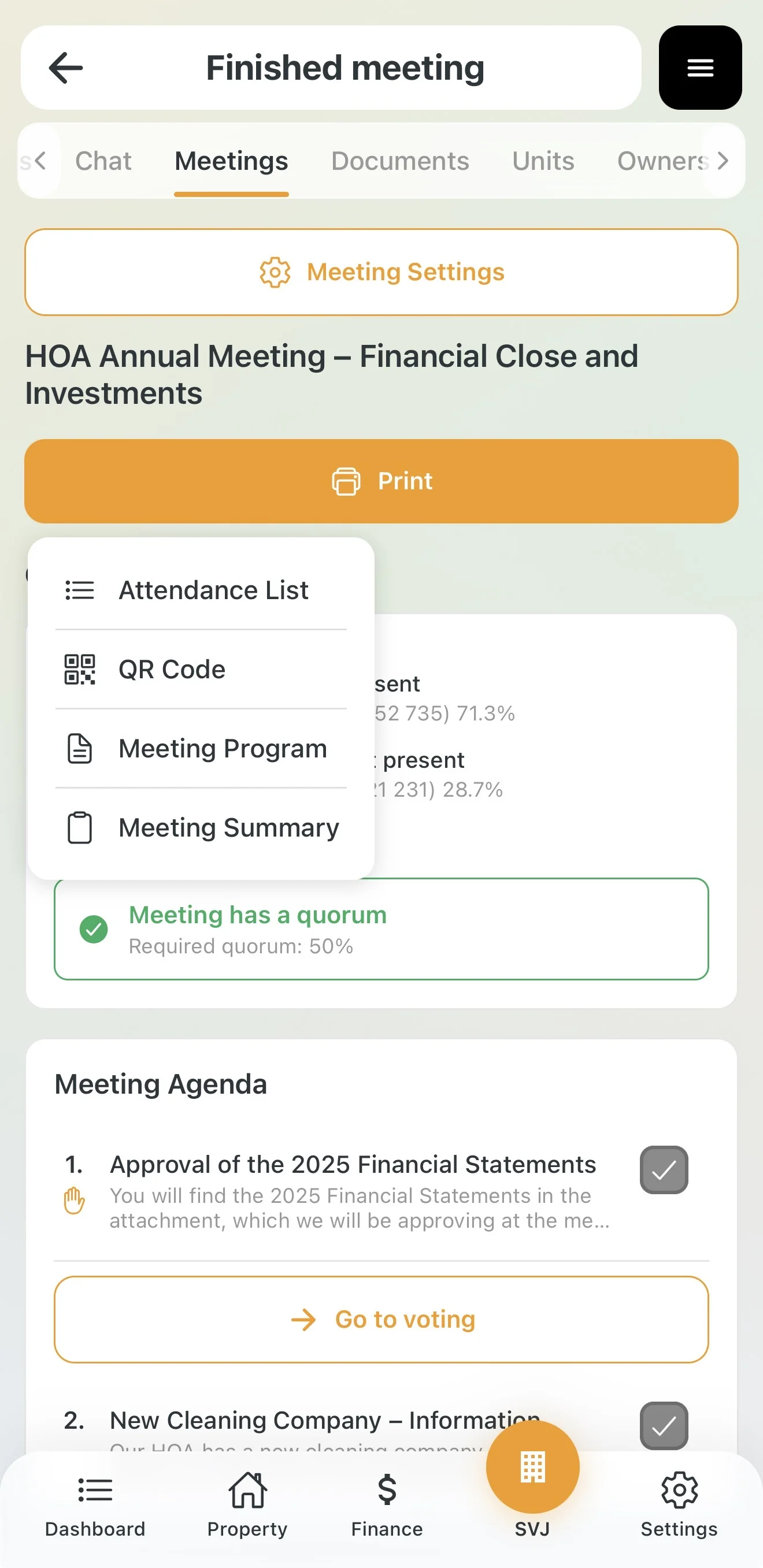
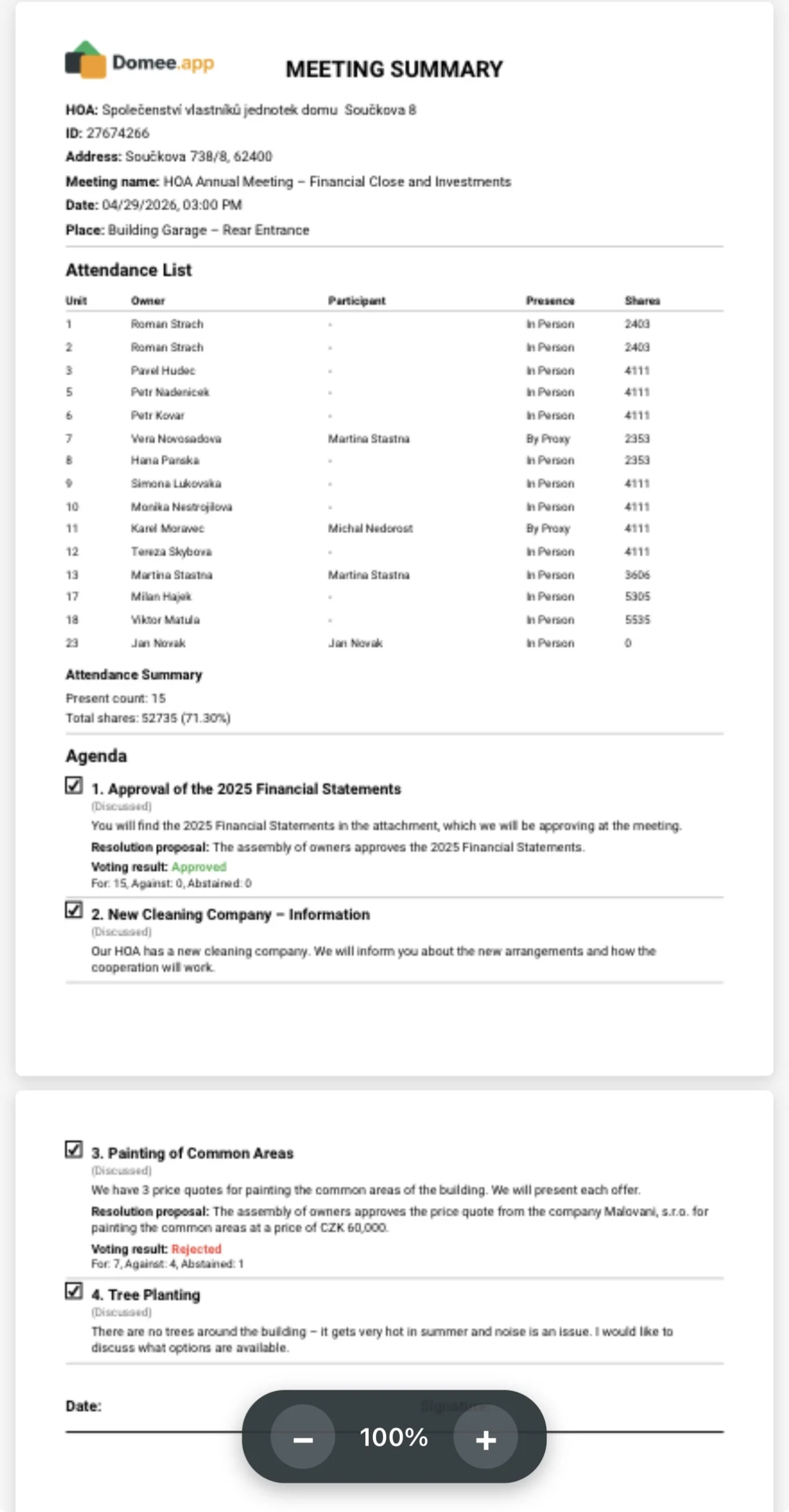
The automatic minutes include: HOA header, full attendance list, quorum summary and detailed results for each agenda item.
Board tip: The generated PDF minutes can be emailed directly to all owners or uploaded to the Documents module for permanent access.