

Inviting an External Property Manager or Accountant
No more emailing documents to your property manager and wondering who has which version. The House managers and external members section lets you invite an external property manager or an external accountant to Domee.app. The board keeps full control over what the invited person can see and edit. The invited person uses the app for free.
1. Where to Find External Members
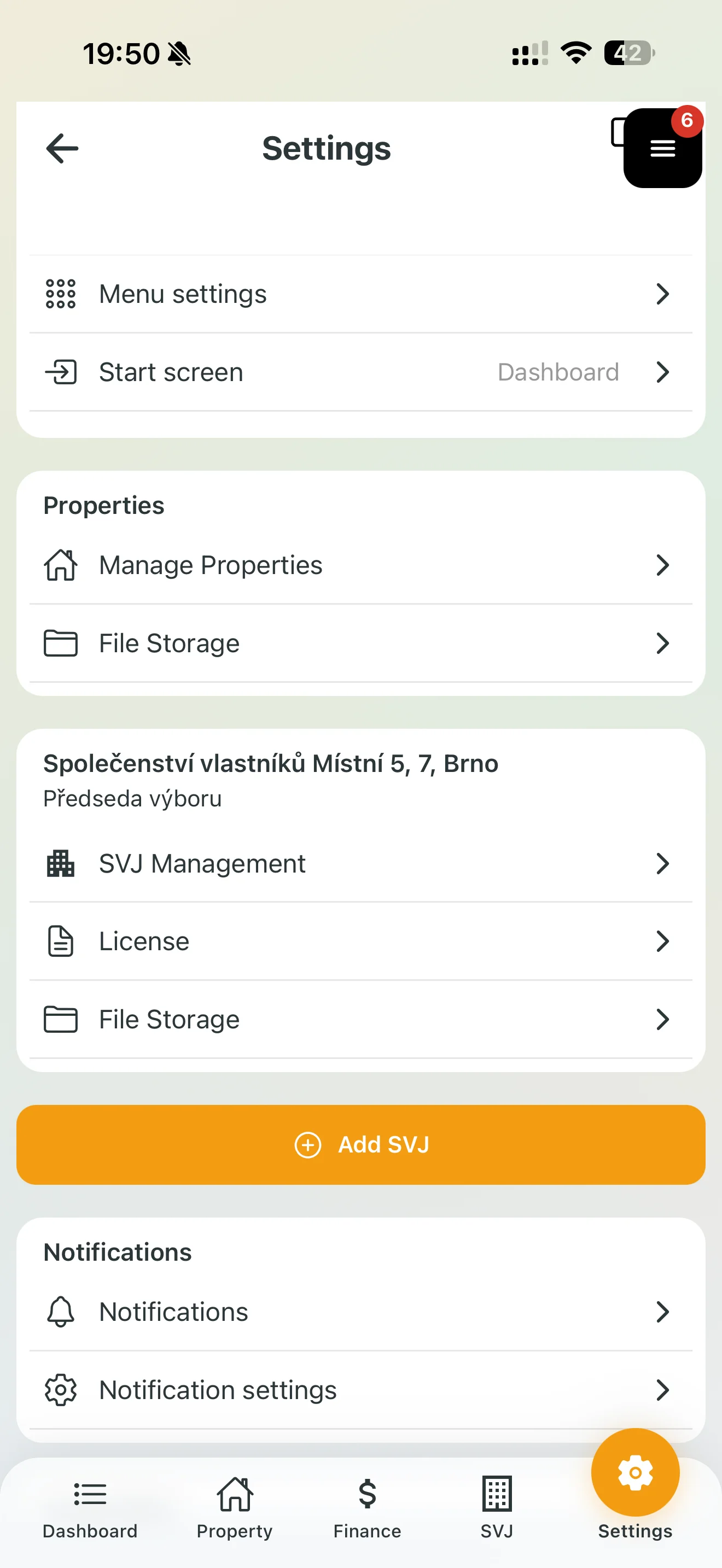
- In the bottom bar tap Settings.
- On your HOA card (e.g. Společenství vlastníků …) tap SVJ Management.
- Scroll down to the House managers and external members section. It lists all invited managers and external members, including their status.
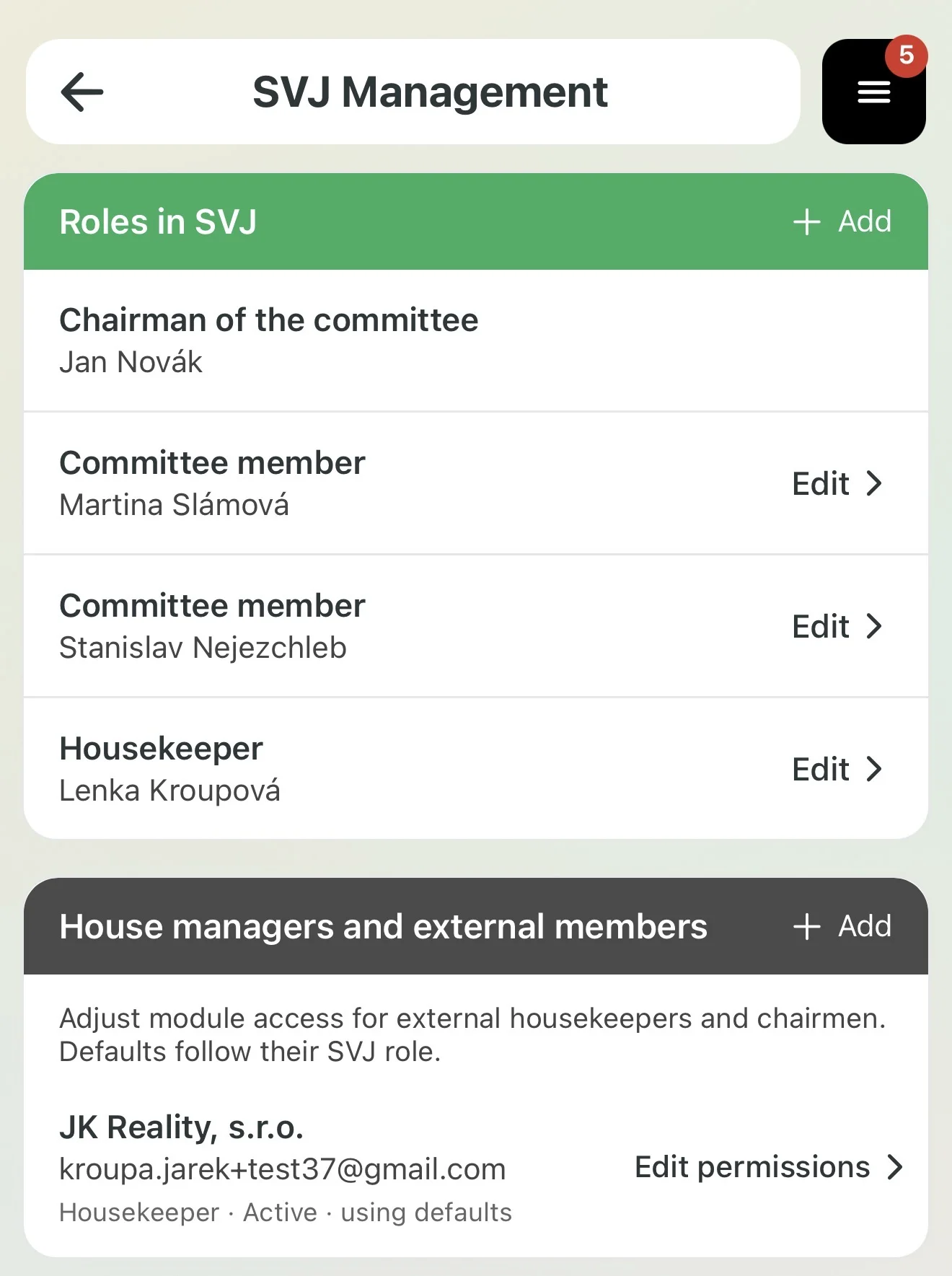
For each invited person you will see:
- Name or company name and email.
- Status: e.g. Housekeeper · Active · using defaults.
- Edit permissions: a link to the access settings (see section 4).
Tip: Once the manager accepts the invitation, they also appear at the top in Roles in SVJ as Housekeeper.
2. Inviting a Manager or Accountant
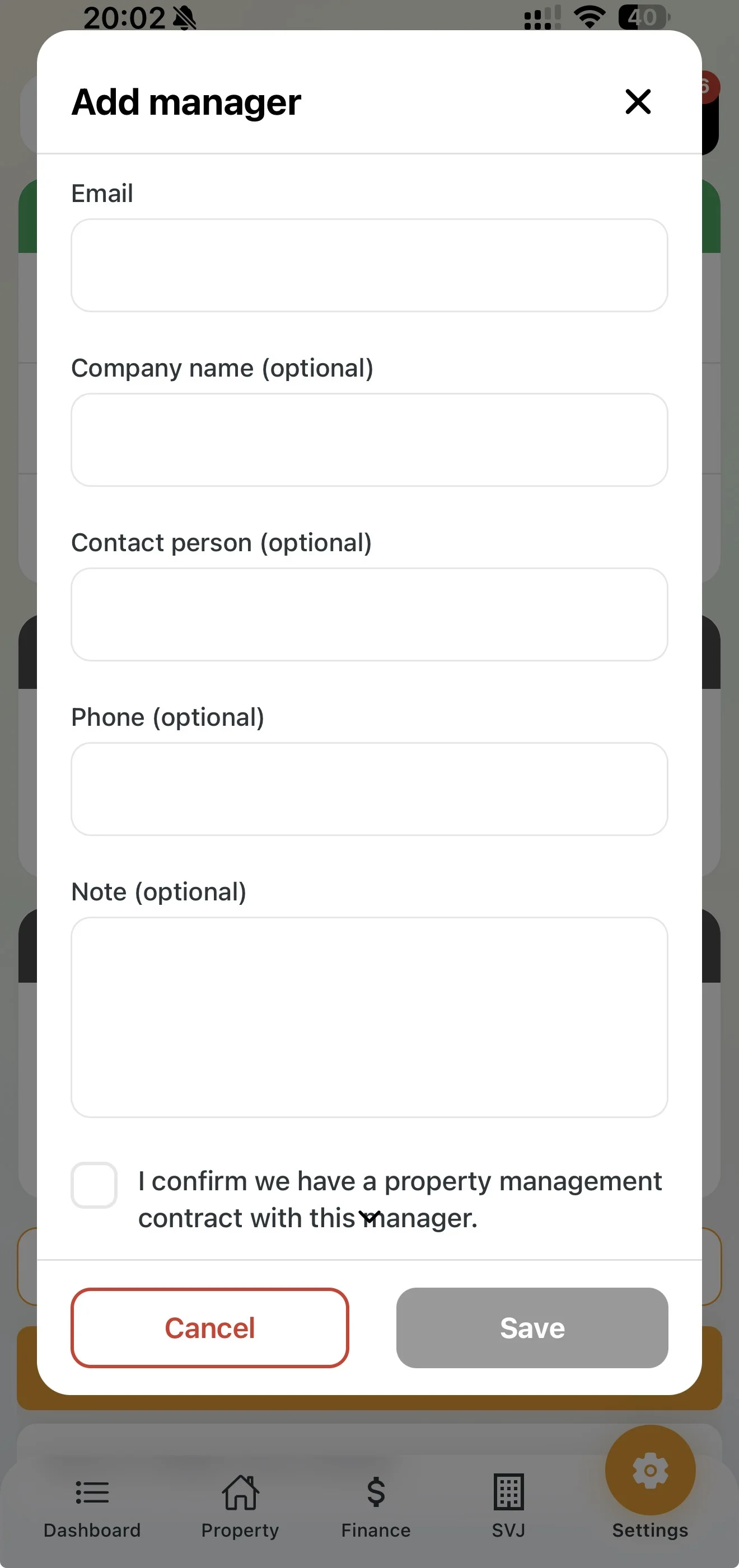
- In the House managers and external members section tap + Add on the right.
- The Add manager window opens. Fill in:
- Email (required): the invitation is sent to this address.
- Company name (optional): e.g. a property management or accounting company.
- Contact person (optional)
- Phone (optional)
- Note (optional): e.g. the scope of management or the contract number.
- Tick I confirm we have a property management contract with this manager. The Save button stays inactive until you confirm.
- Tap the orange Save. If you do not want to send the invitation, close the window with the red Cancel.
Important: You can only invite managers or accountants who have a contract with your HOA. The confirmation is your statement on behalf of the board.
How Many External Members You Can Invite
- One HOA can invite several managers and accountants. Invite each of them separately via + Add.
- The section is not only for an external property manager. An external accountant belongs here too.
- So does an external chairman: a chairman hired by the HOA who does not own a flat in the building. They can also set up and manage the app for the HOA.
3. What Happens After You Send the Invitation
- The invited person receives an invitation at the given email address and confirms it.
- If they do not have a Domee.app account yet, they sign up.
- If they already have an account, they just sign in. Your building is added to the other buildings they manage.
- Once they accept the invitation, their status changes to Active.
What the Manager Sees
- All buildings they manage in one place.
- On the Dashboard, an overview of chats with boards, all meetings and voting across buildings.
- They can open the detail of any building at any time.
4. Setting the Manager's Permissions
Each board decides what its manager can access.
- Next to an active manager tap Edit permissions.
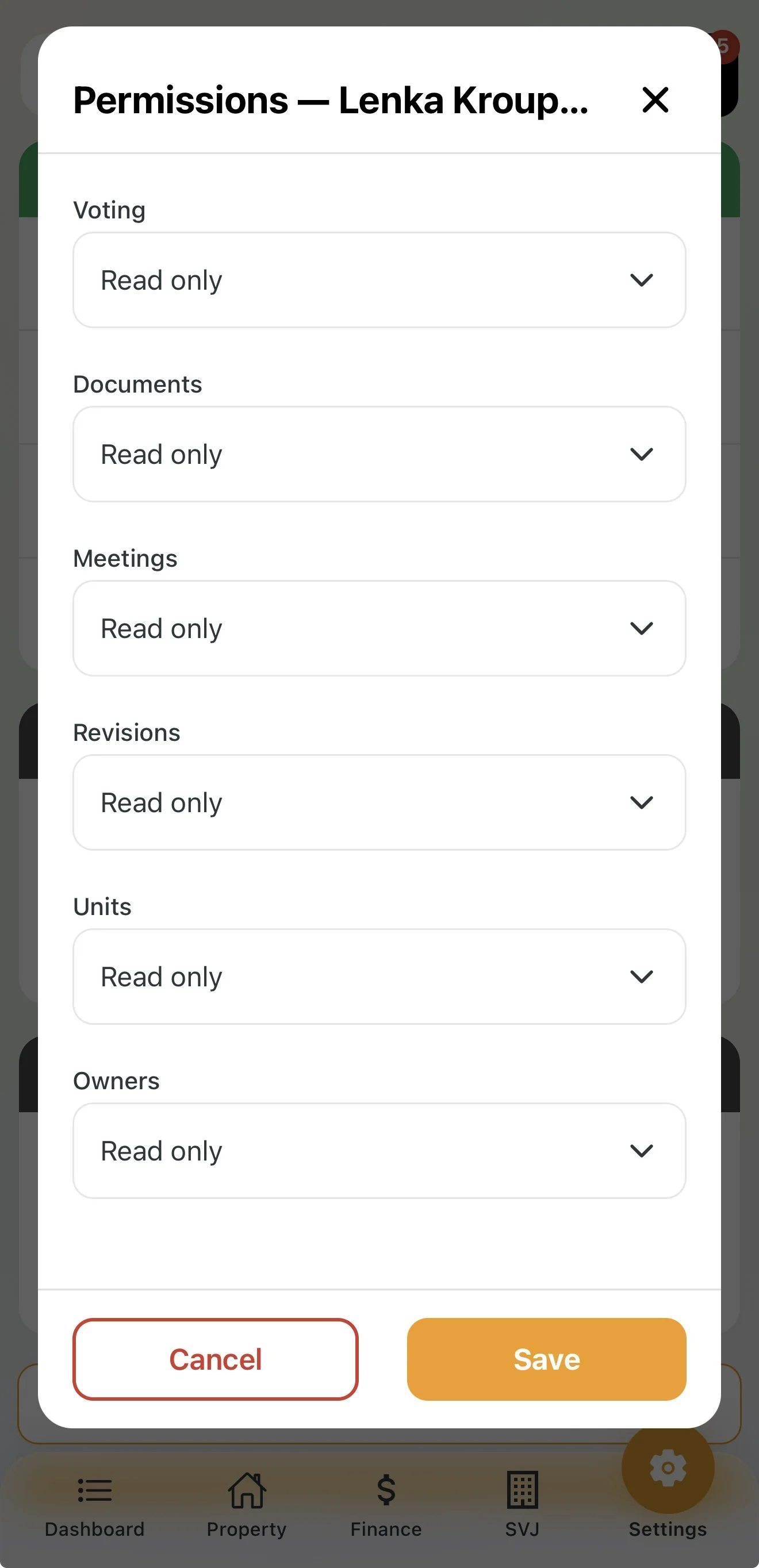
- The Permissions window opens with the manager's name and a list of HOA agendas.
- For each agenda tap the drop-down field and choose a level in the Select menu:
- Forbidden: the manager cannot see the agenda.
- Read only: the manager can see the agenda but cannot change anything.
- Write: the manager can work in the agenda. For example, they can create folders in Documents, start per rollam voting or set up meetings.
- Tap the orange Save.
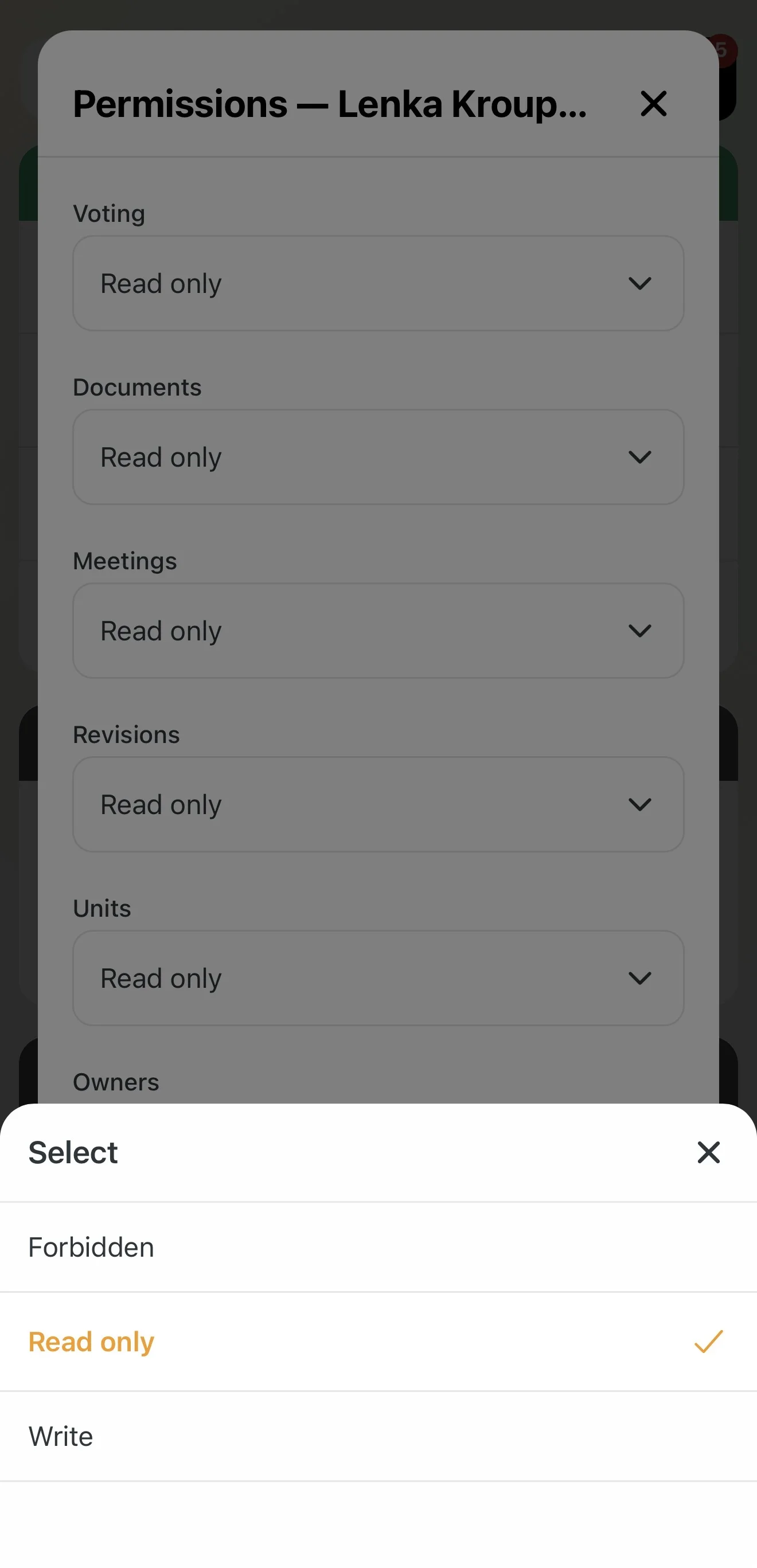
Default Settings
| Agenda | Default permission |
|---|---|
| Voting | Read only |
| Documents | Read only |
| Meetings | Read only |
| Revisions | Read only |
| Units | Read only |
| Owners | Read only |
| Chats | No access (except their own chat with the board, see section 6) |
| Issues | Only issues handed over to them (see section 5) |
Chats and issues are not set in the permissions window. The manager does not see the building's chats, and the board hands over issues one by one.
Important: Until you change the permissions, the manager shows the status using defaults. Grant Write only for agendas the manager is actually responsible for under the contract.
5. Issues: Handing Over to the Manager
Issues work differently from the other agendas. The manager does not see all issues in the building. They only see the ones the board hands over to them. This way the manager focuses only on what they really need to solve, and internal matters stay with the board.
How to forward an issue, track it and confirm the repair is described in Issue Management.
6. Manager's Chat with the Board
When you add a manager or an external accountant, a new chat named after this external member is created automatically in the SVJ section under Chat.
- The chat is for communication between the manager and the board.
- Owners cannot see it. You can use it for contracts, invoices or internal building matters.
- You will recognise it in the chat list by its different colour and icon.
- Each invited manager or accountant has their own chat.
Tip: The manager sees these chats with all boards in one place on their Dashboard (see section 3).