
Planning and Recording Inspections
Statutory inspections (elevators, lightning rods, gas, fire safety…) have fixed deadlines — missed dates can mean legal liability for the board. The Inspections module in Domee.app is designed to plan regular checks, track their status and archive inspection reports — all in one place, without paper diaries or forwarded emails.
1. Inspection Overview
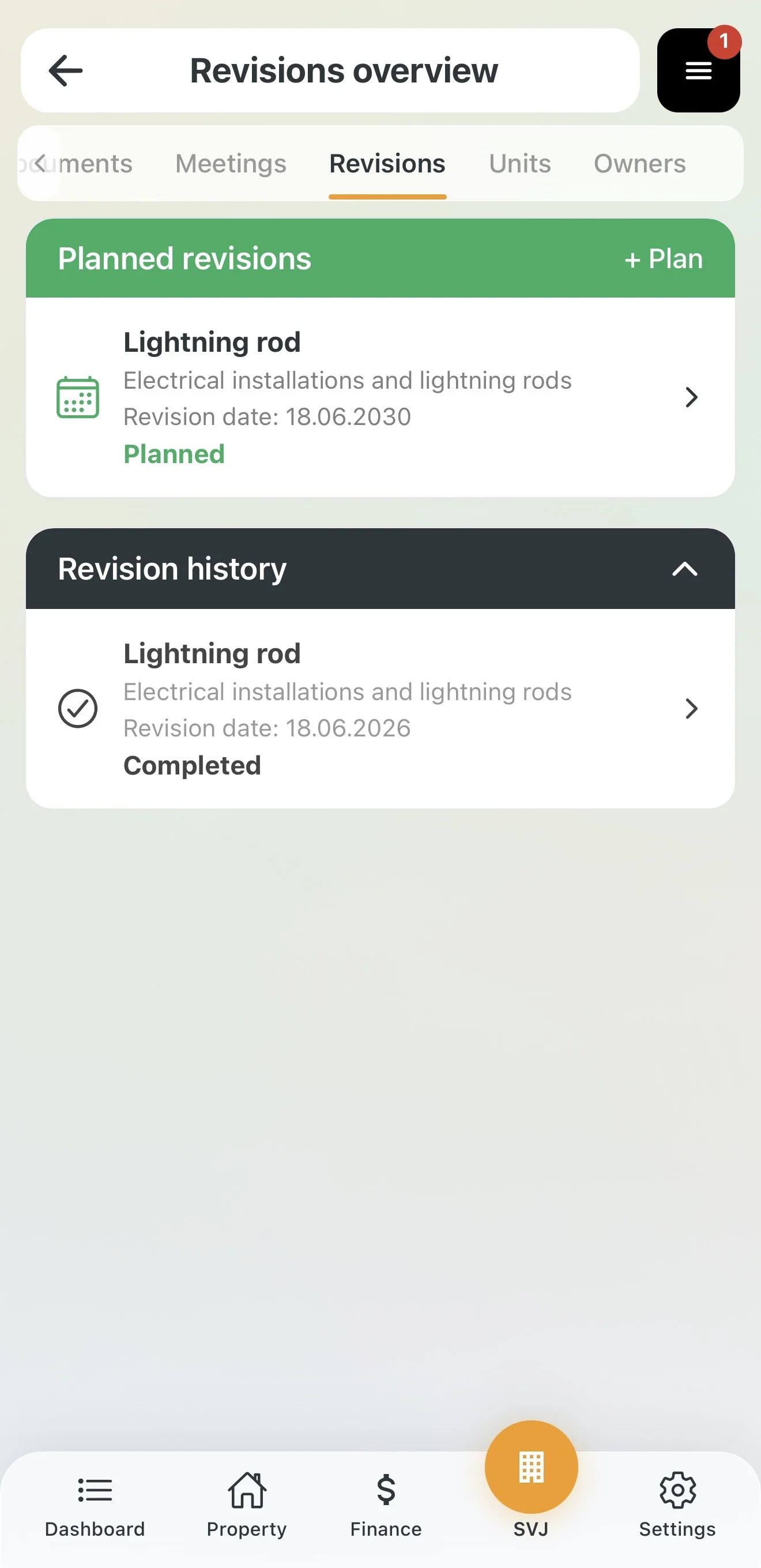
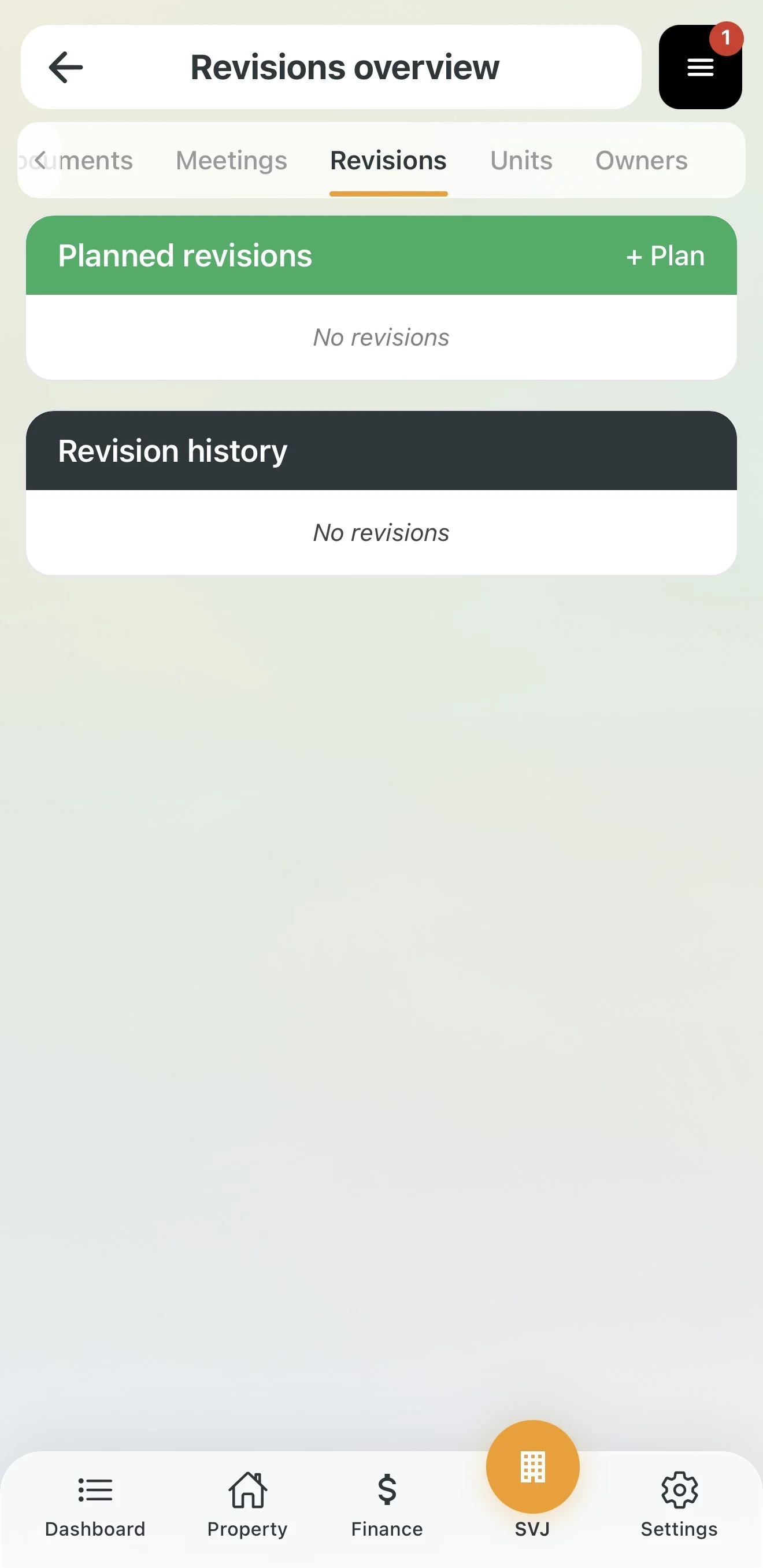
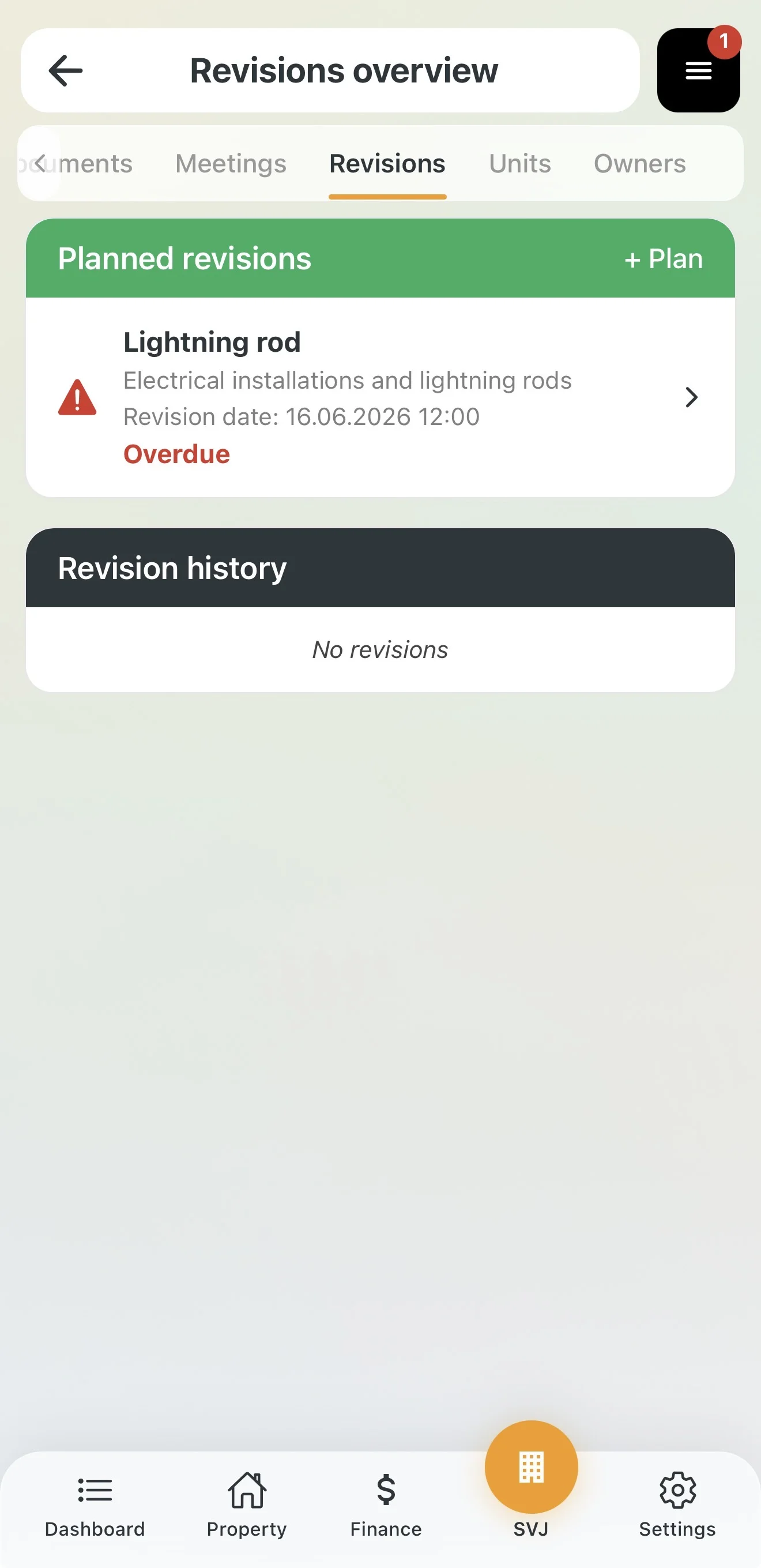
On the Inspections tab (in the HOA section) you will see two sections:
- Scheduled inspections — upcoming and ongoing inspections with a colour-coded status.
- Inspection history — completed inspections with the date of completion.
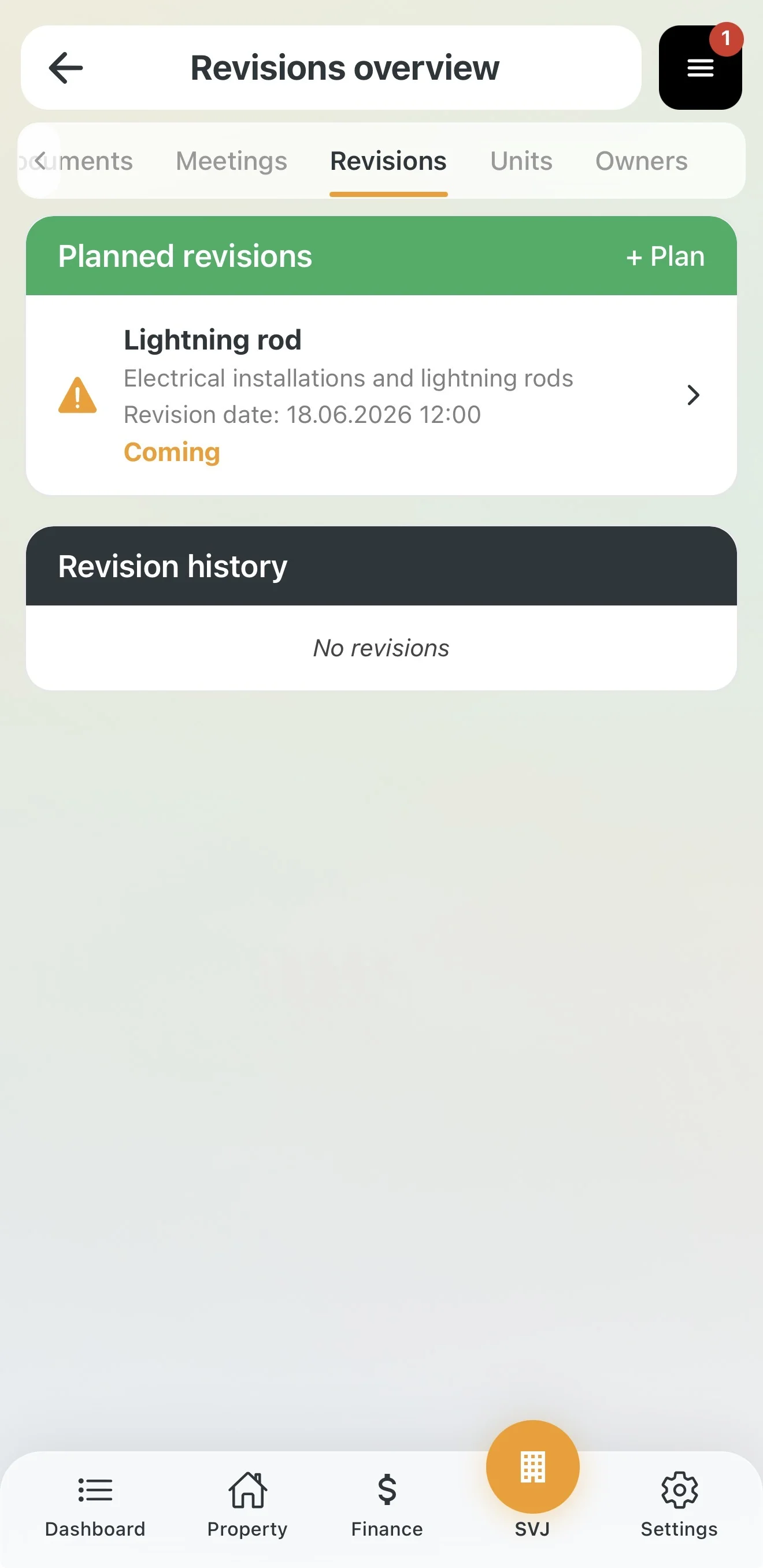
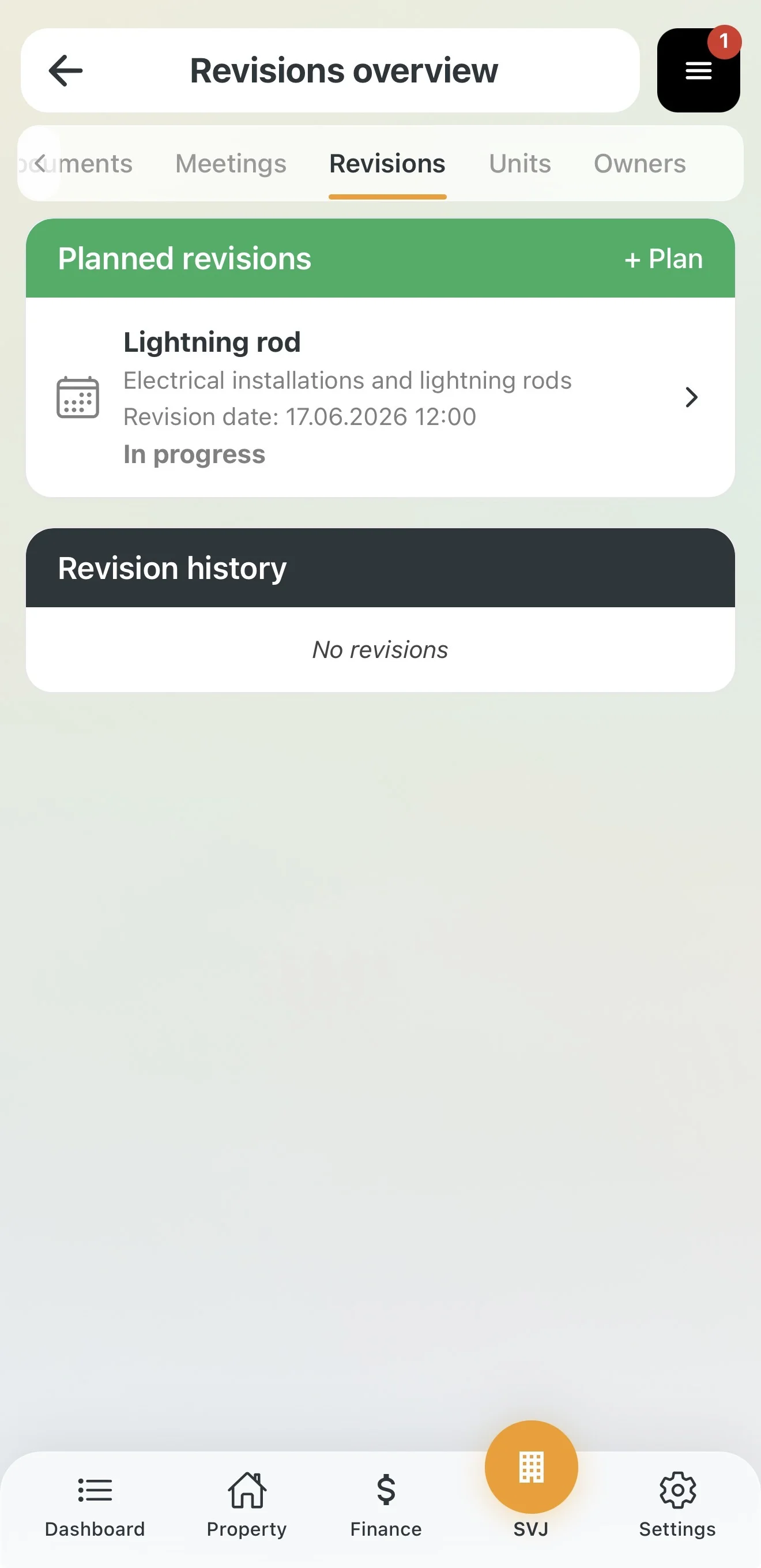
Each inspection in the list shows the name, category, date and one of the following statuses:
- Green text Scheduled — the inspection is planned for the future.
- Orange triangle + Coming up — the inspection date is approaching (it falls sooner than your set reminder days).
- Calendar icon + In progress — today is the inspection date.
- Red triangle + red text Overdue — the inspection date has passed and it was not completed.
2. Scheduling a New Inspection
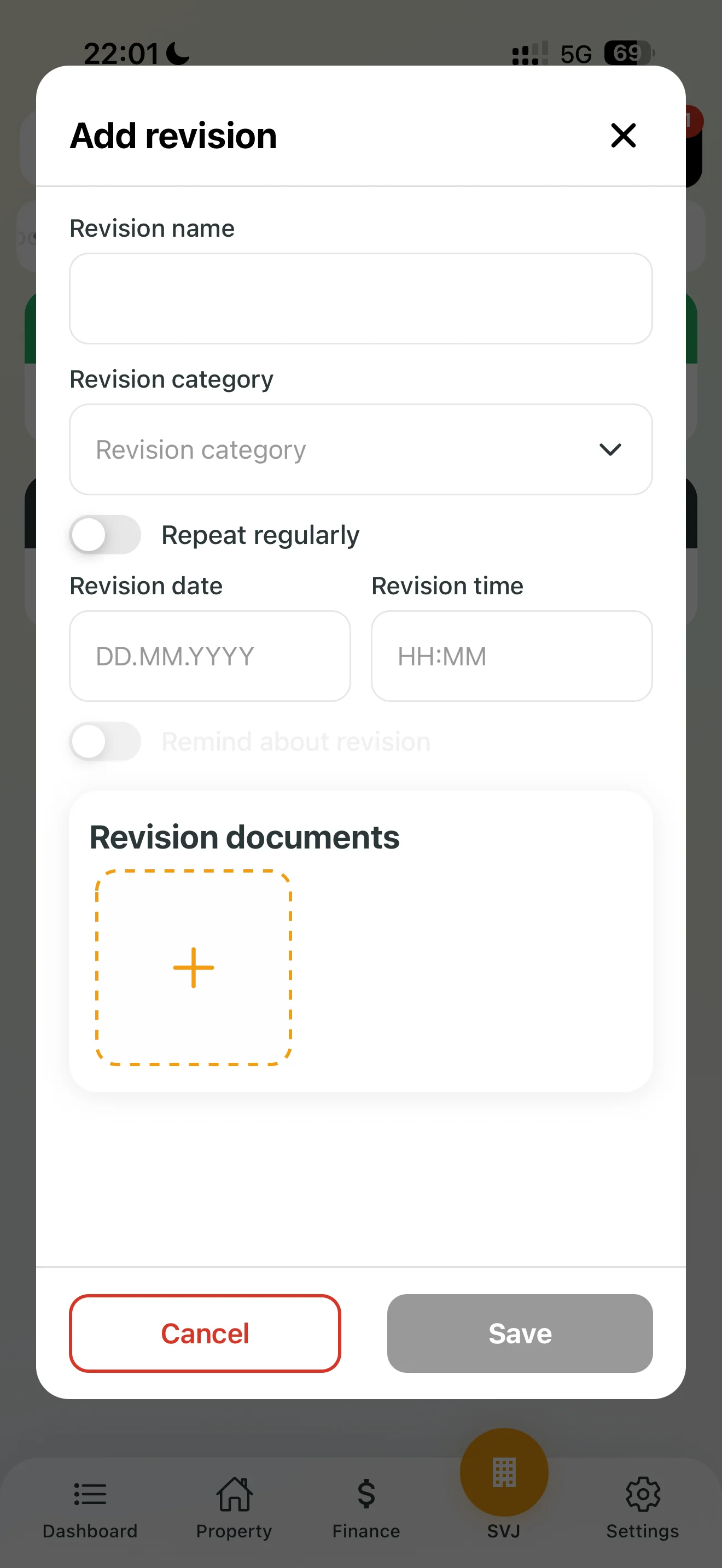
- On the Inspection Overview screen tap the + Schedule button in the right part of the green header.
- Fill in the Inspection name field — use a clear name, e.g. "Lightning rod" or "Elevator inspection – entrance A".
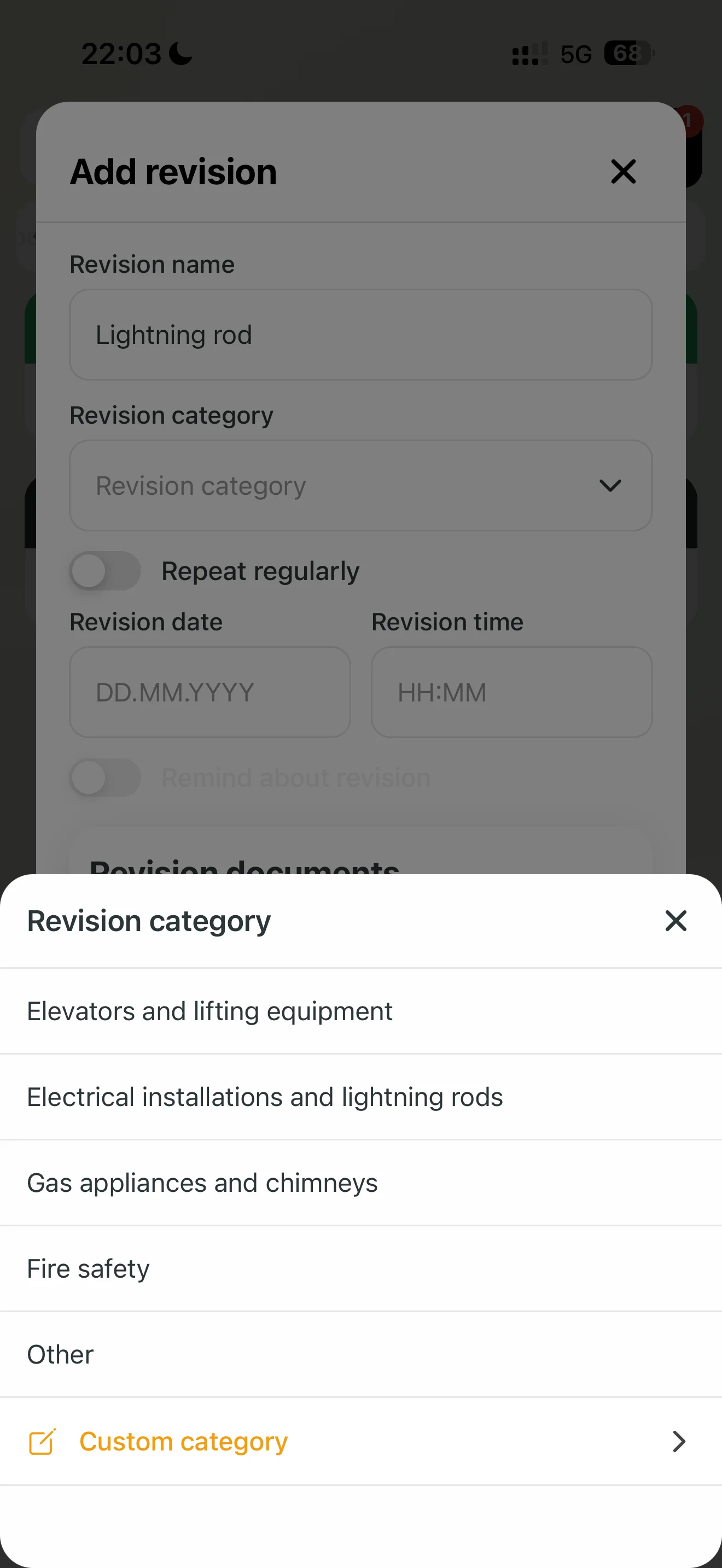
- Tap the Inspection category dropdown and select the appropriate category:
- Elevators and lifting equipment
- Electrical installations and lightning rods
- Gas systems and chimneys
- Fire safety
- Other
- Custom category — to create your own category.
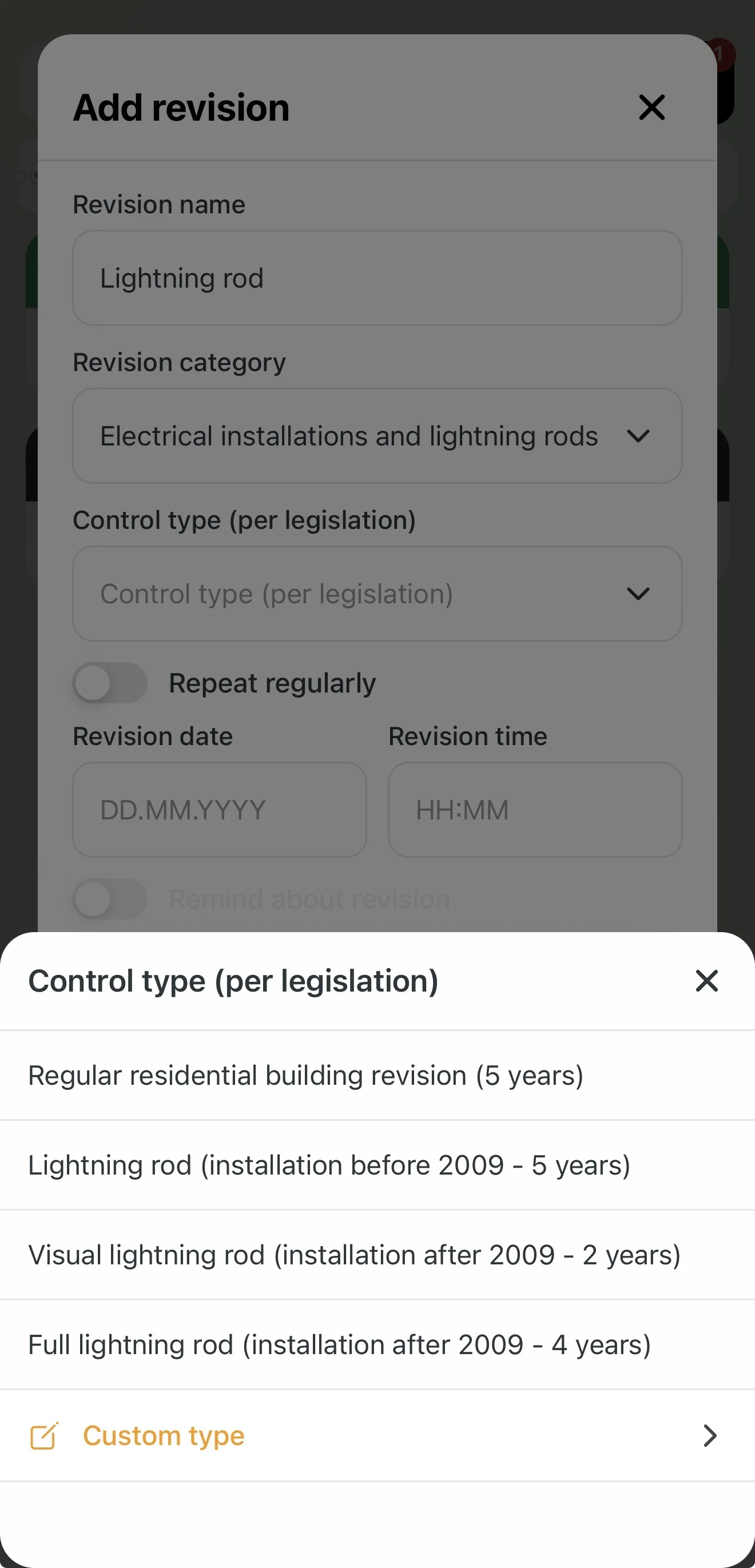
- After selecting a category the Inspection type (By legislation) dropdown appears. Select the type that matches your situation — for example for Electrical installations and lightning rods: Regular building inspection (5 years), Visual lightning rod check (2 years), Full lightning rod check (4 years) and others.
Important: Inspection types are based on applicable legislation. If you are not sure which type applies to your property, consult a certified inspector.
- Enable the Repeat regularly toggle if the inspection should recur (recommended). An Repeat interval (months) field appears, pre-filled with a value matching the selected type.
- Enter the Inspection date in
DD.MM.YYYYformat and the Inspection time inHH:MMformat.
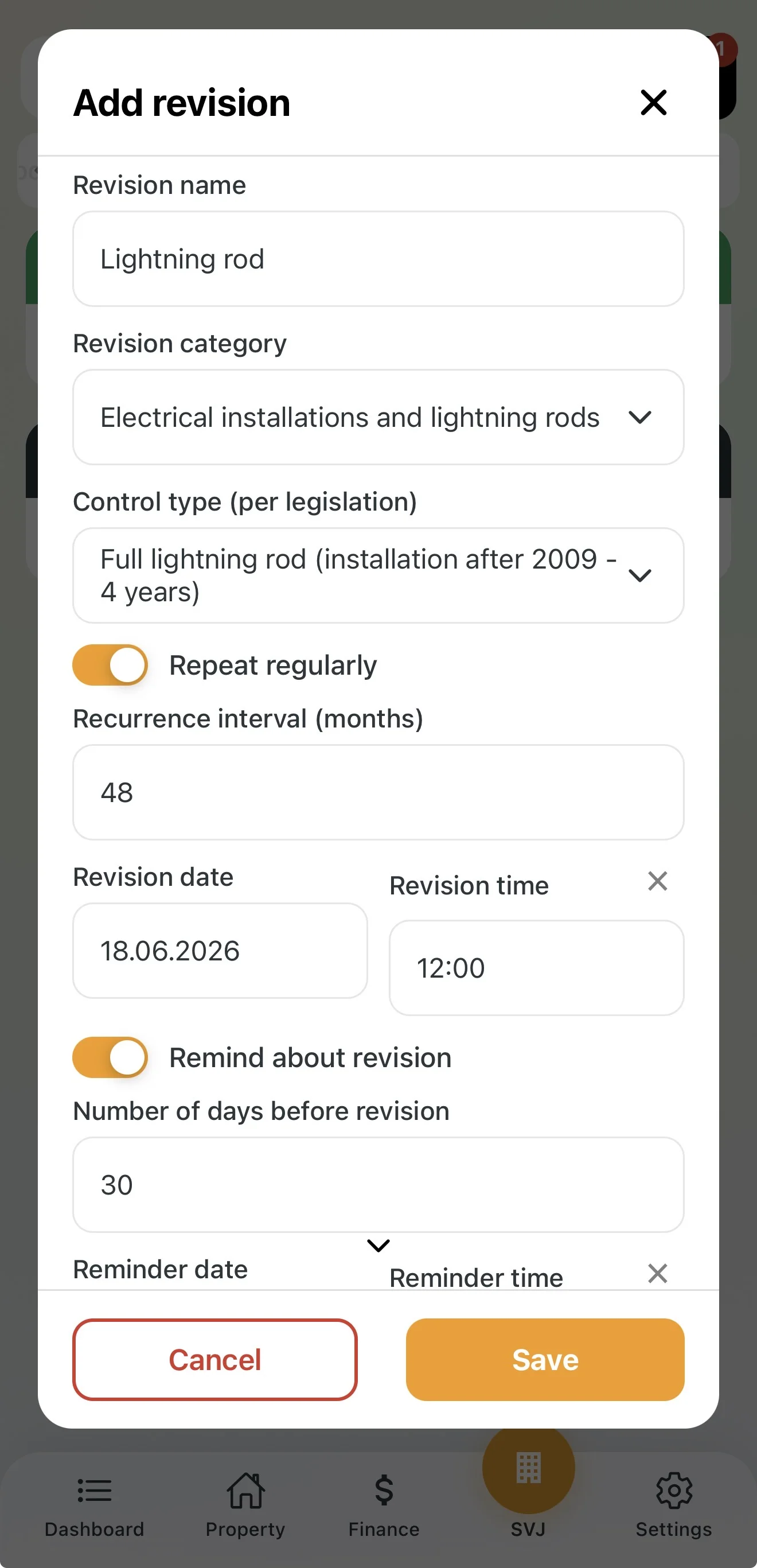
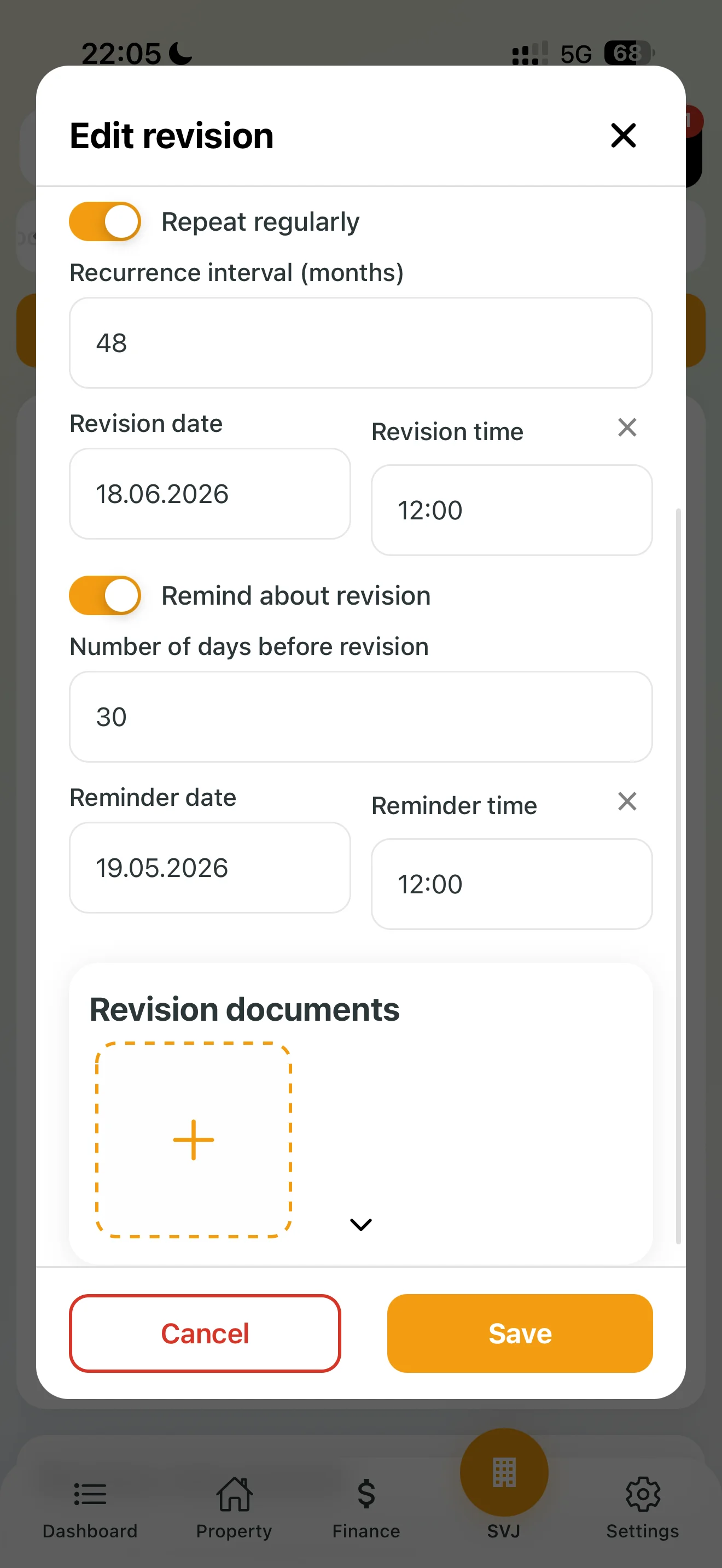
- Enable the Remind me toggle for an automatic reminder before the deadline. A Days before inspection field appears (default 30) along with the automatically calculated reminder date and time.
- Optionally select a specific Entrance or Property if the inspection concerns only part of the building.
- Attach existing documents by tapping + in the Inspection documents section.
- Tap the orange Save button.
3. Tracking Status in the Overview
Once an inspection is saved, the app automatically monitors the deadline and updates the status without any action on your part. Simply open the Inspections tab and the current status is shown.
4. Marking an Inspection as Completed
Once the inspector has done the work:
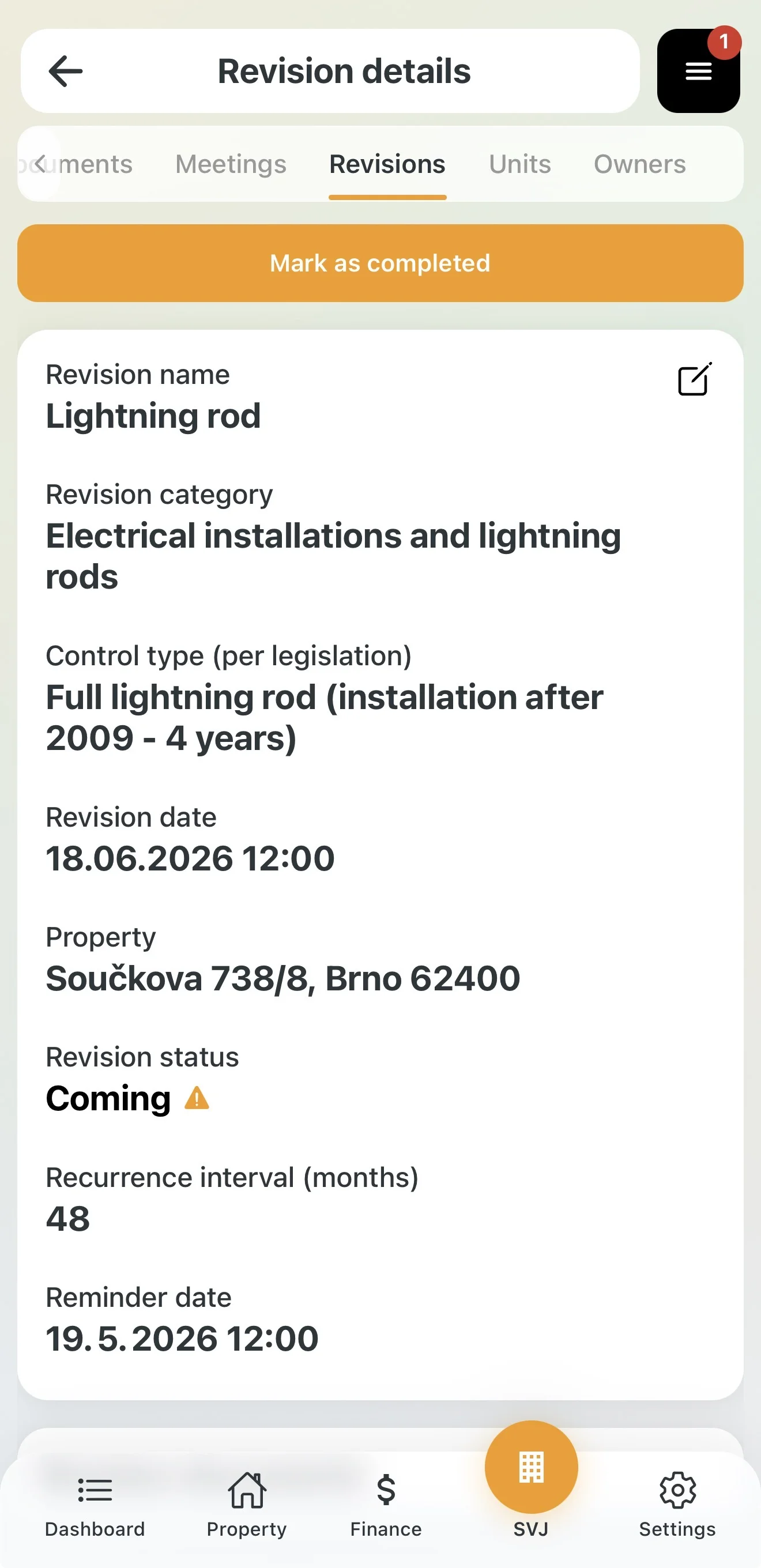
- Tap the inspection row in Scheduled inspections — the Inspection detail opens.
- Review the displayed information. If you need to change anything, tap the pencil icon next to the name.
- Tap the orange Mark as done button.
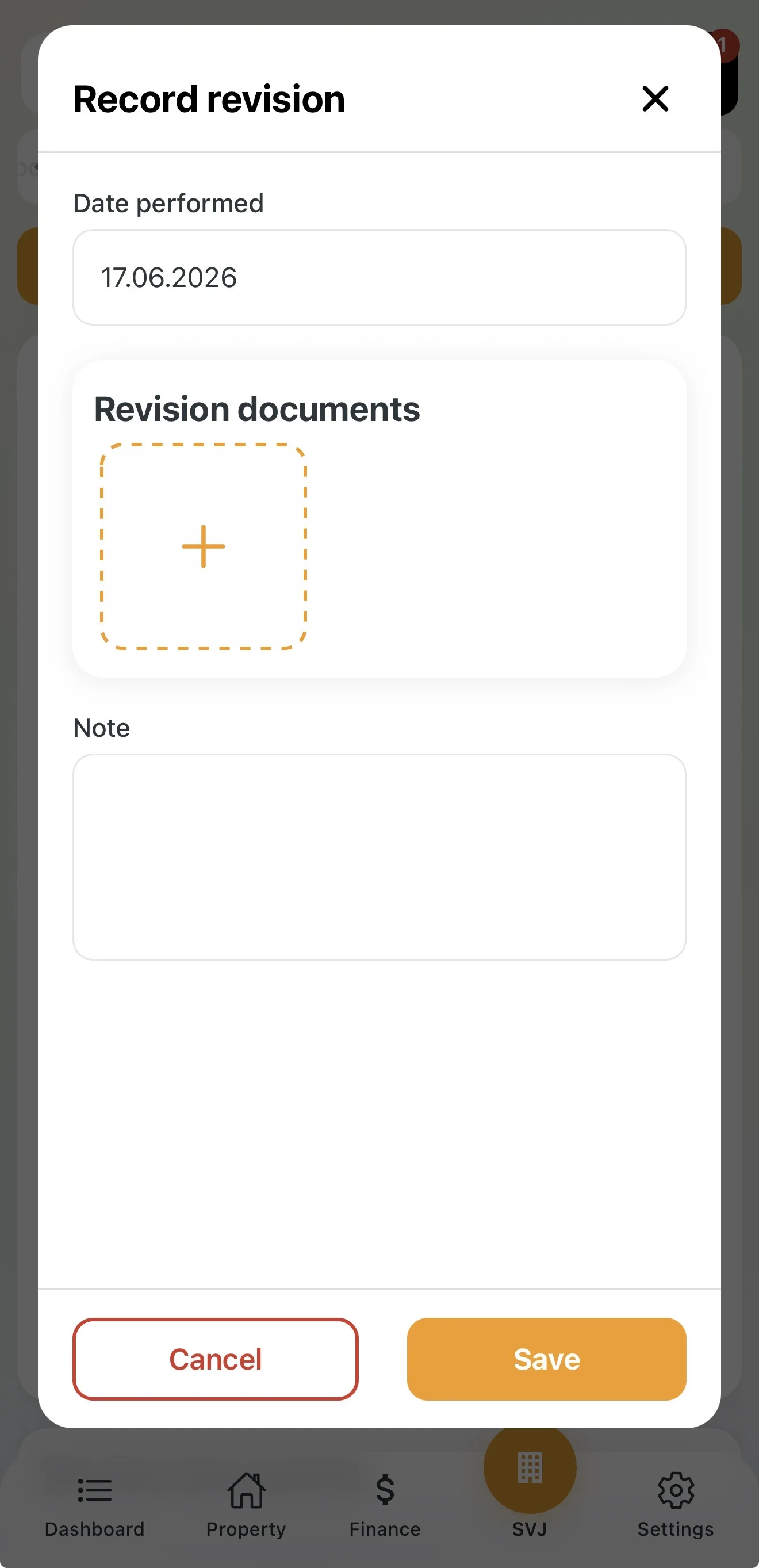
- In the Record inspection dialog check or update the Date completed.
- Attach documents from the inspection (inspection report, invoice) by tapping + in the Inspection documents section.
- Optionally add a Note (e.g. defects found, inspector's name).
- Tap the orange Save button.
After saving, the inspection moves to the Inspection history section with the status Completed. If Repeat regularly was enabled, the app automatically schedules the next inspection — it immediately appears in Scheduled inspections with the status Scheduled.