

Online Voting (Per Rollam)
The Voting module in Domee.app allows your housing association to make legally valid per rollam decisions. The system is unique in that it combines modern online voting with traditional paper ballots for residents who prefer them.
1. Creating a Vote
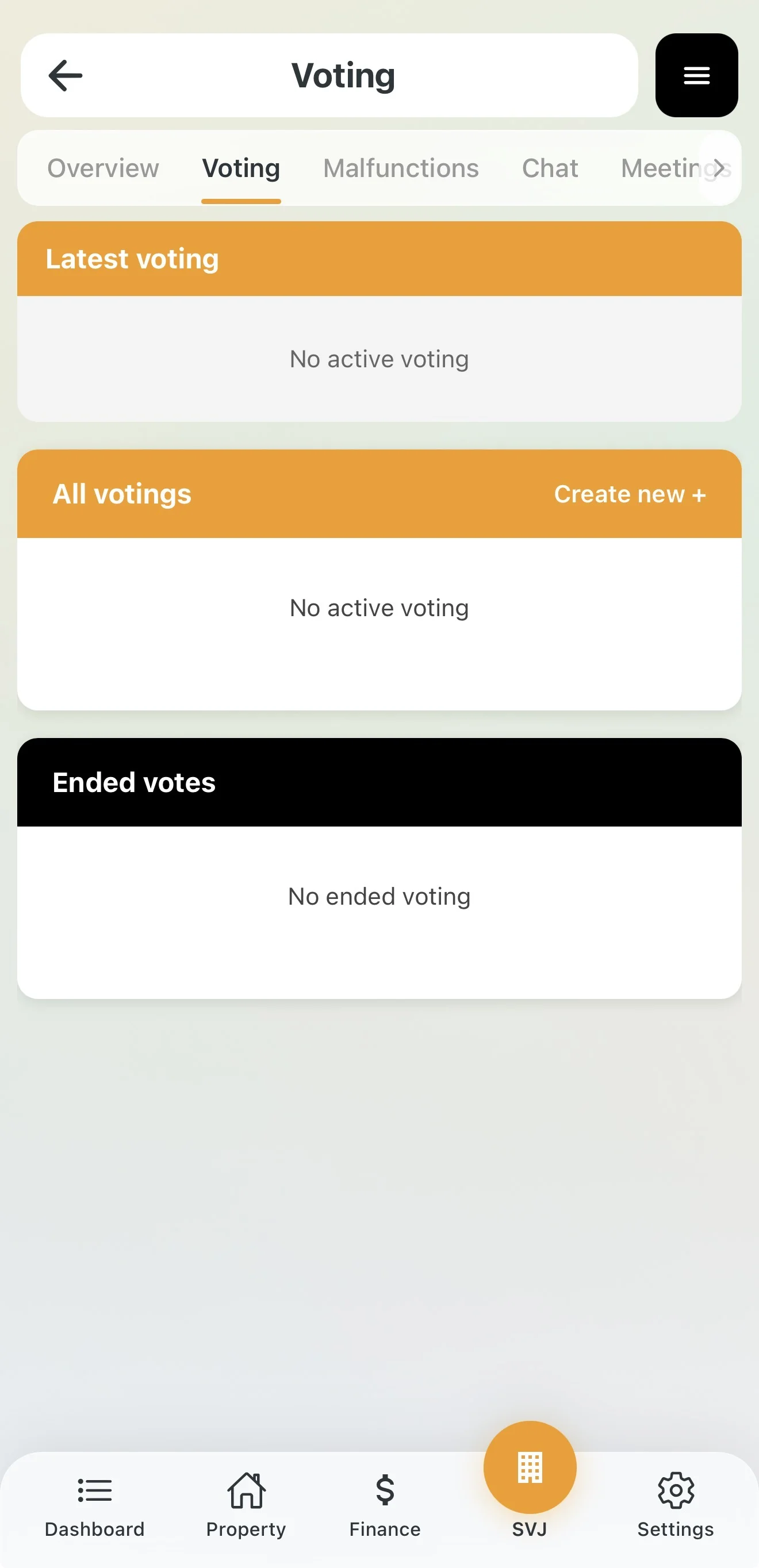
In the HOA module, go to the Voting tab and tap Create New +.
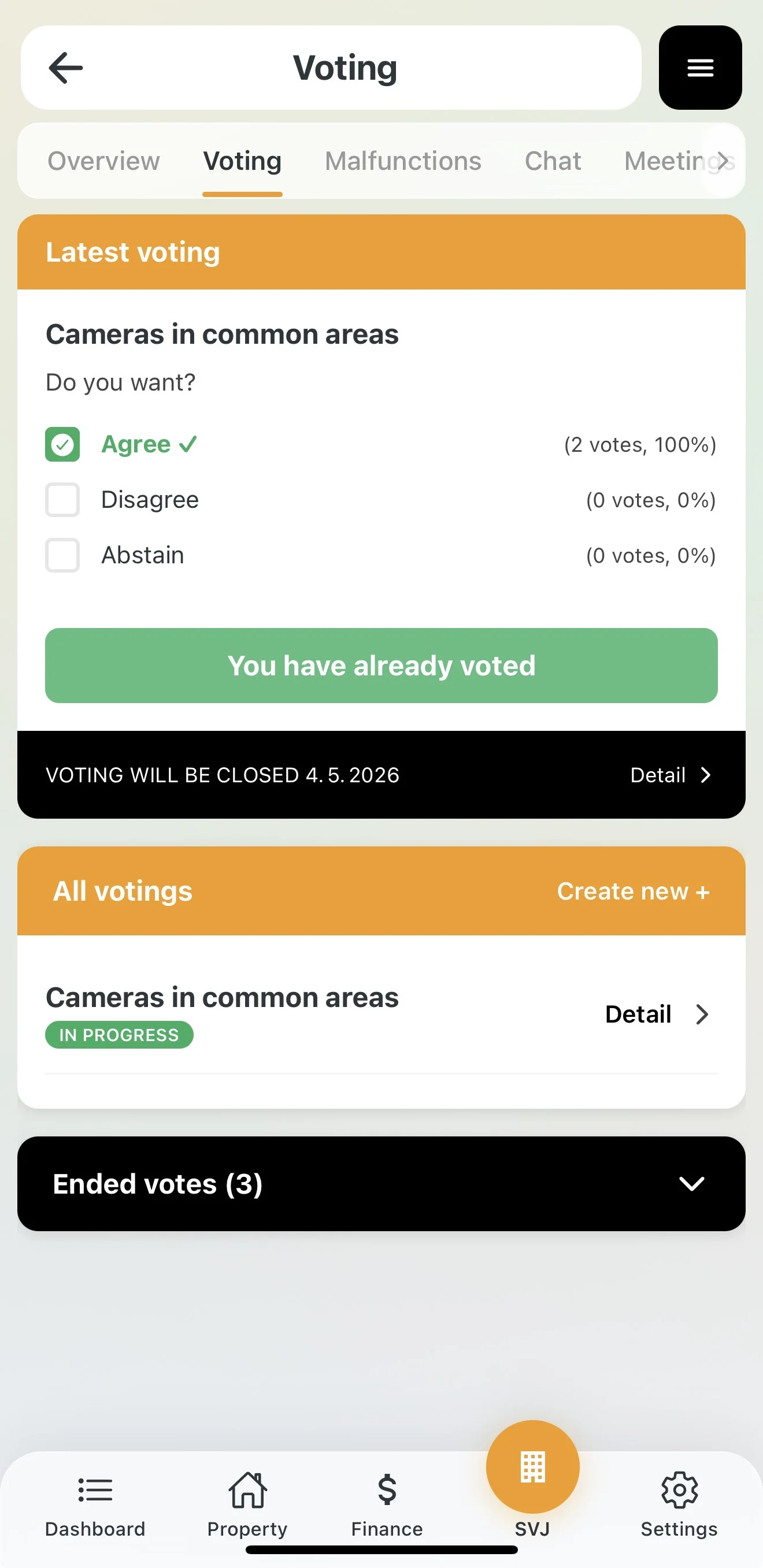
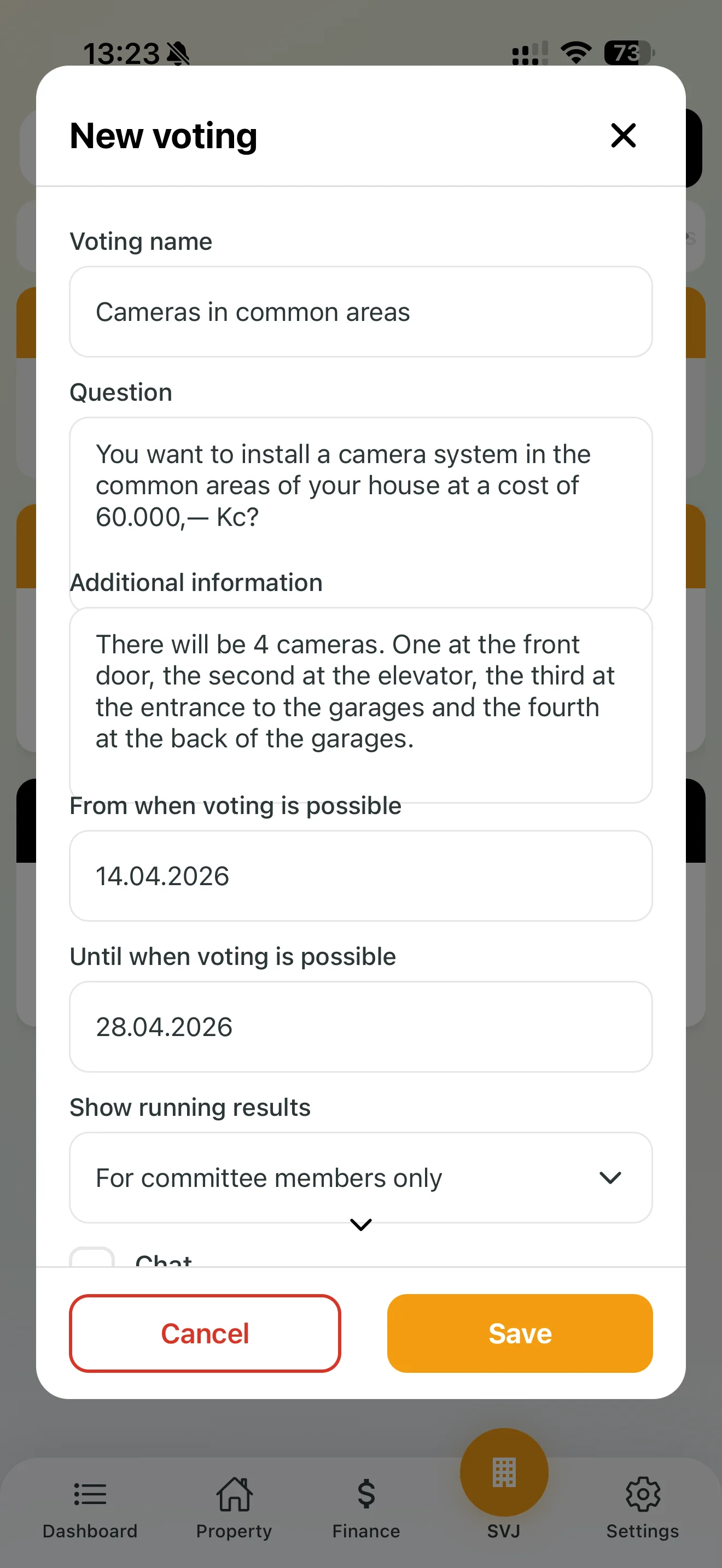
Fill in the form:
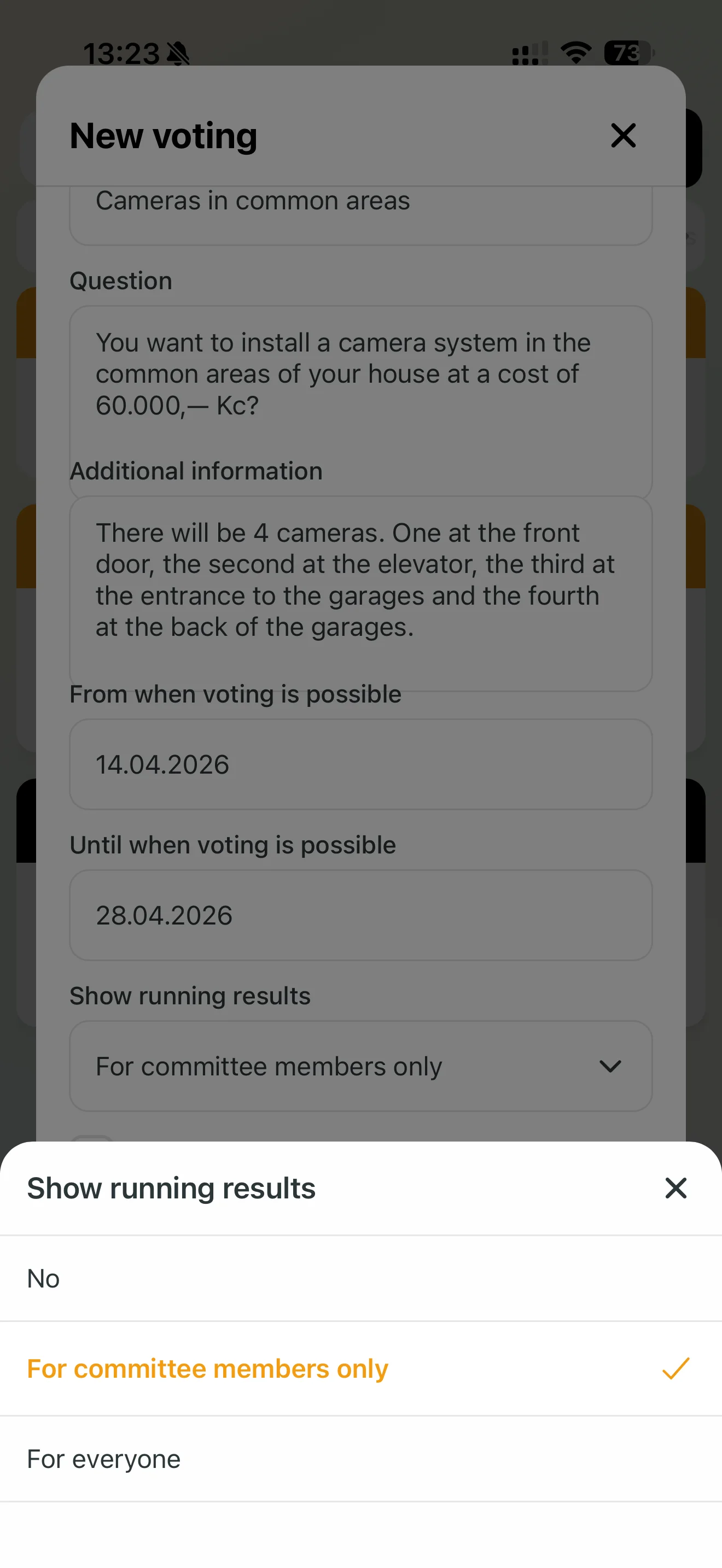
- Basic details: Name, question (YES/NO/ABSTAIN) and additional information.
- Duration: Voting period is automatically set to 14 days from creation.
- Result visibility: Choose whether interim results are visible to Everyone or HOA Board Only.
Draft and Documents
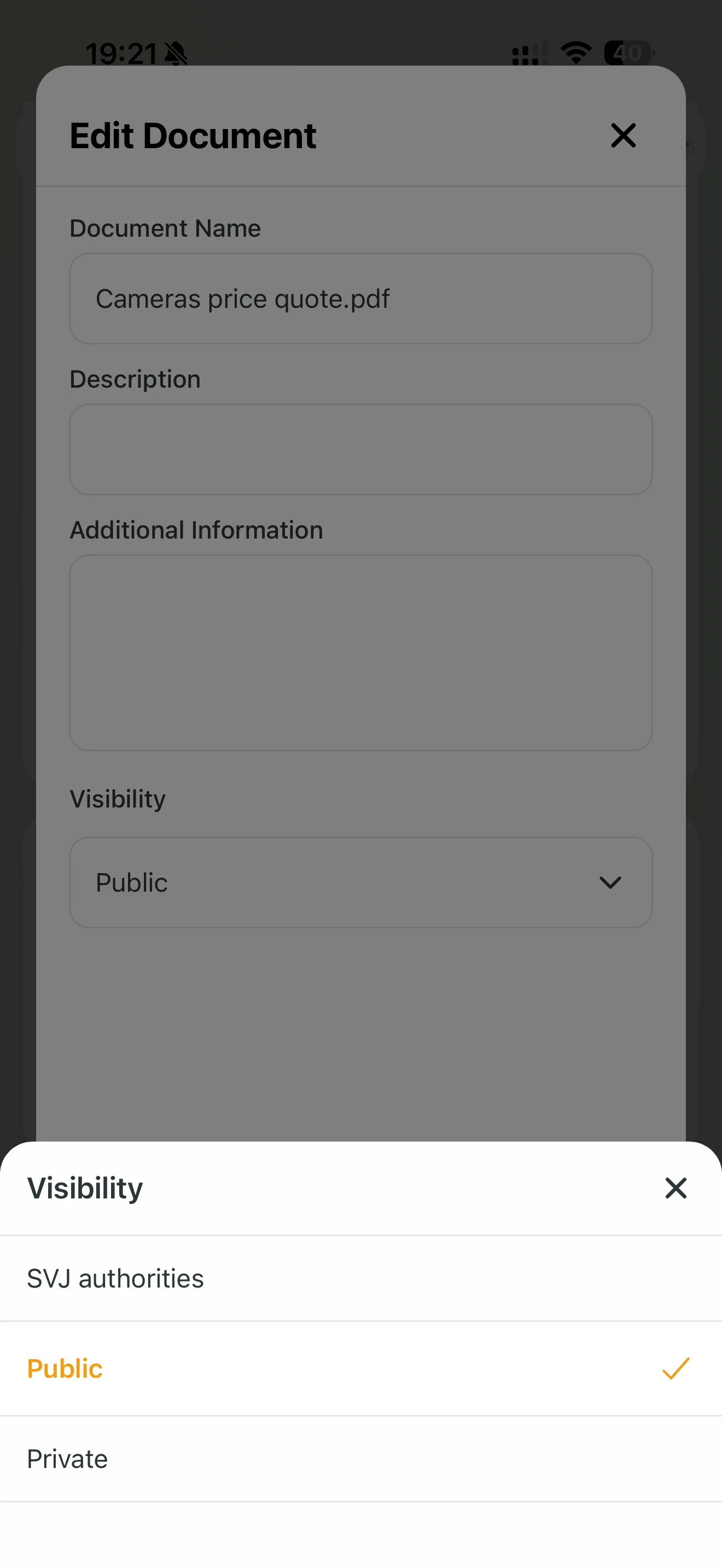
After saving, the vote is in Draft status. You can upload supporting documents (e.g. price quotes). For each document, set access rights: Public (everyone), HOA Bodies, or Private.
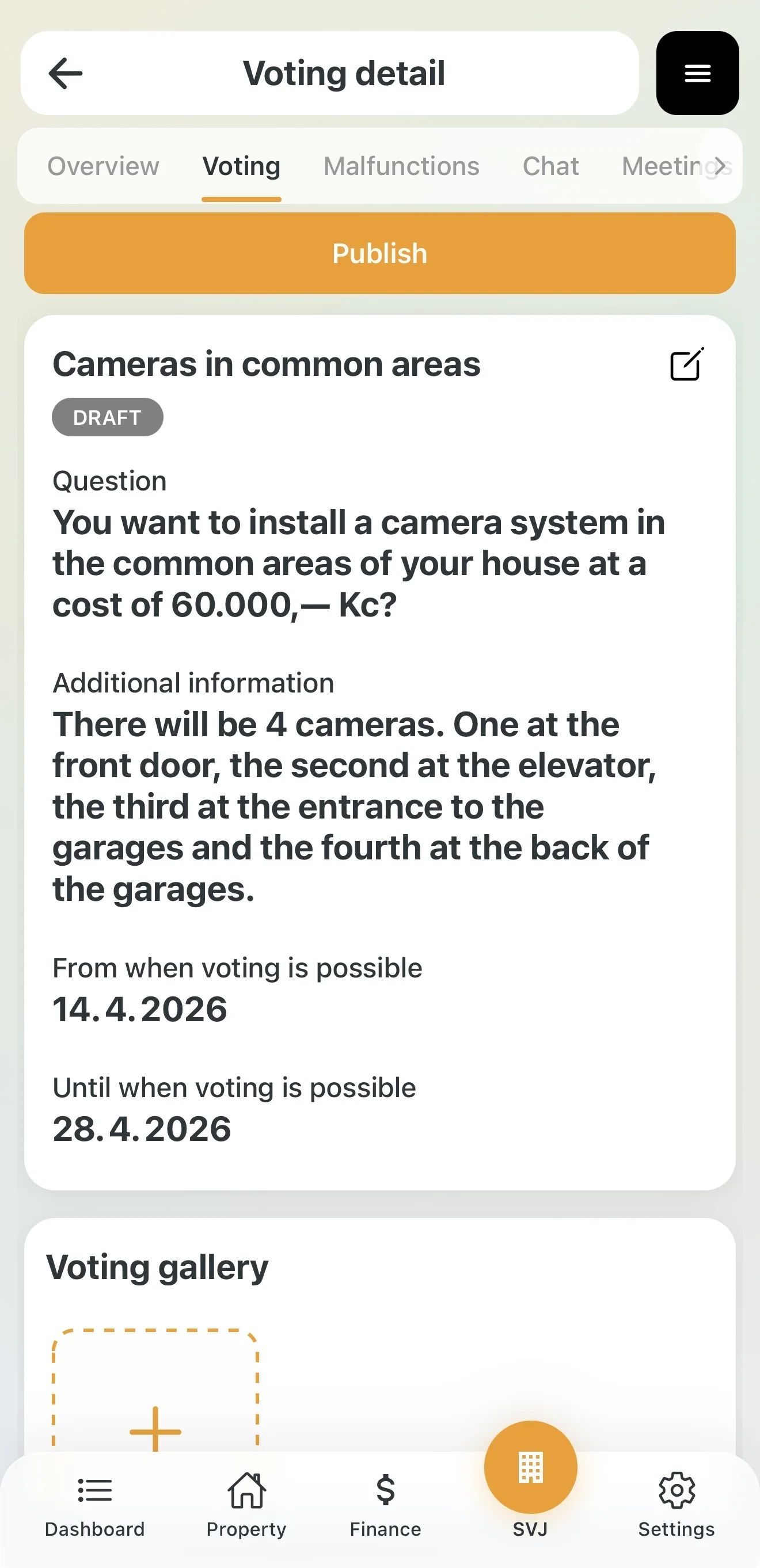
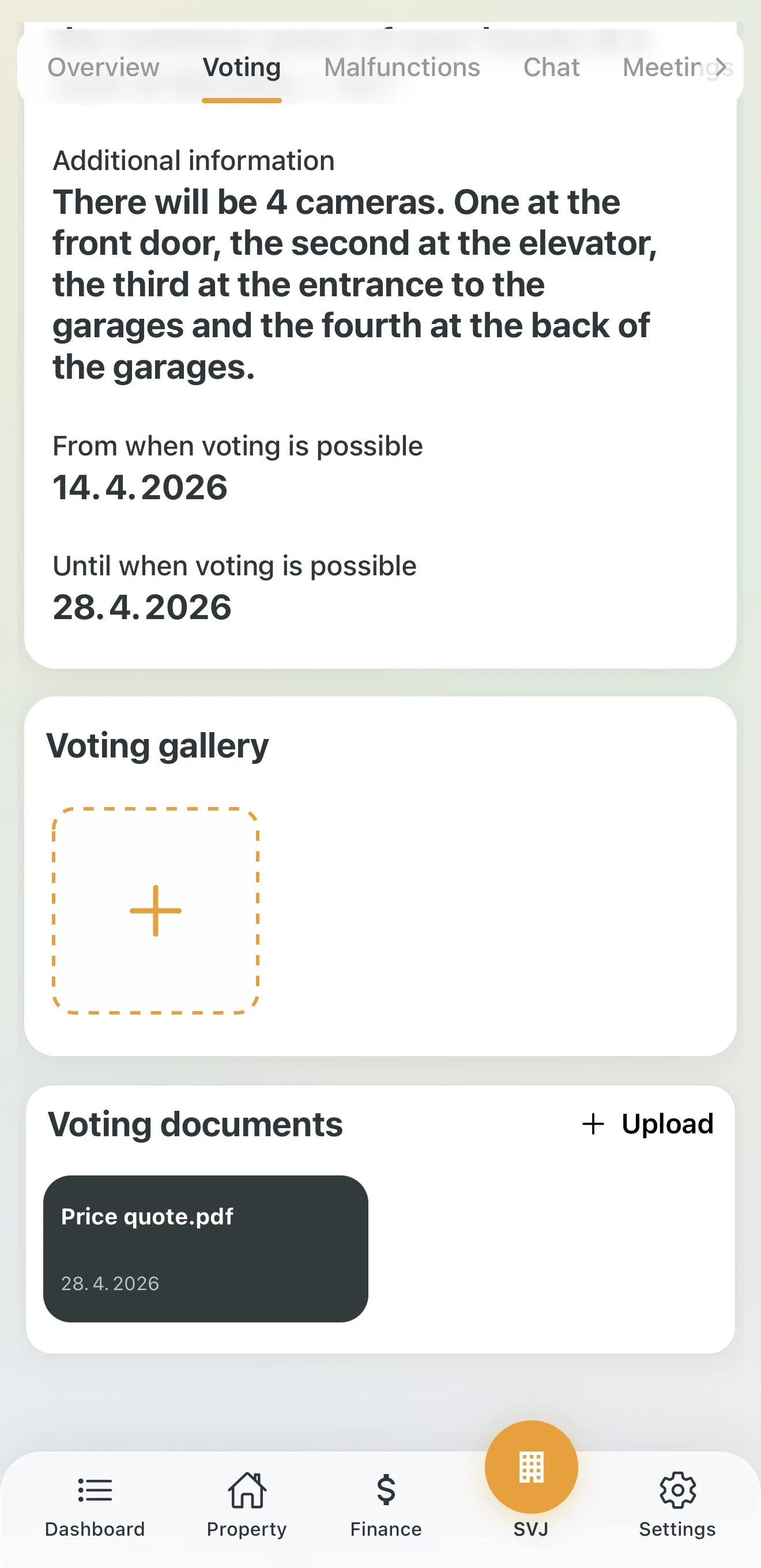
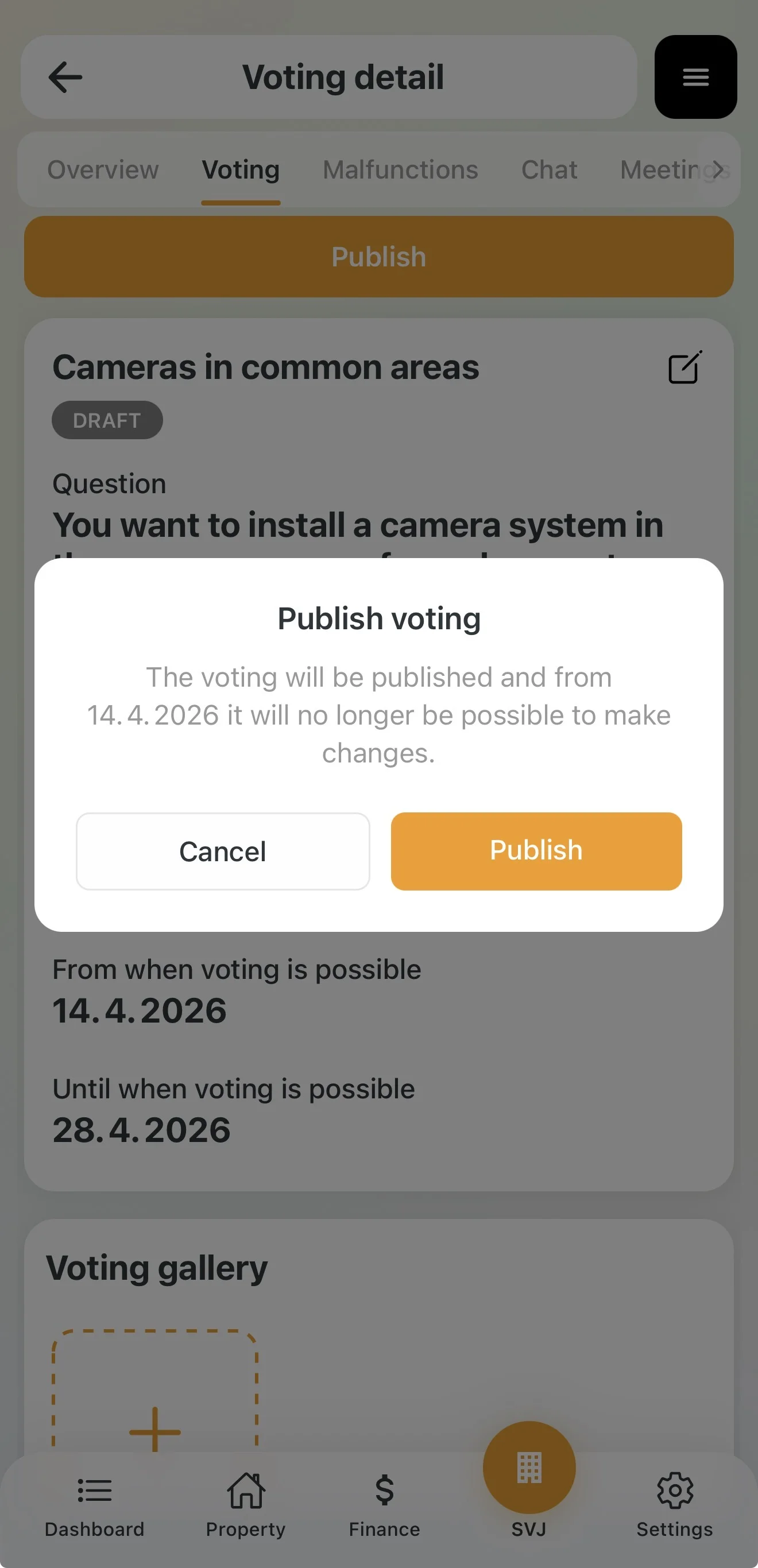
Important: Once you tap Publish, the vote goes live and the text can no longer be changed.
2. Online Voting Process
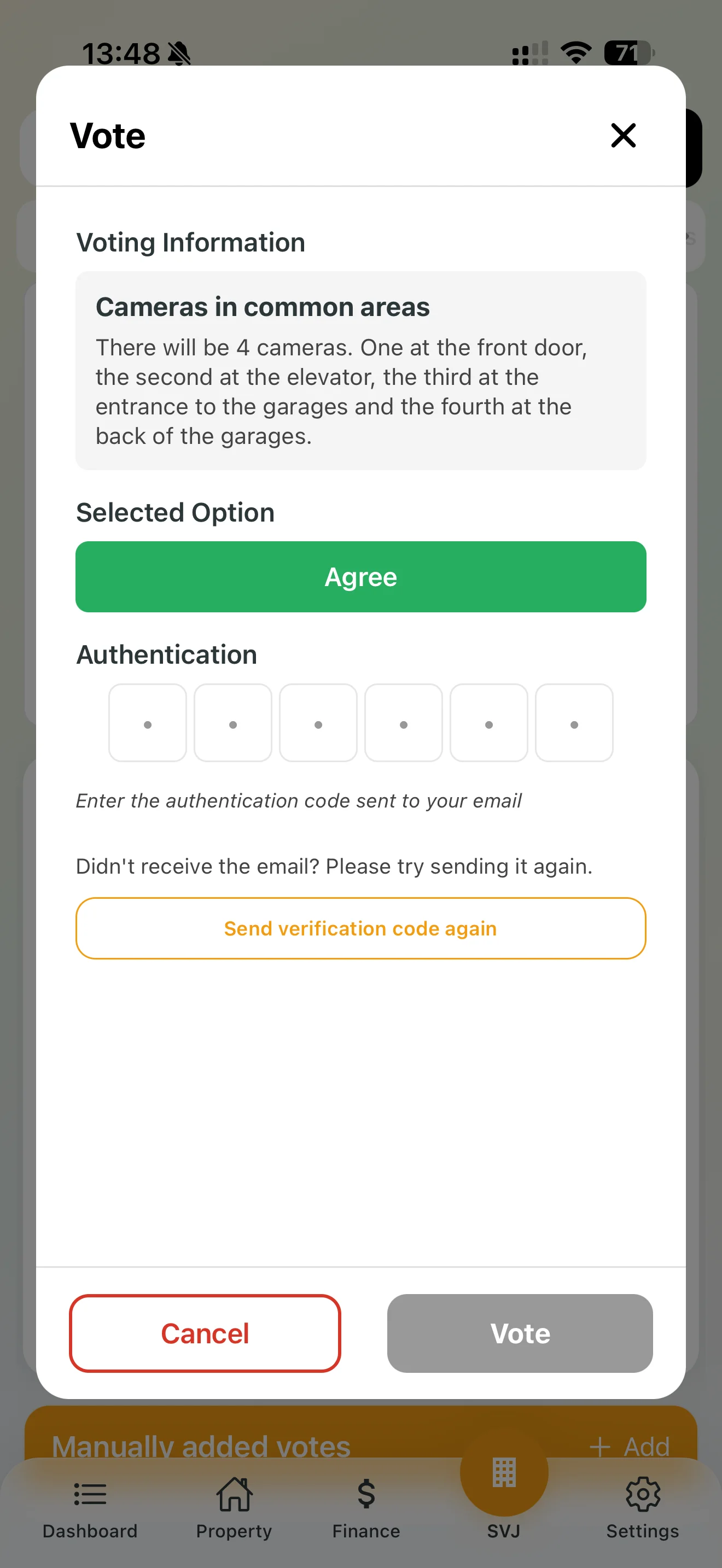
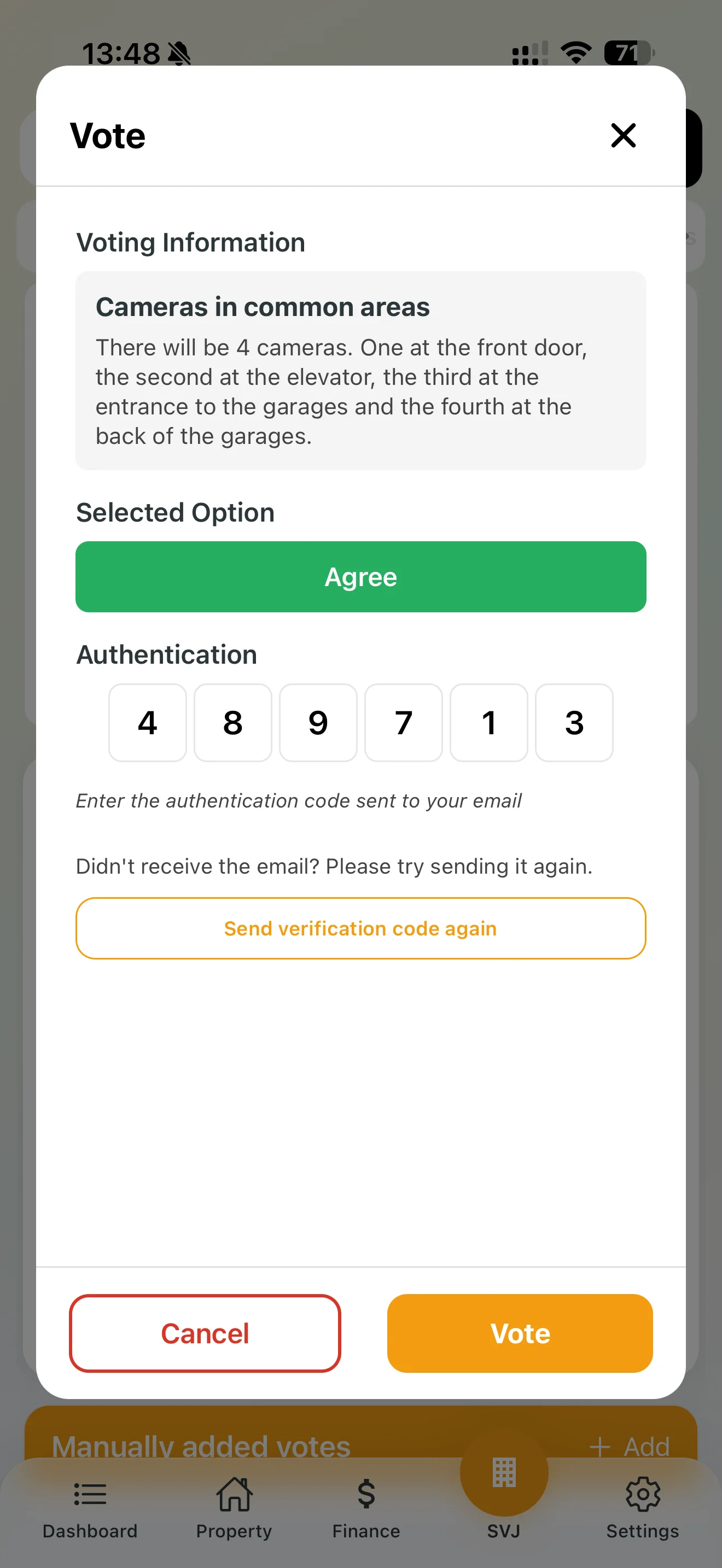
To ensure legal validity, Domee.app uses two-factor identity verification:
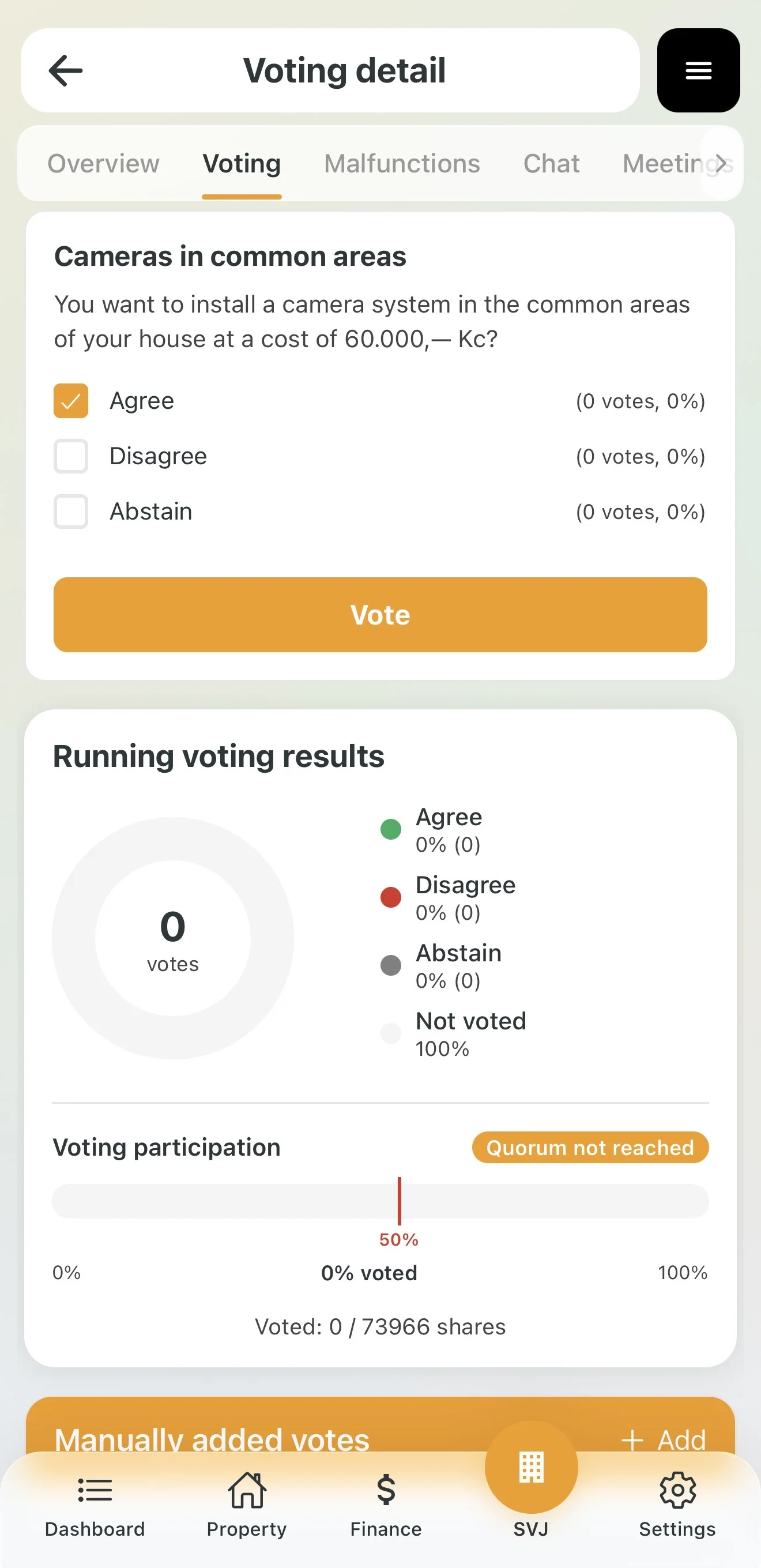
- Choice: The owner selects their option and taps Vote.
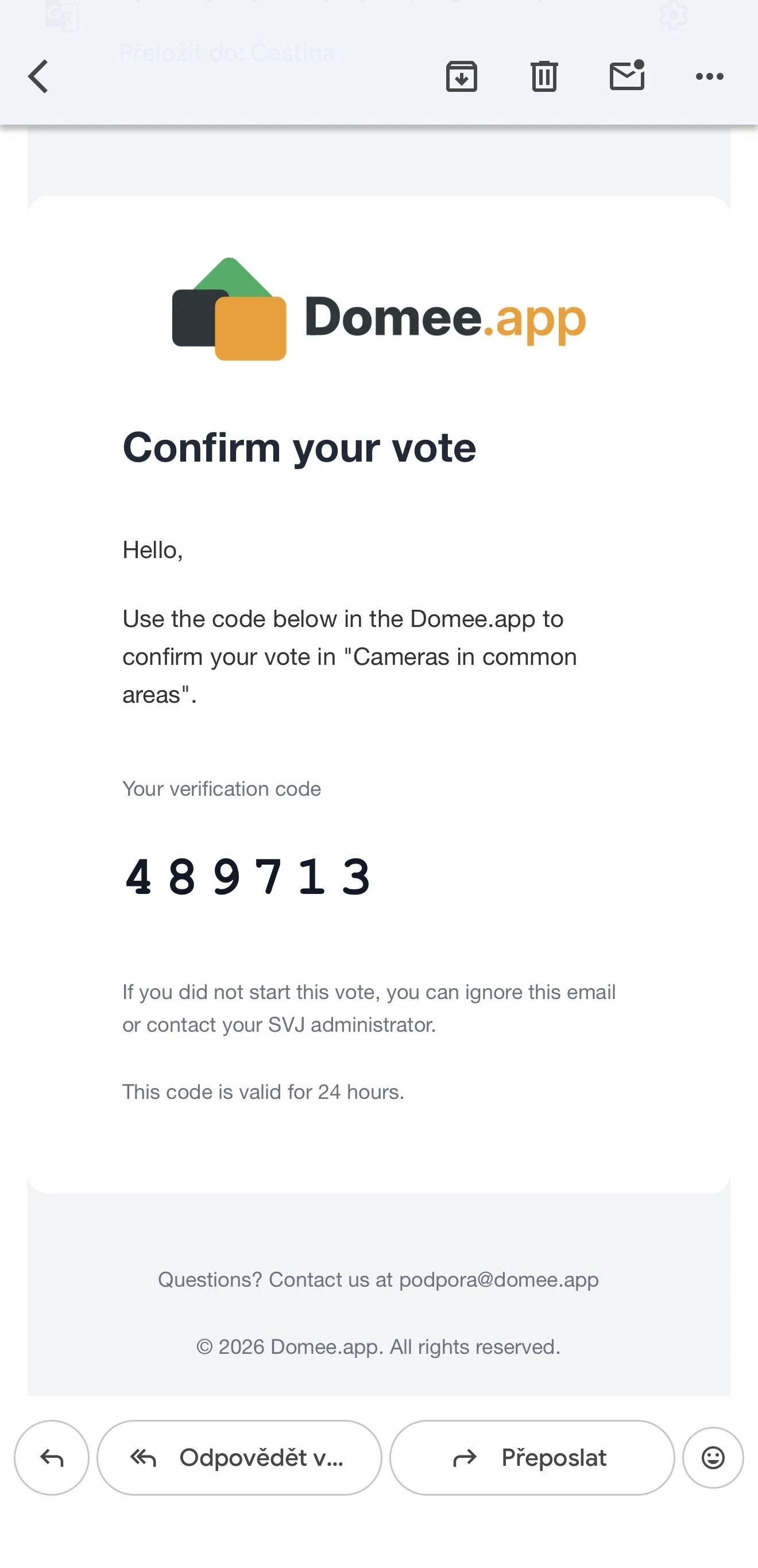
- Verification code: The system immediately sends a unique six-digit code to the owner's email.
- Confirmation: The owner enters the code in the app to confirm. Only then is the vote counted.
- Vote weight: The system automatically calculates each vote according to the ownership share recorded in the Land Registry.
3. Combining with Paper Ballots
If a resident does not use a smartphone, you can record their vote manually.
Generating Ballot Papers
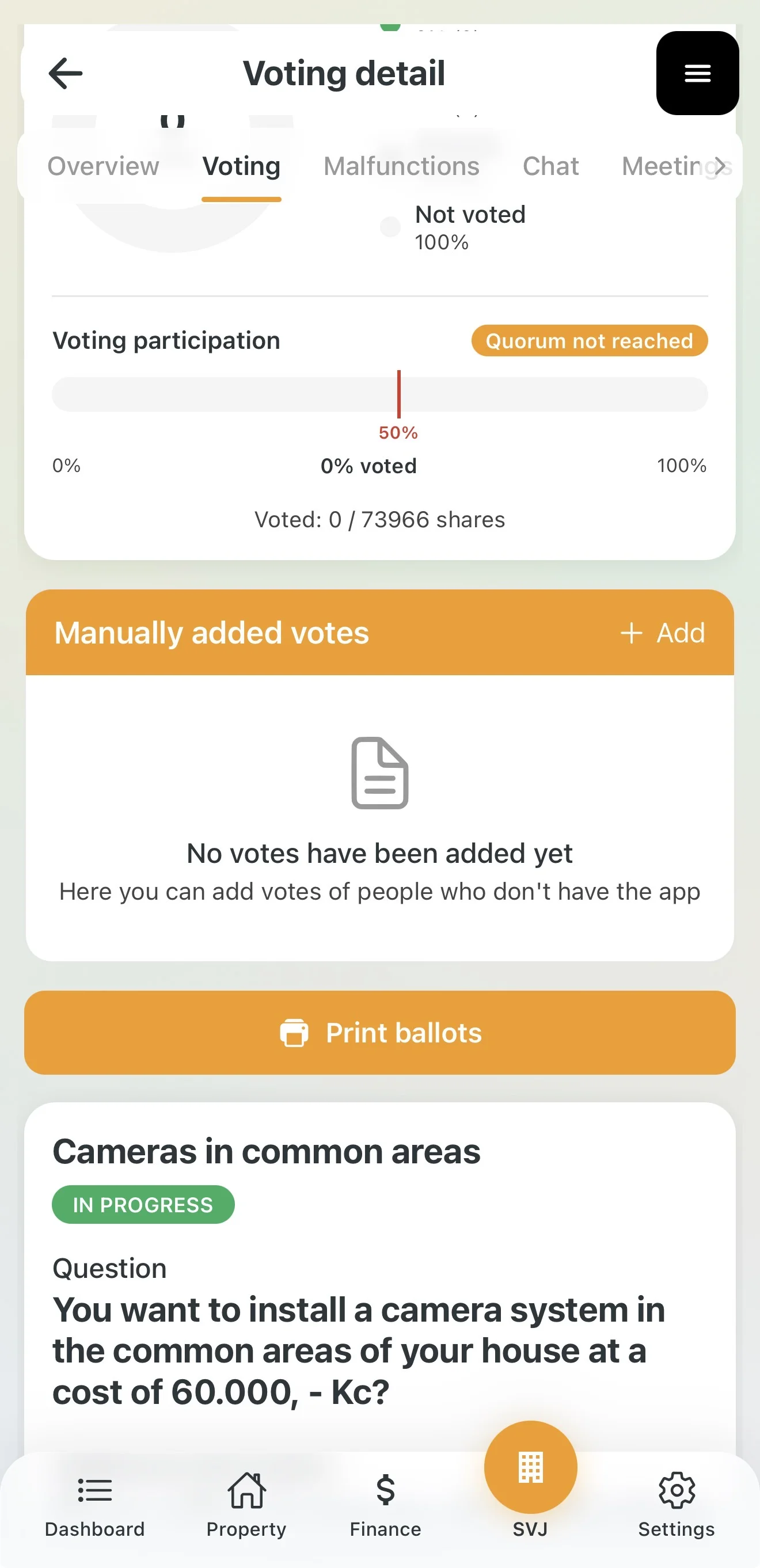
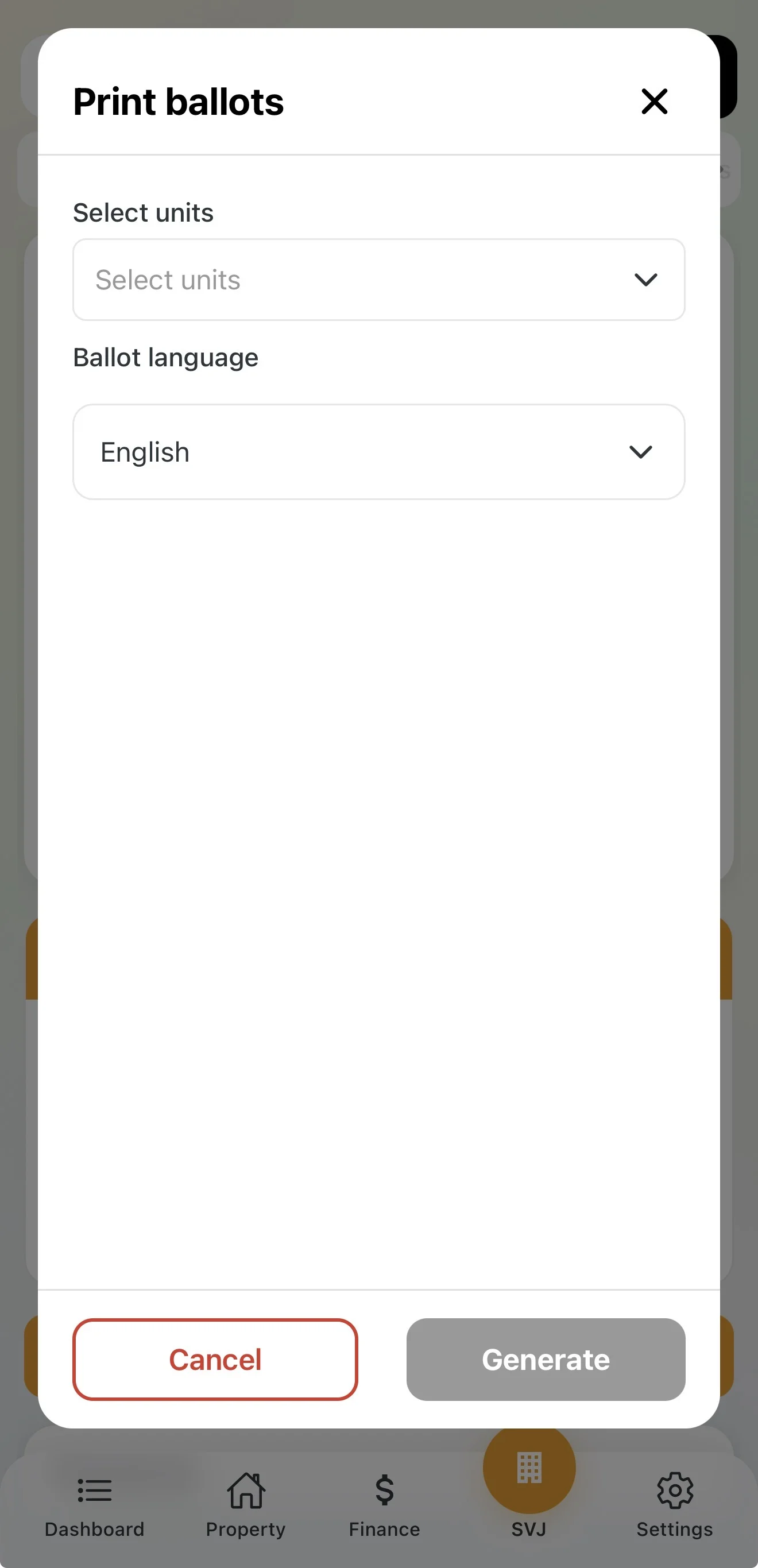
- In the vote detail, tap Print Ballots.
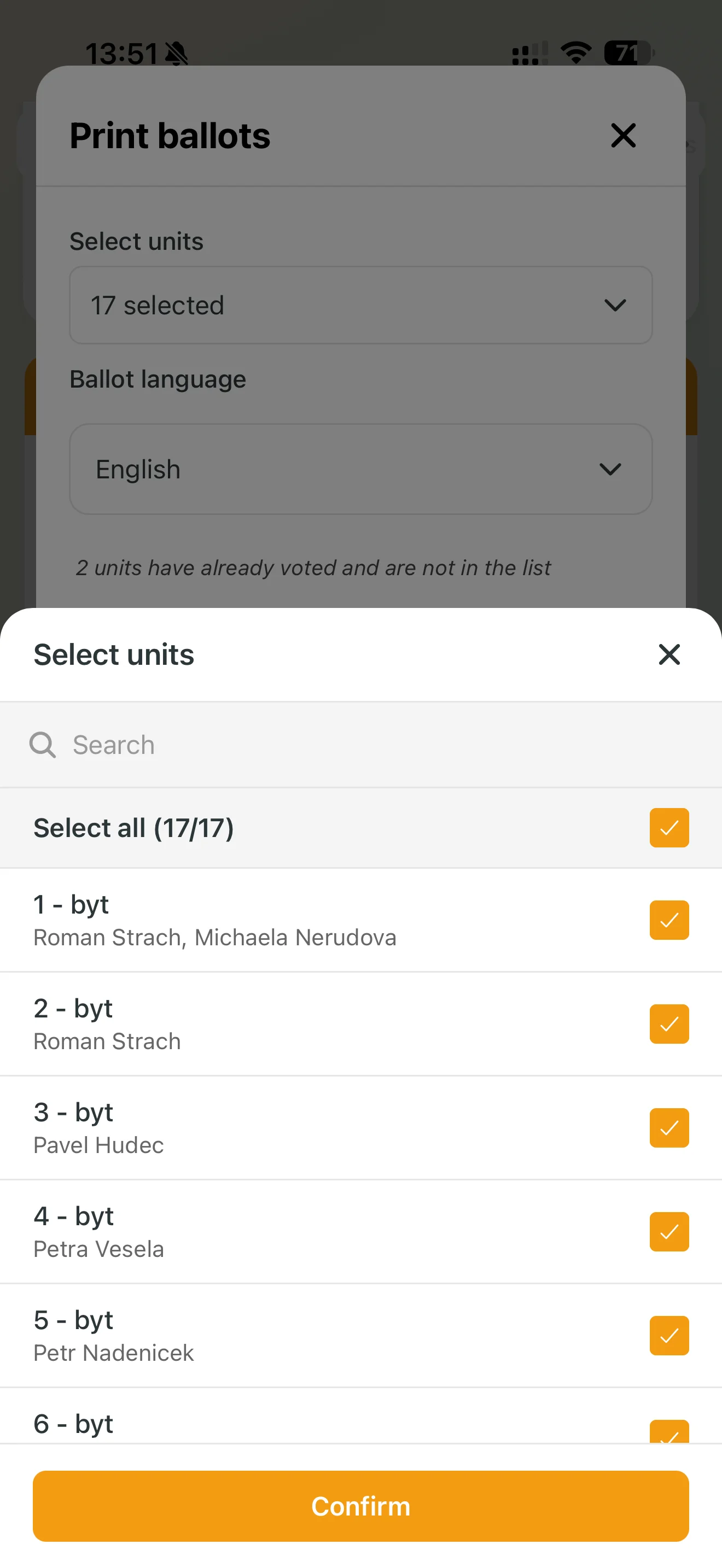
- Select the specific units (or all) and tap Confirm.
- Choose the language and tap Generate.
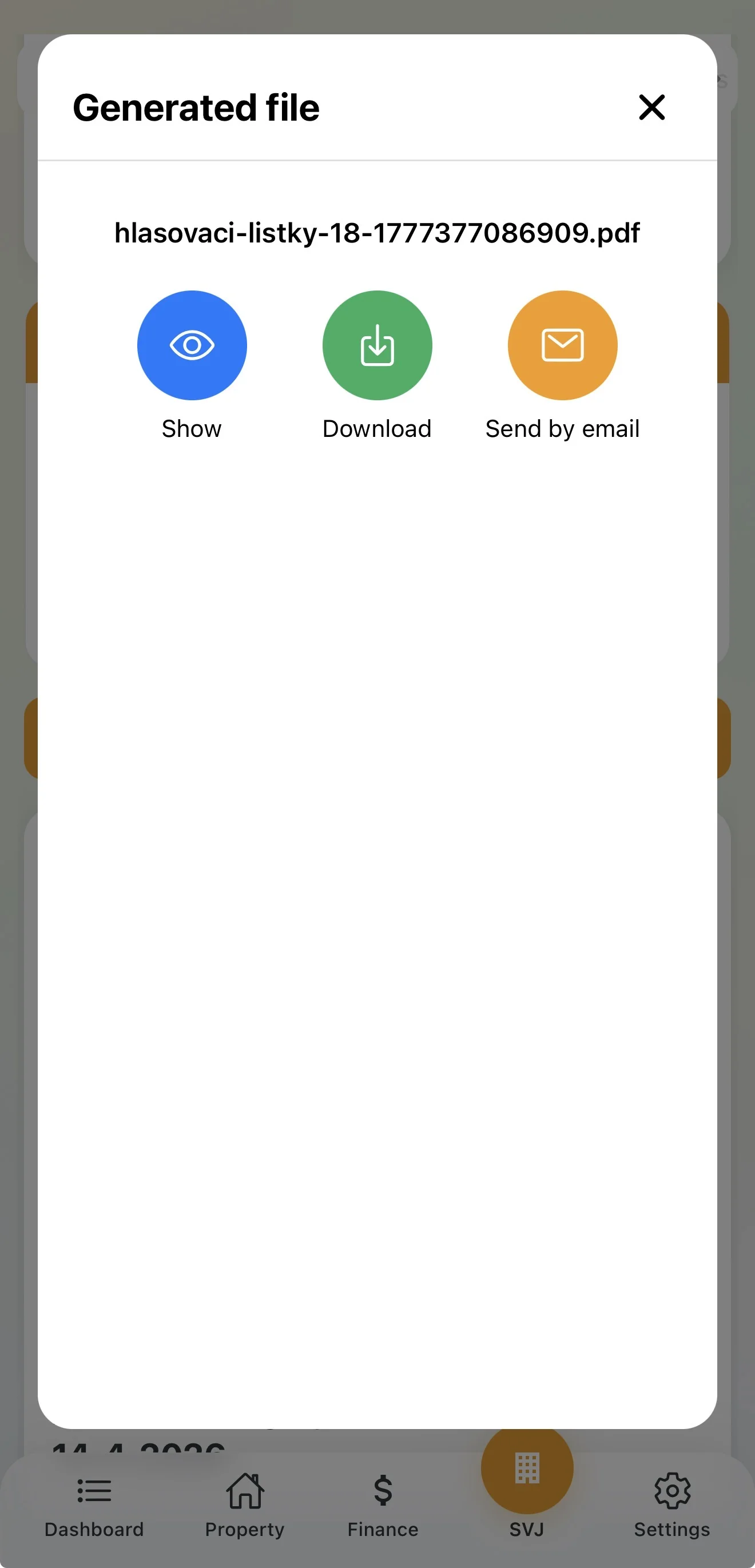
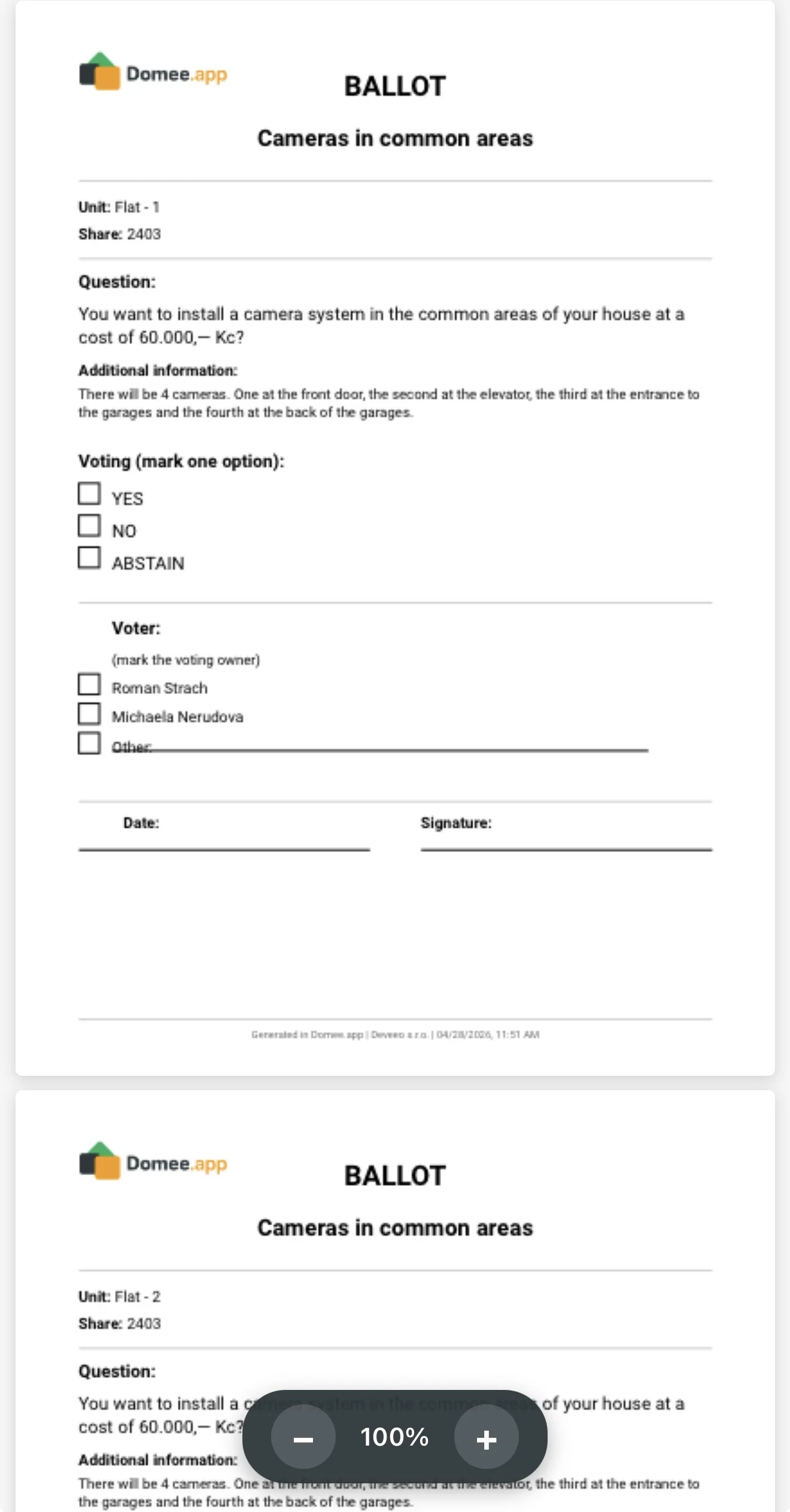
- The PDF file with pre-filled details (name, unit, share) can be downloaded, previewed or emailed.
Manual Vote Entry
Once the owner returns the signed ballot:
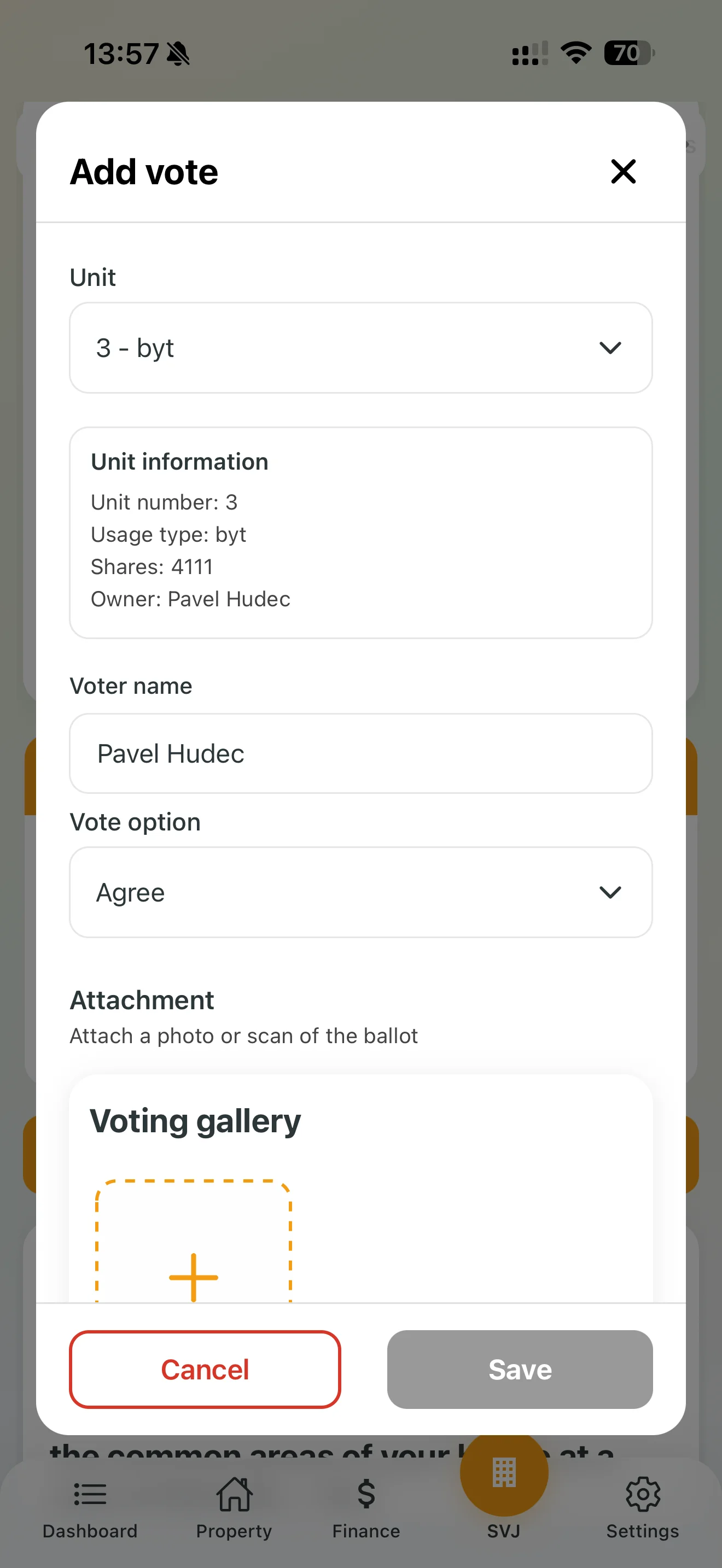
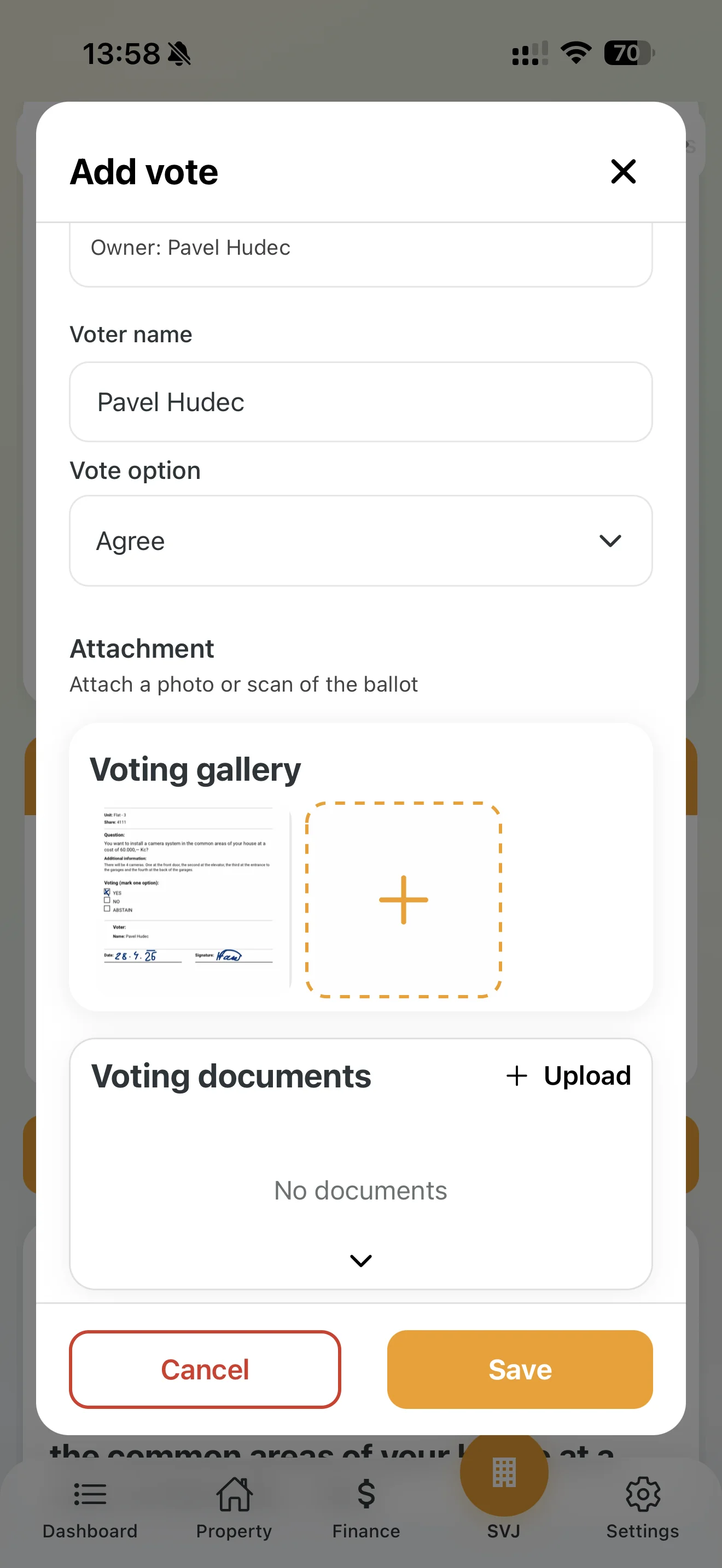
- In the vote detail, scroll to Added Votes and tap Add.
- Select the unit and enter the choice from the ballot.
- Required attachment: Upload a photo or scan of the signed ballot — this serves as undeniable proof of the person's vote.
4. Closing and Results
- Automatic closing: After the set period the system closes the vote.
- Inactive users: Those who did not participate are automatically assigned the status "Abstained".
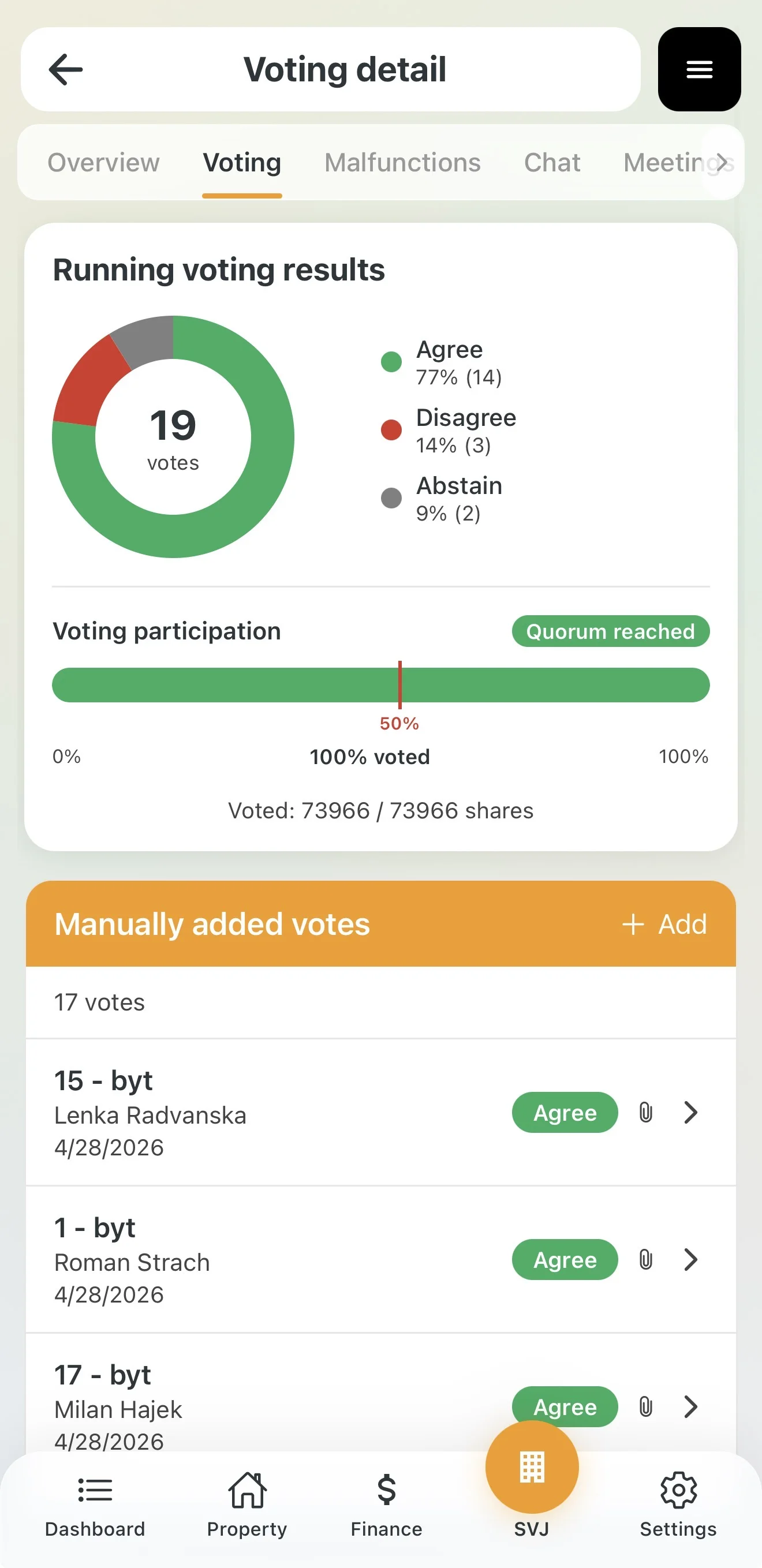
Board tip: Monitor the results graph regularly. If you're just a few percent short of your goal, you can reach the remaining residents directly through the Communication module.