

Document Management and Digital Archive
The Documents module in Domee.app serves as a secure storage for all important records, plans and files of your building. Everything essential is always available to owners and the board on their phones.
1. System Folders
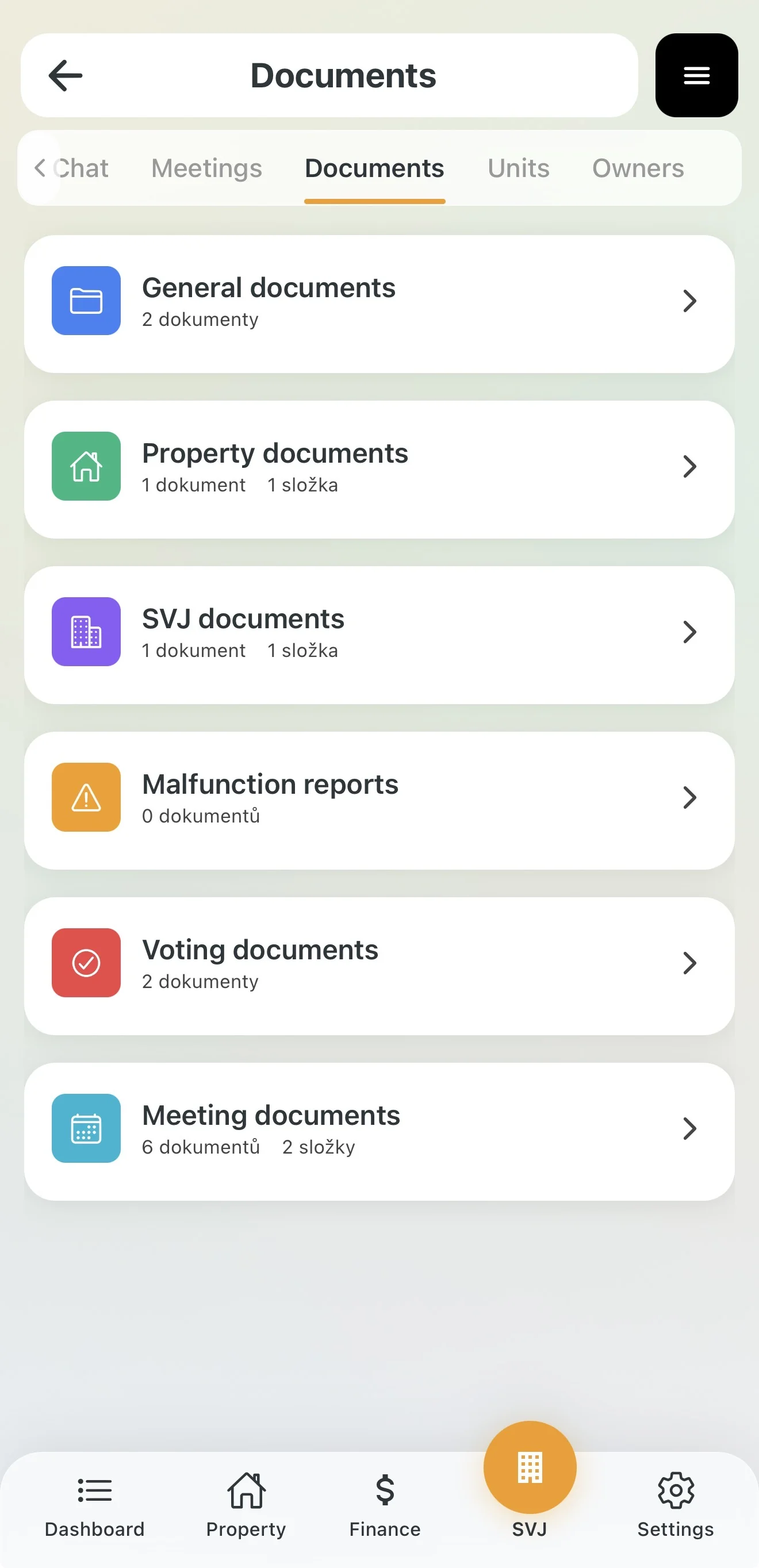
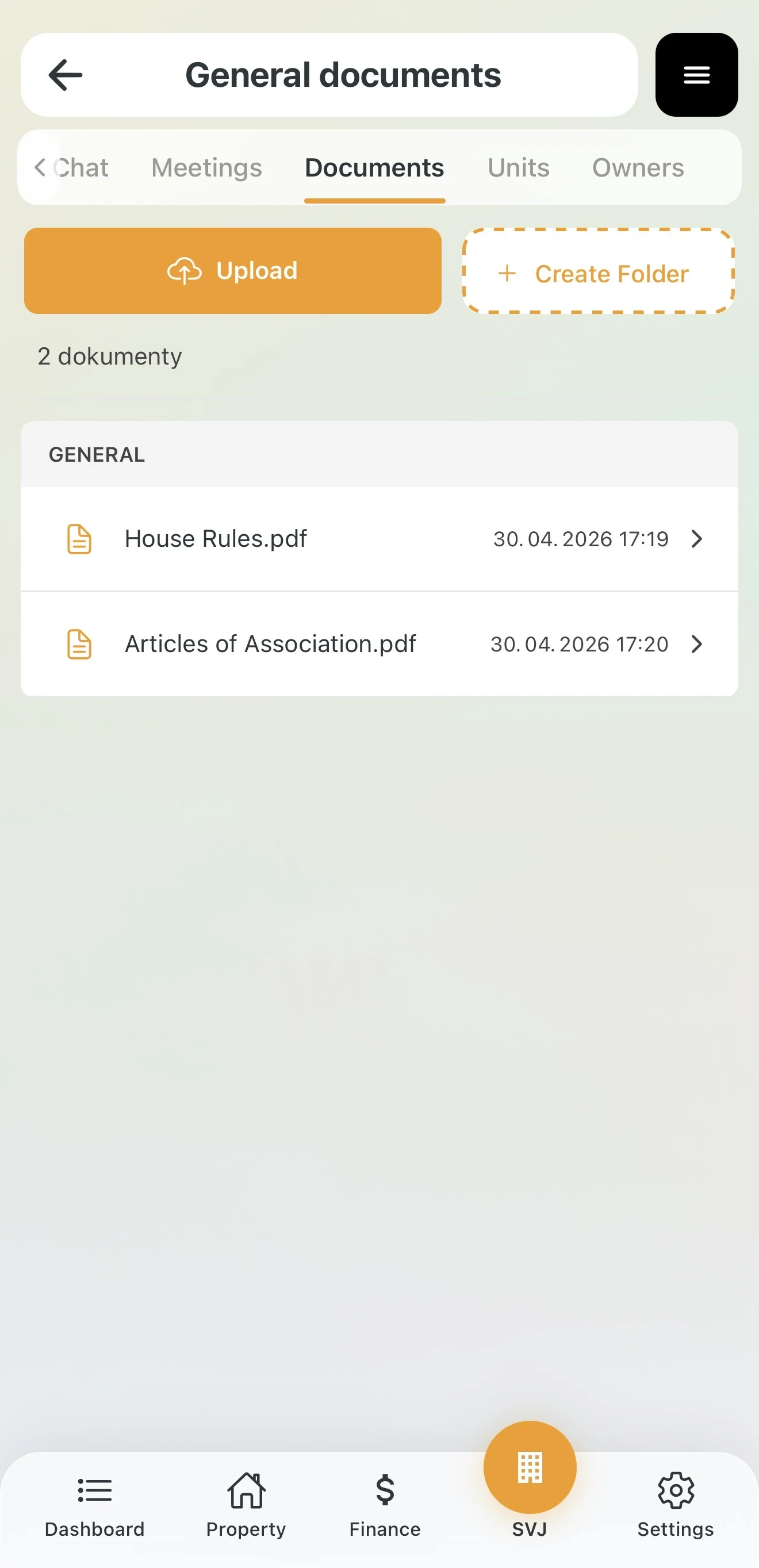
The app includes pre-configured system folders visible to every owner:
- General documents: House rules, internal regulations etc.
- Property documents: Technical drawings, energy performance certificates (EPC) or building inspections.
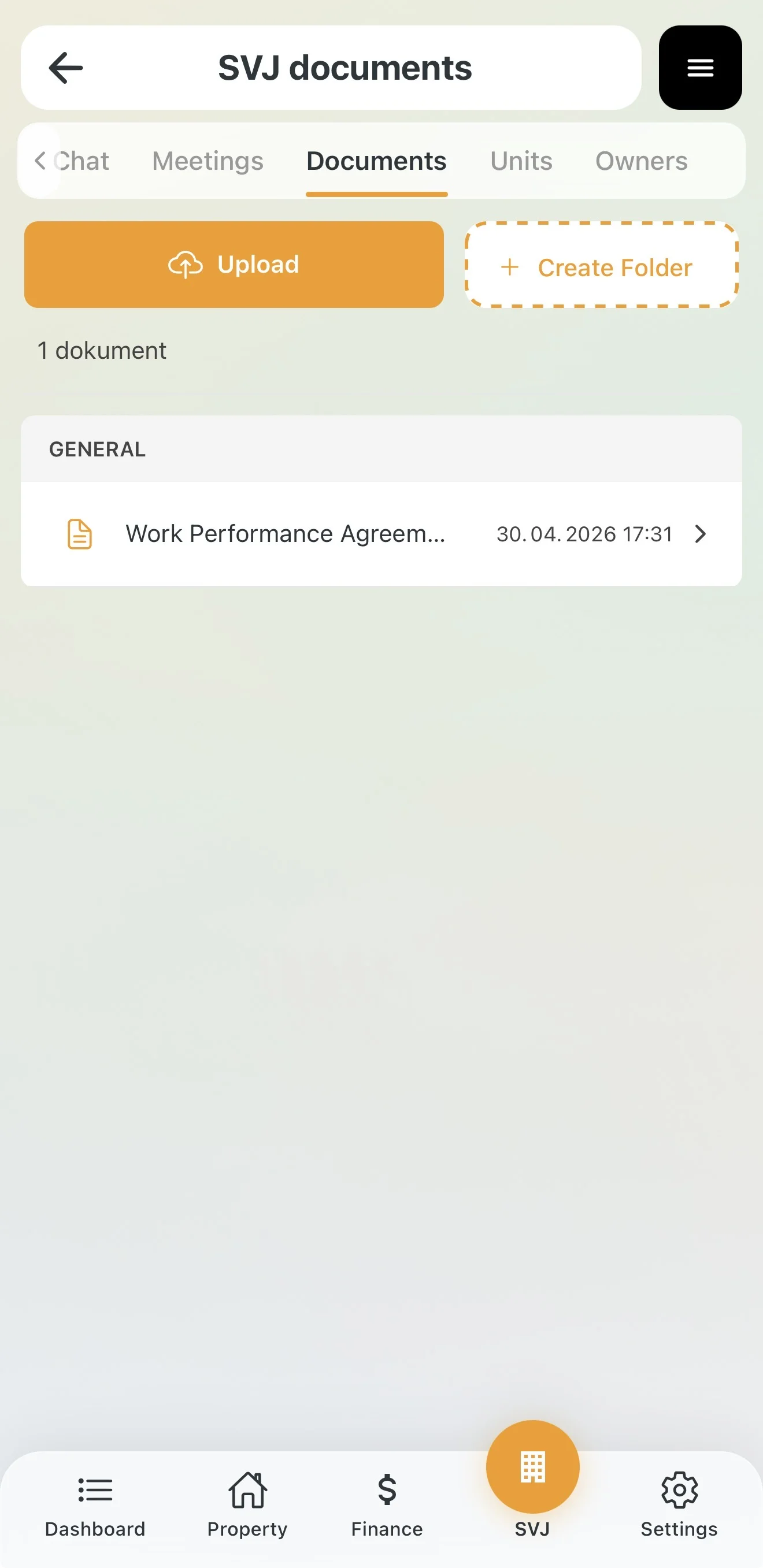
- HOA documents: Insurance contracts, registry extracts or service agreements.
Some folders are filled automatically based on activity in other modules:
- Issue reports: Photos and documents uploaded to defect reports.
- Voting / Meeting documents: Materials and minutes from individual sessions.
2. Managing Folders and Subfolders
As board members you can expand the archive structure further:
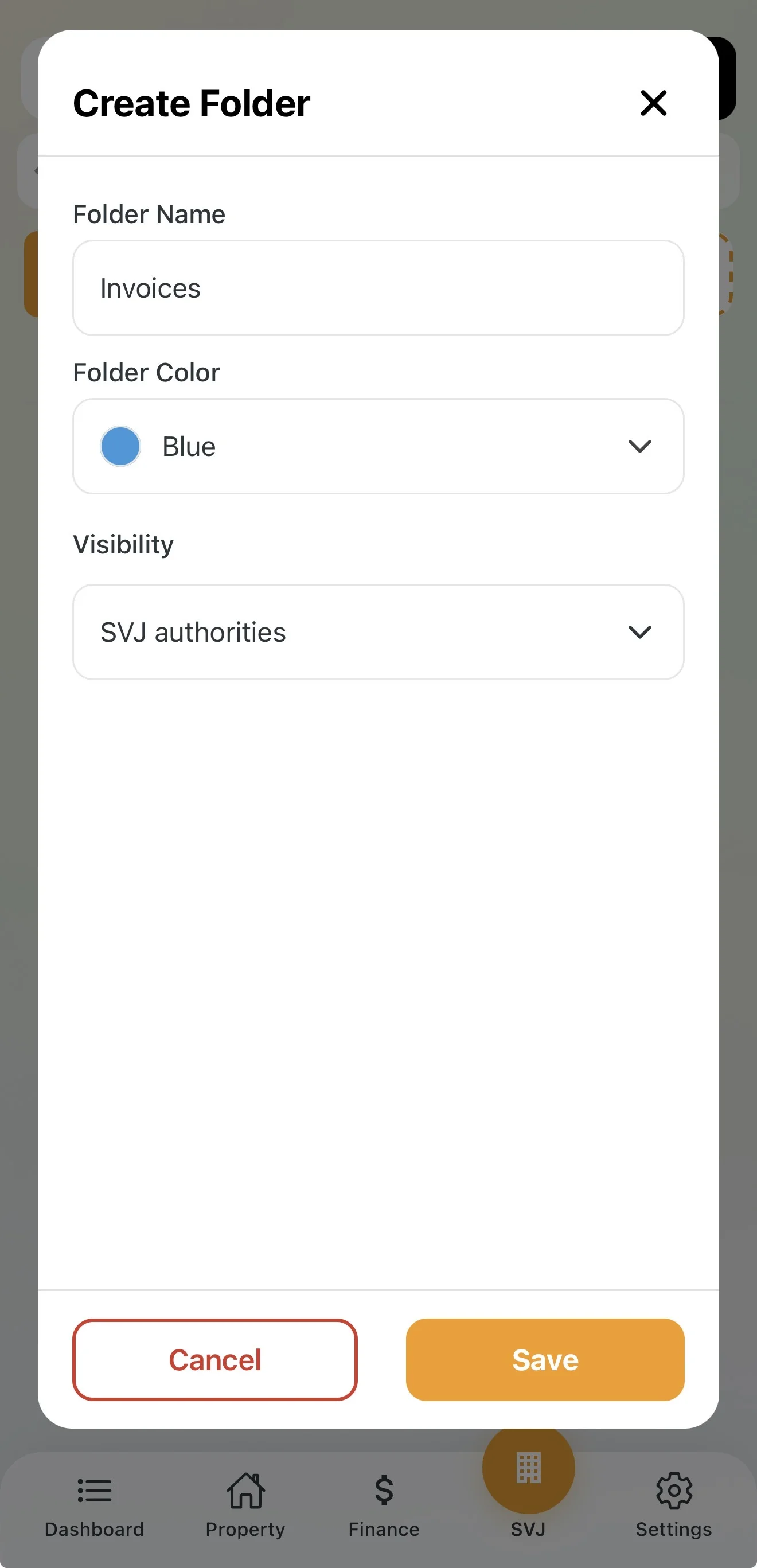
- Open a system folder and tap + Create folder.
- Set the Name, Colour and Visibility of the folder.
3. Access Rights and Visibility
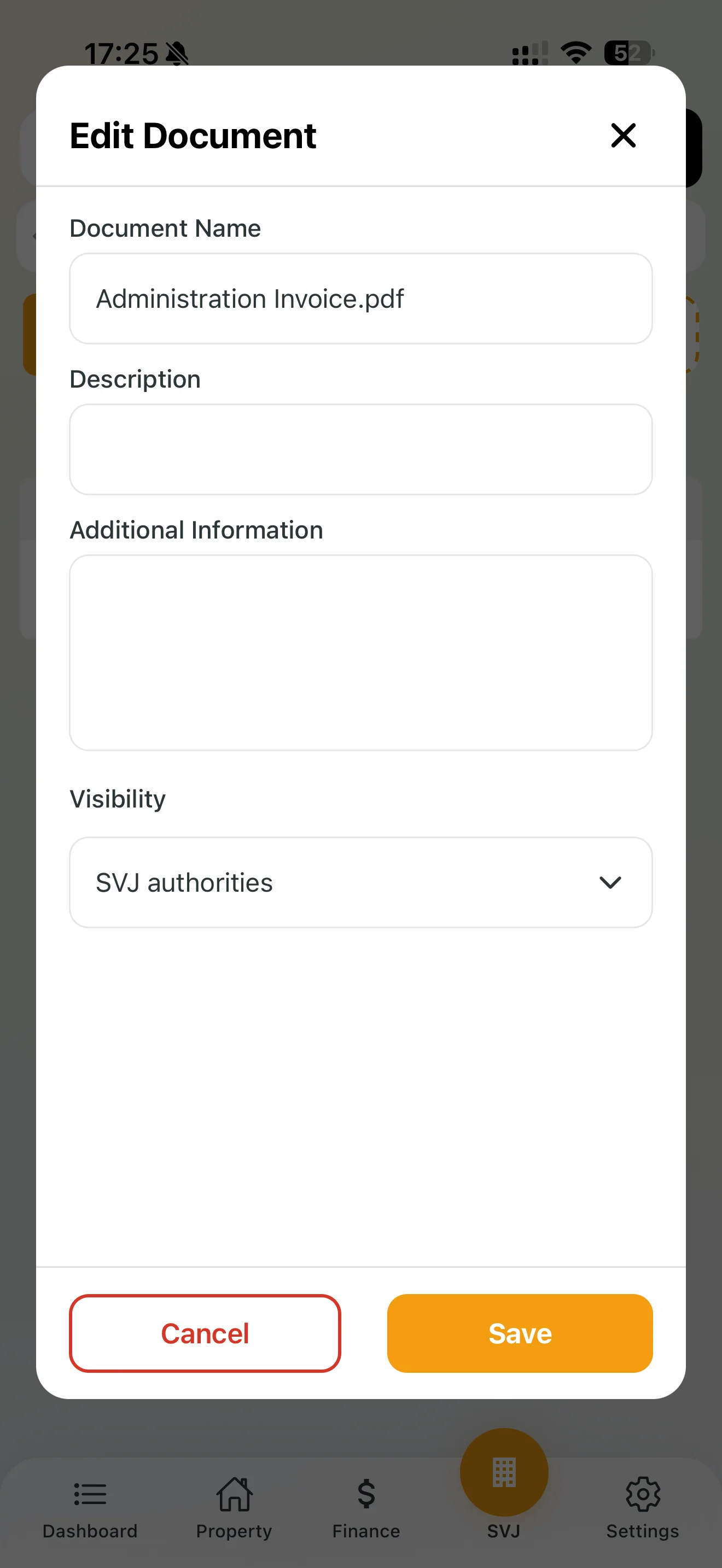
For every newly created folder or uploaded document the board sets the access level:
| Visibility level | Who can see the document? |
|---|---|
| Public | All unit owners in the building. |
| HOA Bodies | Board members and audit committee members only. |
| Private | Only the board member who created the folder/document. |
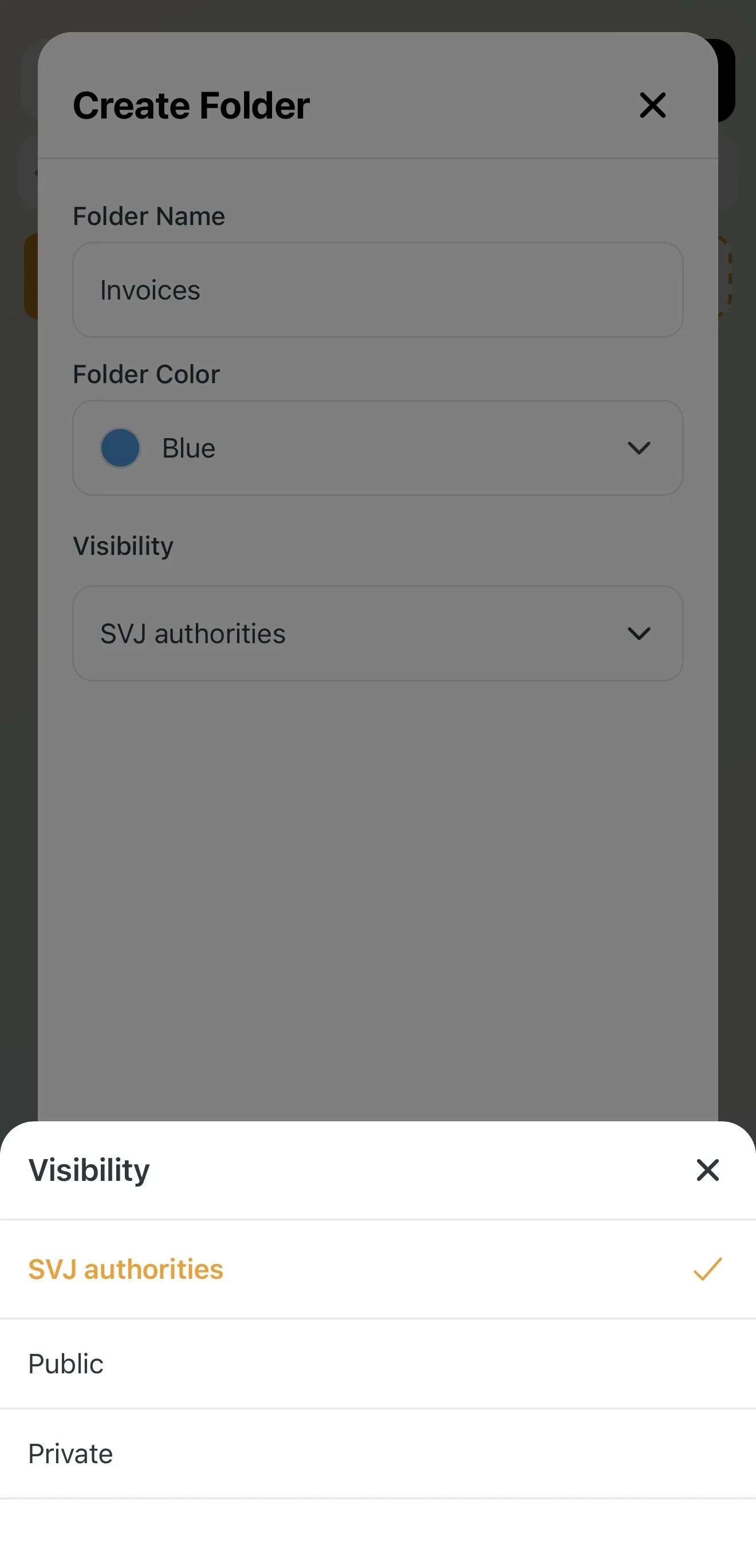
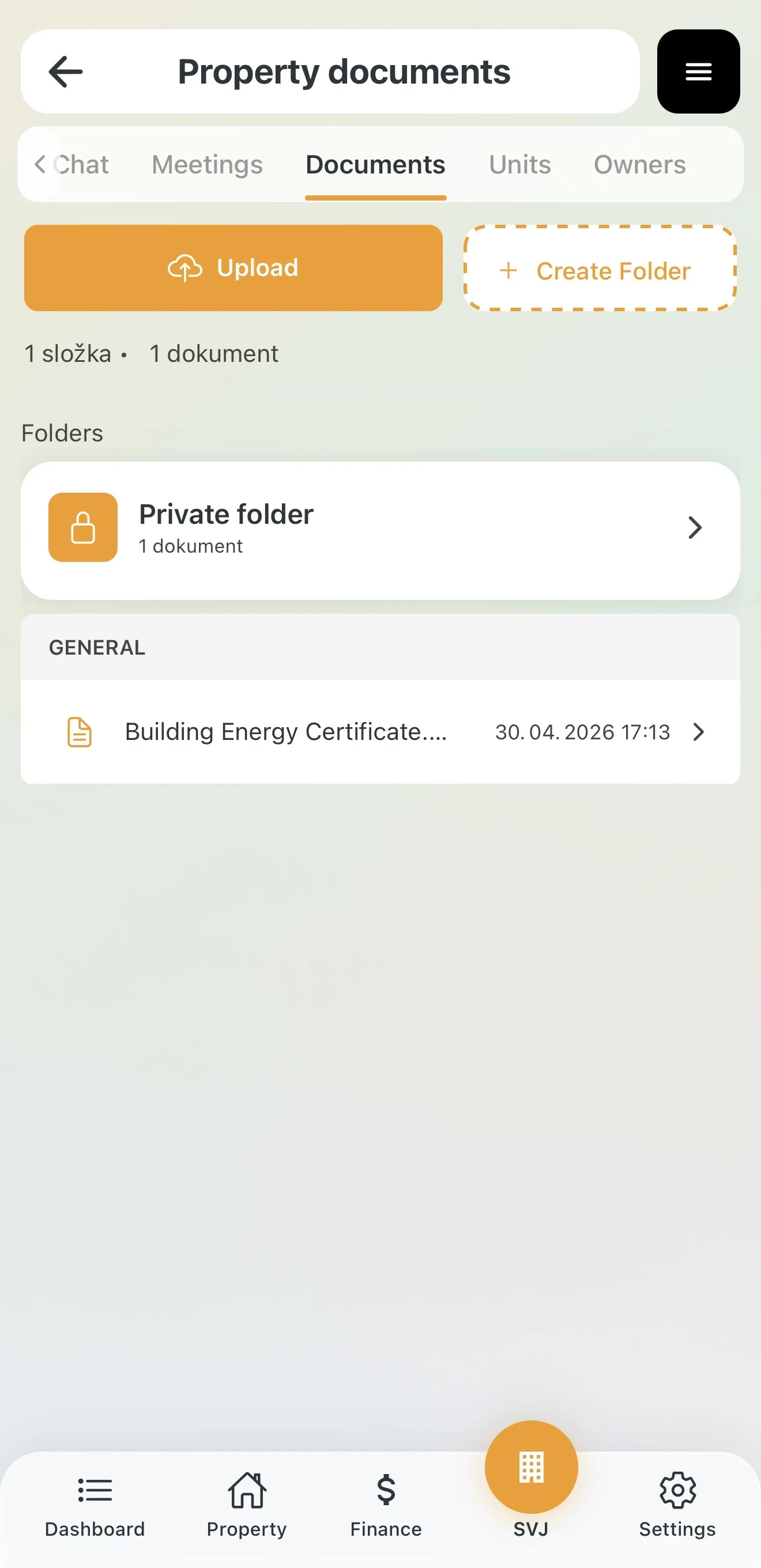
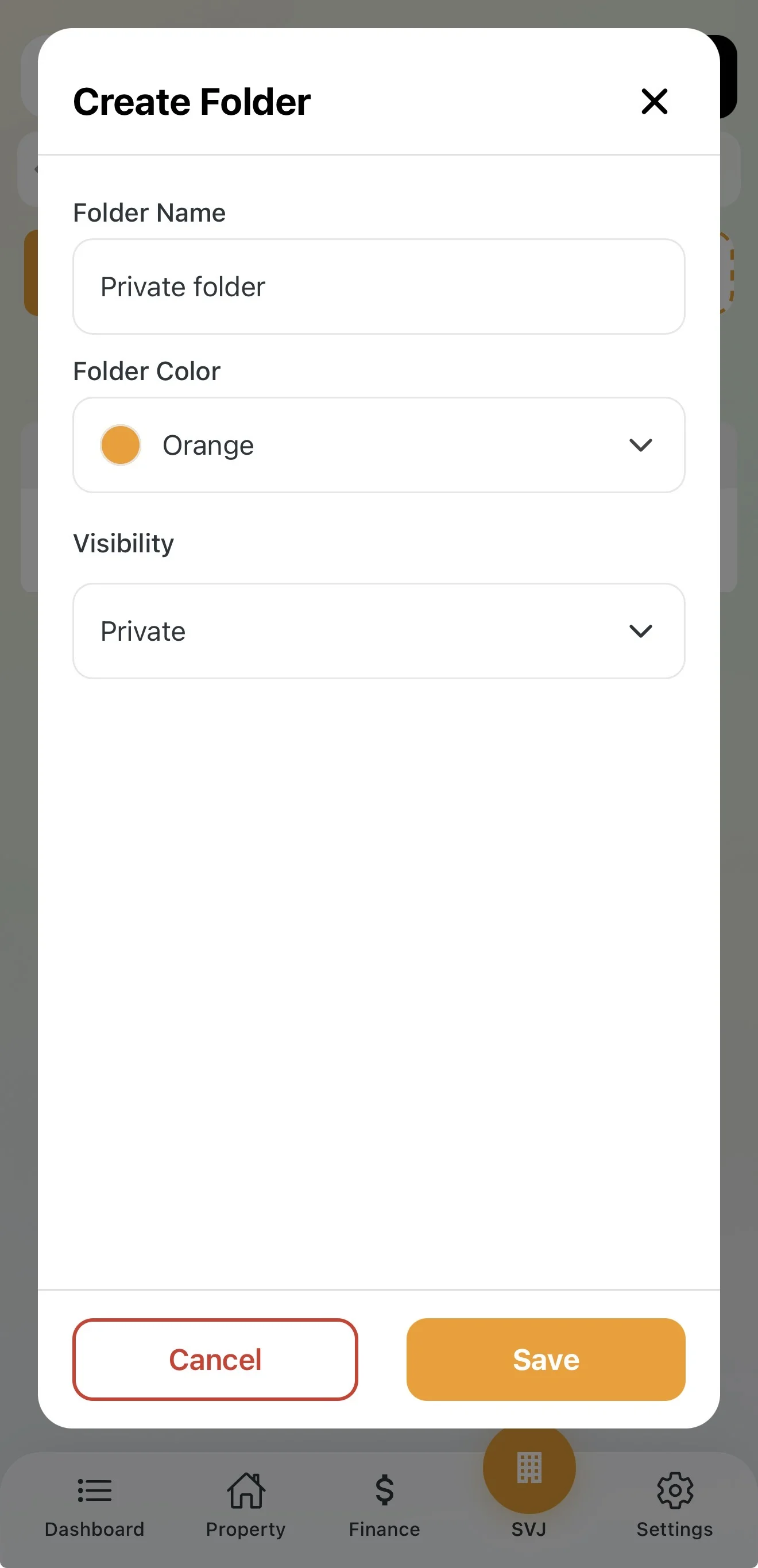
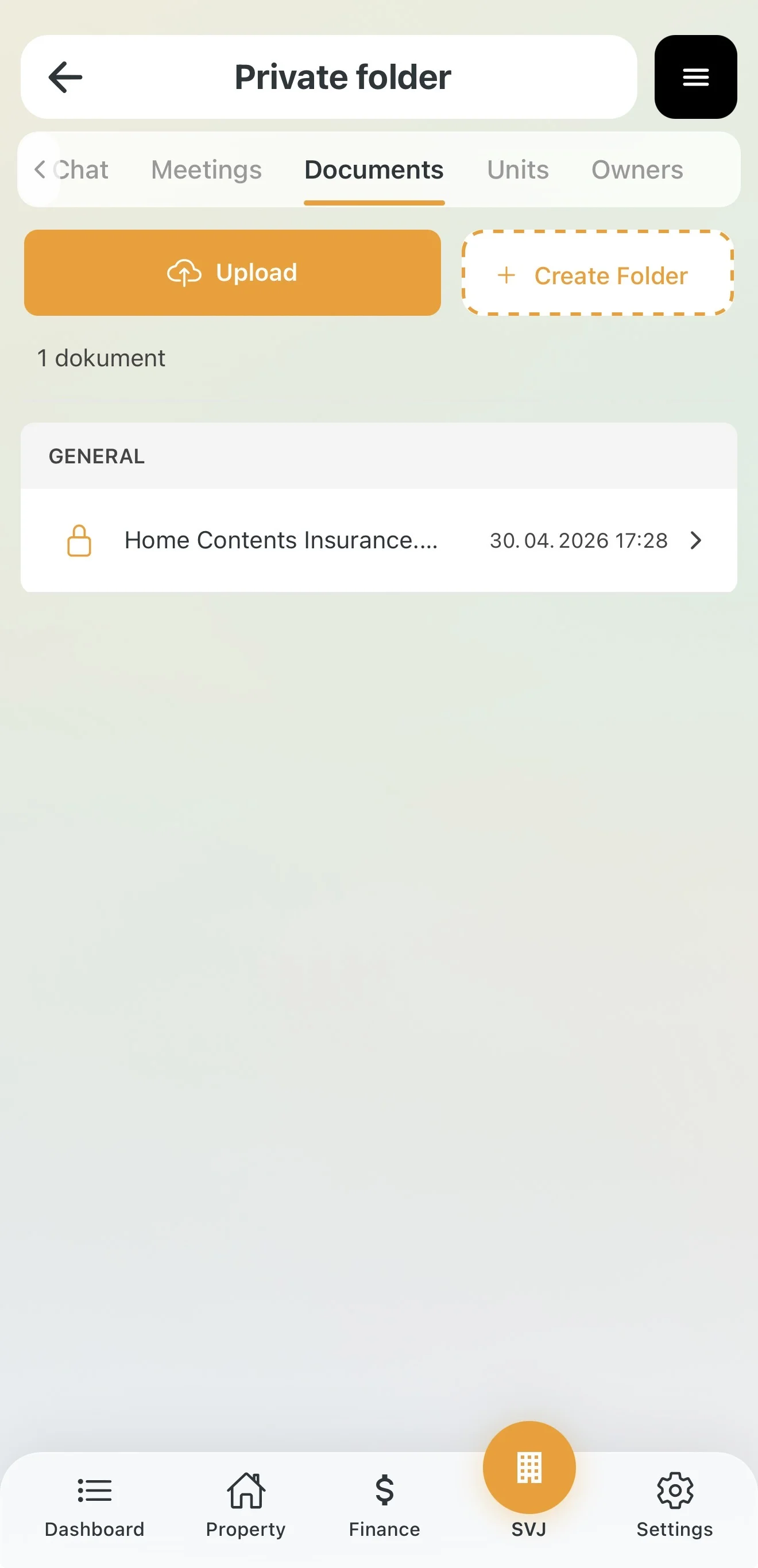
Important: System folders are always visible to all owners. However, owners only see content (subfolders and files) for which the board has set the Public right.
4. Uploading and Editing Documents
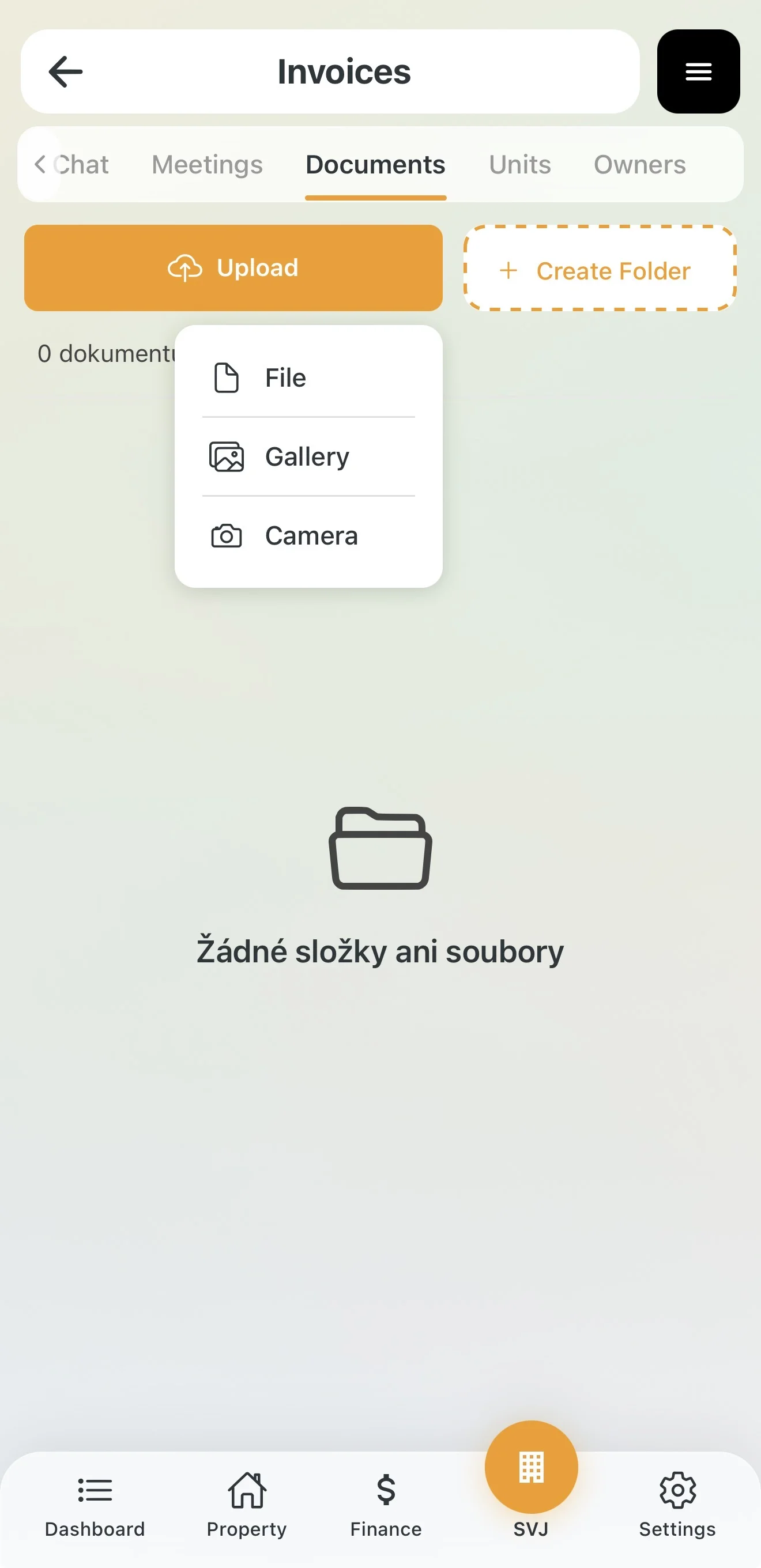
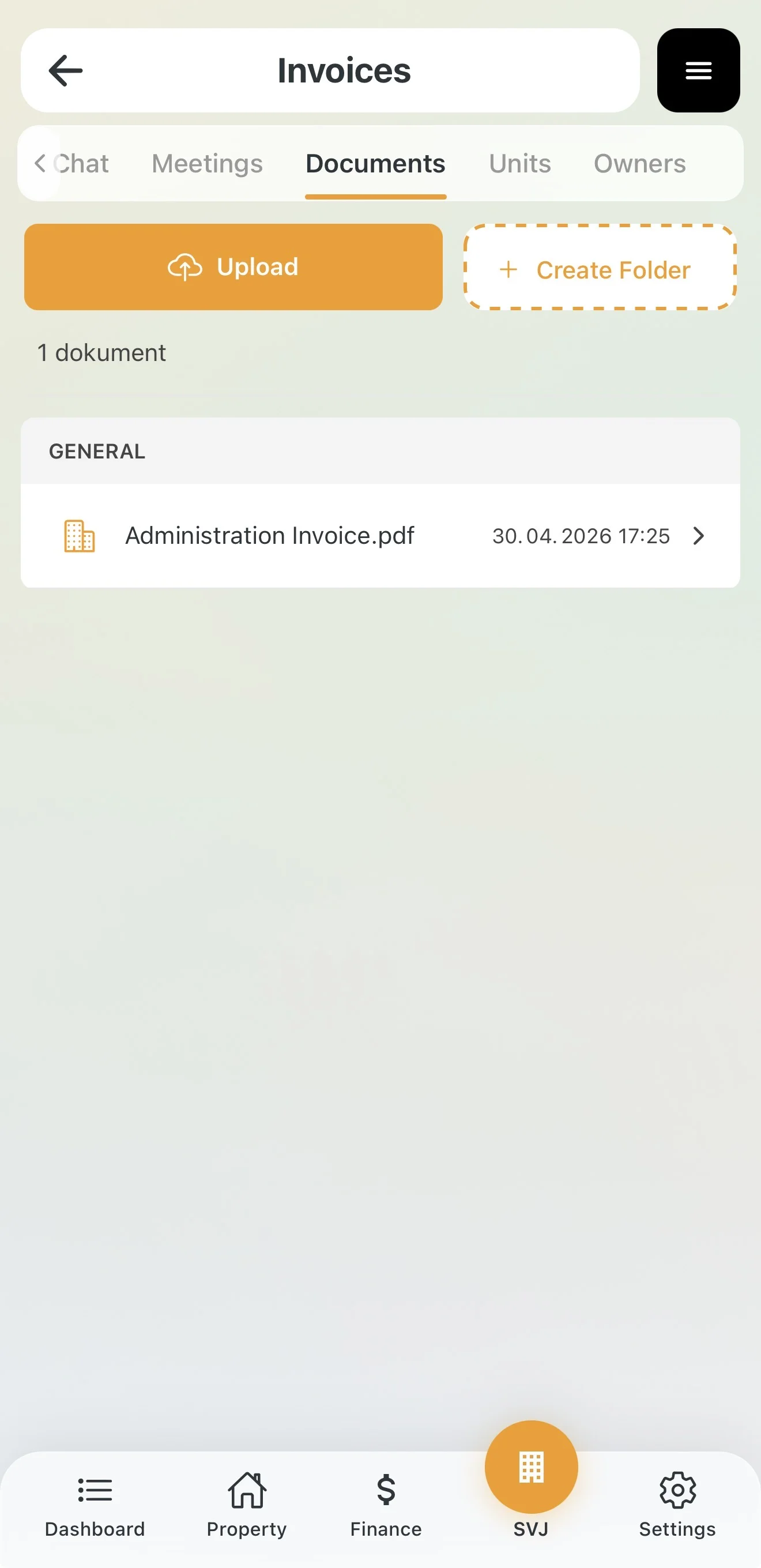
- Enter a folder and tap the Upload button.
- Select the source: File (from phone), Gallery or Camera (photograph a paper invoice directly).
- In the Edit document window add a name, description and visibility.
Tip: Use private folders for draft contracts or internal invoices that haven't been approved yet. Once a document is ready to share, simply change its visibility to "Public" in the document detail.