

HOA Board Meeting
Board meetings are used for efficient decision-making on day-to-day building matters. Unlike the general HOA meeting, quorum and voting are counted by a simple majority of board members present, not by ownership share.
1. Preparing and Planning the Board Meeting
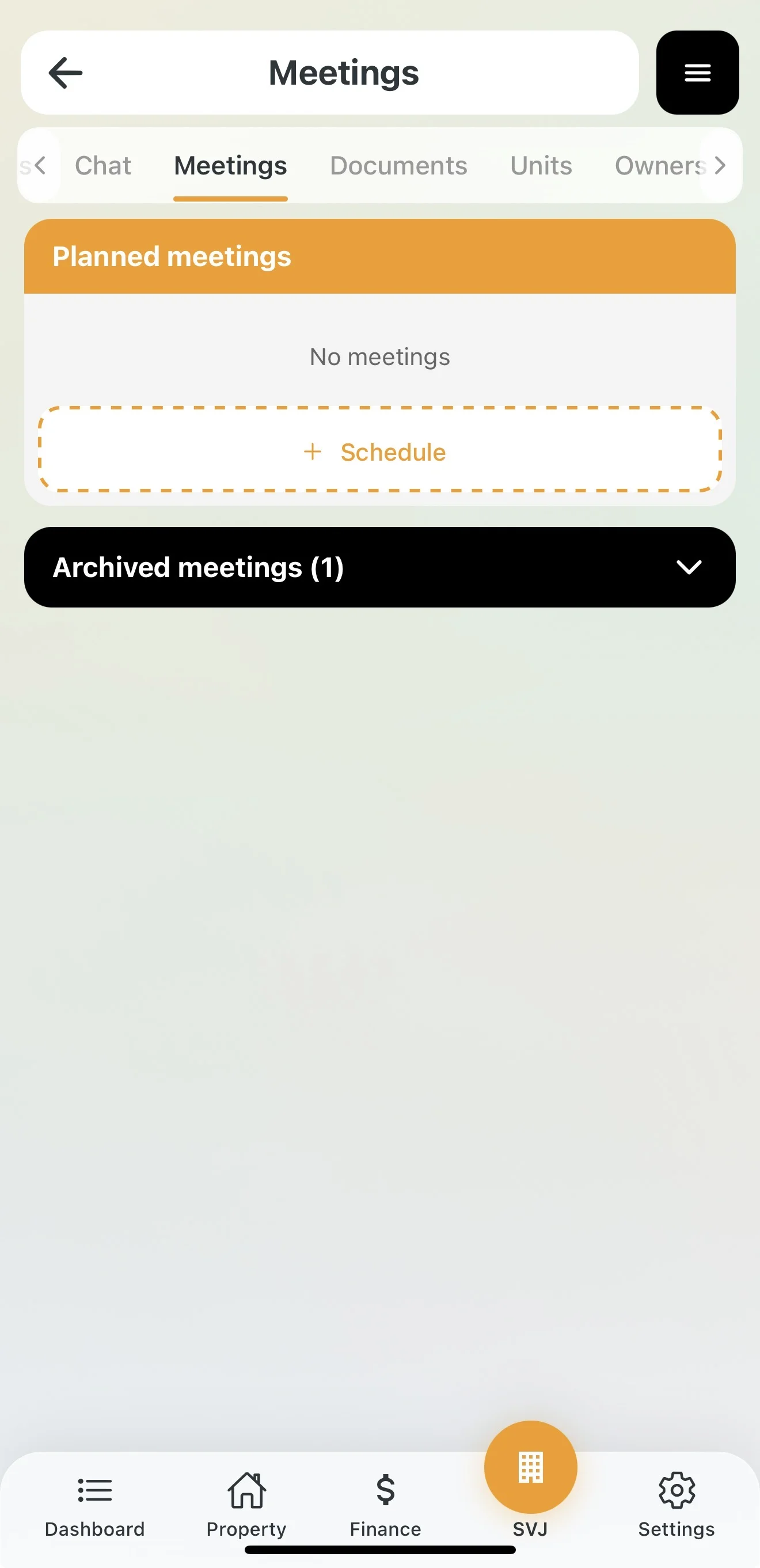
Creating a Meeting
- In the HOA module go to the Meetings tab and tap + Schedule.
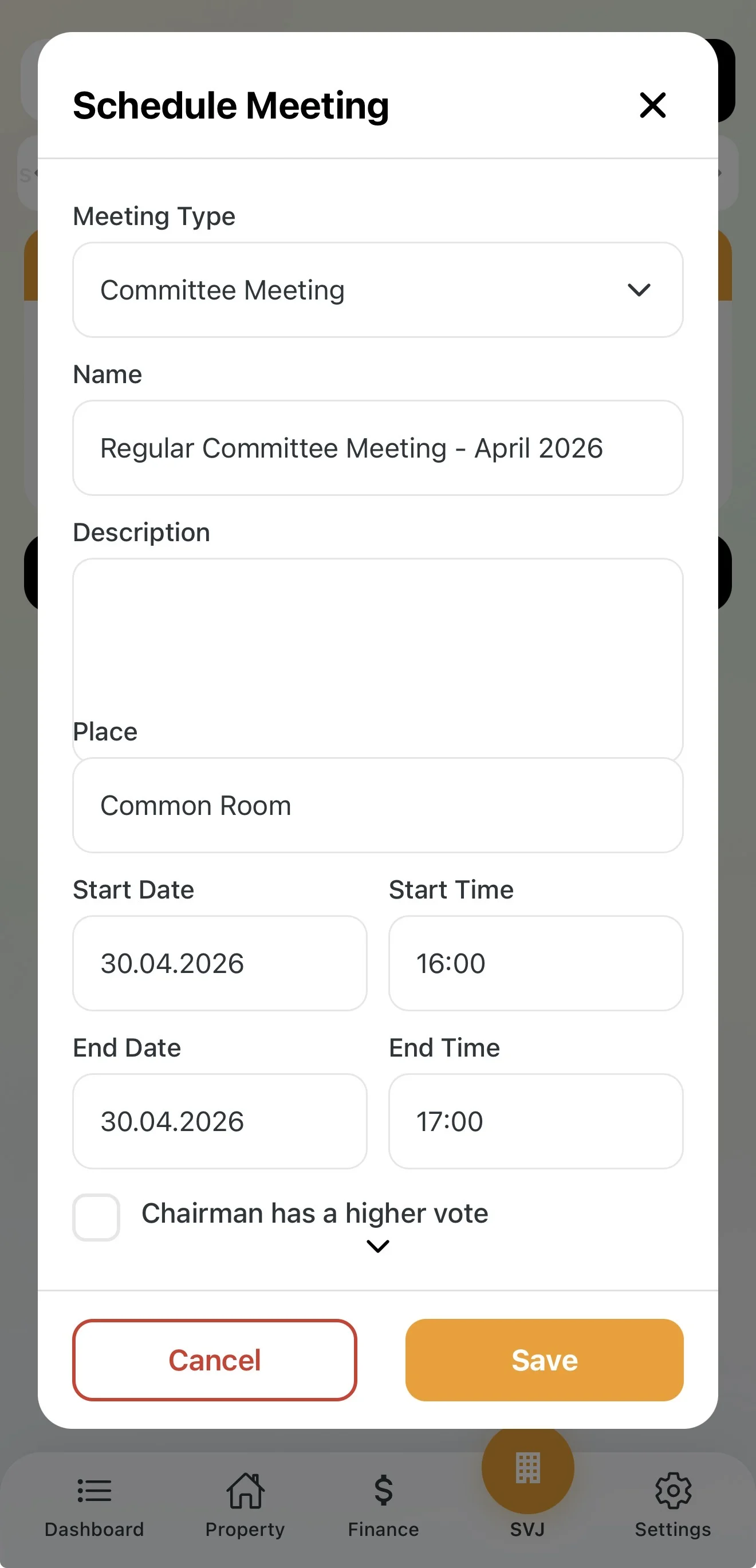
- In the Meeting type field select Board Meeting.
- Fill in the Name, Description, Location and time range.
Specific Board Settings
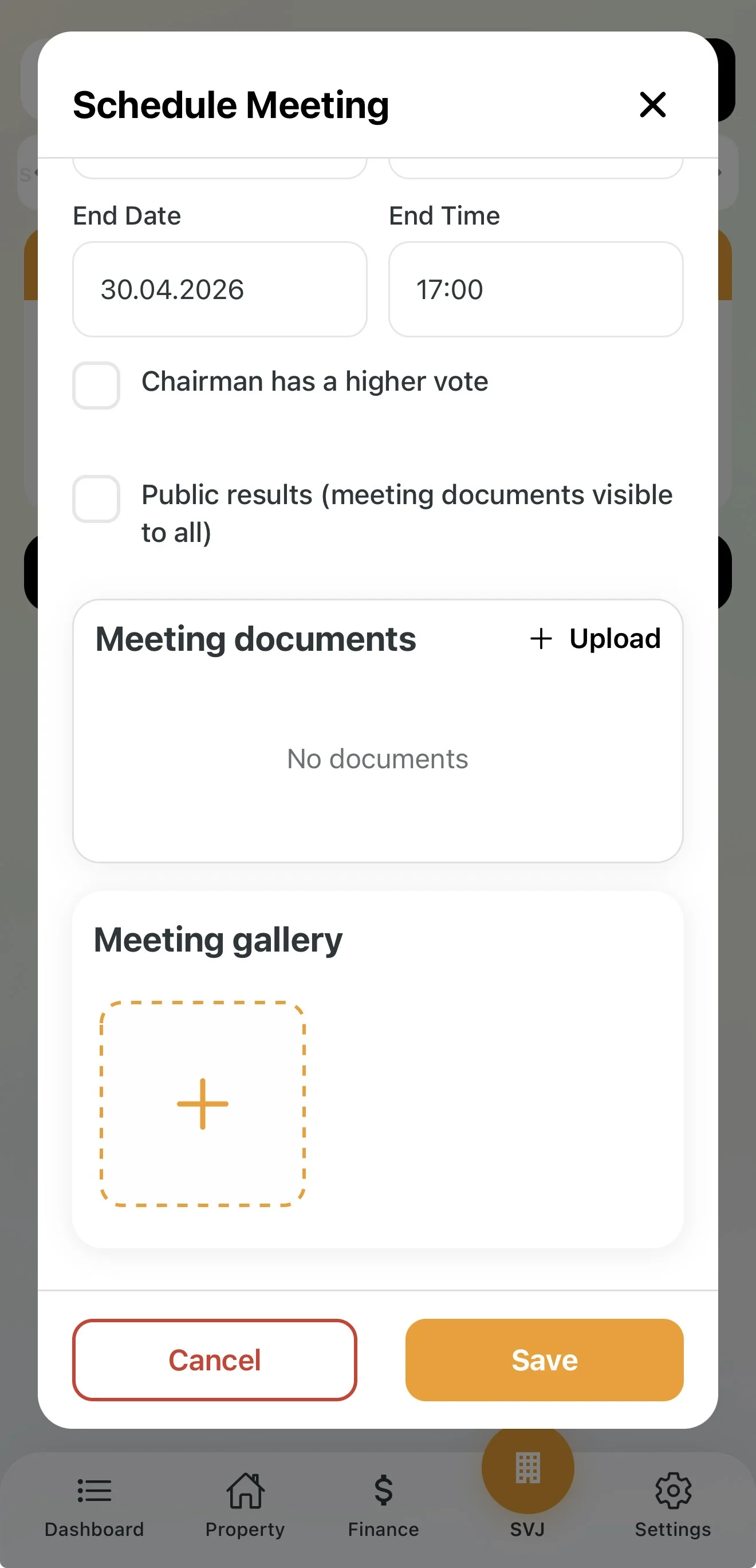
- Chairperson has casting vote: Enable if your statutes state that the chairperson's vote decides ties.
- Public results: If checked, the meeting and its results are visible to all owners. Otherwise only board members and the audit committee can see them.
Building the Agenda
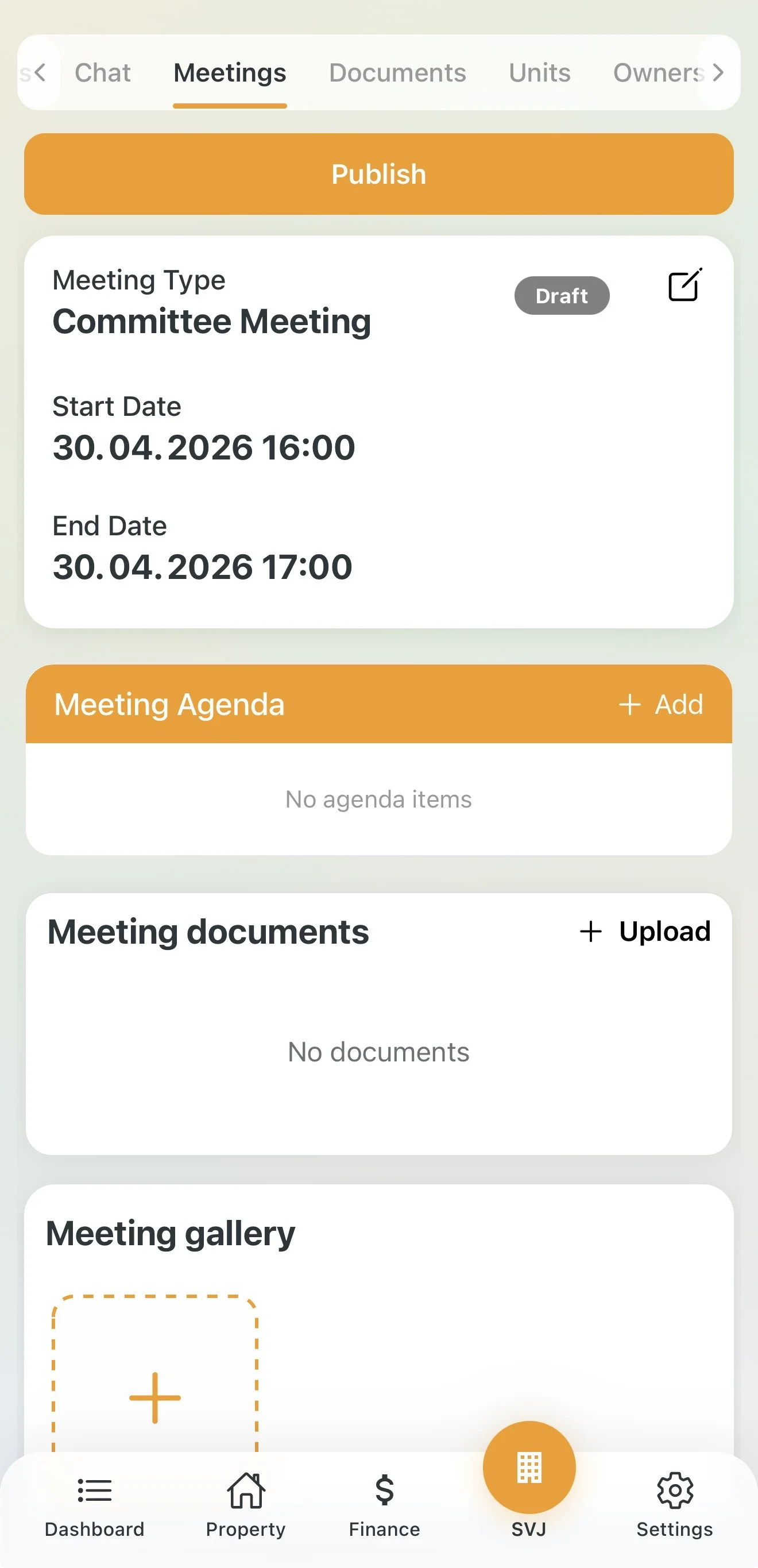
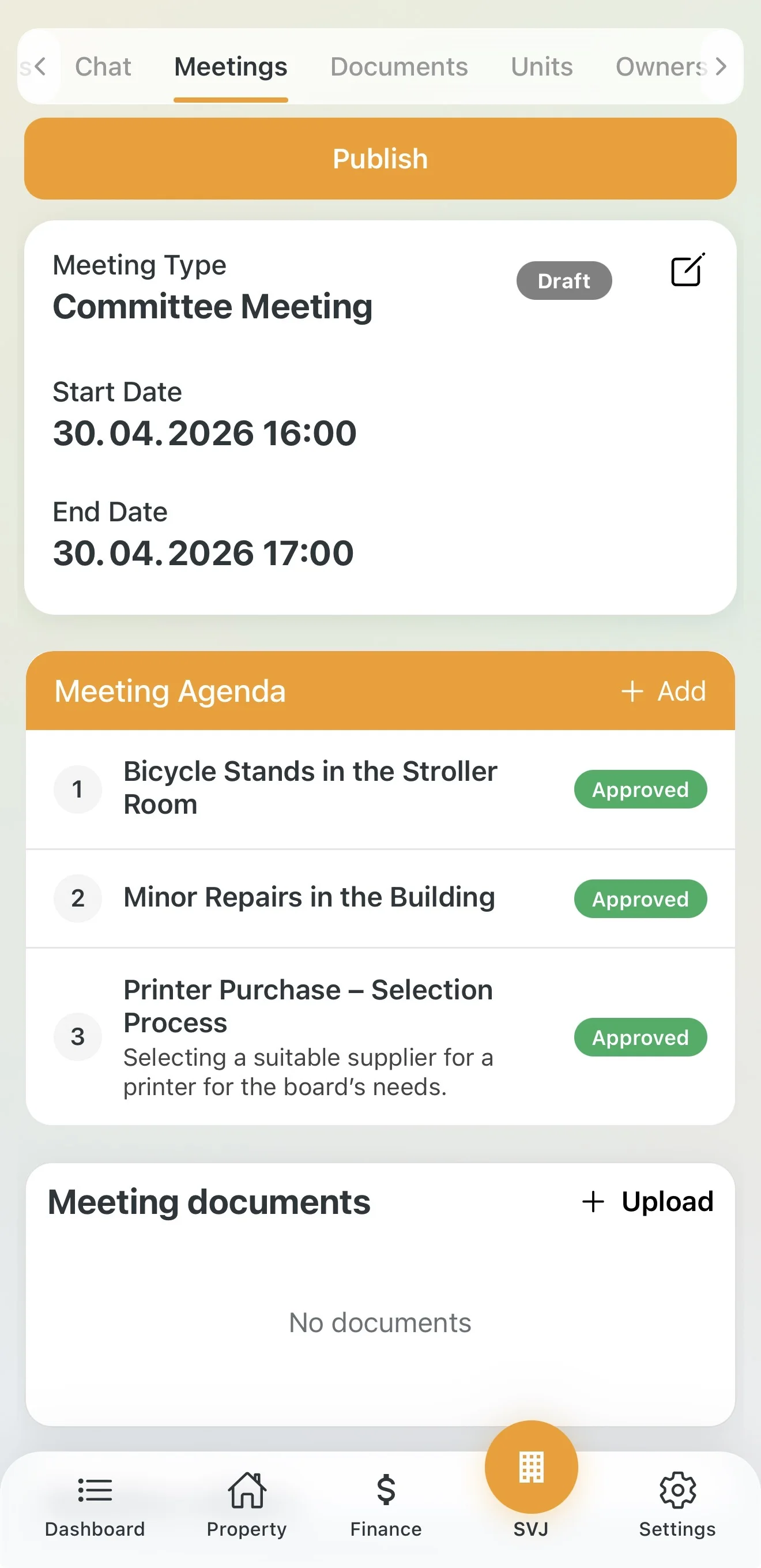
After saving, the meeting stays in DRAFT status. All board members can edit it and add items:
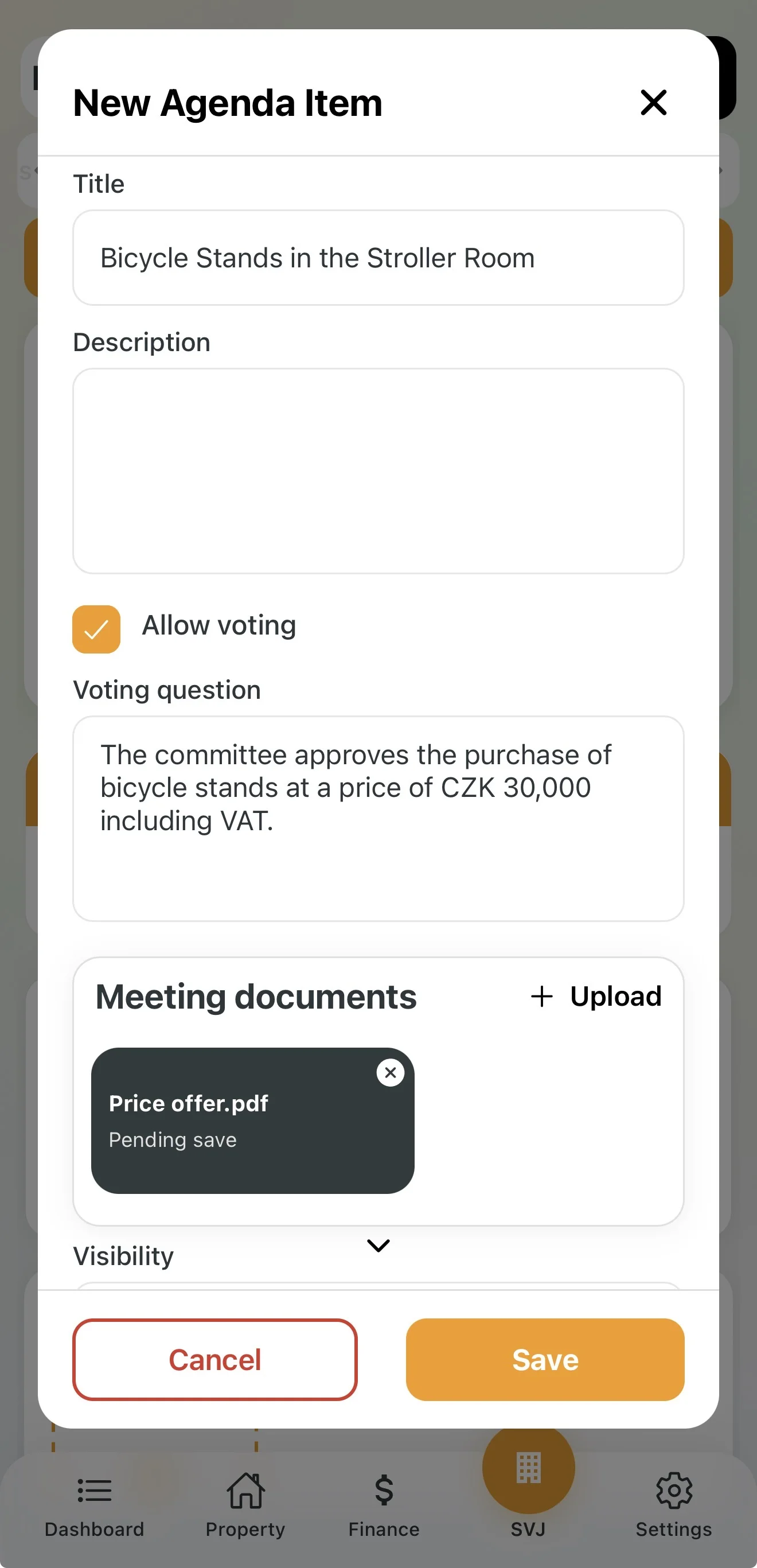
- In Meeting Agenda tap + Add.
- Fill in the item title and description.
- Allow voting: Check this to create a digital record of the board's decision.
- Attach relevant documents to each item (price quotes, contracts etc.).
Publishing the Meeting
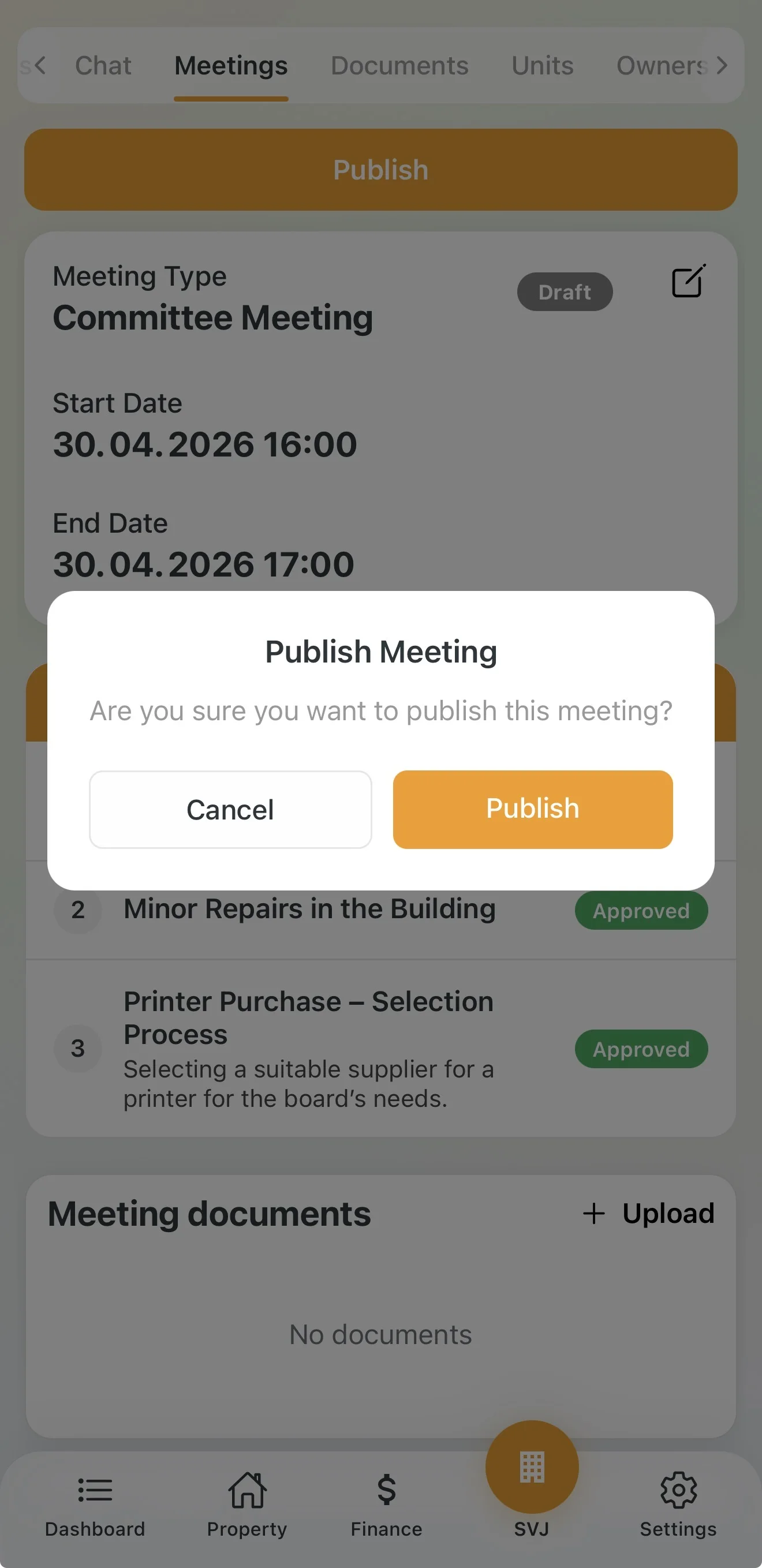
- Tap the Publish button and confirm the action.
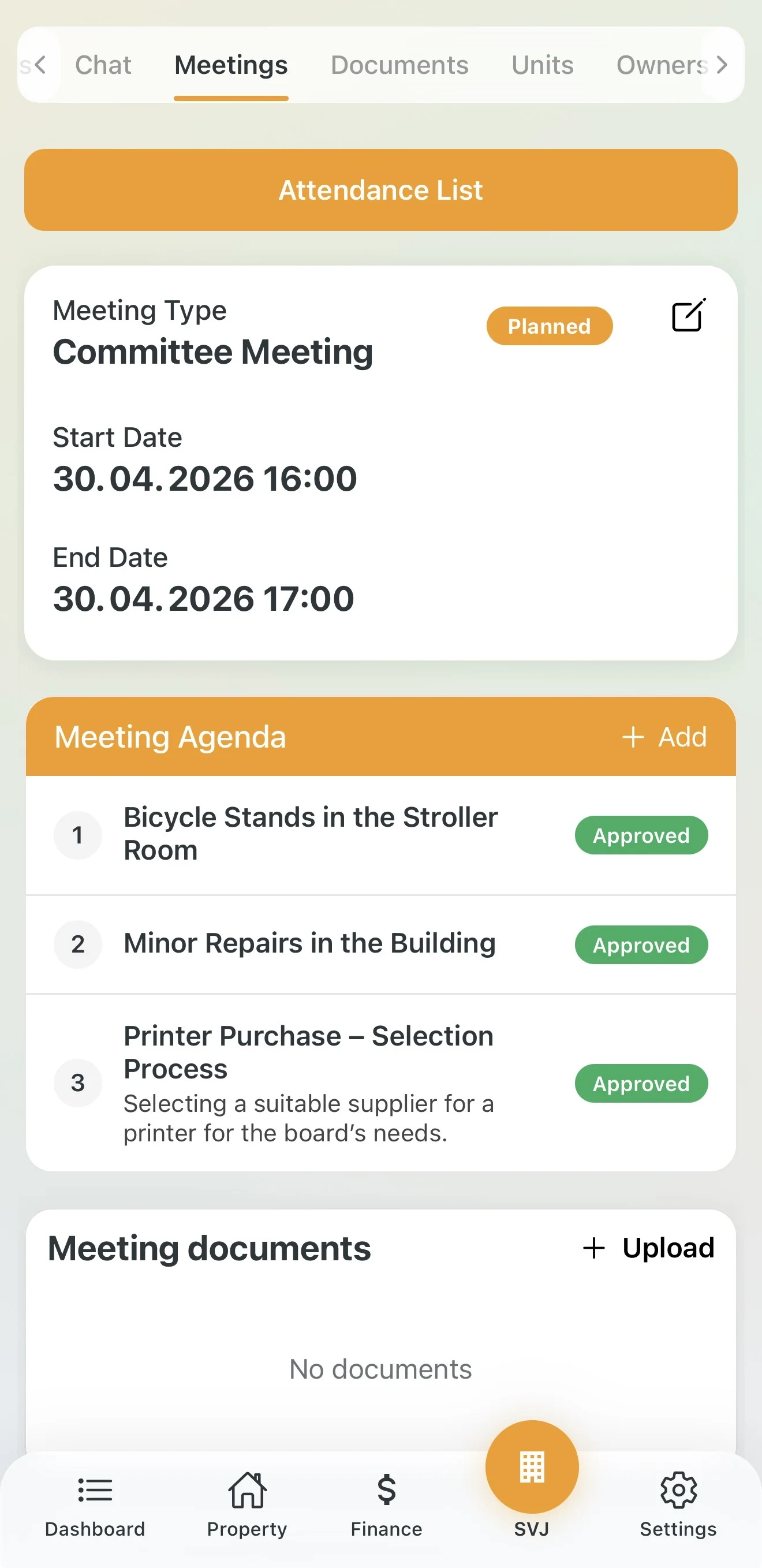
- Board members receive an immediate notification and the status changes to Scheduled.
- If you enabled public results, the meeting will also appear for other owners.
2. Attendance and Opening the Board Meeting
Preparing Attendance
Two options are available:
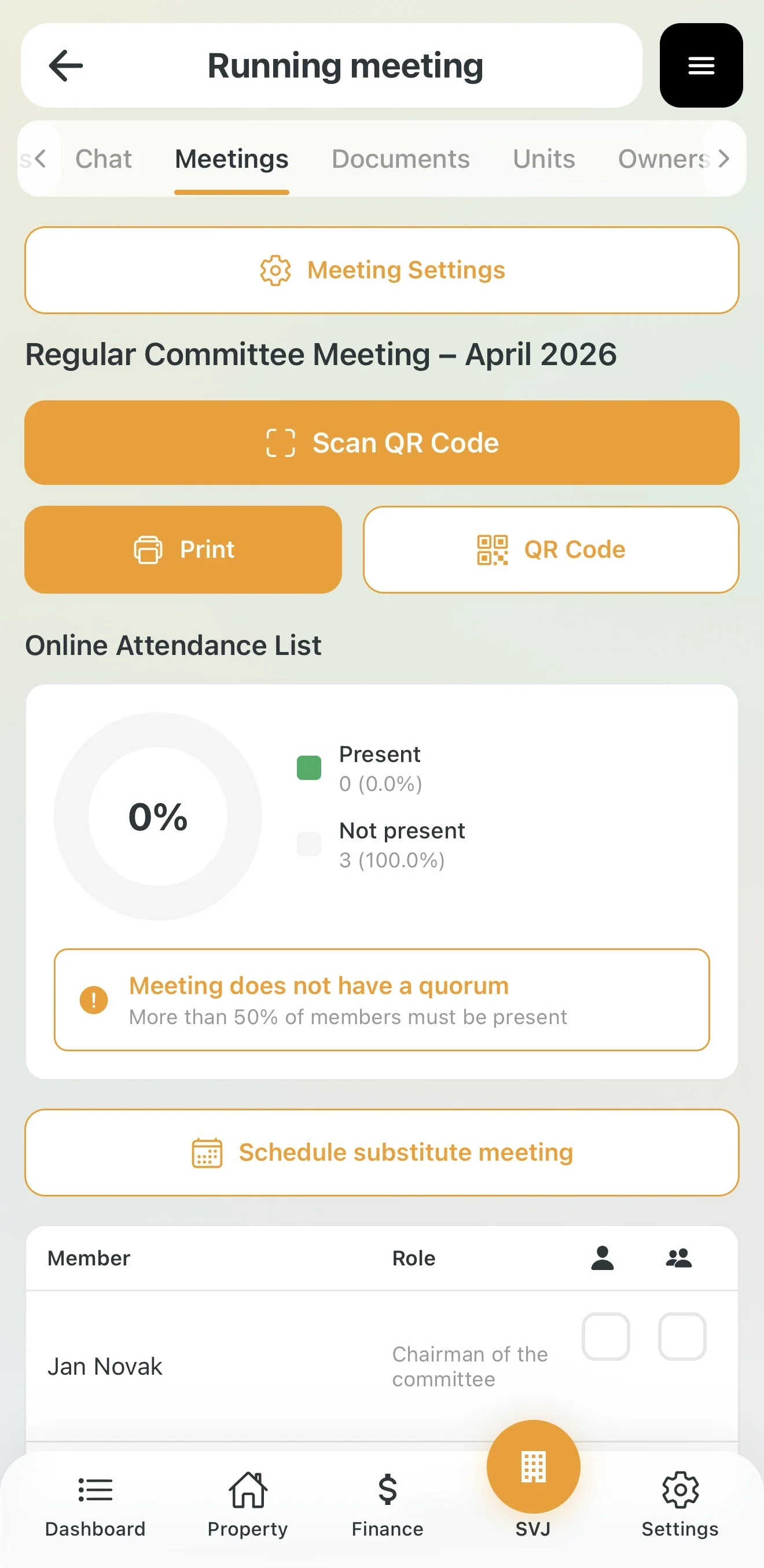
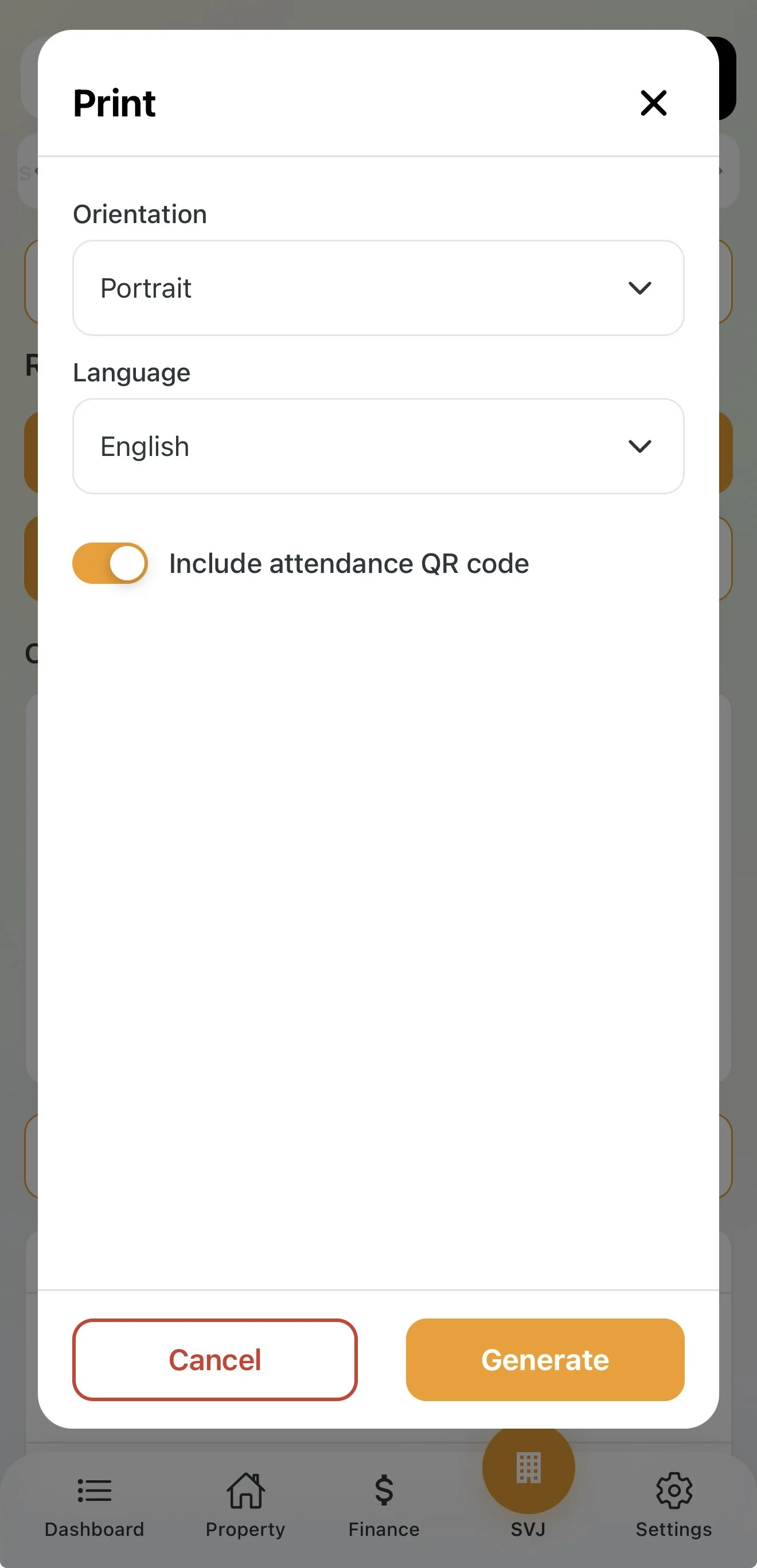
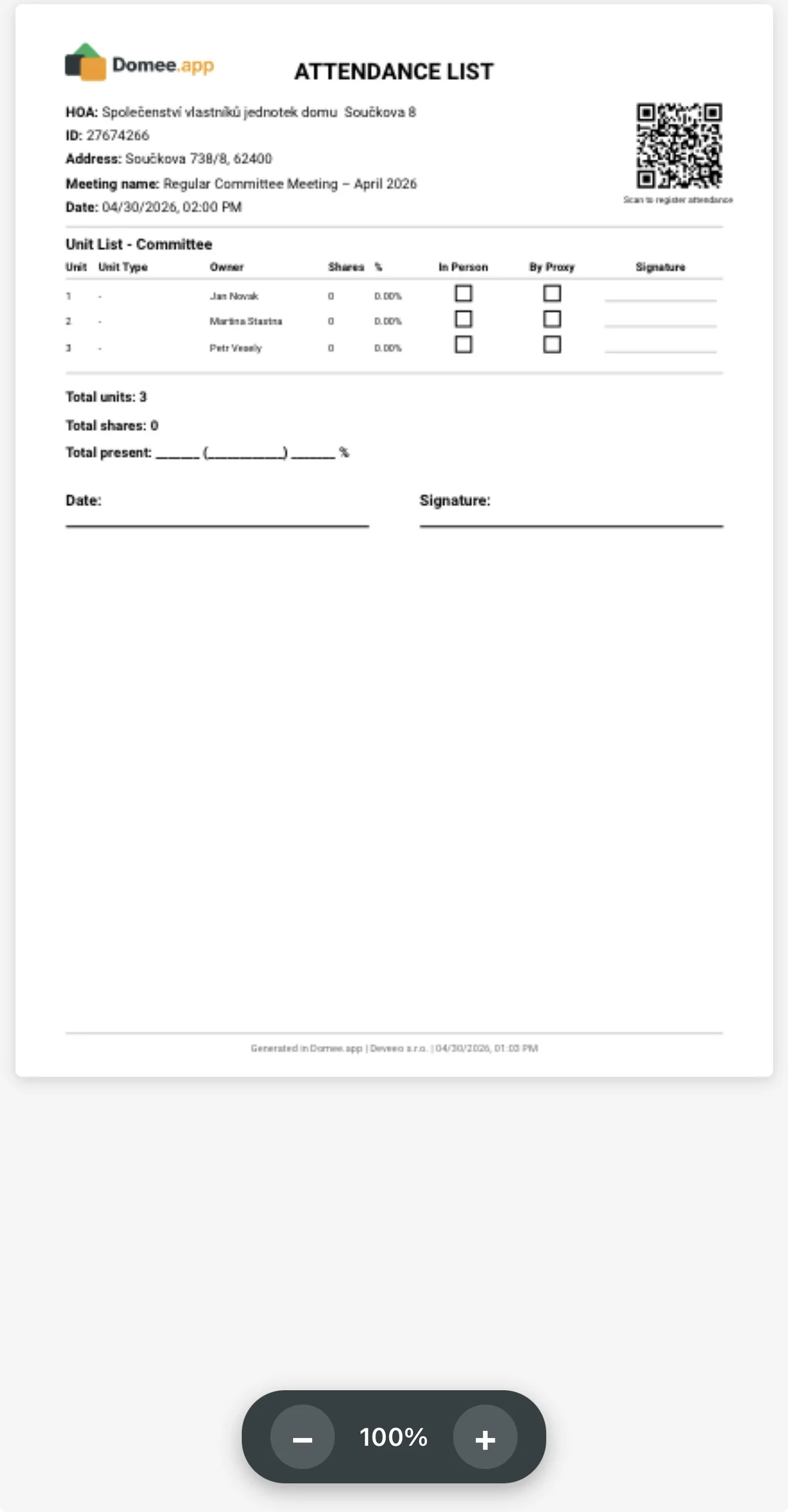
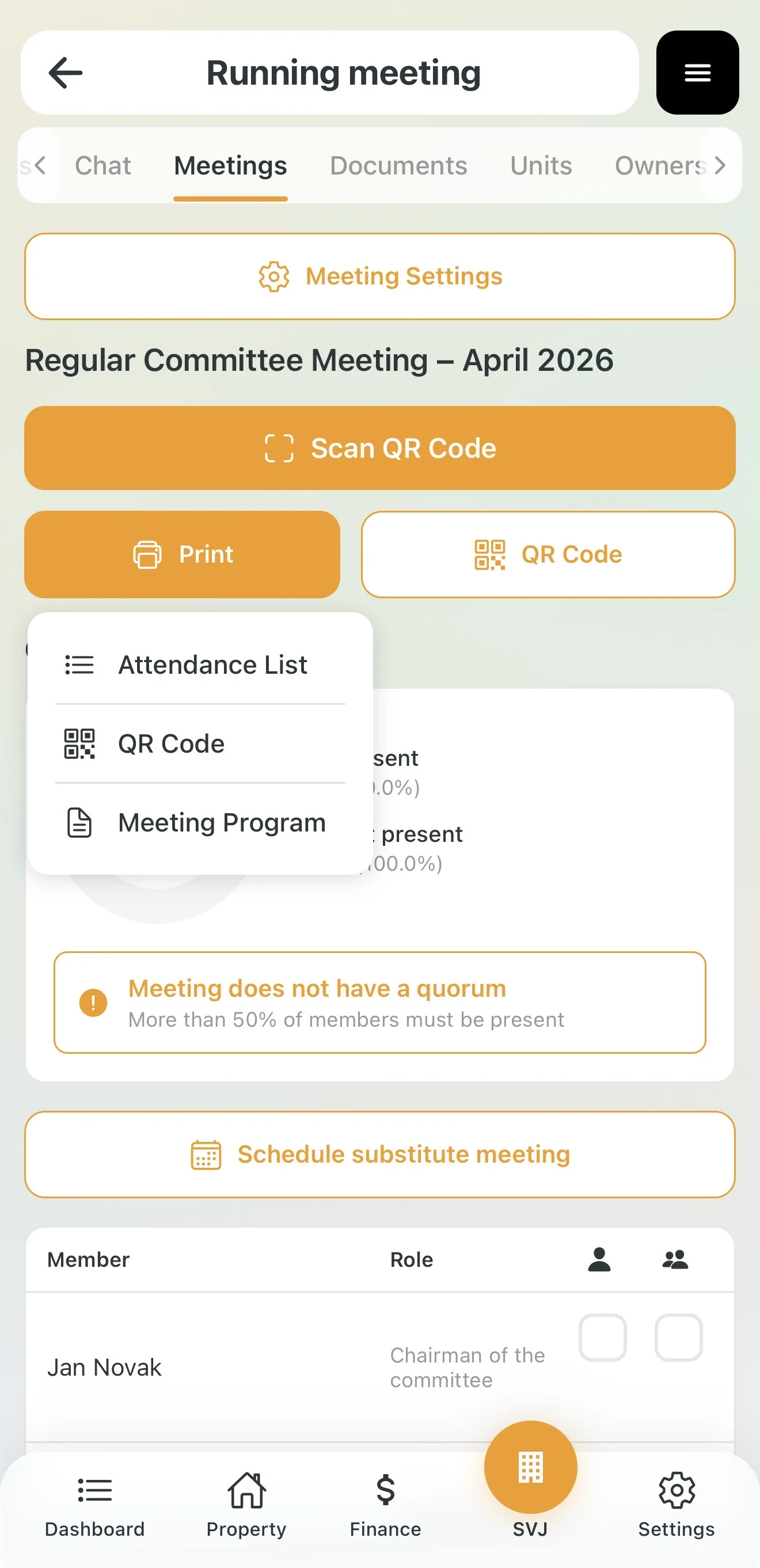
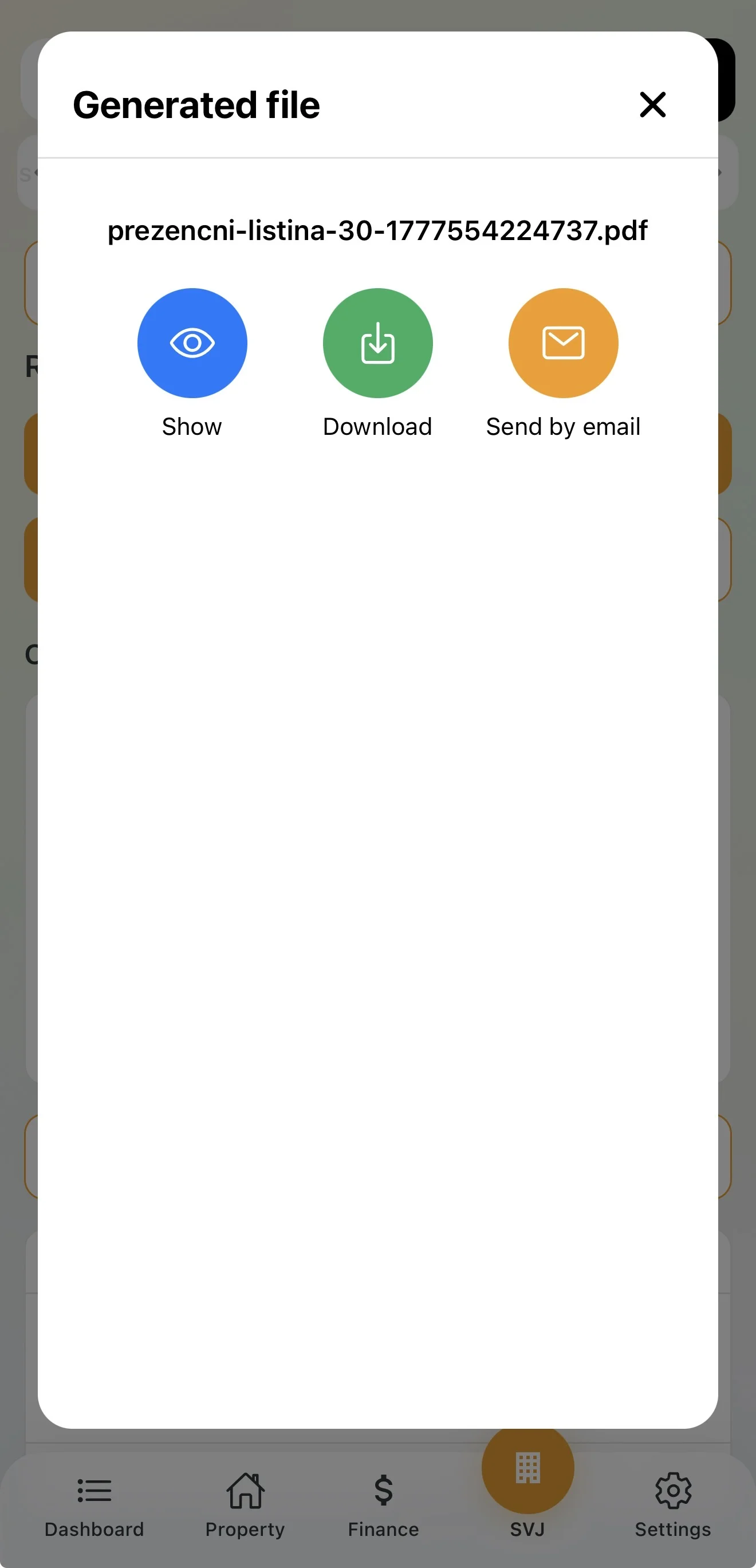
- Traditional: In the meeting detail tap Print → Attendance Sheet. Print the PDF or email it to members.
- Modern (QR code): Tap QR code and let other members scan from your display, or print it.
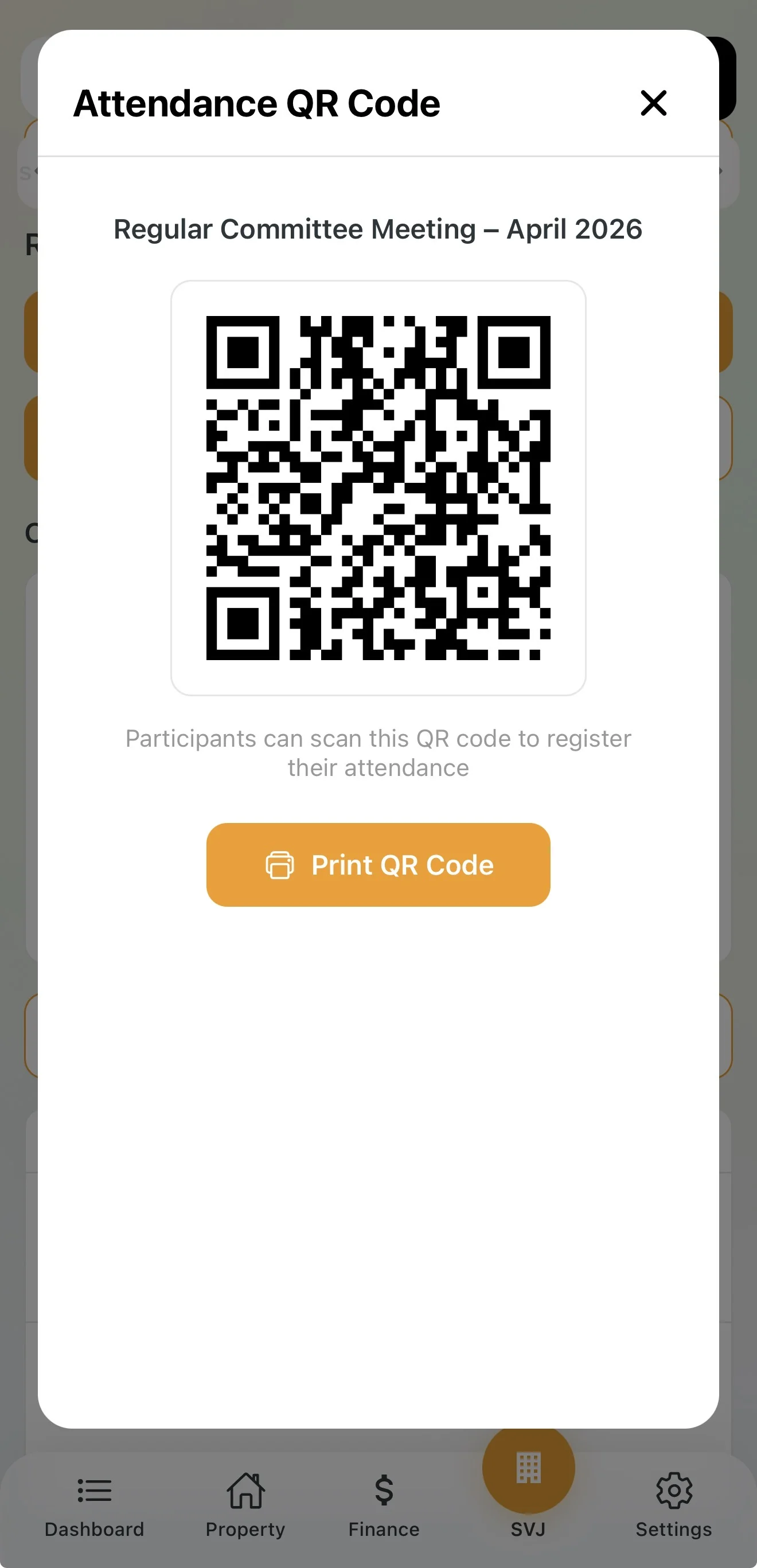
Registering Board Members
Check-in is available 2 hours before the meeting starts.
Self check-in (QR code):
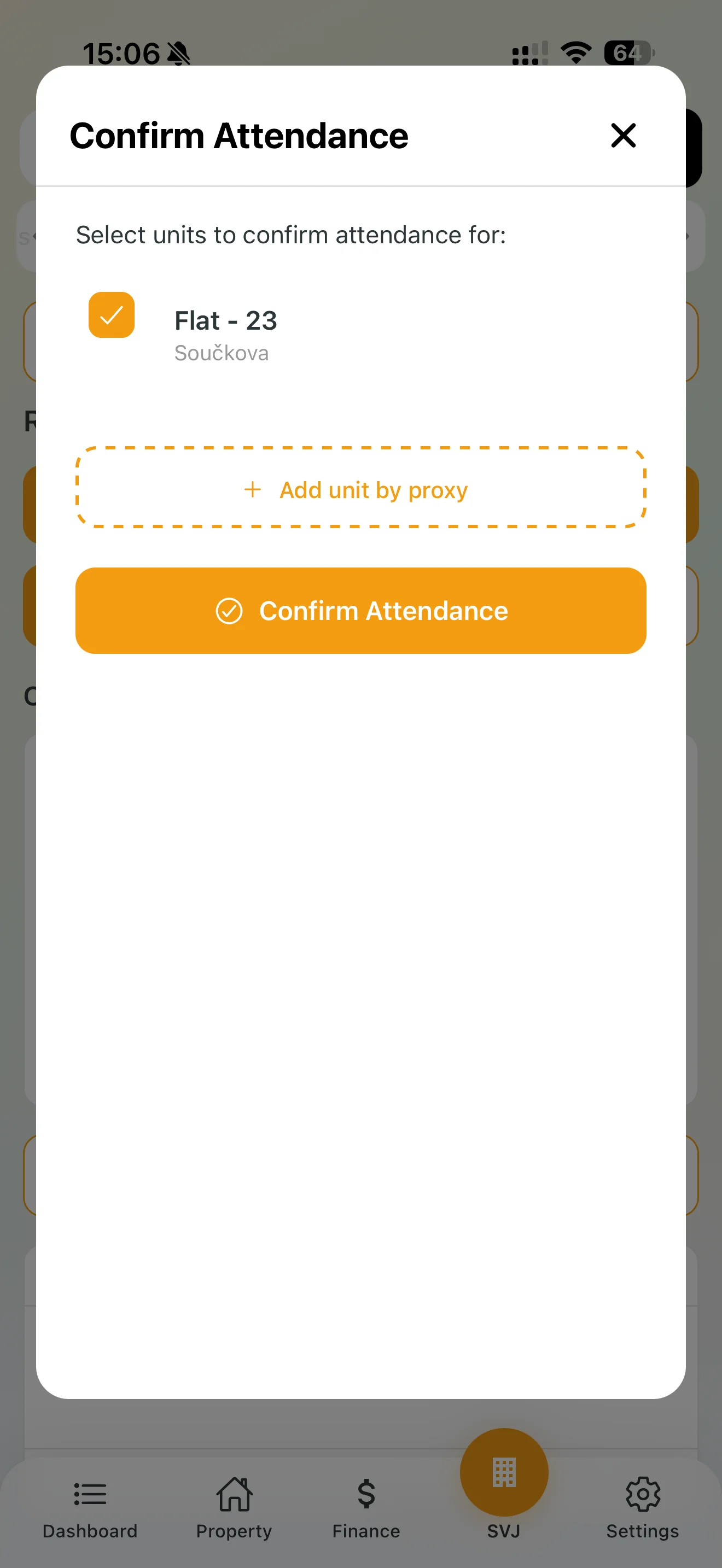
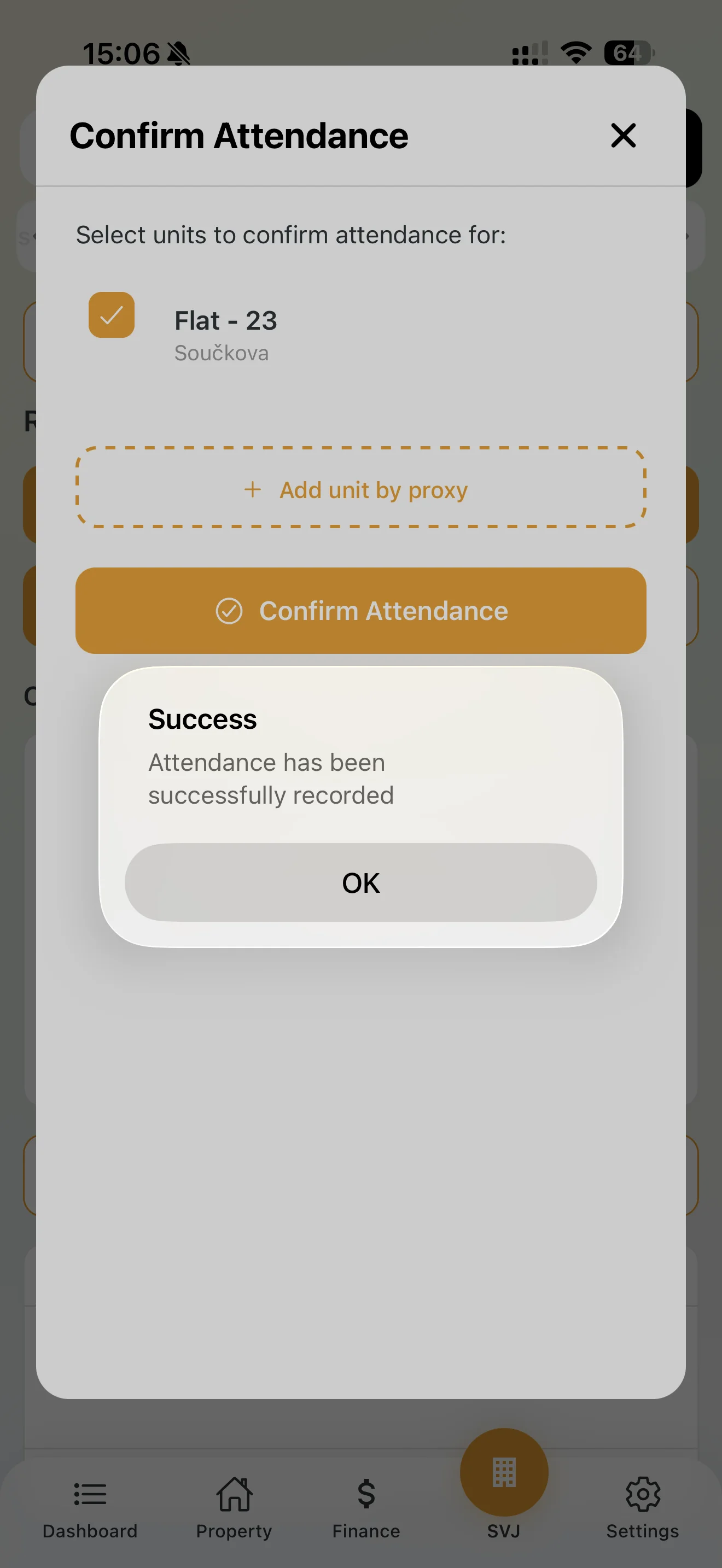
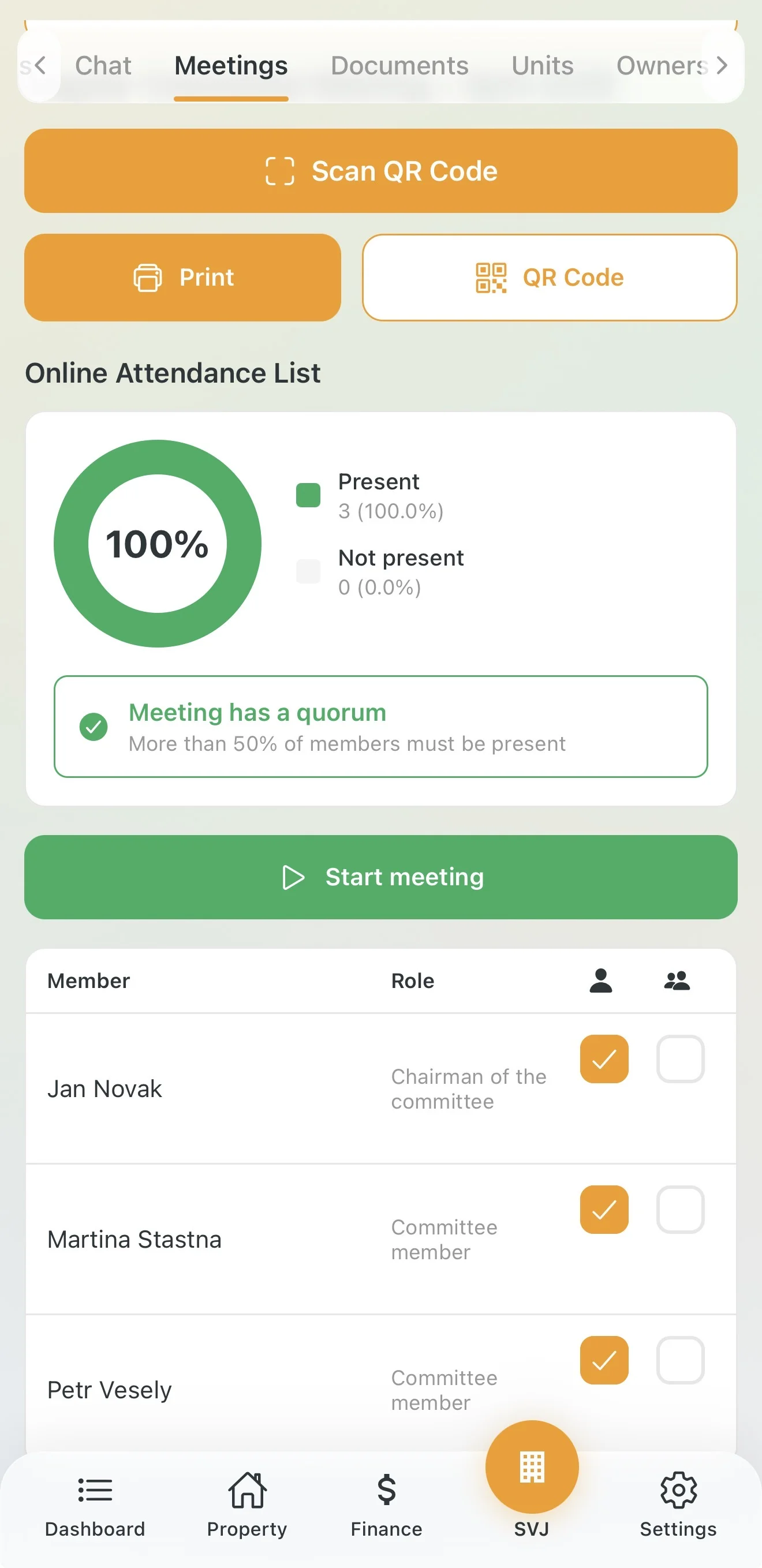
If someone doesn't have a phone, the chairperson can check the box next to their name in the member list.
Quorum and Opening
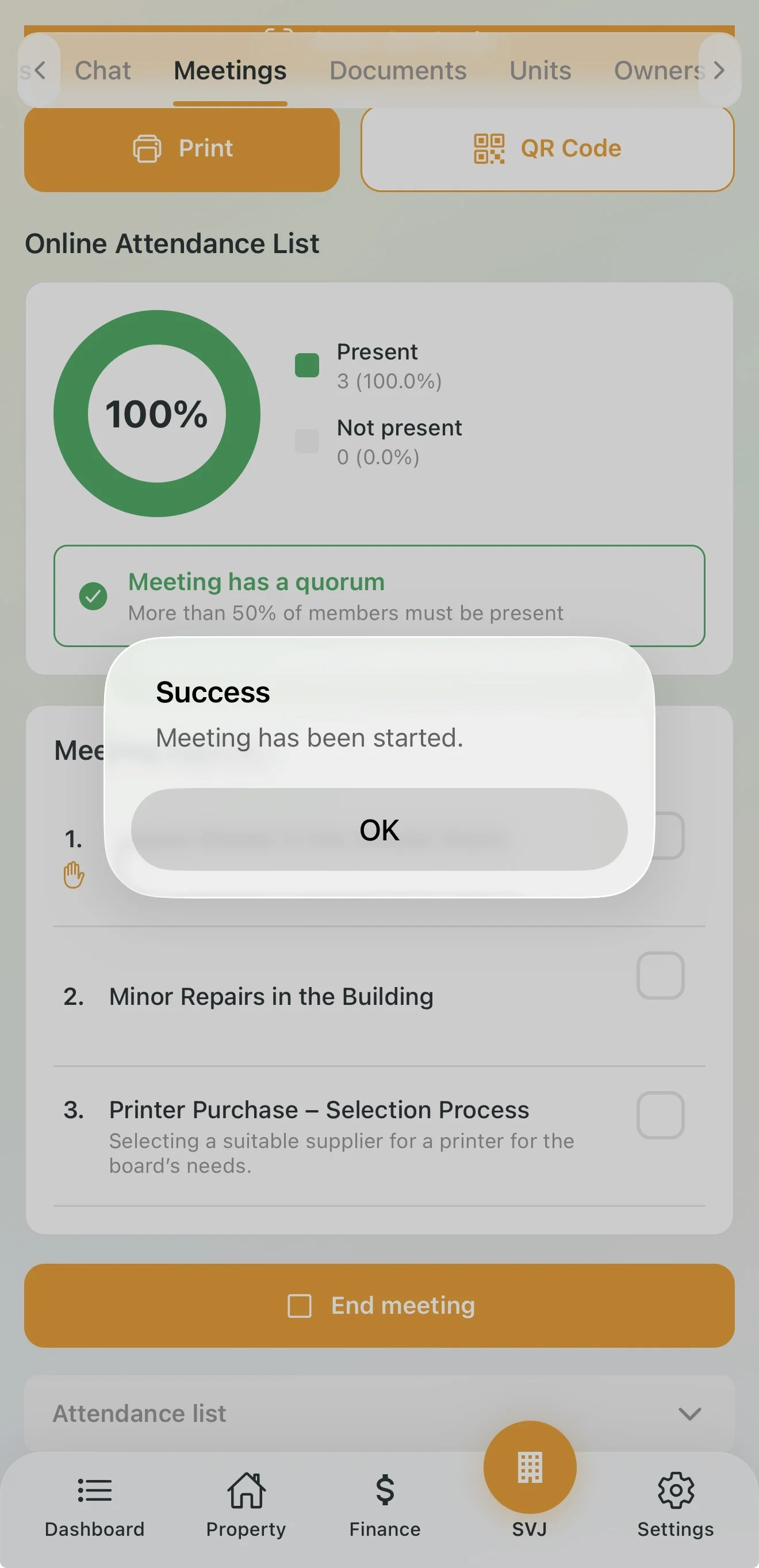
For the board, quorum is counted in heads — a simple majority of all board members must be present.
3. Voting and Closing the Board Meeting
Voting Process
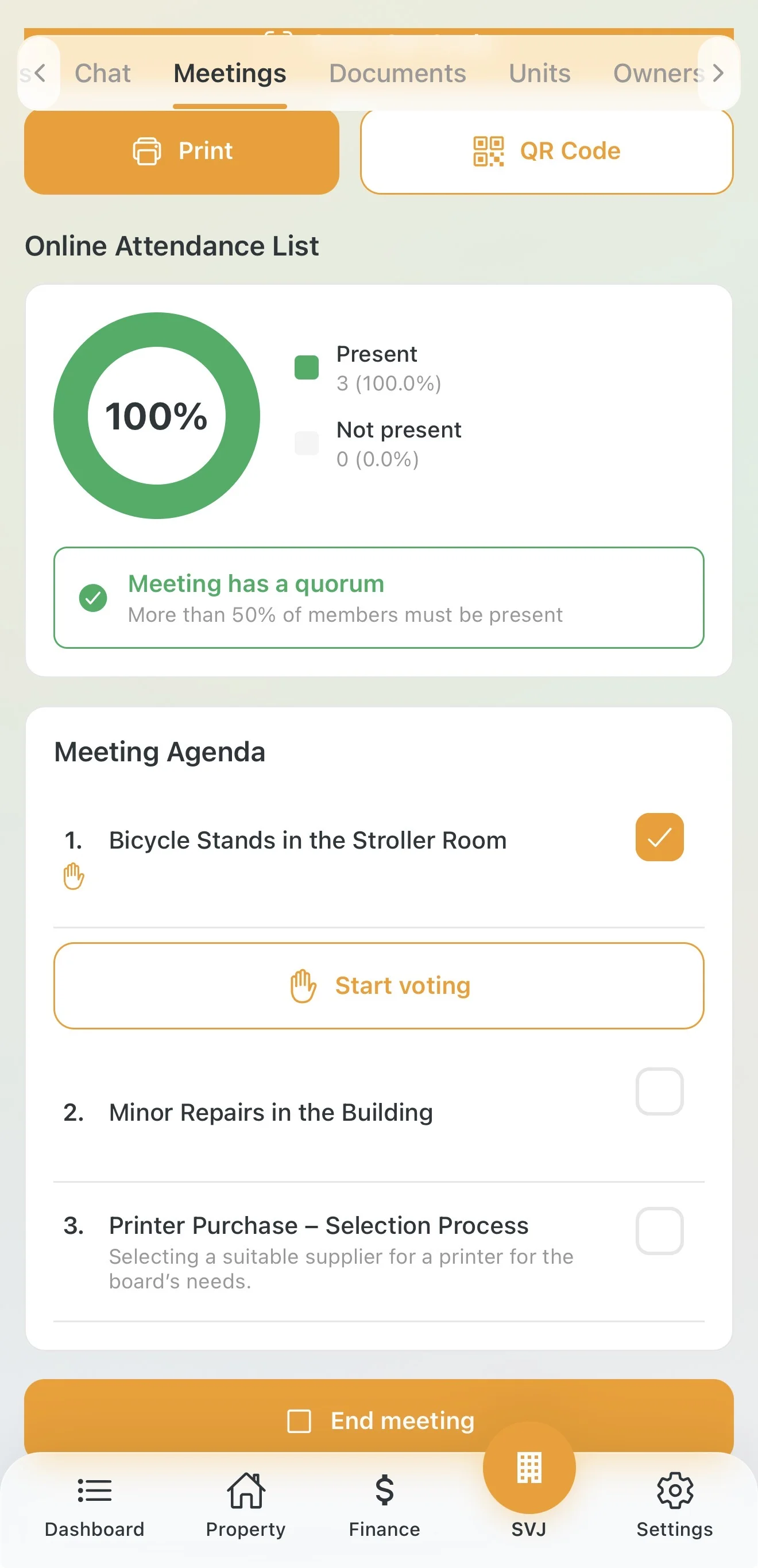
- The chairperson starts voting on an item — Start voting button.
- All present board members see a Go to voting button.
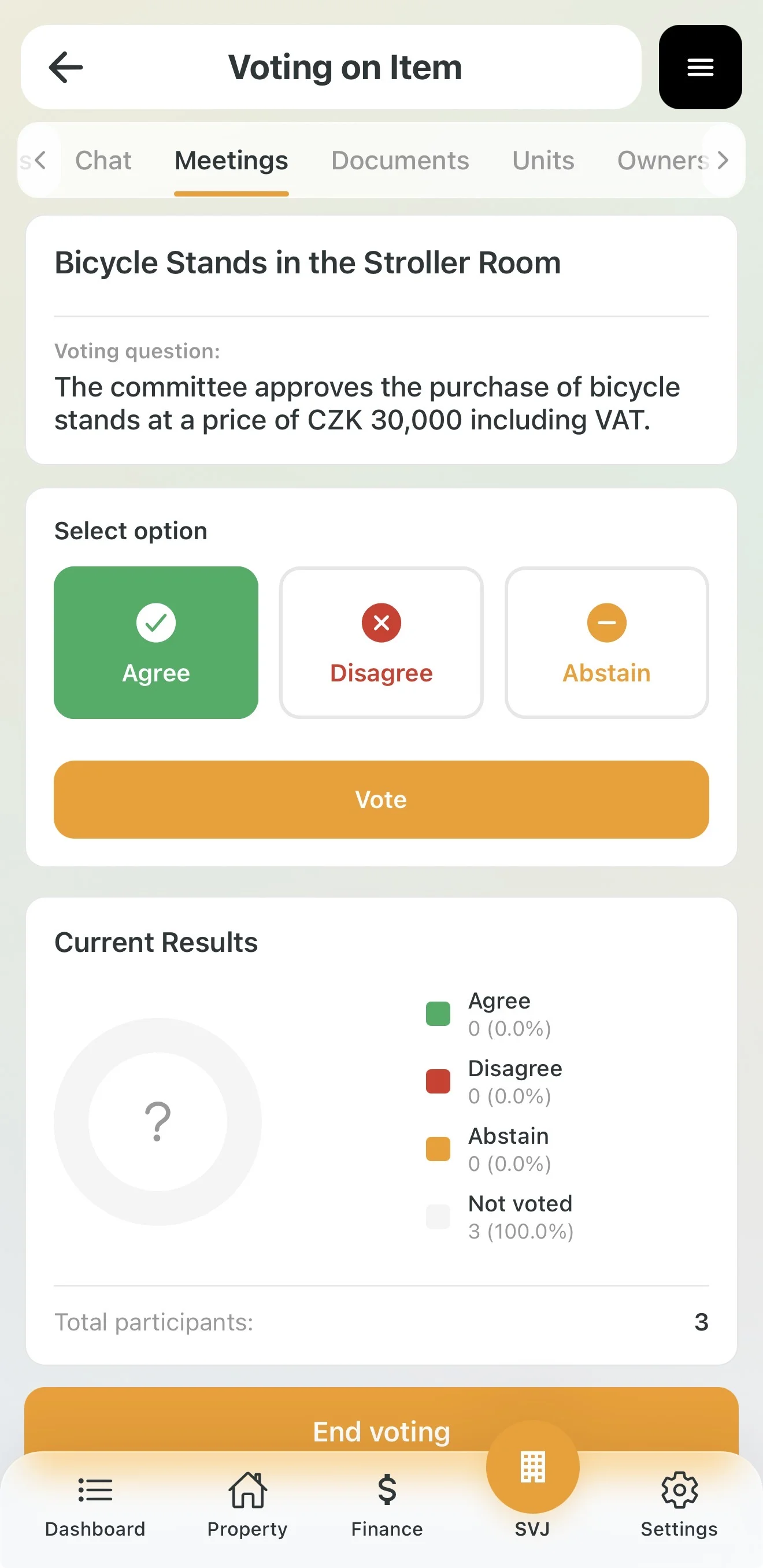
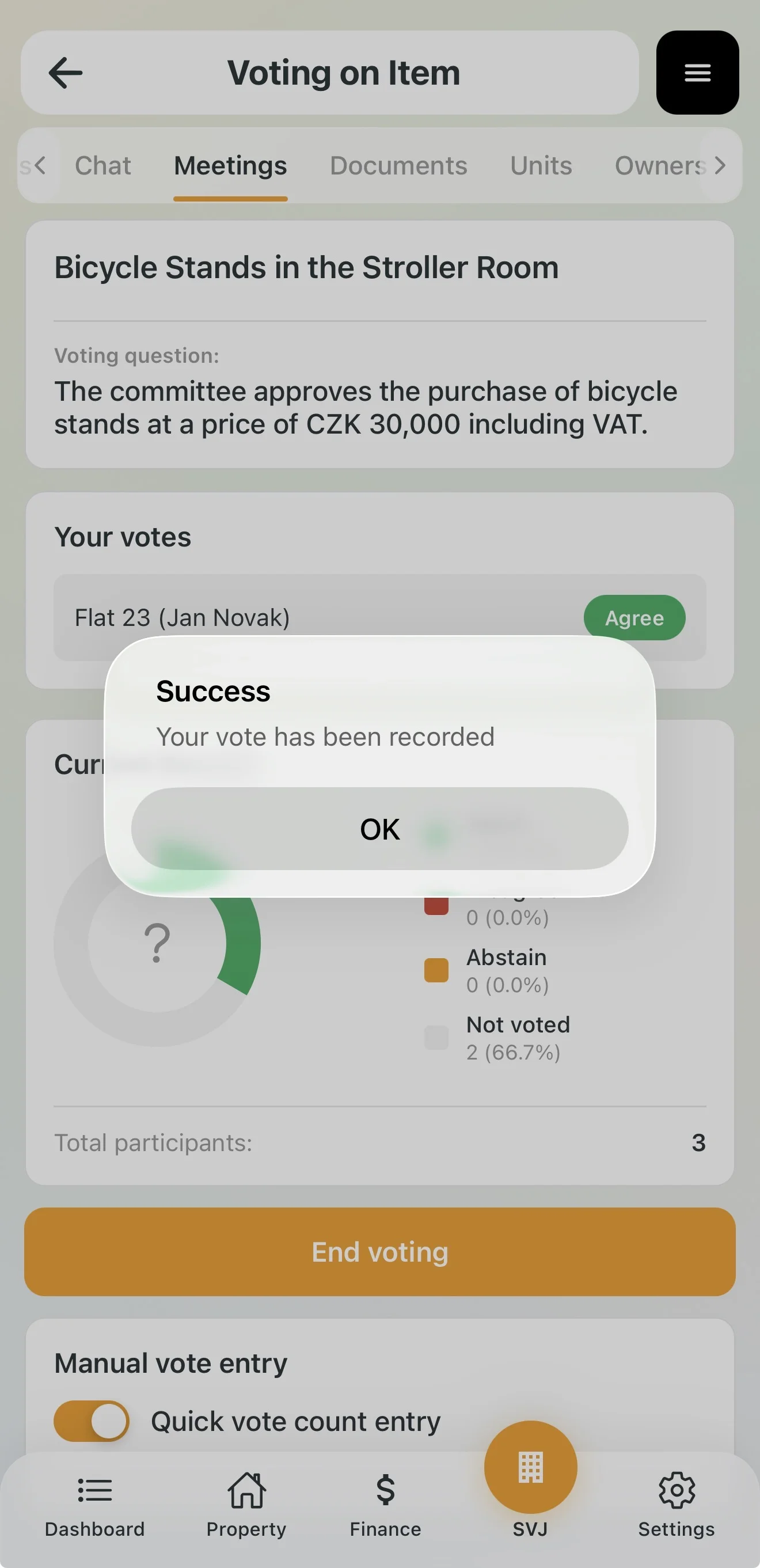
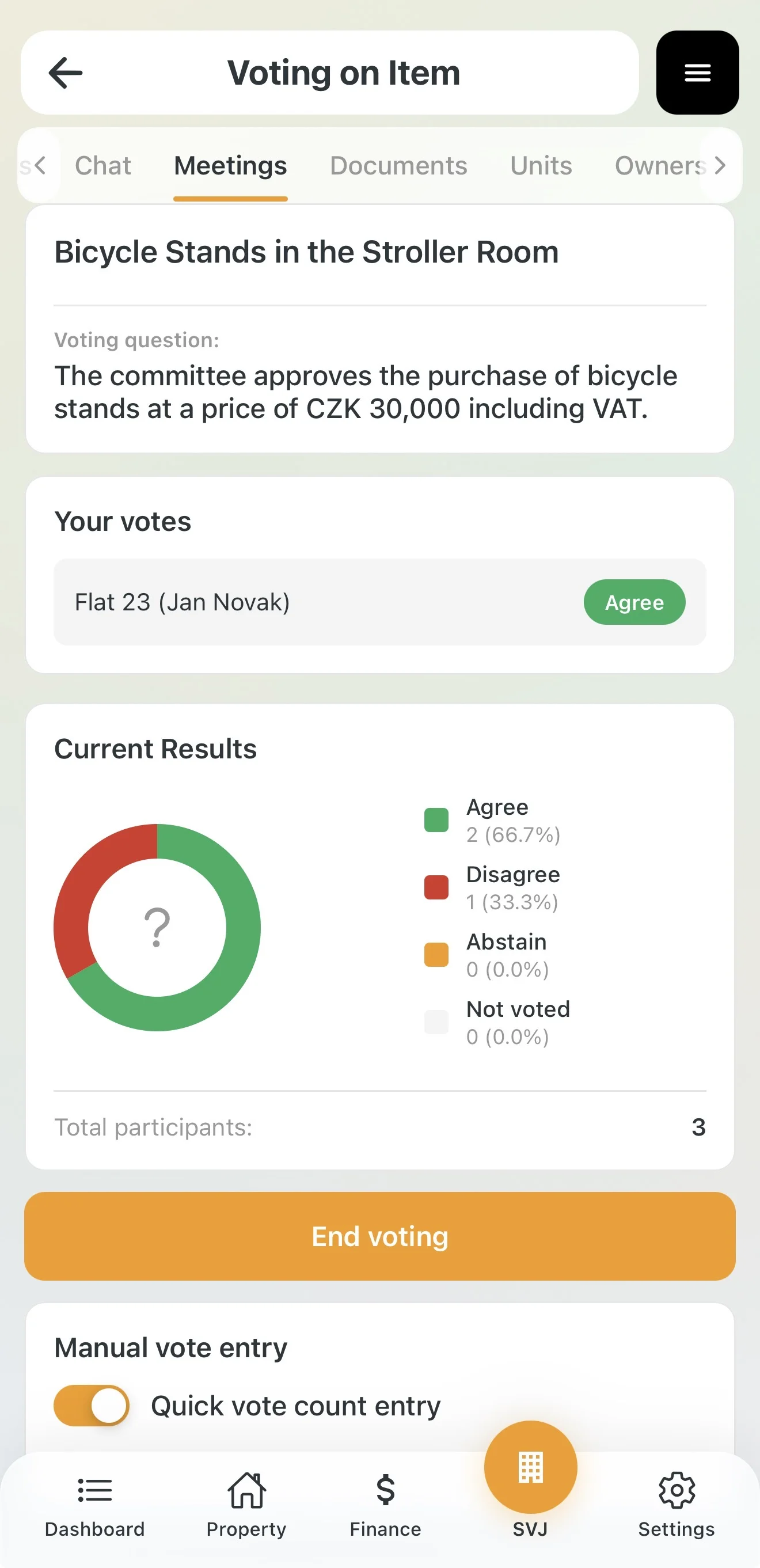
- Each member selects Agree, Disagree or Abstain and taps Vote.
Quick and Manual Vote Entry
- Quick entry: If all members agree, activate the toggle and click Max next to "Agree".
- Individual clicking: Click the choice next to each member's name in the list.
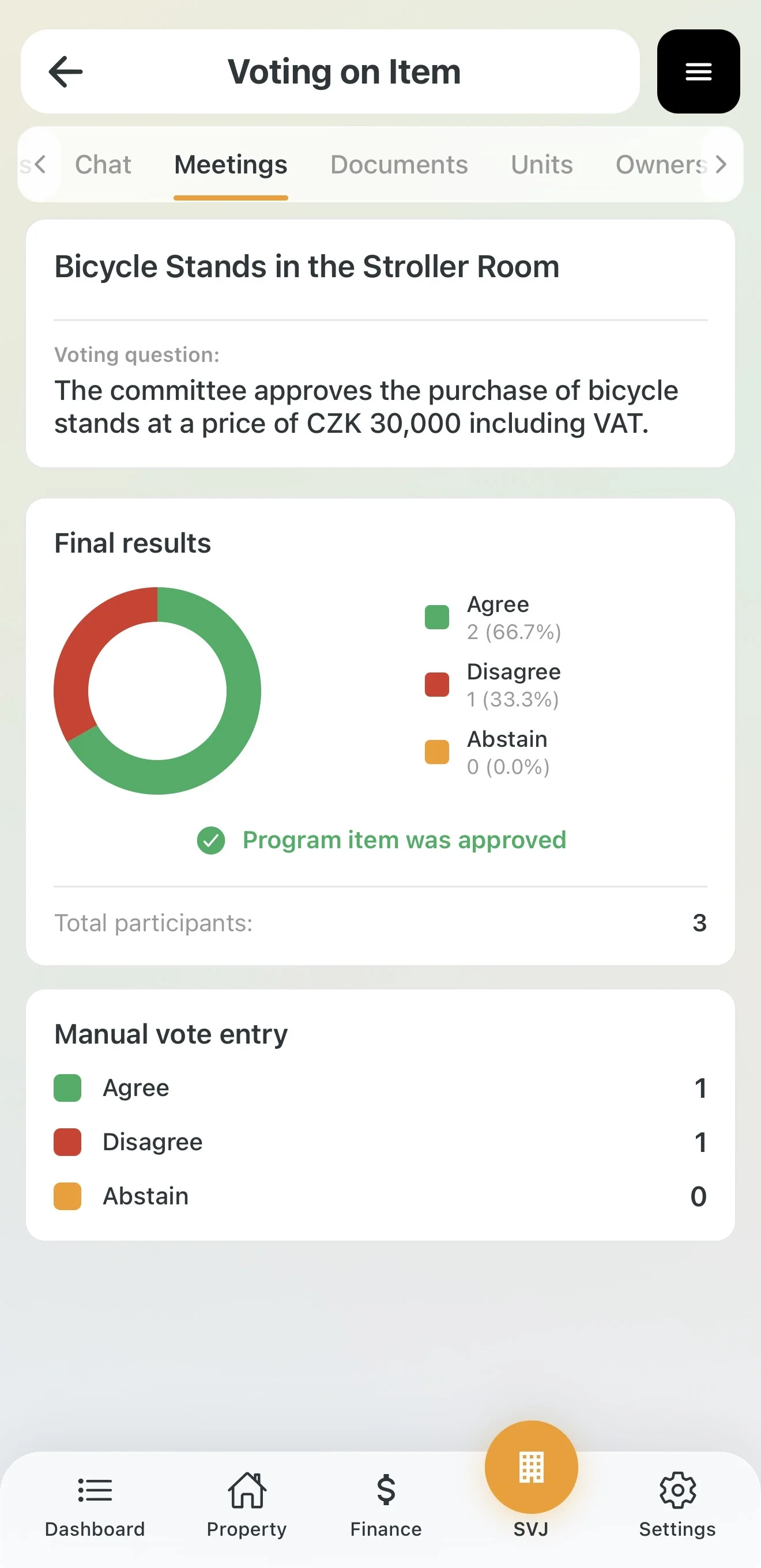
Closing the Vote
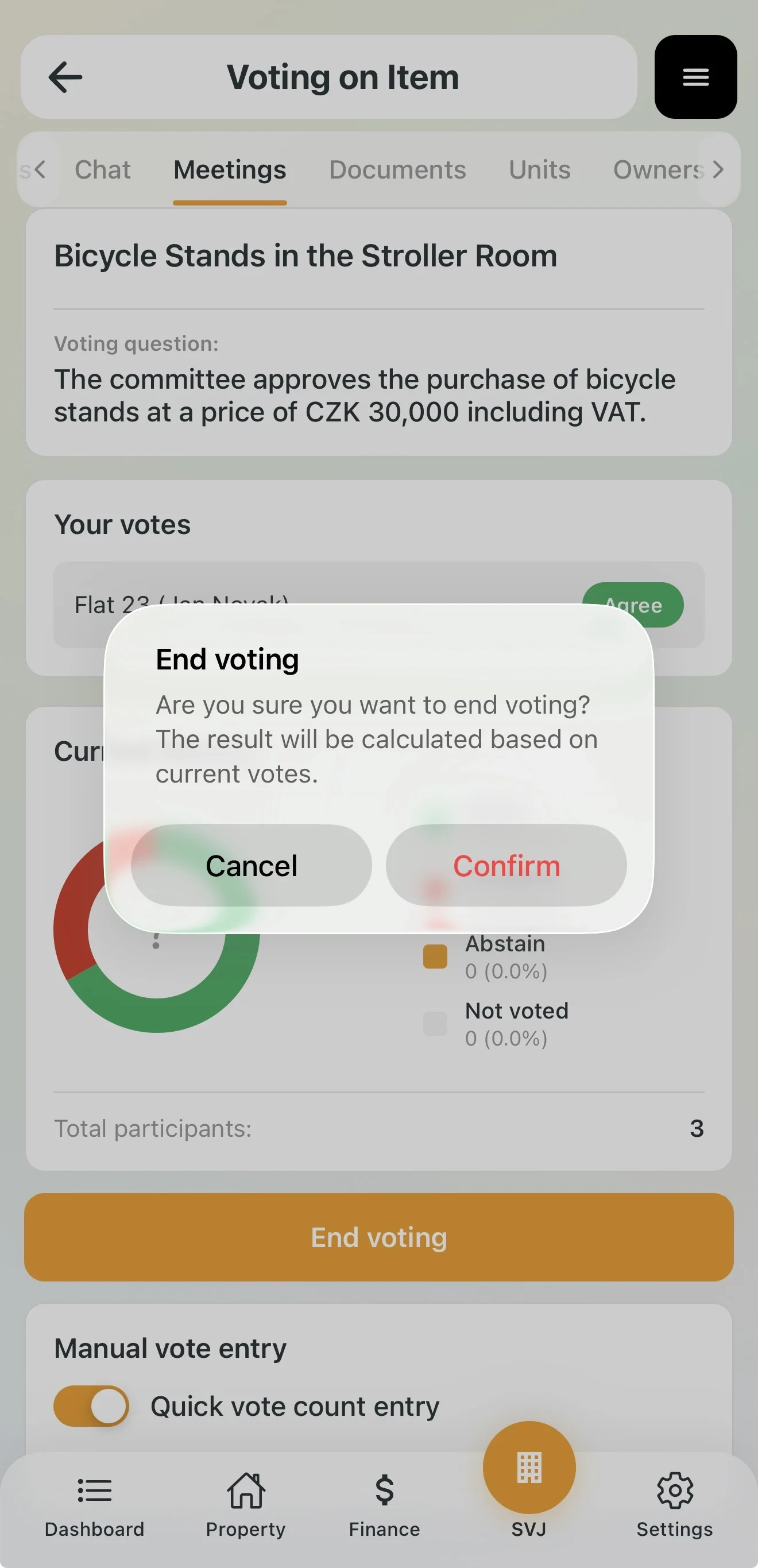
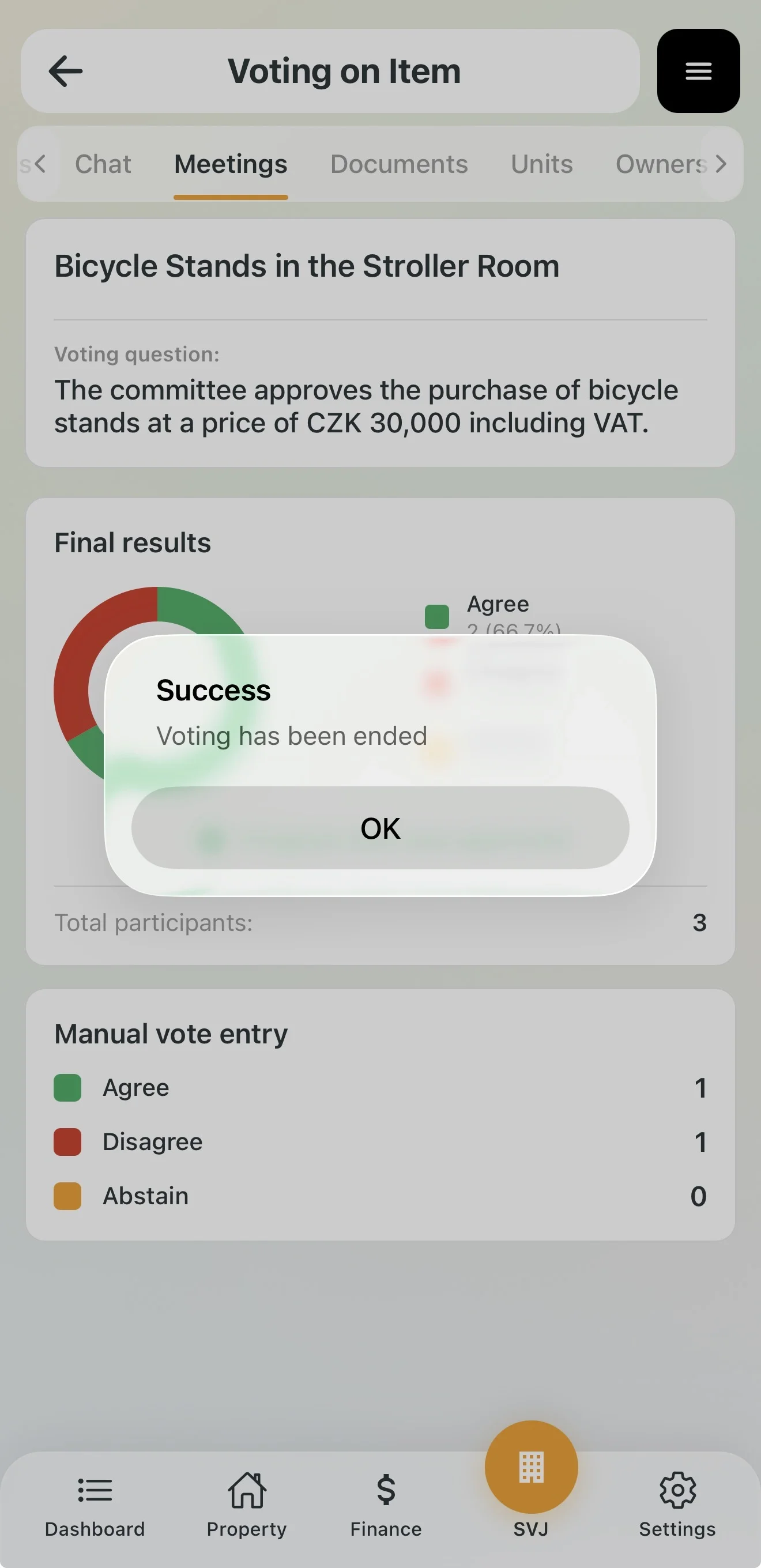
Important: Board members who are recorded as present but didn't click any option are automatically assigned "Abstained".
4. Closing the Meeting, Minutes and Sharing Results
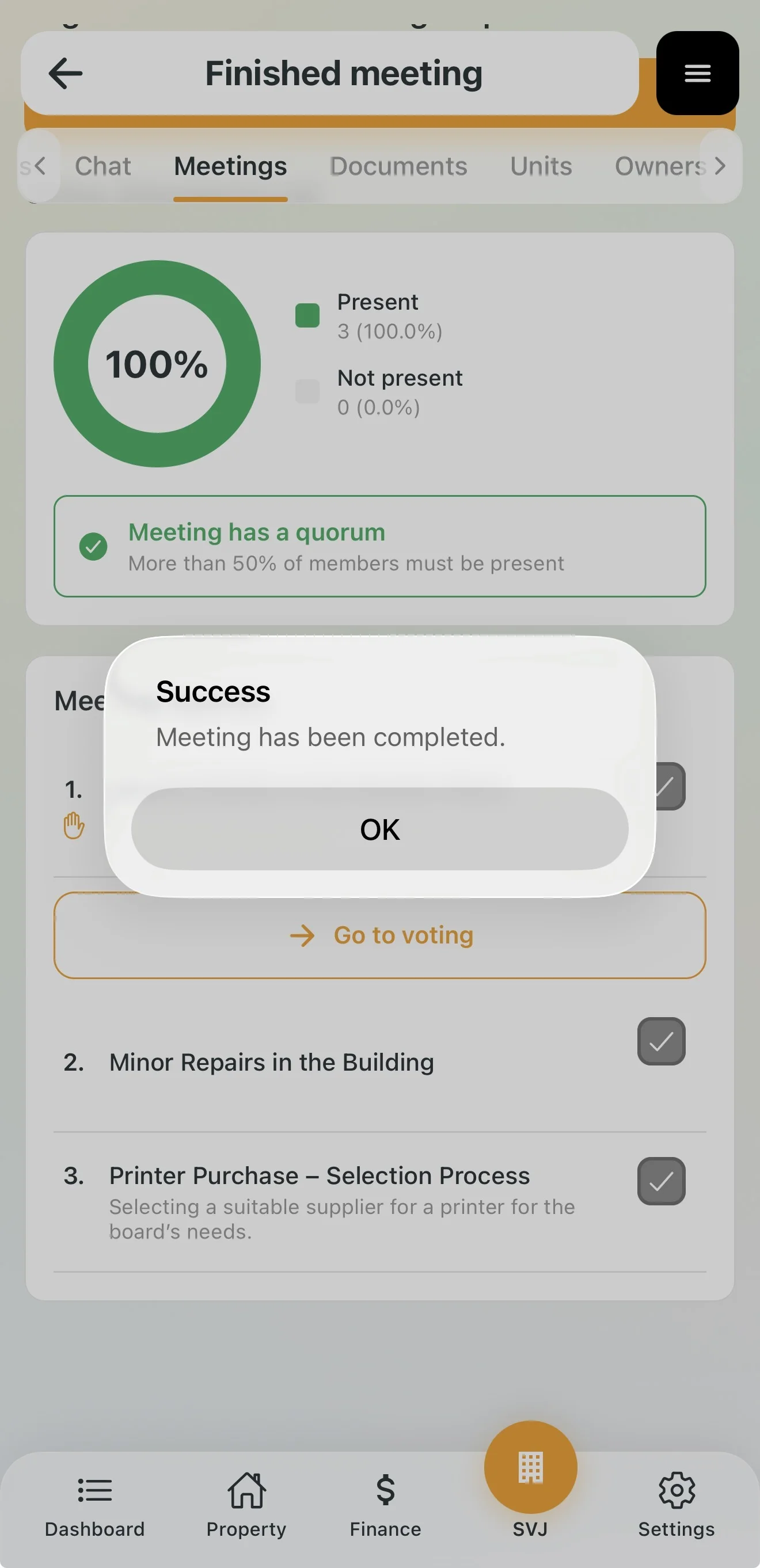
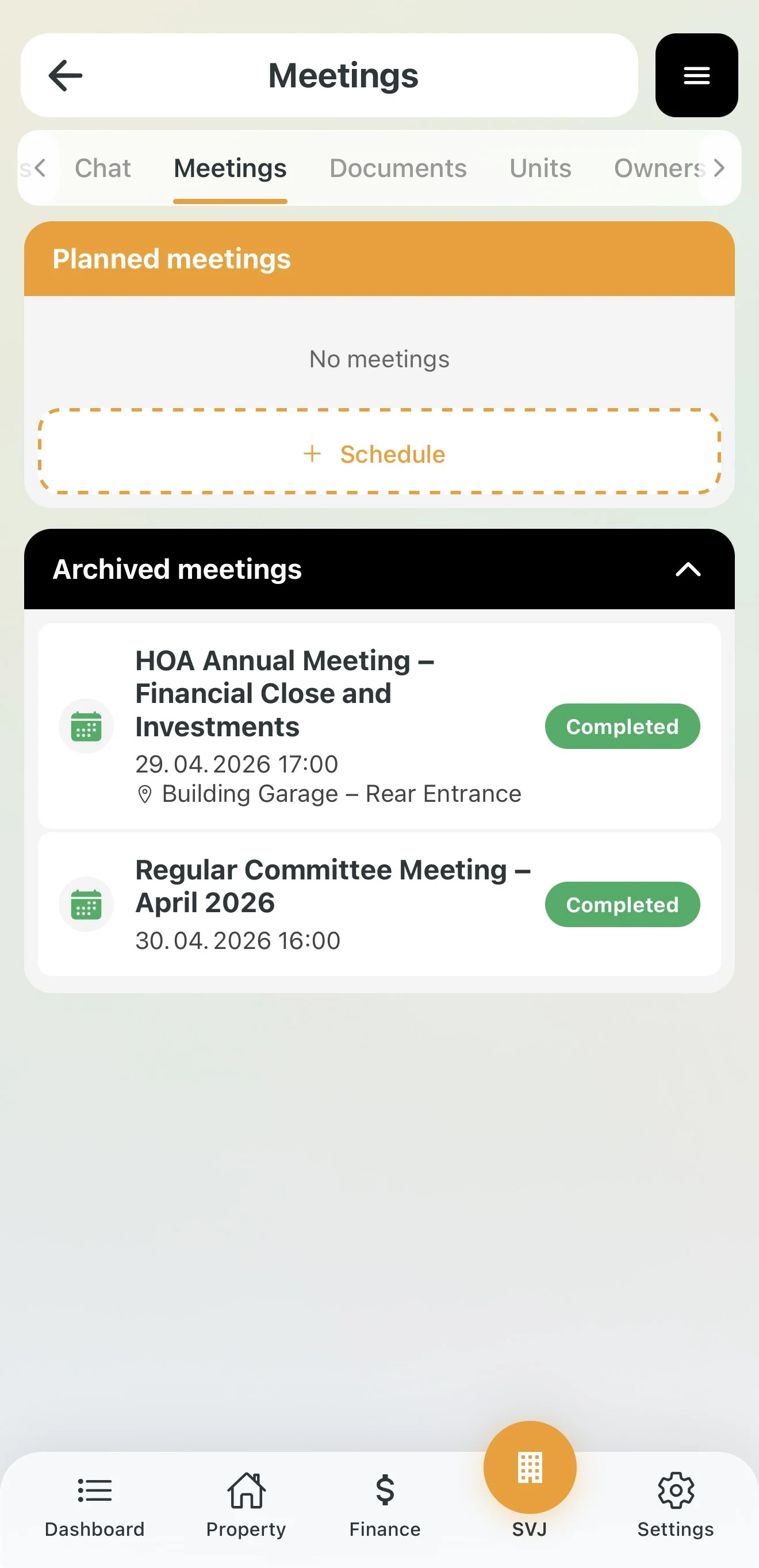
Closing and Archiving
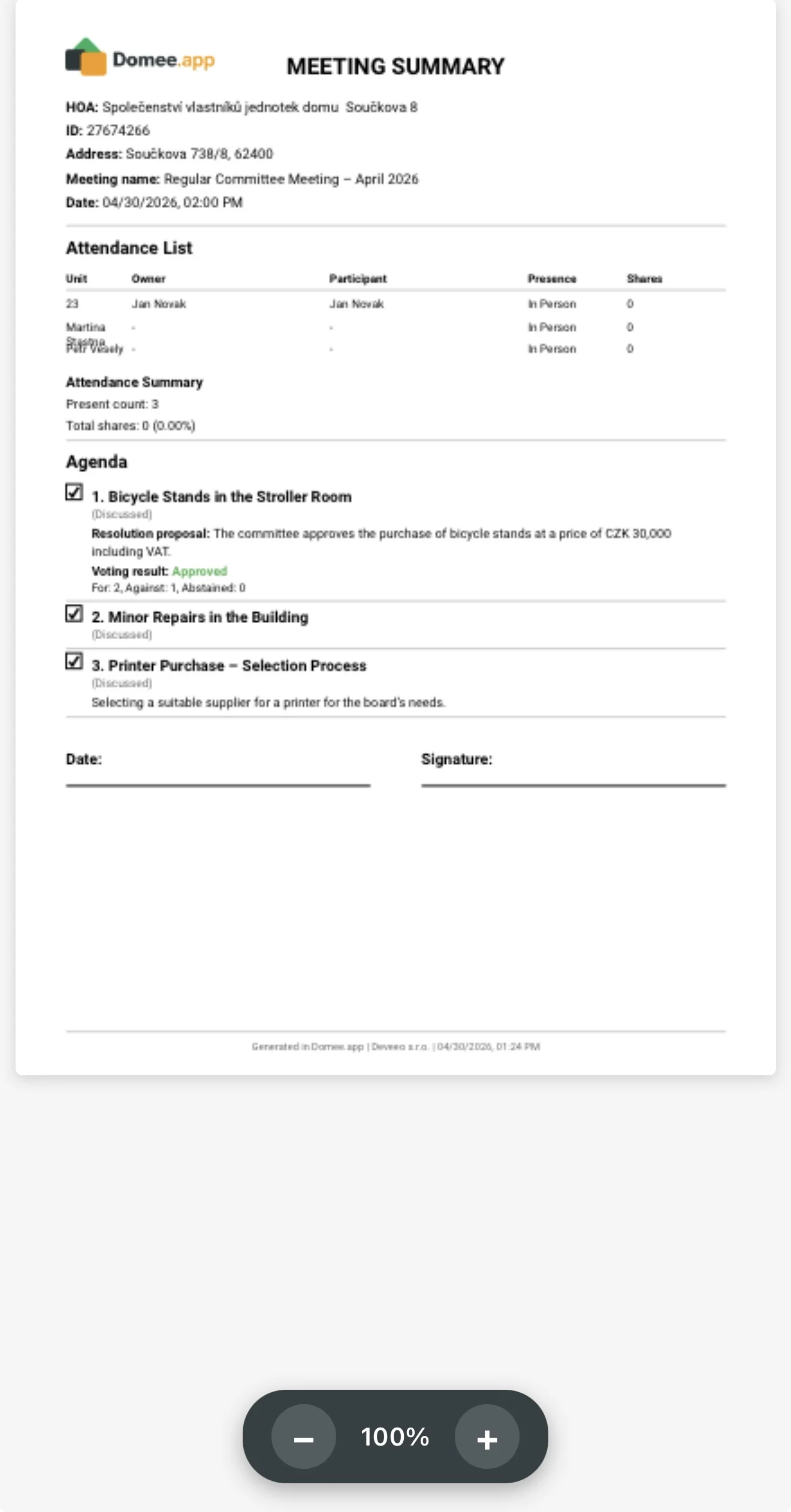
Generating Minutes
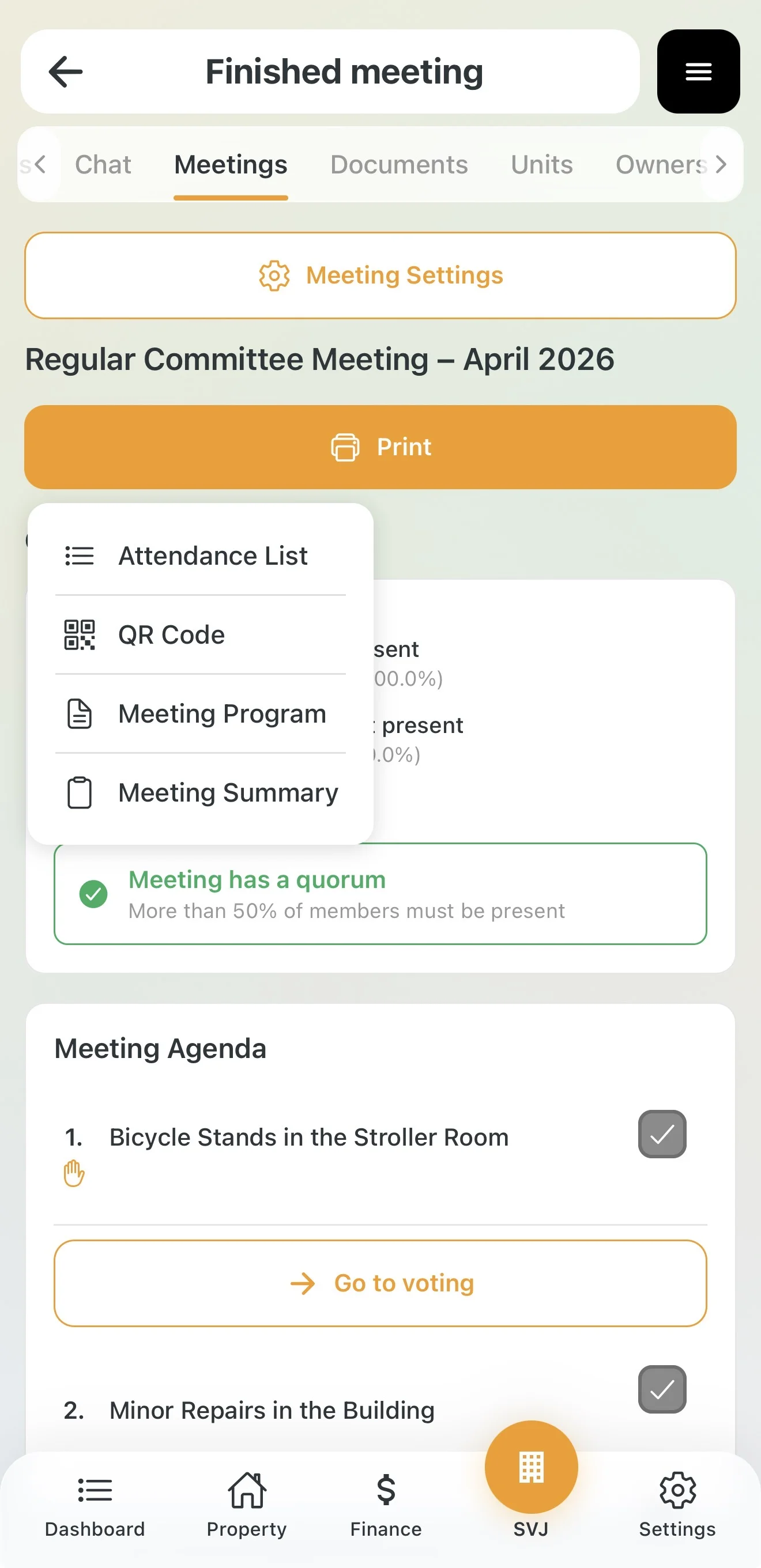
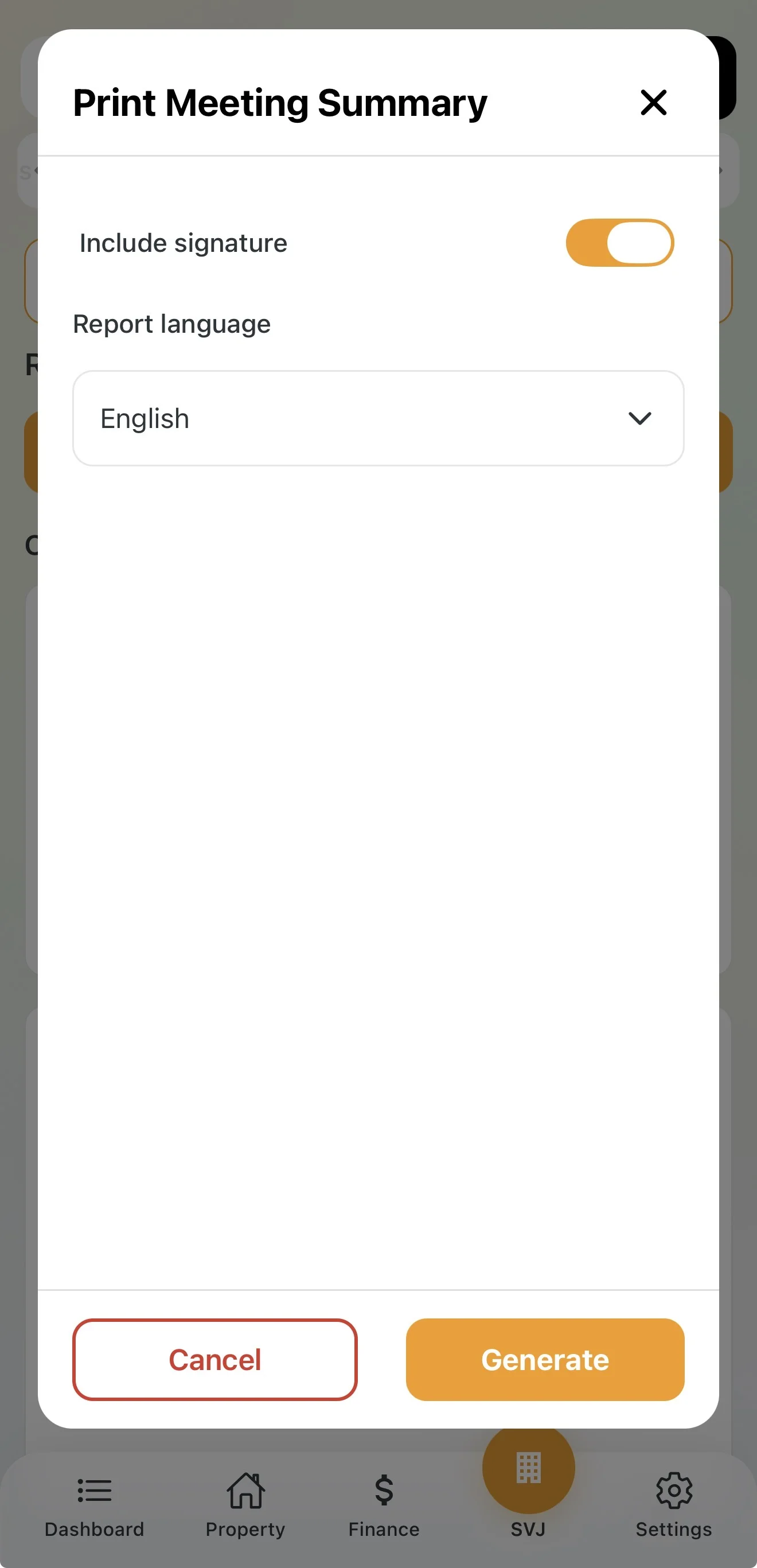
- In the closed meeting detail tap Print → Meeting Minutes.
- Optionally enable Show signature for subsequent verification.
- Tap Generate.
Sharing Results with Owners
- Public results (checked): All owners see the meeting in Archived Meetings after it's closed.
- Public results (unchecked): The archive is accessible only to board members and the audit committee.
Tip: Even with a private board meeting, you can always upload the generated minutes to the Documents module later if you decide to share the conclusions.